How To > Improve processes effectively
Report blockers and improvement feedback
Reporting and resolving issues
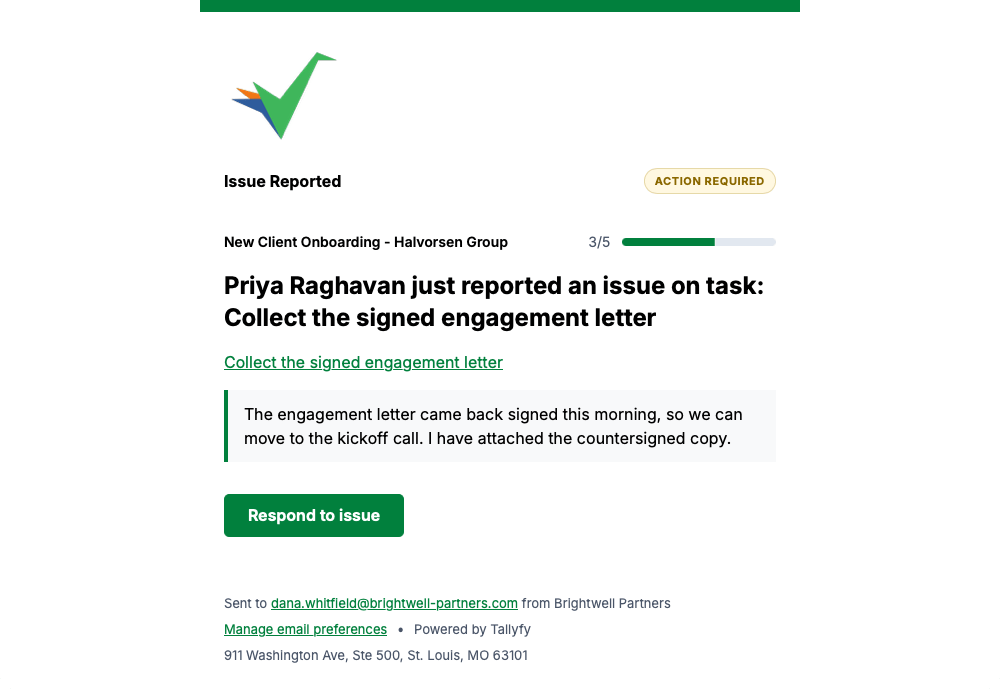
Section titled “Reporting and resolving issues”Report a problem on any task by checking Report issue in the comment area, typing your description, and posting. Everyone assigned to the task gets notified. To resolve it later, check Resolve issue and add a comment explaining the fix.
A task with an unresolved issue can’t be completed until the issue is resolved. If the task was already completed, reporting an issue automatically reopens it.
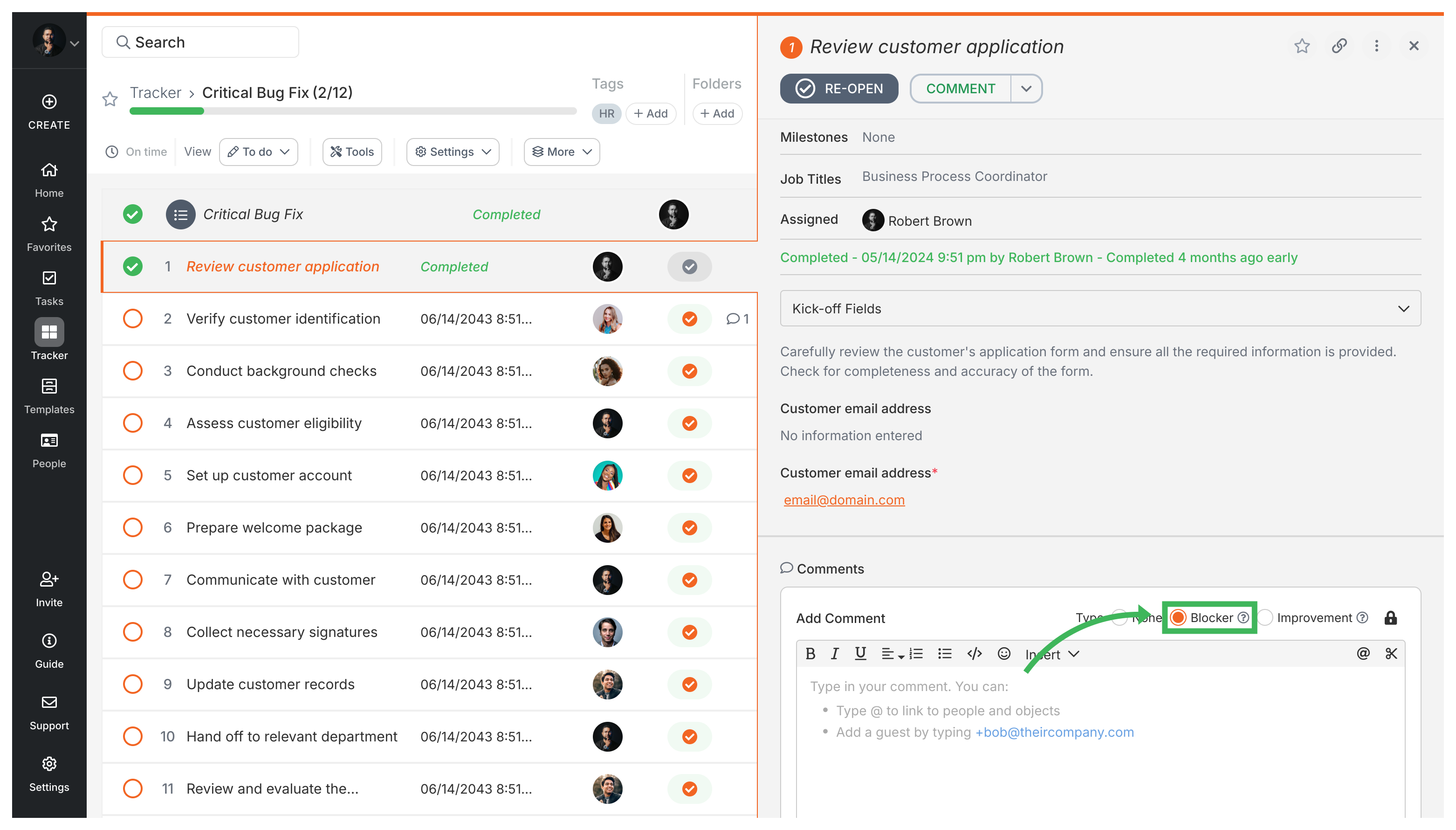
Report an issue on a task
Section titled “Report an issue on a task”- Open the task where the problem exists.
- Go to the Comments section.
- Check the Report issue checkbox and type your problem description.

- Click Add Comment to post.
- All task assignees and participants get notified by email and in-app notification.

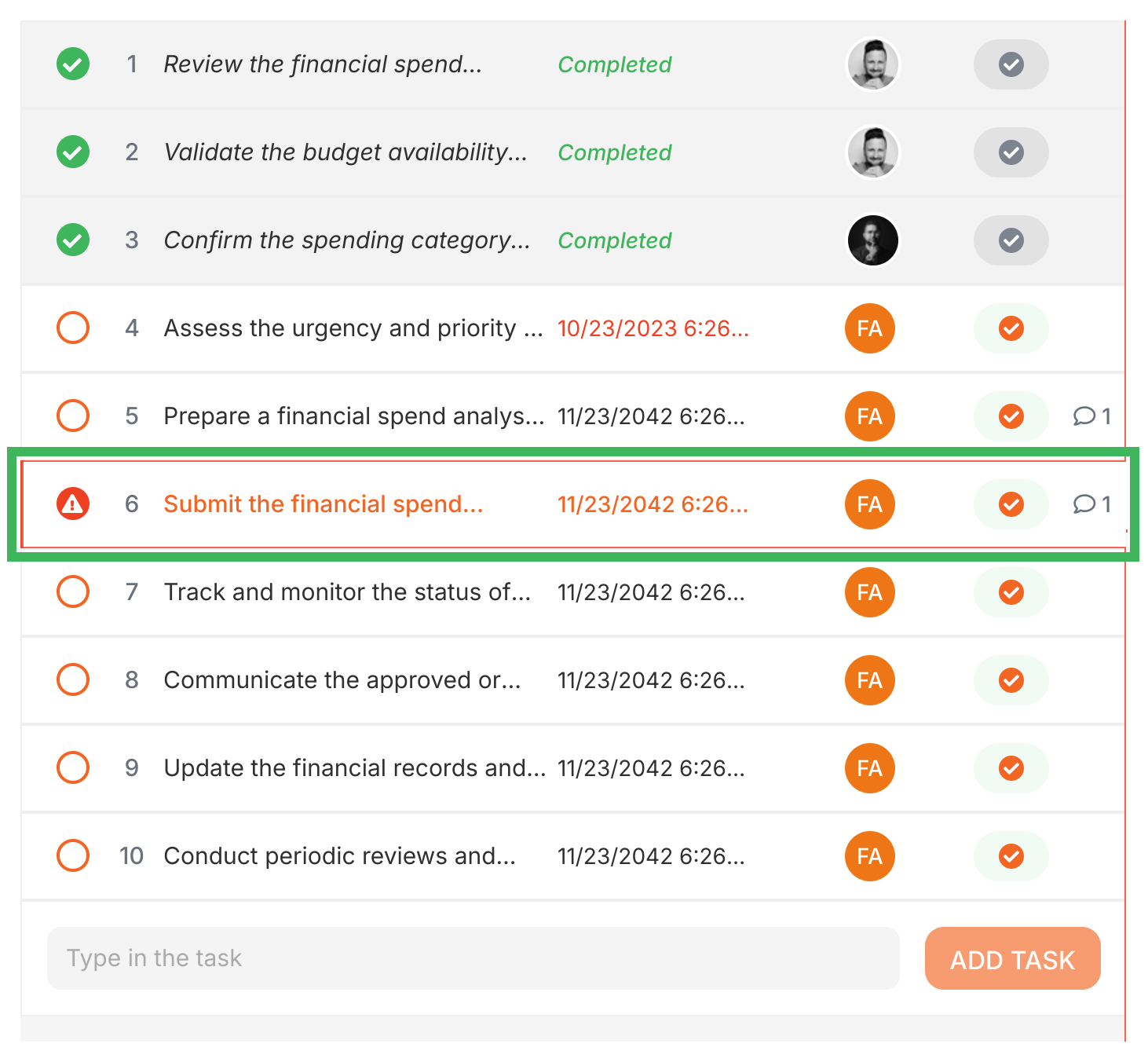
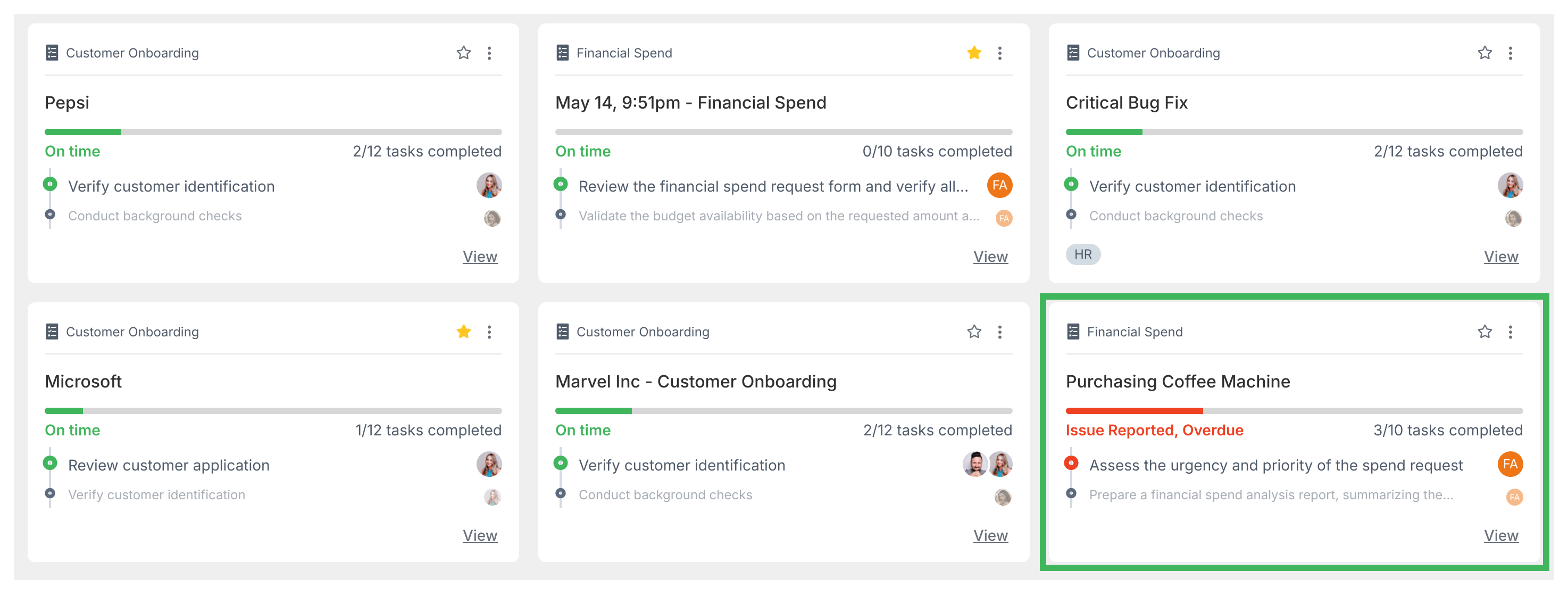
- The task shows a warning indicator, and the overall process status changes to “problem” while any issue remains unresolved.


Resolve an issue
Section titled “Resolve an issue”Anyone involved with the task can resolve a reported issue:
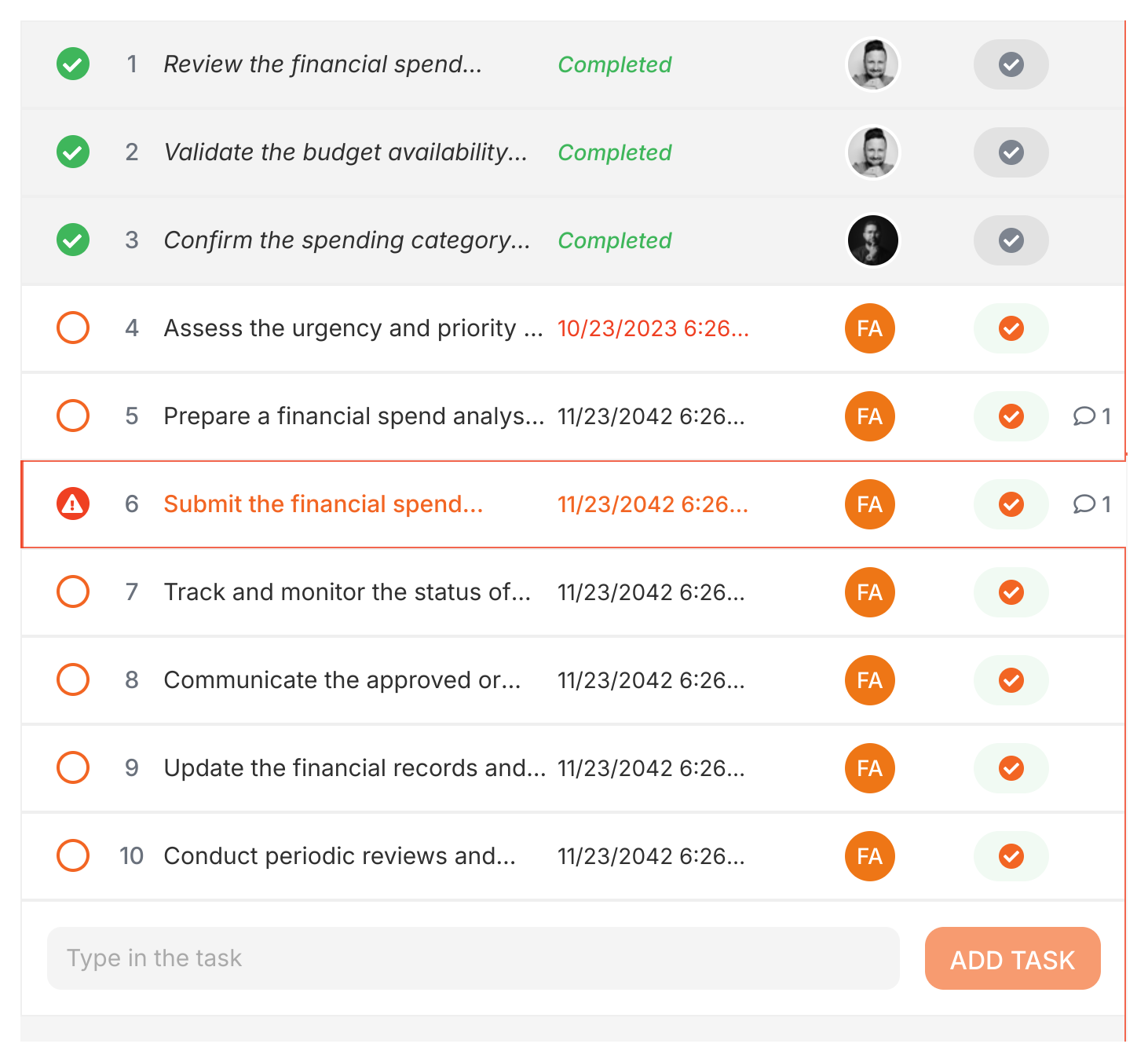
- Go to the comment where the issue was reported.
- Check the Resolve issue checkbox.

- Type a comment explaining how you fixed it, then post it. The resolution comment is required.
- The warning indicators disappear and the process status returns to active.
Find processes with unresolved issues
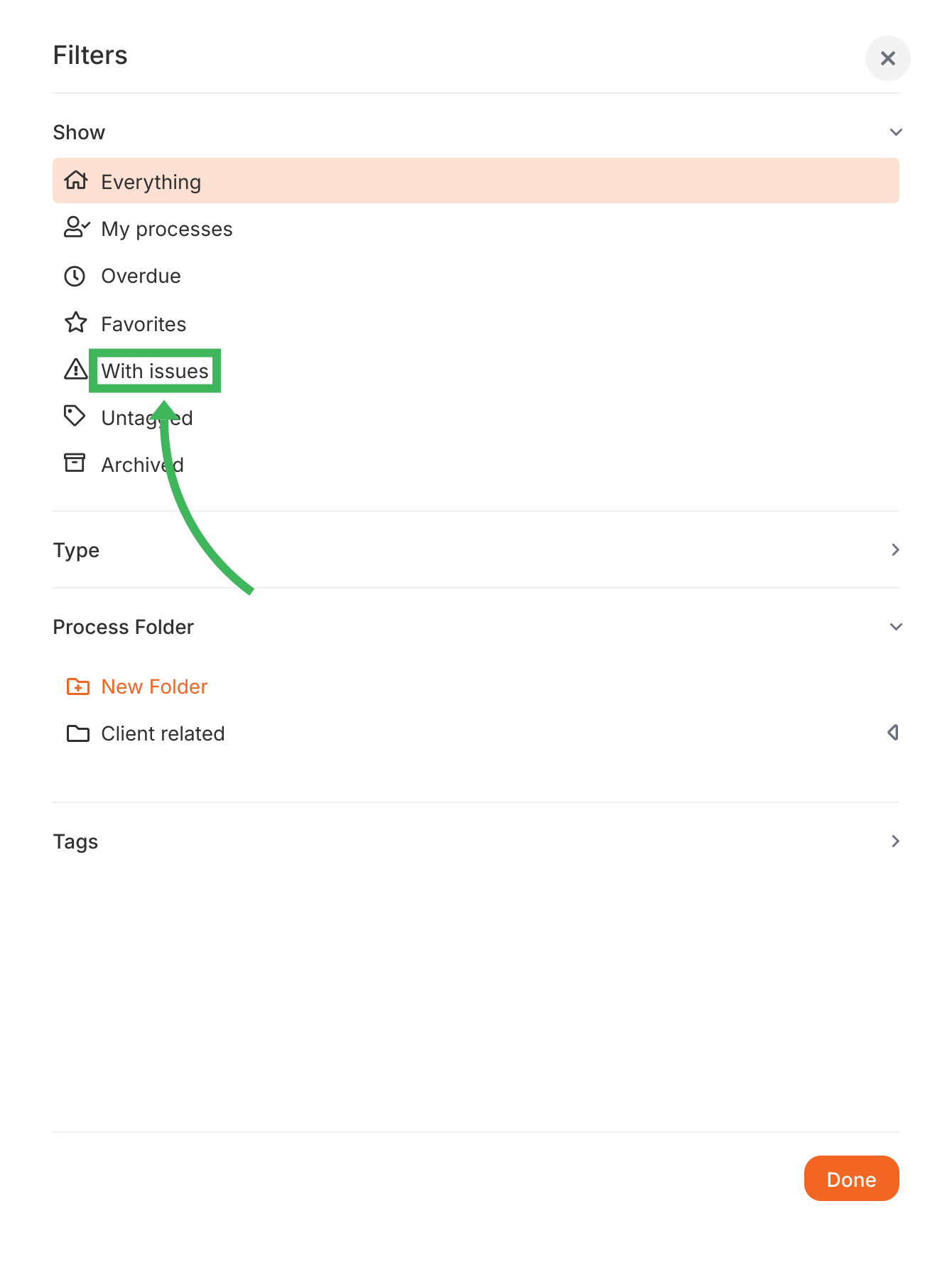
Section titled “Find processes with unresolved issues”- Go to the Tracker view.
- Click Add Filter.
- Choose the filter Show > With issues.

Suggest template improvements
Section titled “Suggest template improvements”You can add improvement comments directly on template steps to suggest changes for future processes.
Add improvement comments
Section titled “Add improvement comments”- Go to the Templates library and View the template.
- Find the specific step you have feedback for.
- Click the Comment button on that step.
- Type your suggestion for improving the step in future processes.
- Click Submit.
These comments attach to the template step itself - they aren’t tied to any specific running process.
View improvement comments
Section titled “View improvement comments”- Open the template in Edit mode.
- Go to the Comments section in the sidebar.
- View comments grouped by step.
- You can also click a step in the editor. If it has comments, you’ll see an indicator.
Act on improvement comments
Section titled “Act on improvement comments”Template owners and editors can:
- Mark comments as ‘Read’.
- Edit the template based on feedback.
- ‘Hide’ addressed comments.
- Reply for clarification.
Related articles
Section titled “Related articles”Process Improvement > Using comments and AI for process improvement
How To > Ensure task completion
How To > Improve accountability
Was this helpful?
- 2026 Tallyfy, Inc.
- Privacy Policy
- Terms of Use
- Report Issue
- Trademarks