Full-seat members
Create folders in Tallyfy and move your templates into them. Once you’ve got 20+ templates, folders make finding the right workflow much faster.
“Light” members can’t organize templates into folders. Only “Standard” members (if allowed by an Admin) or “Administrator” members can create folders and move templates.
Tallyfy has two separate folder systems. They’re independent of each other.
Template folders - used only in the Templates section to organize your master blueprints.Task/process folders - used in the Tasks and Tracker views to organize running processes and tasks. How you organize master templates often differs from how you organize live work.
Example 1: A template folder called “HR” might contain “Employee Onboarding.” But running onboarding processes go into folders named by department - “Sales Team Onboarding” or “IT Team Onboarding.”
Example 2: All client templates live in “Client Operations.” But running processes go into folders named per client - “Acme Corp Projects” or “Beta Inc Requests.”
A template folder stays a template folder, and a process folder stays a process folder. Moving a folder doesn’t change its type, so you can’t accidentally turn a template folder into a process folder by dragging it. Folders sort by their assigned position, so the order you arrange them in stays consistent across reloads and across team members.
Access to the Templates section
Standard or Admin permissions - Light members can’t create folders
Find templates faster - good folder structure cuts search timeGroup logically - HR templates in one spot, sales workflows in anotherCleaner view - no more scrolling through an endless flat listSelf-service - new employees find what they need without asking
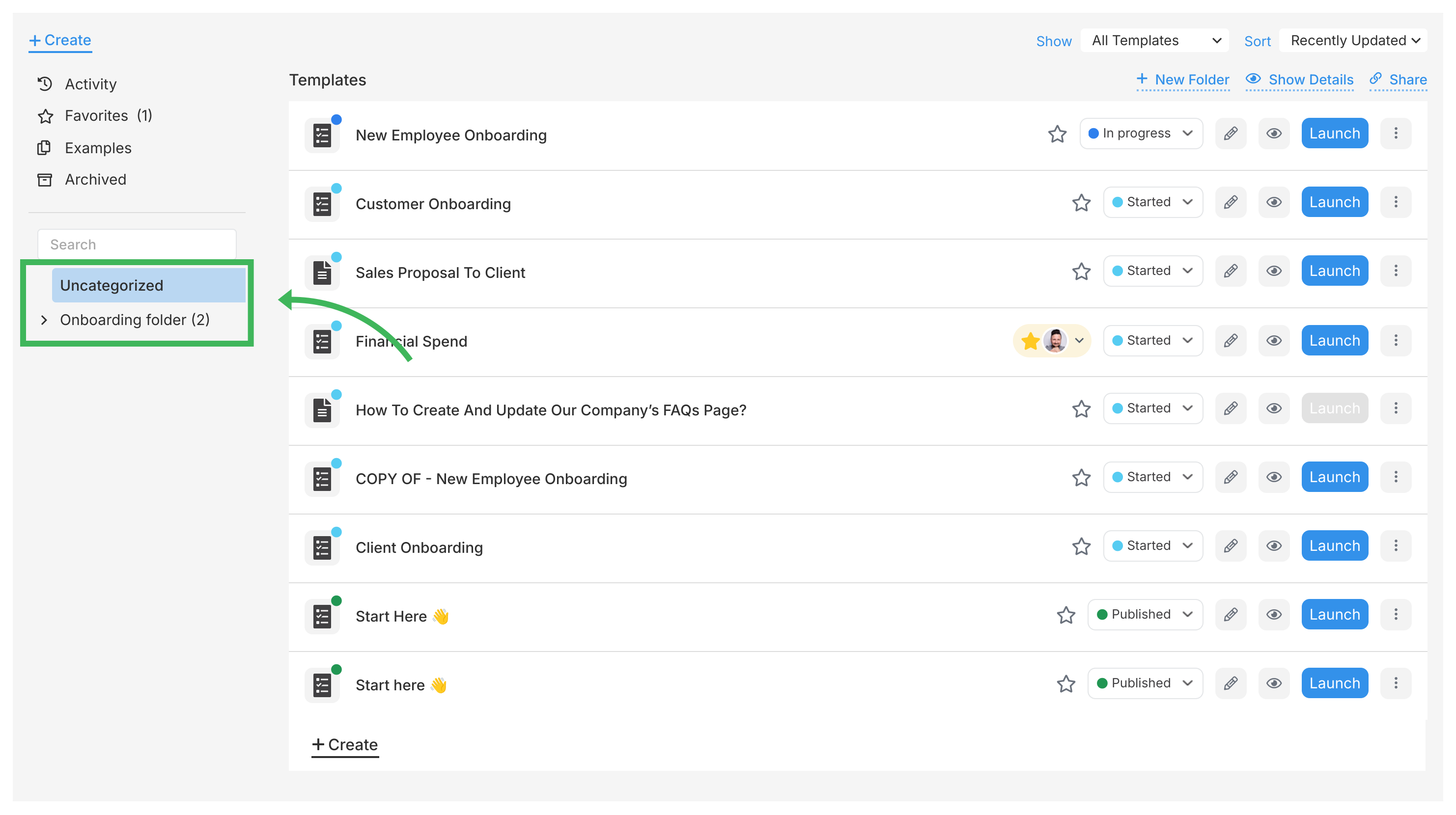
Go to the Templates section
Click the New Folder button in the left panel
Name your folder (max 32 characters, e.g., “Marketing Templates”)
Click Create
Your new folder appears in the left panel. Click it to open or start adding templates.
Click a parent folder in the left panel
Click New Folder again
Name the subfolder (e.g., “Email Campaigns” inside “Marketing Templates”)
Click Create
Subfolders nest under their parent folder.
Find the template you want to move
Click the menu icon (three dots) on the template card
Choose Move from the menu
Select the destination folder
Click Move
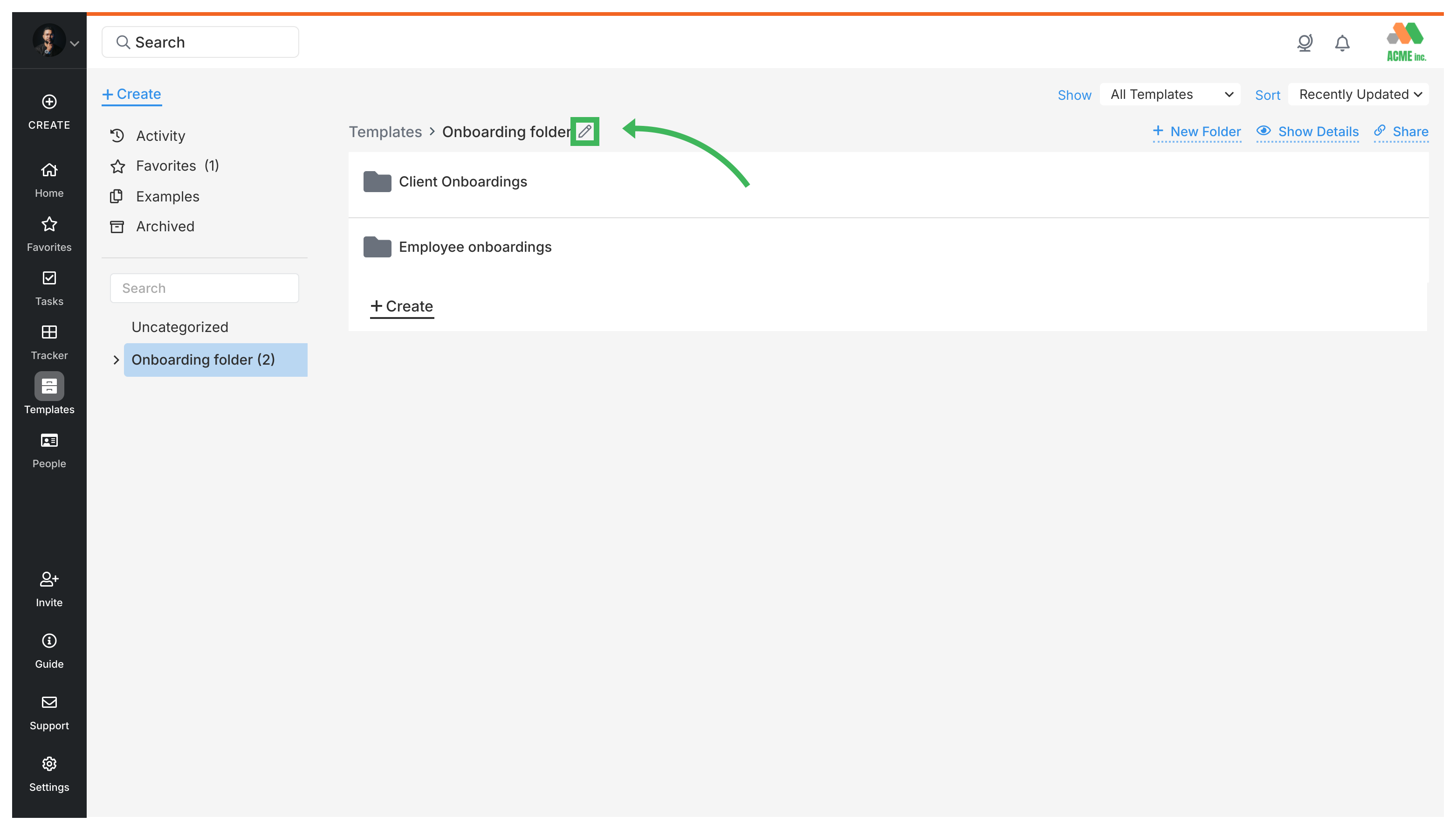
Click the folder you want to manage in the left panel
Click the pencil icon next to the folder’s name
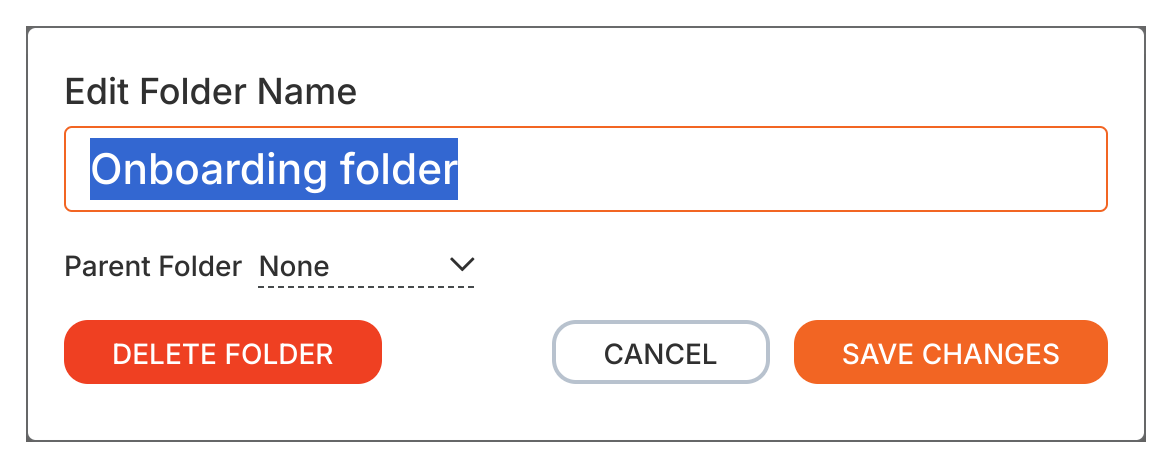
From here you can:
Rename the folderMove it to a different parent folderDelete the folder
Deleting a folder does not delete the templates inside it. They move back to the main library view (unfoldered).
When you unarchive a template , Tallyfy remembers its original folder:
If the folder still exists, the template goes back there
If the folder was deleted, the template lands in the main library view
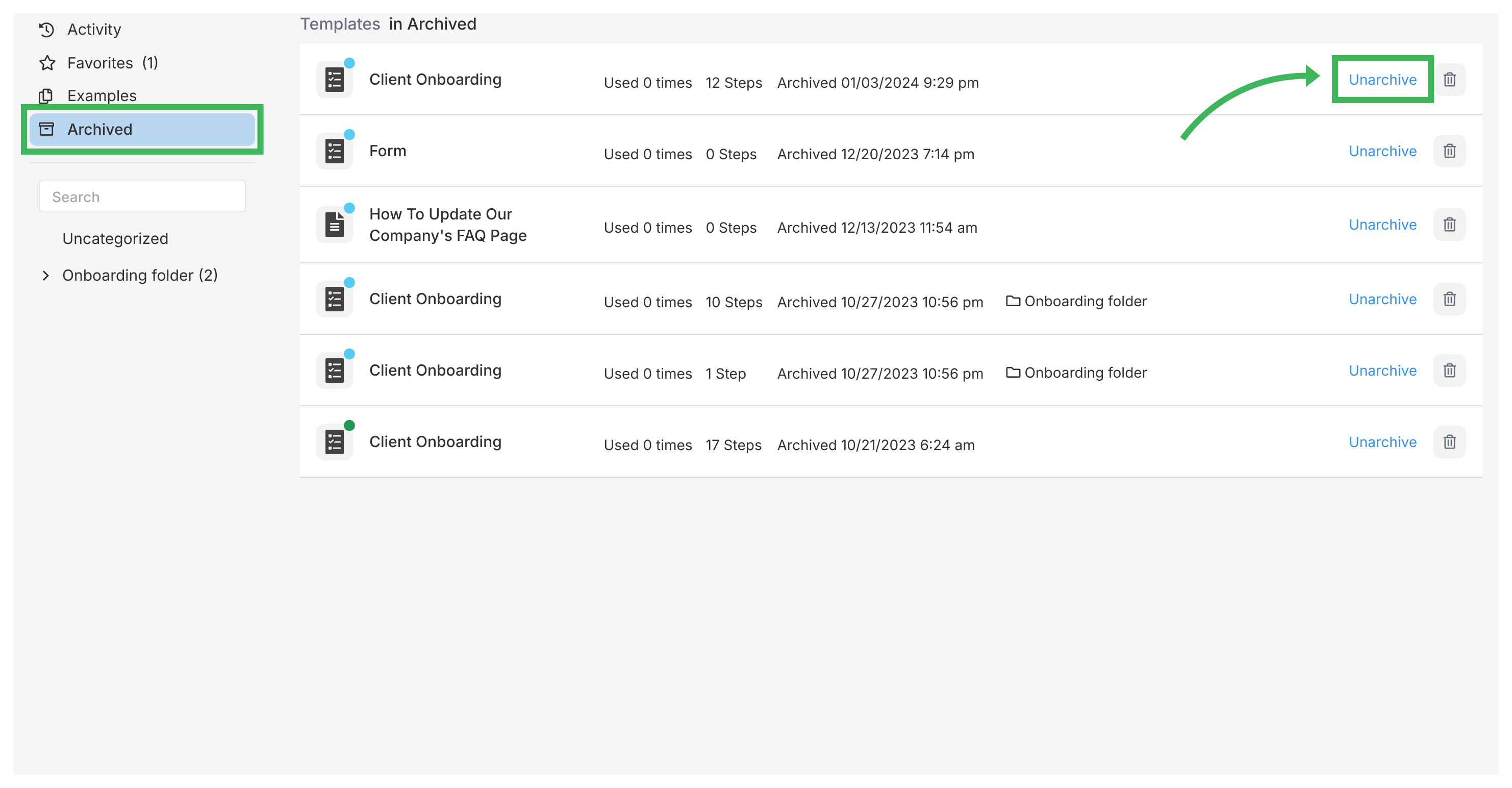
Go to Templates and click the Archived tab
Find the template you want to restore
Click Unarchive
Keep folder names short and obvious - “HR Templates” beats “Human Resources Documentation and Processes.” Two or three levels of nesting works well. More than that creates a maze.
Organize by department (HR, Sales, IT) or by function (Approvals, Onboarding, Reviews). Pick one approach and stick with it. You can also use tags alongside folders for extra categorization.
Review your folder structure every few months. Delete empty folders and merge similar ones.