Edit Processes > Rename a process
Tallyfy lets you rename any running process at any time by clicking its name at the top of the…
You can change process settings while a process is running. Open the process and click Settings. You don’t need to start over.
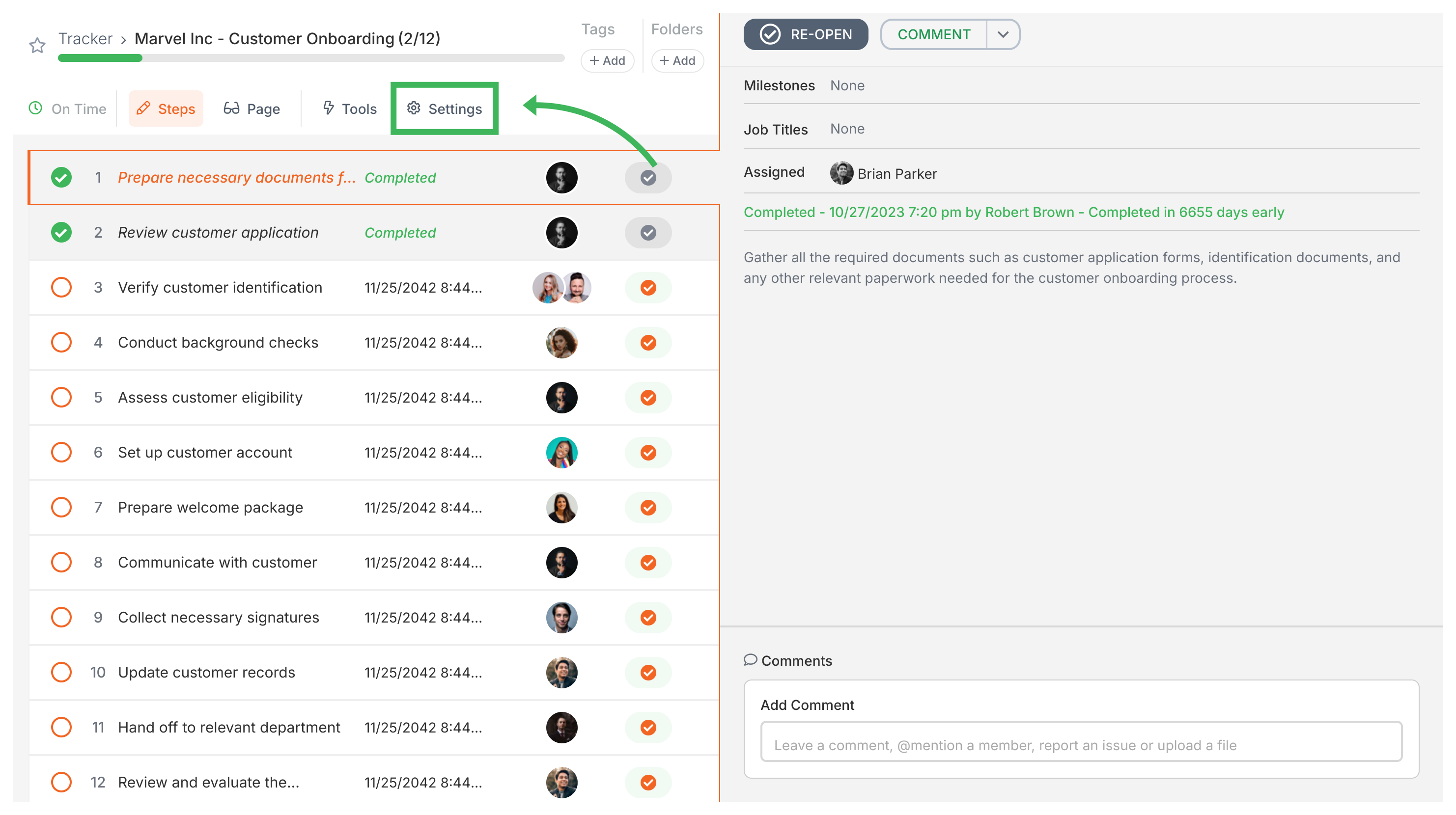
The Summary tab lets you change:
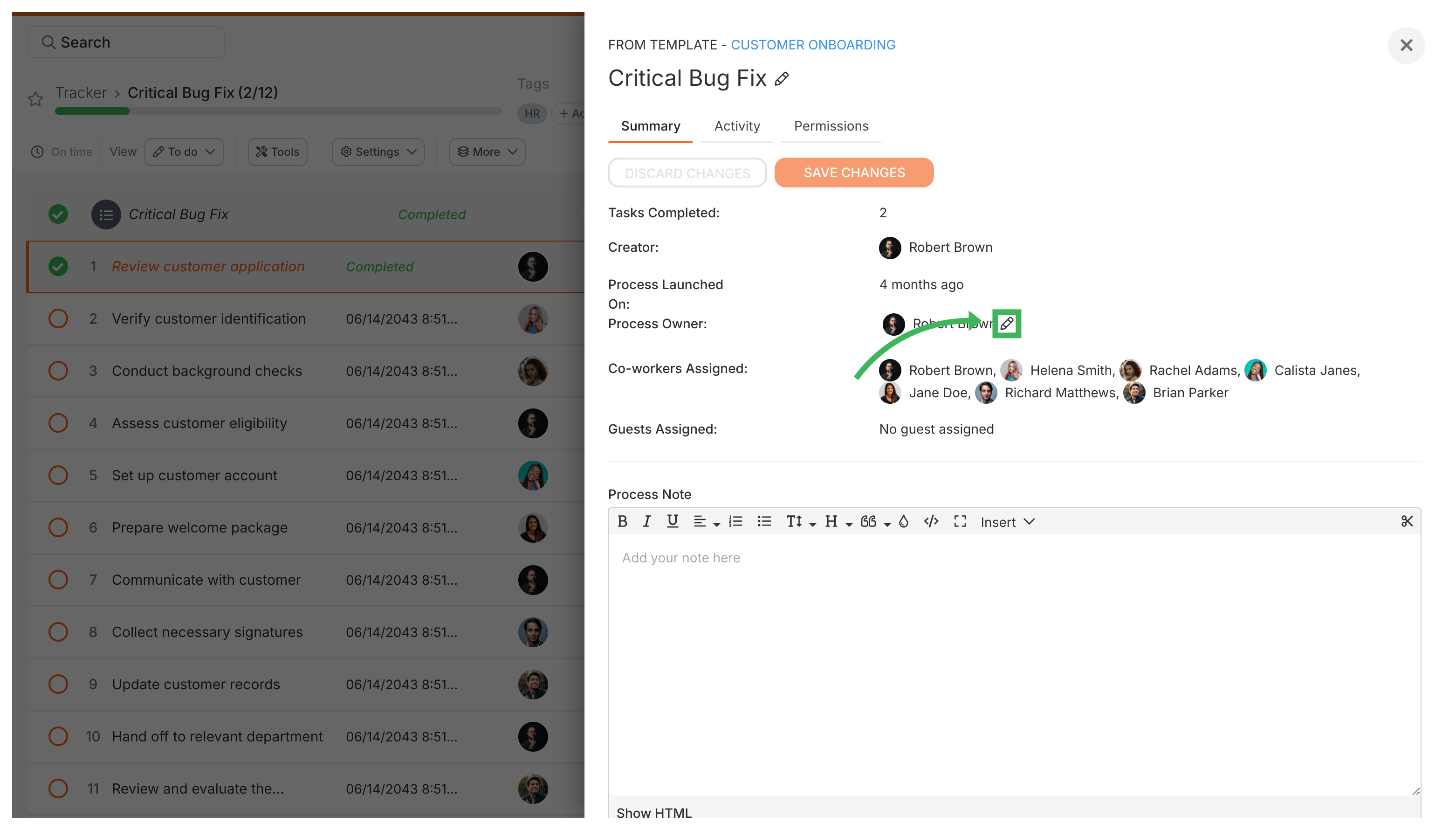
The panel also shows read-only info:
To change kick-off answers, re-open the kick-off form from the task list. See changing kick-off answers after launch.
You can’t manage tags and folders from this panel. Use the process card in the Tracker view instead.
You can Export CSV to download all process data. The settings panel also has Permissions and Activity tabs.
Edit Processes > Rename a process
Tracking And Tasks > Processes
Edit Templates > Rename a template