Examples > Countdown deadline automation
Set up automated countdown deadlines that work backwards from important dates so preparation…
Deadline actions adjust task due dates automatically when an automation’s conditions are met. You can:
Use the Apply to dropdown in your automation to pick which step’s deadline changes.
Deadline is one of five action types you can add to an automation. The others toggle visibility, reopen steps, update assignments, and fire a webhook.
Example 1: Make deadline earlier for premium service
Make deadline earlier for premium service
If
Then
AUTOMATION Make deadline earlier for premium service
IF field "Package Purchased" is "Premium"
THEN shift deadline of "Send First Draft" by 3 days before its own deadline
Example 2: Set deadline from a form field date
Set deadline from a form field date
If
Then
AUTOMATION Set deadline from a form field date
IF field "Project Scope" is "Complex"
THEN shift deadline of "Review Meeting" by 5 days from field "Client Kick-off Date"
The review meeting deadline lands 5 days1 after whatever date the user entered in the “Client Kick-off Date” field.
Example 3: Link deadlines between tasks
Link deadlines between tasks
If
Then
AUTOMATION Link deadlines between tasks
IF step "Initial Review" is completed
THEN shift deadline of "Final Approval" by 2 days from step "Client Feedback"
Final approval falls 2 days after the client feedback step was due.
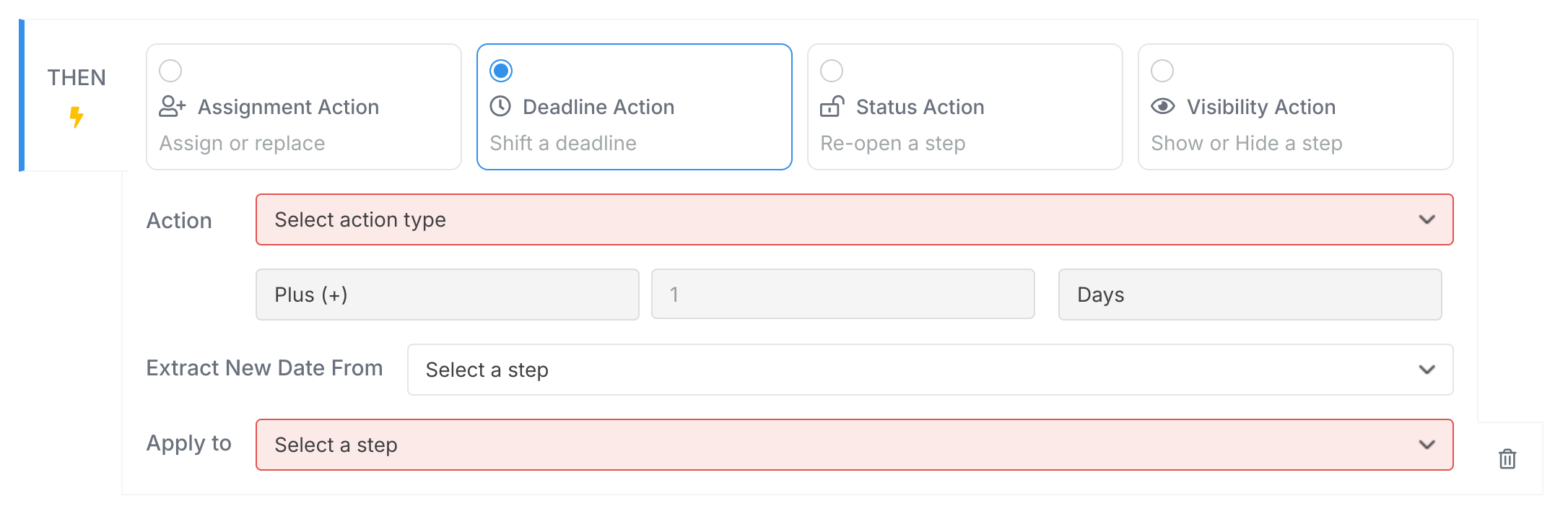
Step 13’s deadline gets pushed 1 day later when the condition is met.
Every deadline action needs a starting point. There are exactly three, and you pick one when you build the action.
Want Step B due 2 days after Step A? Set it as “+2 days from Step A’s deadline.”
The form field has to be a Date field. Tallyfy won’t let you save a deadline action pointed at a text or number field, so if the date you need is being typed into a text box, change the field type first.
There’s no option to count from the process launch. If that’s what you want, set it on the step itself in the Timings row rather than in an automation.
Examples > Countdown deadline automation
Automations > When an automation runs
Edit Task > Set an exact date on a task
Edit Templates > How a step deadline is worked out
Calendar days, counted straight from the date in the field. A deadline set by an automation isn’t adjusted to your work week ↩