Org Settings > Customize your organization
Tallyfy’s organization customization settings let admins control member permissions and…
Tallyfy can shift most deadlines so they don’t land on non-working days or outside business hours. An Administrator configures this once, and it applies organization-wide.
Go to Settings > Organization > Customization.
Under Default work week, select your work week length - 7-day, 6-day (Mon-Sat), 5-day (Mon-Fri), or 4-day (Mon-Thu).
Under Default Working Hours, toggle each day between All hours (any time counts) or Fixed hours (set a start and end time with the slider).
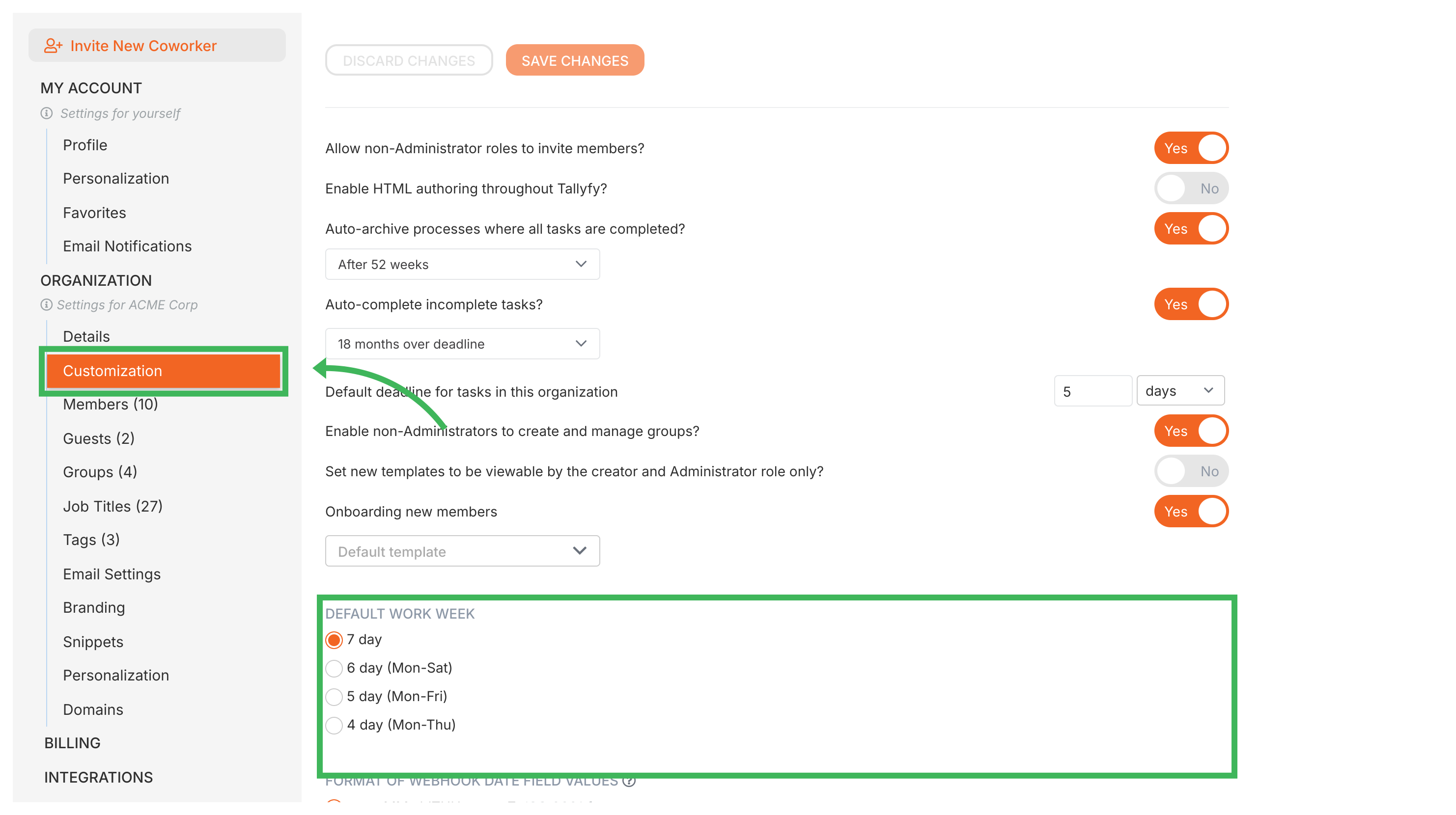
Click Save Changes. Tallyfy uses these settings from then on, in the places listed below.
This is worth reading, because a deadline that ignores your work week usually looks like a bug rather than a boundary.
| How the deadline got its date | Work week applied |
|---|---|
| Worked out when the task was created, at launch or later | Yes |
| Changed by hand on a running task | Yes |
| Moved because the step it counts from was completed or edited | Yes |
| Set by an automation’s deadline action | No |
An automation that says “3 days before the event date” does exactly that arithmetic and leaves the answer alone, so it can land on a Sunday in a Monday to Friday organization. Allow for it when you choose the gap.
Setting an exact date by hand is adjusted, which surprises people in the other direction. Pick 6pm on a day whose working hours end at 5pm and the deadline moves to the next working morning rather than staying at 6pm.
Tallyfy’s deadline calculations use the work week pattern you configure - but they don’t account for:
Org Settings > Customize your organization
Actions > Automate deadline shifts on tasks
Edit Templates > How a step deadline is worked out
Edit Task > Set an exact date on a task