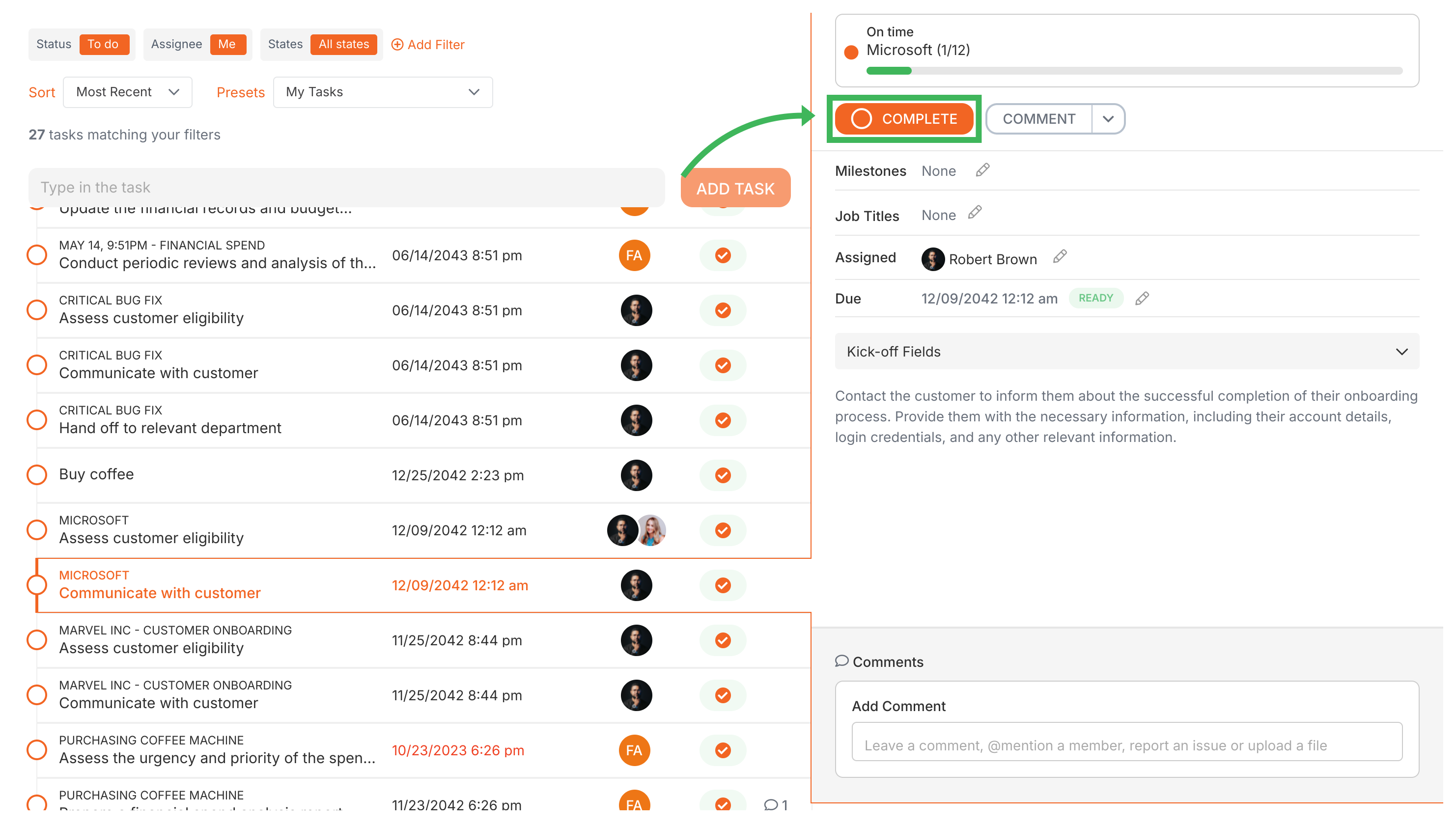
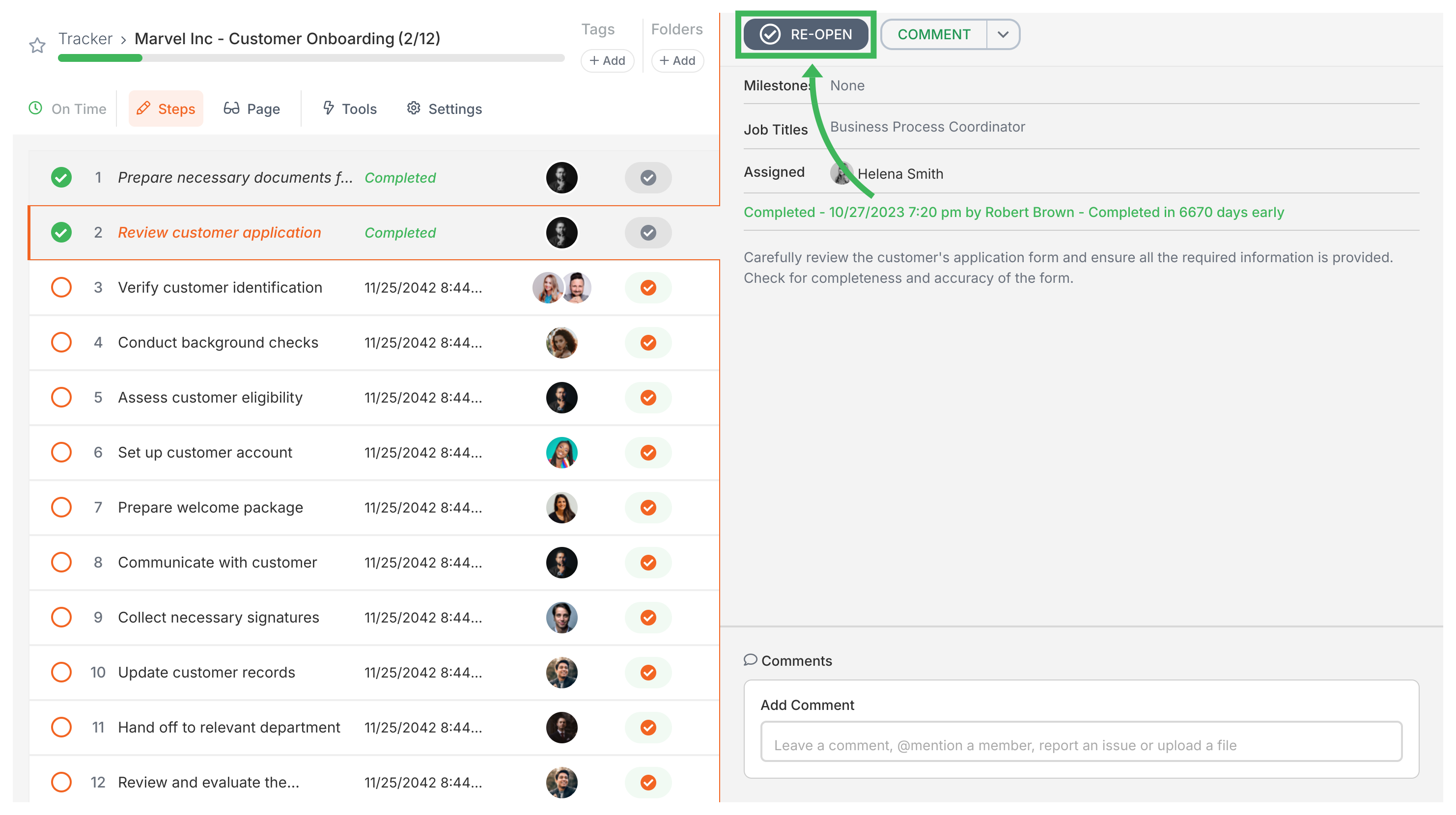
Restrict task completion and reopening to assigned members only with the “Only assigned members can complete or edit this task” setting in the Advanced tab:
When editing the template, click the task step.
Go to the Advanced tab.
Switch ON the toggle “Only assigned members can complete or edit this task”.
When this is on:
Only assigned people can complete the task
Only assigned members can reopen it after completion
Non-assignees won’t see the Complete or Re-Open buttons
Nobody can accidentally complete someone else’s work
How do I complete tasks that have subtasks (checklists)?
Tasks with a checklist form field work a bit differently. The checklist acts like mini subtasks you need to check off.
Open the task containing the checklist.
Check off subtasks as you complete them.
Important - check the checklist’s completion rules (set in the template):
If it requires ‘at least one’ item checked - check at least one box.
If it requires ‘all items’ checked - check every box.
Once checklist rules and other required fields are met, the Complete button becomes available. Click it.
You can’t complete a task until all required fields are filled out - including checklist requirements. The Complete button stays grayed out until everything’s done.