Tallyfy templates are reusable blueprints you create once and launch repeatedly. They assign…
Templates vs. processes
Single source of truth
Section titled “Single source of truth”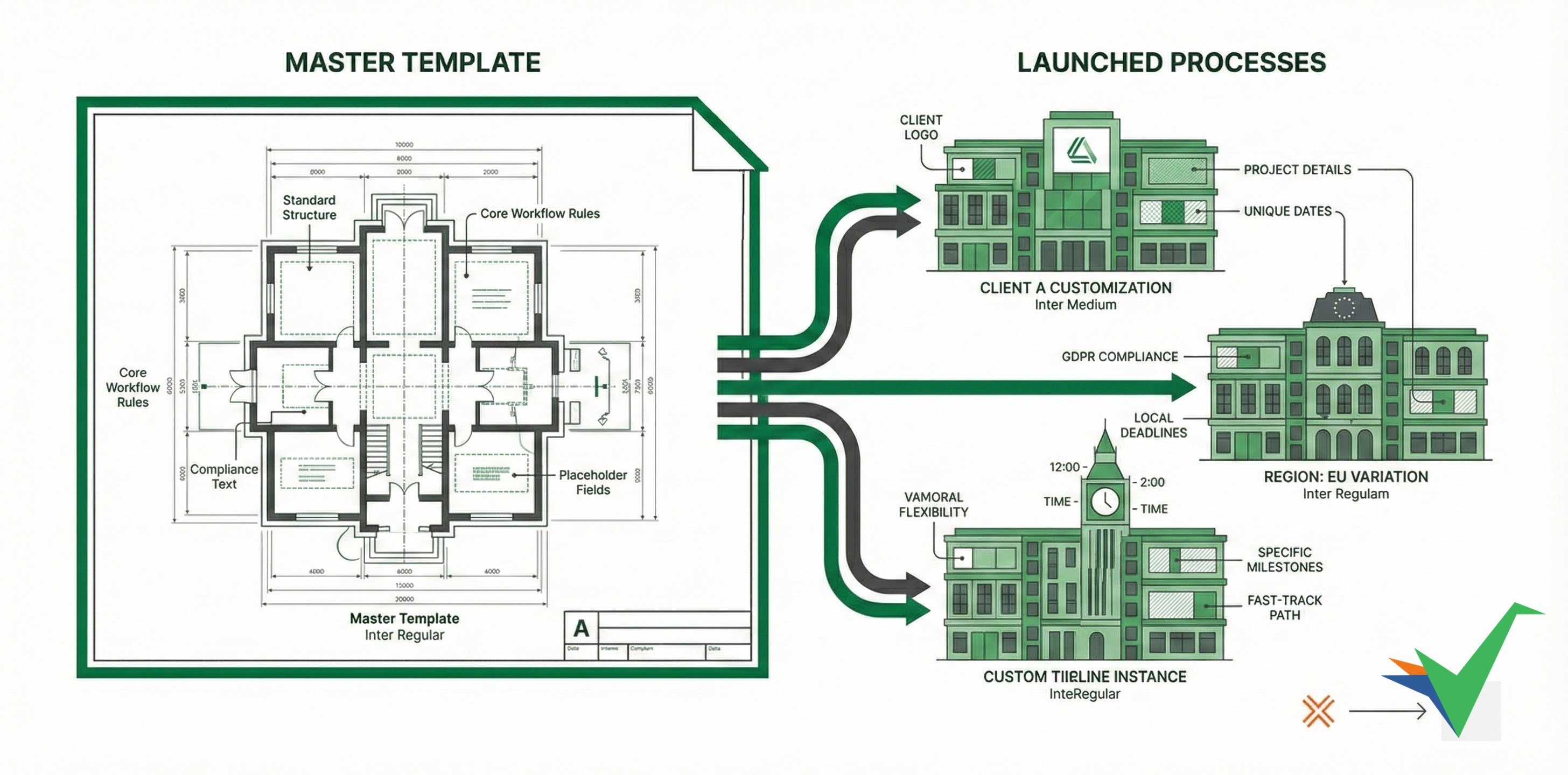
Templates in Tallyfy are your single source of truth - one authoritative version that generates customized processes. Update the template once, and future launches stay consistent. Running processes aren’t affected.
Think of it like a cookie cutter (template) and cookies (launched processes). Same shape - but each cookie gets different icing, sprinkles, or decorations.
Template to process relationship
Section titled “Template to process relationship”One master template spawns multiple customized processes while each stays version-independent.
Diagram description: A single master template generates multiple customized process instances with a continuous improvement loop. Each process has unique customizations (Client A data, Client B timeline, Client C regional rules). Feedback from running processes flows back to improve the template for future launches.
What to notice:
- One-to-many relationship - A single template creates unlimited process instances, each customized for different clients or regions
- Version independence - Processes launched from v1 continue unchanged even after the template updates to v21 - in-flight work stays consistent
- Continuous improvement - Feedback from running processes improves future template versions without disrupting current ones
Key distinctions
Section titled “Key distinctions”Templates (blueprints)2
Section titled “Templates (blueprints)2”- Purpose: Define standard process structure and logic
- Editing: Only users with
checklist_editpermission can modify - Content: Placeholders, automations, and standard text
- Versions: Revision history for compliance
- Location: Templates section in Tallyfy
Launched processes (active instances)
Section titled “Launched processes (active instances)”- Purpose: Execute actual work with real data
- Editing: Users fill in fields and complete tasks
- Content: Actual client names, dates, and specific information
- Status: Tracks progress through active workflow
- Location: Tracker section in Tallyfy
How customization works
Section titled “How customization works”At the template level
Section titled “At the template level”You control what users can and can’t change when they launch a process:
- Set field permissions - mark fields as editable or read-only
- Define conditional paths - pair each condition with what should happen next
- Set up automation - configure assignments and deadlines
- Lock standard content - protect compliance text and procedures
At the process level
Section titled “At the process level”When someone launches a process from your template:
- Fill in specific data - client names, project details, dates
- Activate conditional paths - selections determine which tasks appear
- Edit allowed sections - change fields marked as editable
- Own timeline - each process tracks its own deadlines
Real-world example
Section titled “Real-world example”Challenge: CBRE manages hundreds of playbooks with multiple variations - agency vs. principal delivery models, different service types, and regional requirements across North America, Europe, and Asia.
Without Tallyfy: 100+ PowerPoint files with slight variations, manual updates when standards change, version control chaos with local copies, and no way to filter content dynamically.
With Tallyfy: One template with all variations, dynamic filtering based on user selections, instant updates when standards change, and each launched process shows only relevant content.
Templates vs. document-based systems
Section titled “Templates vs. document-based systems”| Traditional documents | Tallyfy templates |
|---|---|
| 100 copies of same SOP | 1 master template |
| Manual version tracking | Automatic versioning |
| Update each copy separately | Update template once |
| Static content for all | Dynamic, filtered content |
| Lost customizations in updates | Preserved instance data |
| Email chains for status | Real-time progress tracking |
| Scattered feedback | Centralized comments |
Common misconceptions
Section titled “Common misconceptions””Can I edit the template while a process is running?”
Section titled “”Can I edit the template while a process is running?””Yes. Changes only affect future launches. Running processes continue with the version they started with.
”If I update a template, will running processes break?”
Section titled “”If I update a template, will running processes break?””No. Running processes keep their original structure. In-flight work stays safe.
Template changes don’t affect running processes
Processes are snapshots taken at launch time. Tallyfy creates an independent copy with the template’s structure at that moment. Adding tasks, changing steps, or modifying the template afterward won’t change already-running processes. To apply template updates, launch a new process.
”Can different teams have different versions?”
Section titled “”Can different teams have different versions?””Use conditional logic instead of separate versions. One template shows different content based on team, region, or other criteria.
”How do I manage 12+ variations?”
Section titled “”How do I manage 12+ variations?””Don’t create 12 separate templates. Use conditional visibility and dynamic fields. One smart template replaces dozens of static documents.
Best practices
Section titled “Best practices”1. Design for reusability
Section titled “1. Design for reusability”- Identify common elements across all variations
- Use snippets for repeated content
- Build in flexibility with variables
2. Plan your customization strategy
Section titled “2. Plan your customization strategy”- Decide what users can change vs. what stays locked
- Use form fields to capture variation needs
- Set up automations for different paths
3. Test before rollout
Section titled “3. Test before rollout”- Launch test processes for each major variation
- Verify conditional logic works correctly
- Gather feedback from pilot users
4. Maintain the template
Section titled “4. Maintain the template”- Review the template regularly
- Update based on process feedback
- Document major version changes
Migrating from documents to Tallyfy
Section titled “Migrating from documents to Tallyfy”- Identify commonalities - find shared content across all versions
- Map variations - document what makes each version different
- Build smart - create one template with conditional logic
- Import content - use AI import to convert your best version
- Add automation - layer in conditions and actions
- Test thoroughly - verify all paths work correctly
- Train teams - focus on the “why” of single-source benefits
Related articles
Section titled “Related articles”Tracking And Tasks > Processes
A process is a live, running instance of a template that you launch and track daily. Each…
Tallyfy lets you launch reusable templates into independent trackable processes, each with its…
Tallyfy offers three template types. Procedure Templates for tracked workflows with automation…
Footnotes
Section titled “Footnotes”About Tallyfy