Tasks > Task assignment options
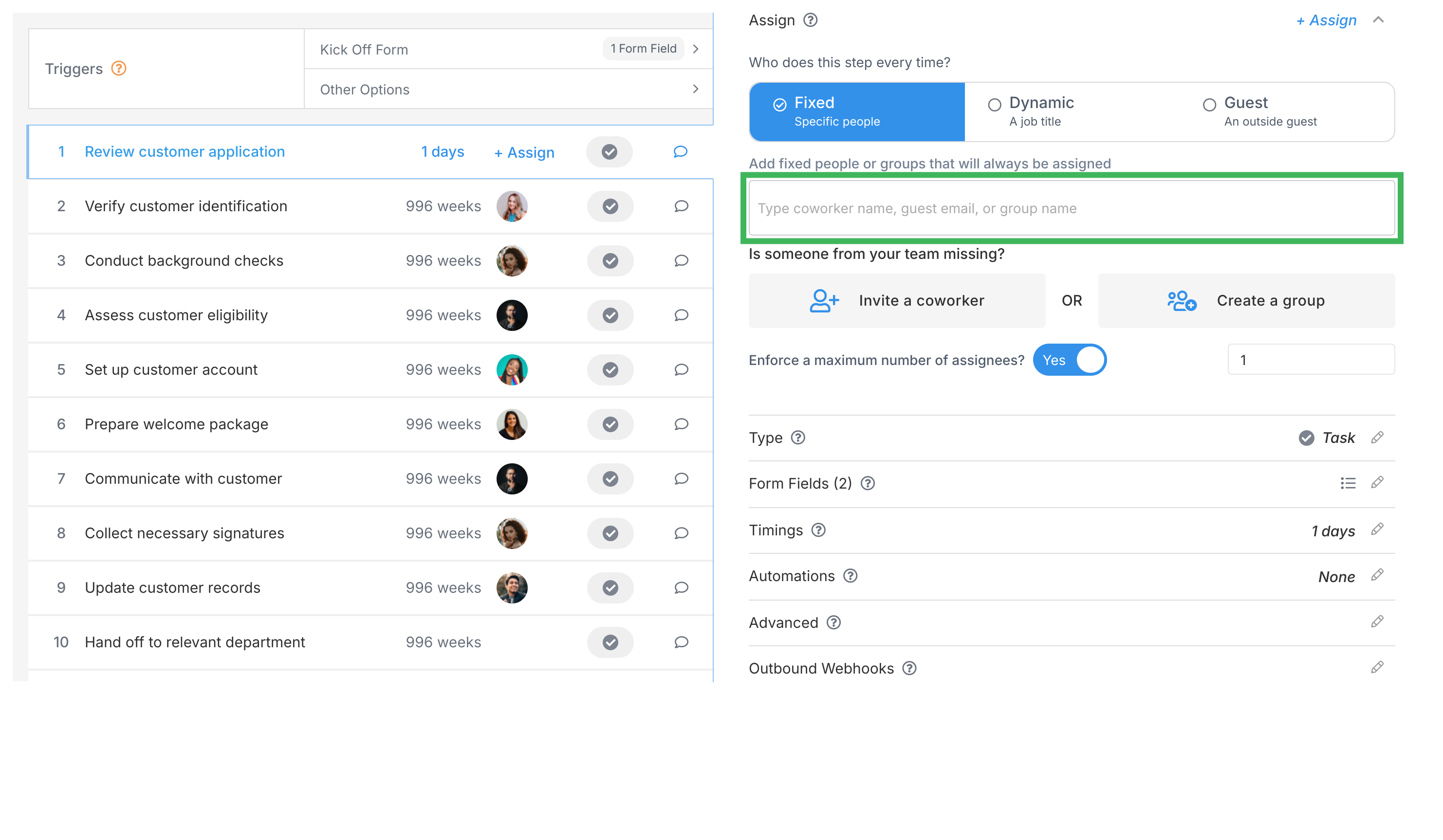
Tallyfy lets you assign tasks to members, groups, or external guests via email. Automations can…
Groups let you bundle people together so you don’t have to assign them to tasks one by one.
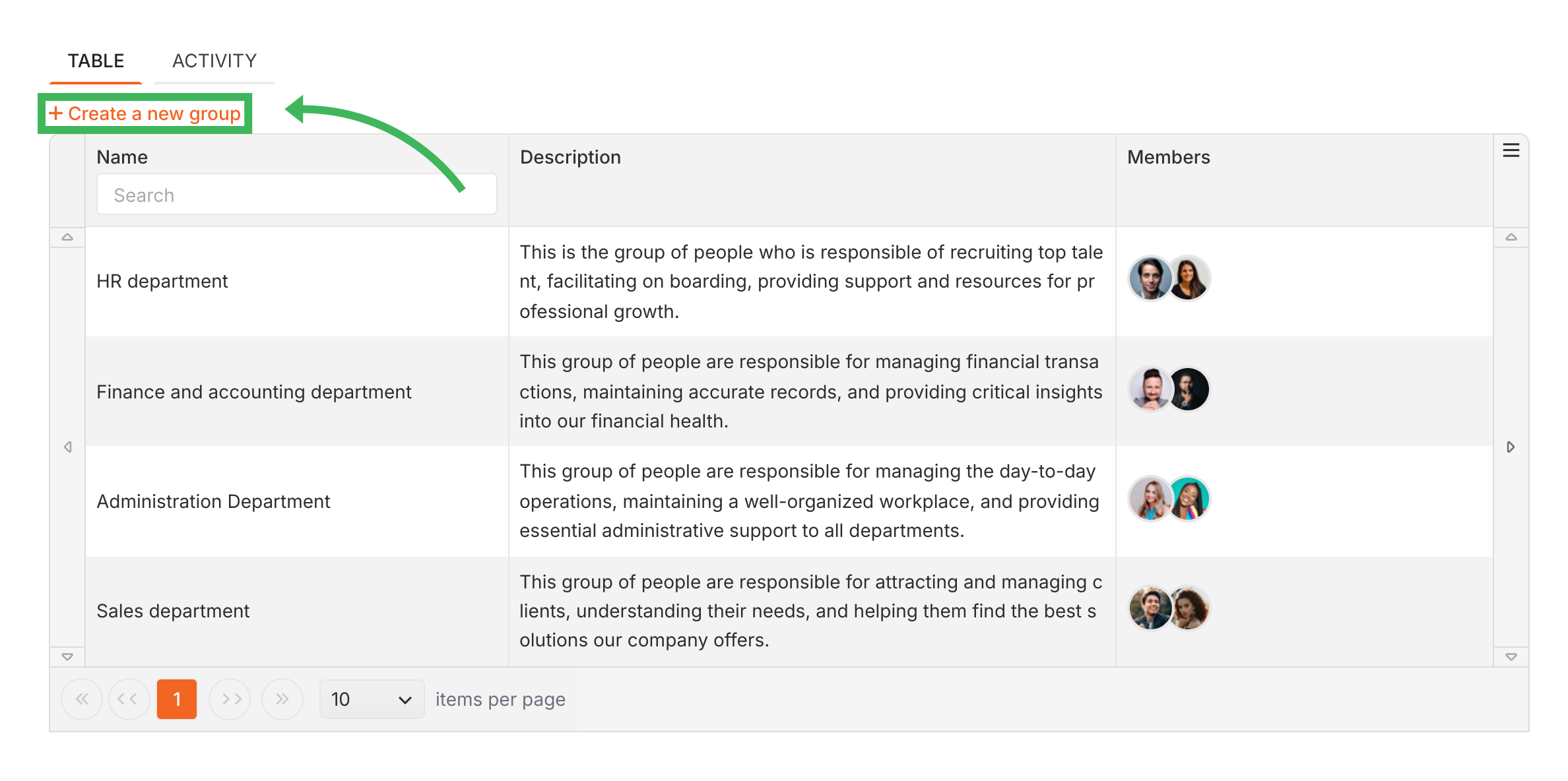
Deleting a group is permanent. Groups have no archive, so a deleted group can’t be restored. Tallyfy removes the group from every template step, task and process it was assigned to, and from any template or process access it gave. The members and guests in it aren’t deleted.
People who already got a task through the group stay assigned to that task as individuals. A template step that was assigned only to the group loses its assignee, so check your templates before you delete a group.
Tasks > Task assignment options
Edit Templates > Assign steps in the Tallyfy template builder
Code Samples > Managing groups