Tallyfy bills per seat through Recurly. You commit to full and light seats, pre-pay for your…
Manage billing
Access your billing details
Section titled “Access your billing details”Go to Settings > Billing to manage your subscription, seats, payment method, and invoices. Only administrators can access this section.
-
Click Settings (bottom left).
-
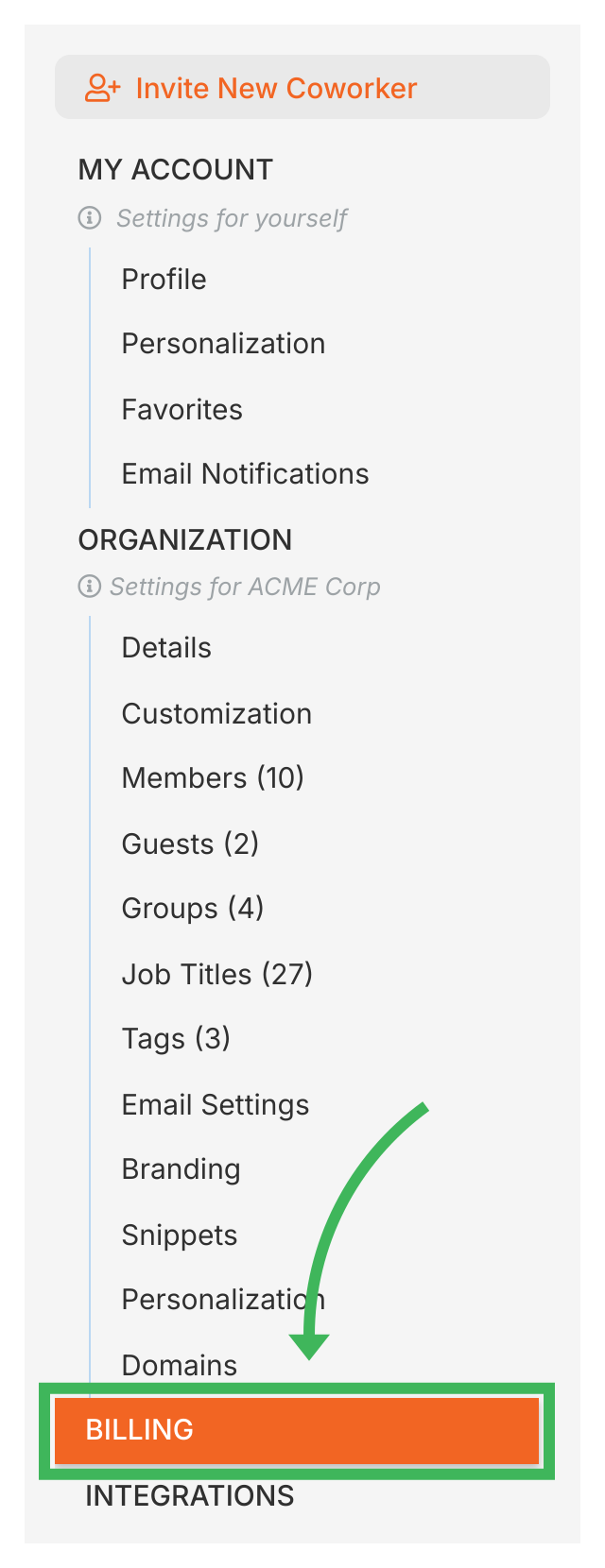
Click Billing.
-
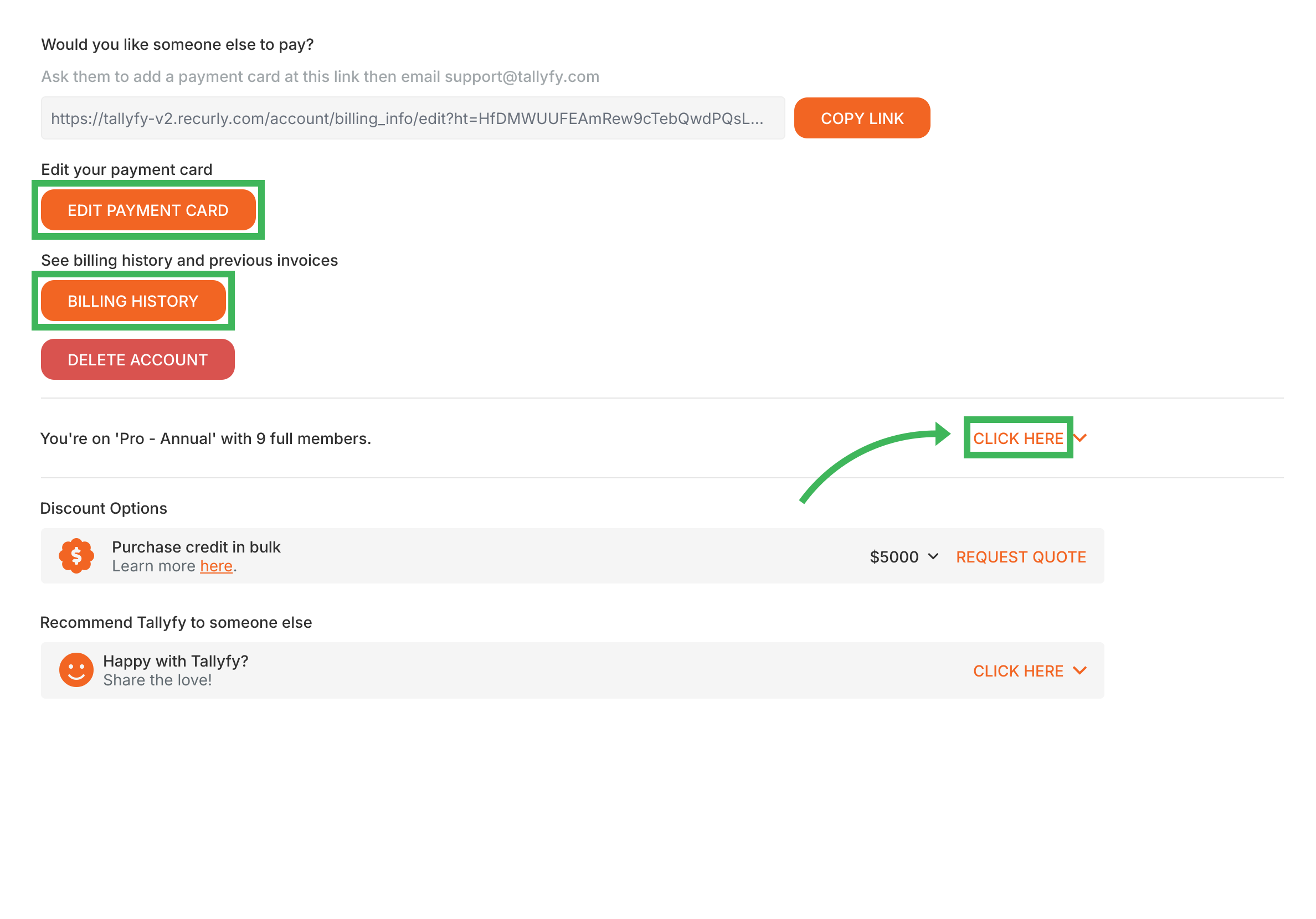
You’ll see your current plan and seats, payment method, and billing history.
View history and update payment
Section titled “View history and update payment”From the Billing screen:
- Click View Billing History for past invoices and a plan summary. See understanding your billing history for what the activity feed and invoice list show.
- Click Edit Payment Card to update your credit or debit card.
Change the billing contact
Section titled “Change the billing contact”The user who created the organization is the default billing contact. To change it or add CC email addresses:
- Contact Tallyfy Support.
- Provide your Organization ID.
- Specify the new billing contact email address(es).
Change your plan or buy seats
Section titled “Change your plan or buy seats”If your trial hasn’t been converted yet, you’ll see a checkout to subscribe to a paid plan. Once you’re subscribed, the billing screen shows seat management.
- Go to Settings > Billing.
- To change your billing cycle (annual or monthly), open your plan settings and confirm.
- To add capacity, click Buy more seats, pick full or light seats, and confirm the pro-rated amount.
See how to buy more seats for the full flow, including invoiced accounts.
Add-ons and usage credit
Section titled “Add-ons and usage credit”Analytics and pre-paid usage credit (AI tokens and per-task credit) appear in the billing section. See billing add-ons and usage credit for what each one does and how to top up.
Billing notification frequency
Section titled “Billing notification frequency”Billing emails (invoices, payment confirmations, subscription updates) arrive instantly by default. To receive fewer emails:
- Contact Tallyfy Support.
- Ask to switch to daily billing updates.
- You’ll then get one daily summary instead of individual emails.
Use discount coupon codes
Section titled “Use discount coupon codes”- Go to Settings > Billing.
- Click Update Plan.
- Enter your code in the “Have a coupon?” field during checkout.
- Complete checkout. The discount applies to your payment.
Cancel your subscription
Section titled “Cancel your subscription”Use the self-service cancellation form in Tallyfy when possible.
For monthly plans, cancellation takes effect at the end of the current month.
What happens if I miss a payment?
Section titled “What happens if I miss a payment?”If you pay by card, a failed charge shows a banner asking you to update your card in Settings > Billing > Edit Payment Card. If you’re billed by invoice, an invoice about 30 days overdue puts your organization into read-only mode until it’s paid, after which access returns automatically.
See what happens if my payment fails for the full details, or contact support.
Data retention after cancellation or deletion
Section titled “Data retention after cancellation or deletion”- 30-day export window after termination
- 90-day backup retention after deletion (recovery may be possible)
- Permanent deletion after 90 days from all systems
Related articles
Section titled “Related articles”Billing > Subscribe to a paid plan
When your free trial is ready to become paid, open Settings then Billing to subscribe. Choose…
Billing > Understanding your billing history
Settings then Billing shows your billing history as a list of your past invoices, each with a…
Billing > Billing add-ons and usage credit
Two kinds of add-ons sit on top of your seats. Analytics is priced per seat per year on every…
About Tallyfy