Launch another process when a task completes
You can configure any task in a Tallyfy template to automatically launch a new process from a different template when that task completes. This is useful for multi-phase workflows, customer journeys, and team hand-offs.
When to use this
Section titled “When to use this”- Multi-phase projects - finishing Phase 1 automatically starts Phase 2.
- Customer journeys - completing “Sales” launches “Onboarding”.
- Branching workflows - an “Initial Review” task launches either “Approved Project” or “Further Review”.
- Team hand-offs - a Sales task triggers a process for Operations.
How to set it up
Section titled “How to set it up”- Open the template containing the trigger task and edit it.
- Click the specific trigger step.
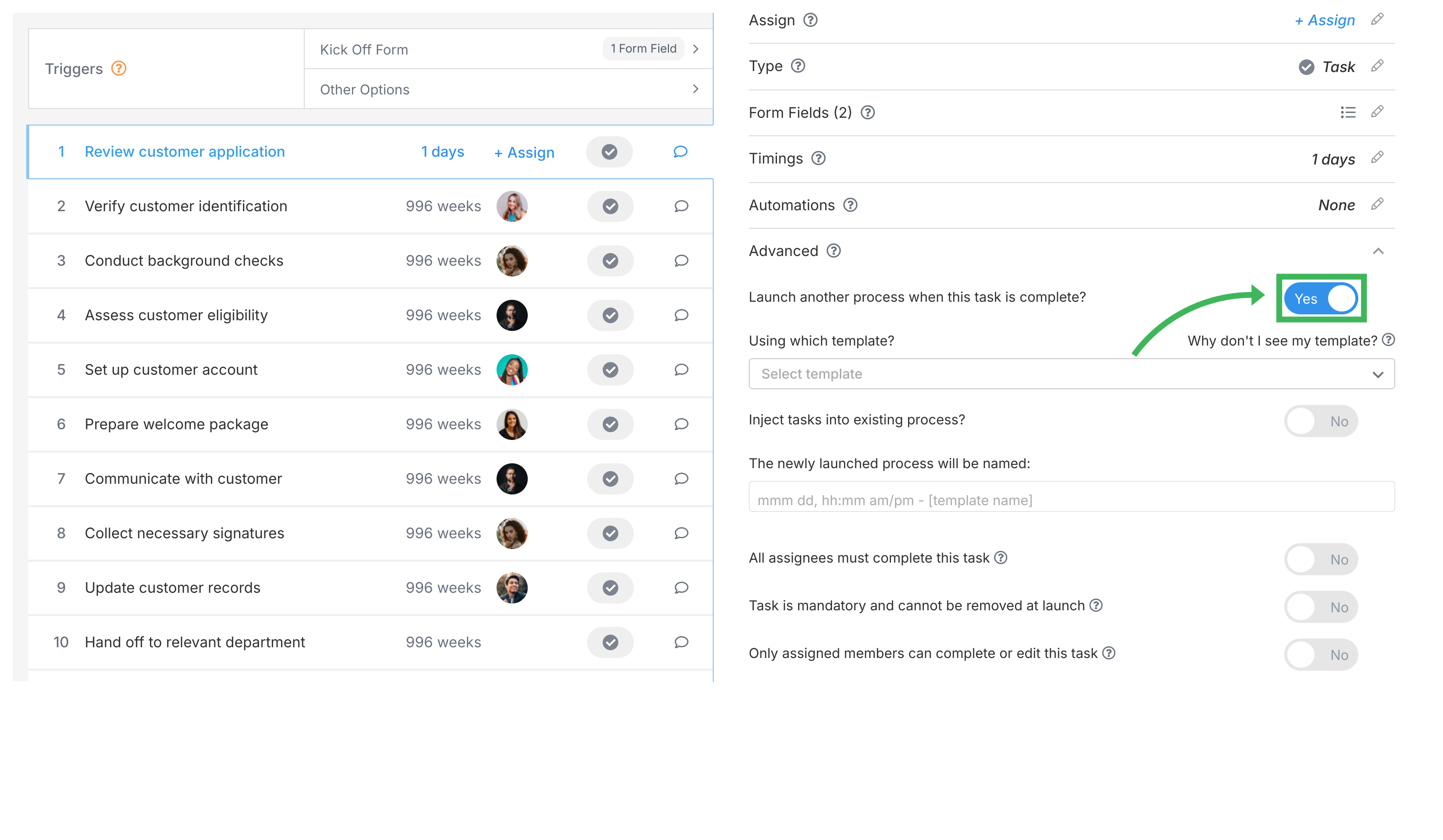
- Go to the Advanced tab in the step settings panel.
- Switch ON Launch another process when this task is complete.
- A dropdown appears. Select the target template to launch.
- Save your changes.

Inject tasks instead of launching a new process
Section titled “Inject tasks instead of launching a new process”Instead of launching a separate process, you can inject the target template’s tasks directly into the current running process. All injected steps appear after the trigger task, keeping everything in one place.
- Follow steps 1-4 above.
- Switch ON Inject tasks into existing process? (appears after enabling the launch toggle).
- Select the target template.
- Save your changes.
Which templates can be launched or injected?
Section titled “Which templates can be launched or injected?”The dropdown only shows templates that:
- Are active (not archived or deleted).
- Have no required kick-off form fields - since there’s no user present to fill them in during automatic launch.
- Are of type Procedure (with steps) or Form (with kick-off fields only) - not Document type.
Can’t find your template?
If a template isn’t listed, check that it’s active, has no required kick-off fields, and isn’t a Document-type template.
Naming the launched process
Section titled “Naming the launched process”You can control the name of the automatically launched process:
- Default name - format is “Mon dd, h:mma - Template Name” (e.g. “Feb 26, 3:45pm - Client Onboarding”).
- Custom name - use text plus variables from the trigger process. Available variables include DATE, TEMPLATE_NAME, and text-type kick-off form fields.

Limitations
Section titled “Limitations”- Naming variables - only DATE, TEMPLATE_NAME, and text-type kick-off form fields from the trigger process are available for custom naming.
- Passing data - there’s no built-in way to pass data from the trigger process to the launched process (other than via the name). For complex data transfer, use the Tallyfy API or webhooks with middleware.
- Referencing data - you can’t reference data between original and injected tasks when using injection.
- Duplicate prevention - if a process was already launched from a specific task, it won’t launch again. Tallyfy adds a comment explaining this.
Tracking the connection
Section titled “Tracking the connection”Tallyfy automatically links trigger and launched processes:
- The trigger task and launched process are tracked in a relationship table - so you can trace which task launched which process.
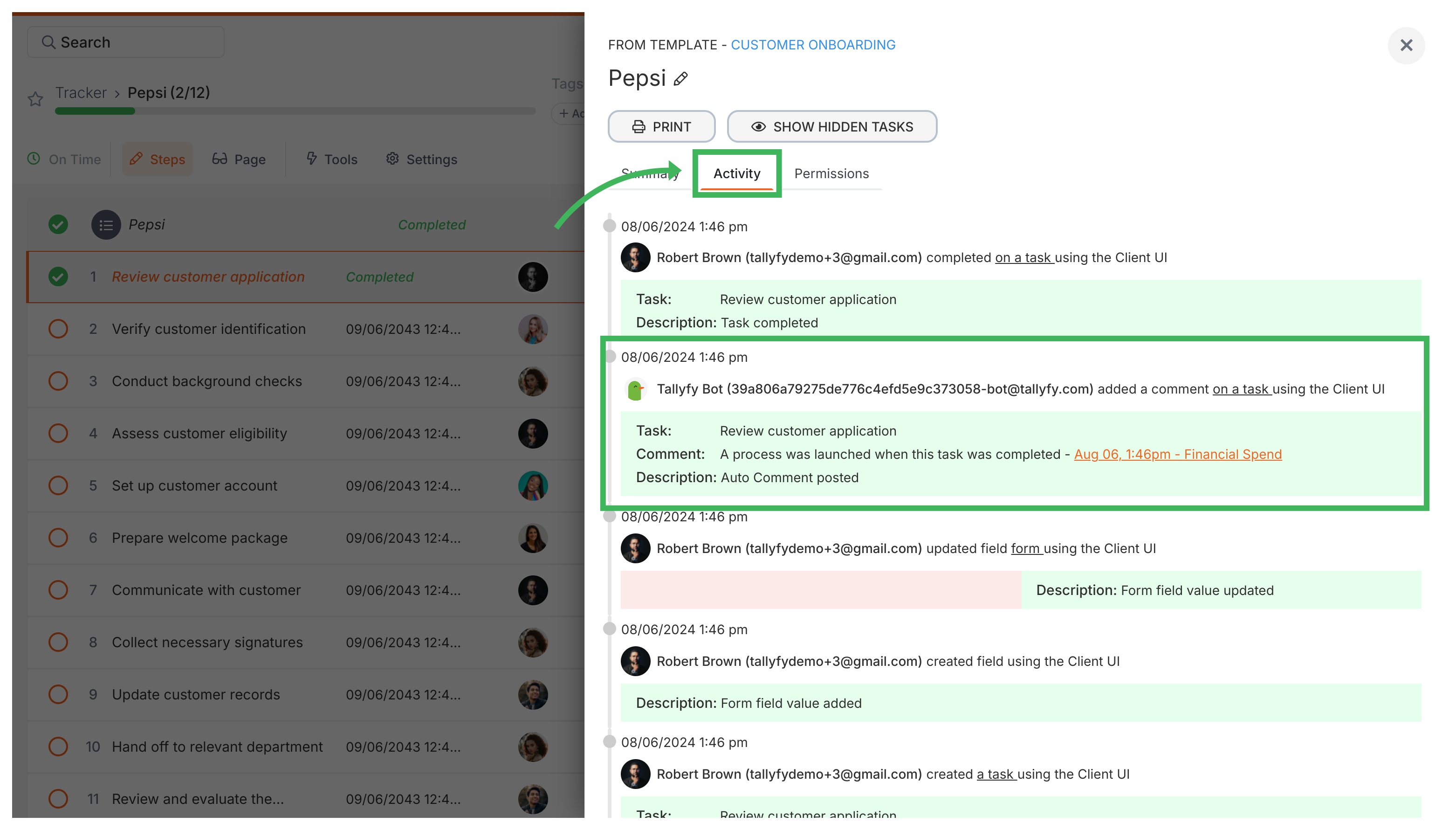
- The Tallyfy Bot adds a comment to the trigger task with a link to the newly launched process.

Related articles
Section titled “Related articles”Tracking And Tasks > Processes
Was this helpful?
- 2026 Tallyfy, Inc.
- Privacy Policy
- Terms of Use
- Report Issue
- Trademarks