Members > Manage member permissions
Administrators can control what Standard members do in Tallyfy. Set five permissions (edit…
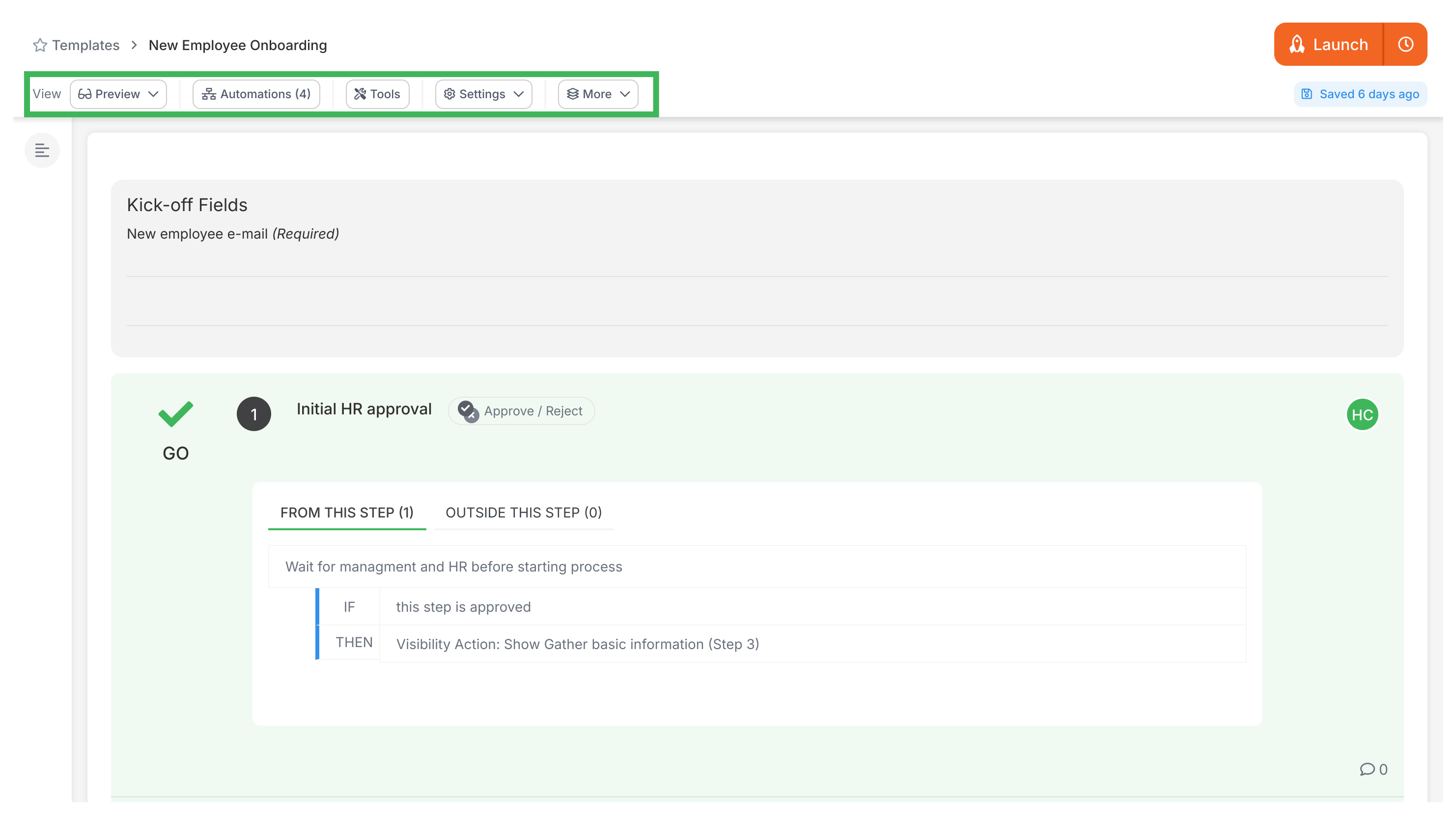
Click Settings (or Config) when editing a template in Tallyfy to control how it works, who can use it, and how it’s organized.
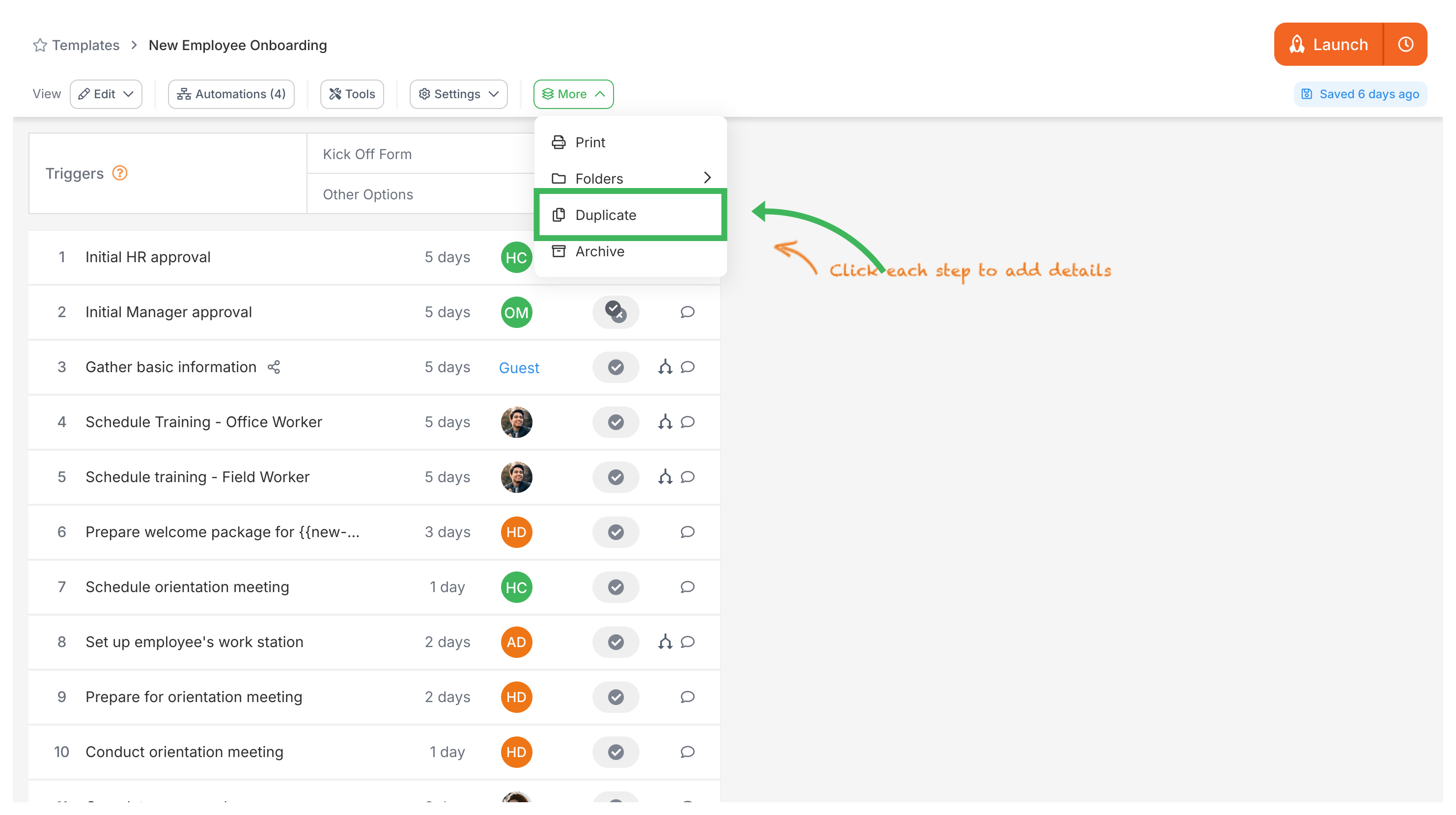
Creates an exact copy of your template. The copy won’t affect the original. Give it a new name, or it’ll default to “COPY OF - [original template name]”.
Archiving soft-deletes the template from your library. It’s not permanently removed - you can restore it later, and restoring brings back its steps, form fields, automations and folder. If other templates embedded this one in their text, archiving takes those embedded blocks out, and restoring puts them back. An embed can’t come back if the template or step that held it was edited or deleted in the meantime. Templates archived before mid-September 2026 don’t get their embeds back, because Tallyfy didn’t save a copy then.
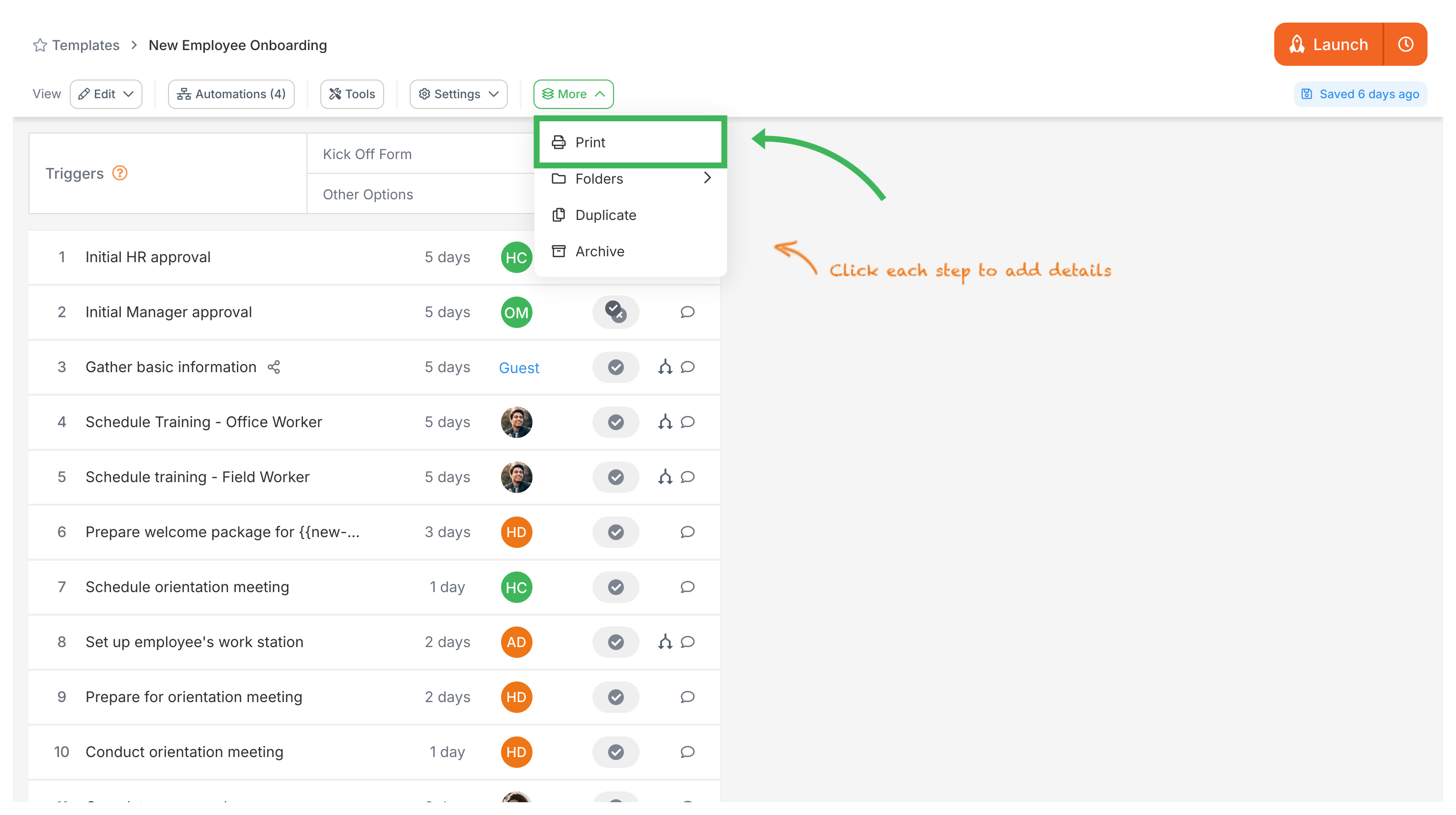
Creates a printable version you can save as PDF. See Print, Download, and Export Templates.
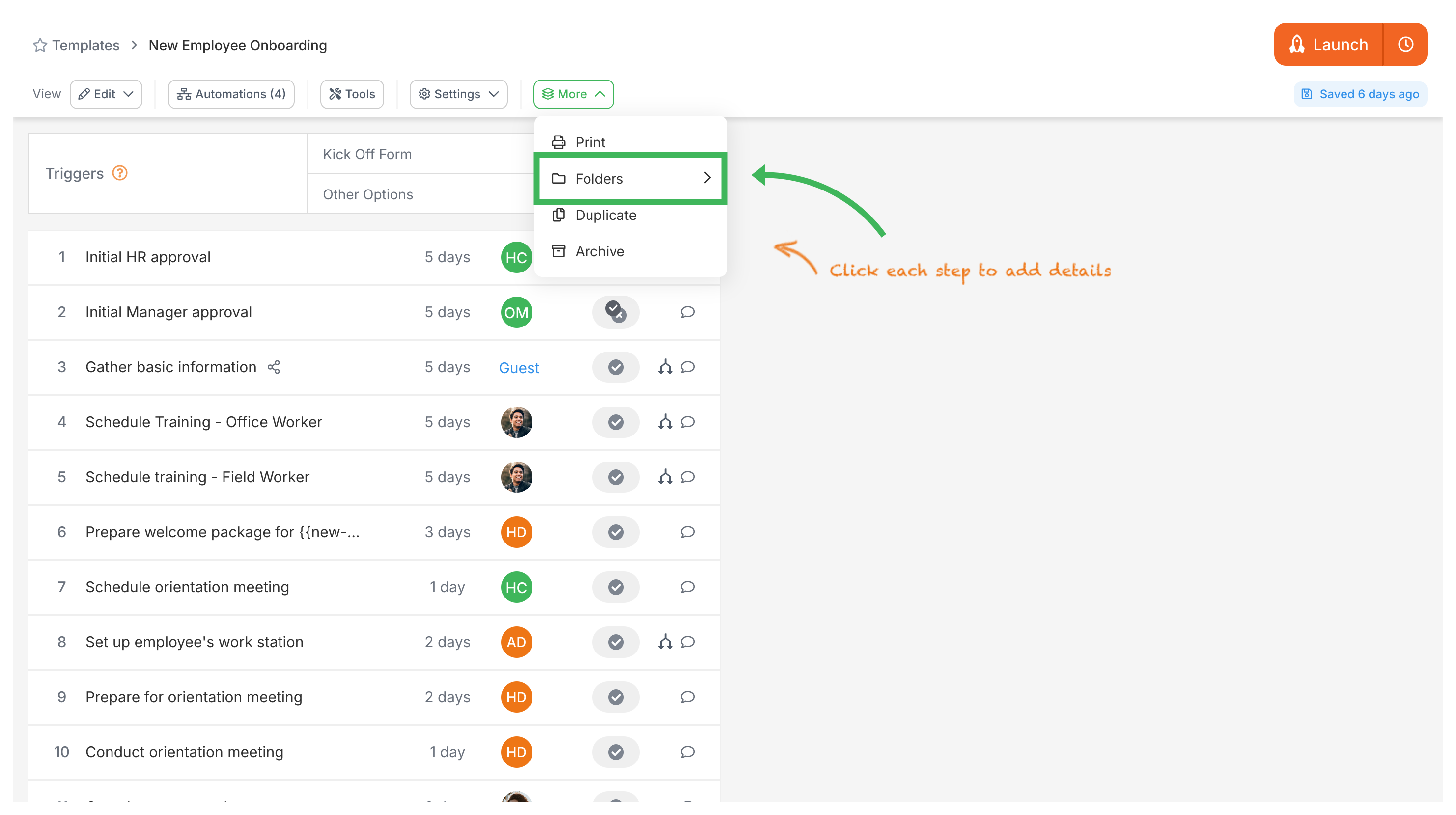
Move templates into folders to keep your library tidy. See Organize Templates into Folders.
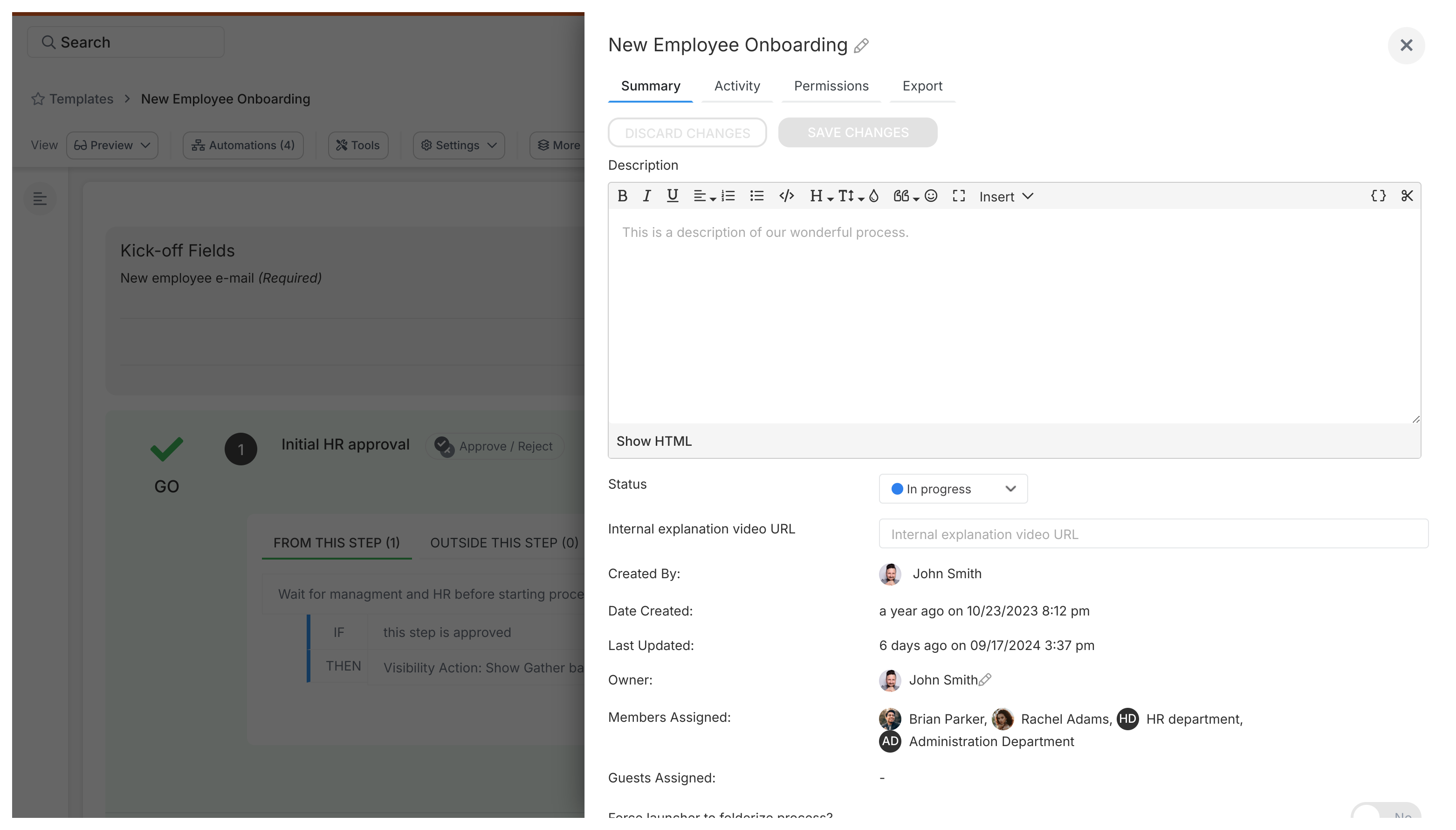
The Activity tab logs every template change - who made it and when.
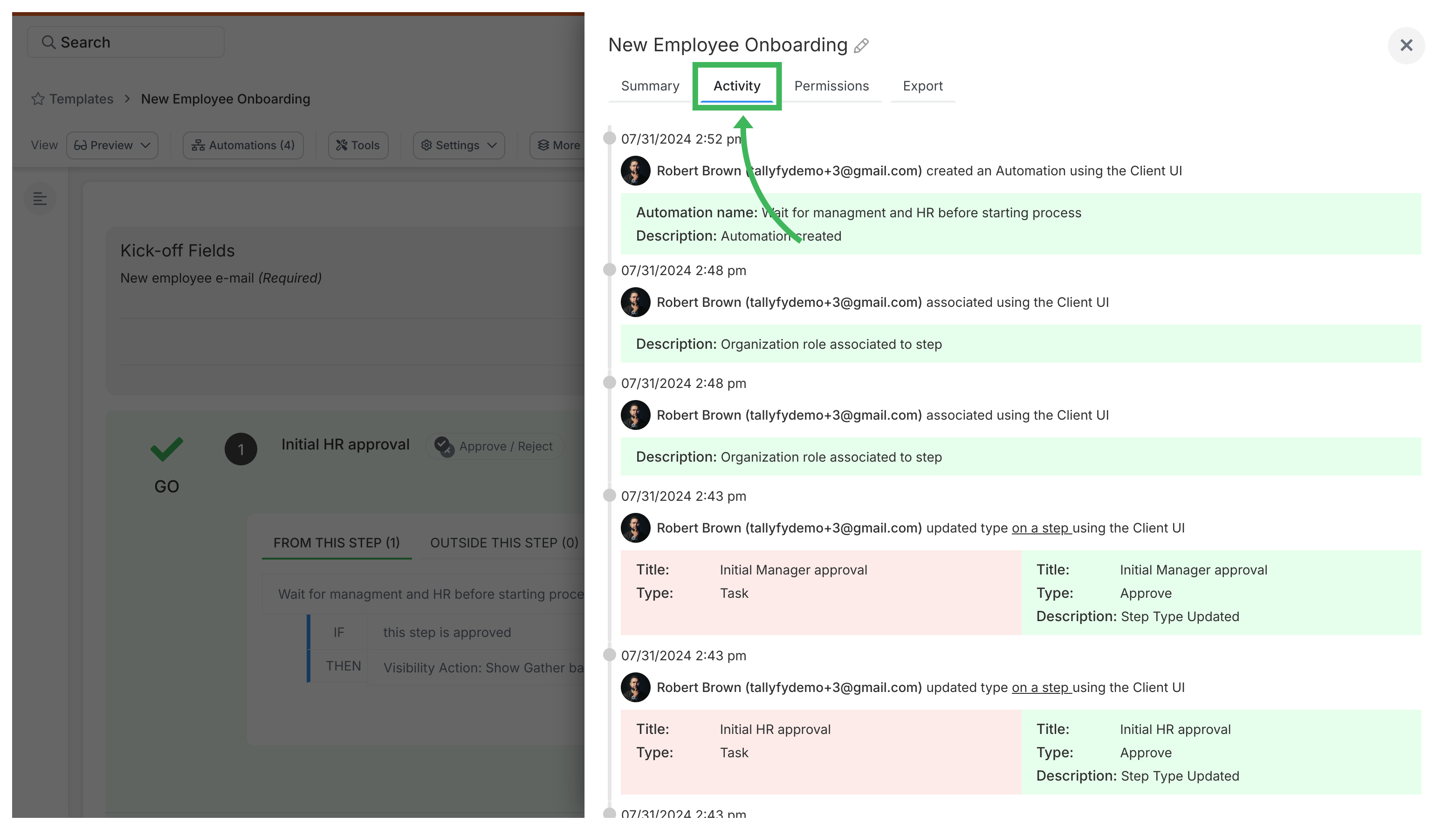
You can make templates public so anyone can find them in the public library.
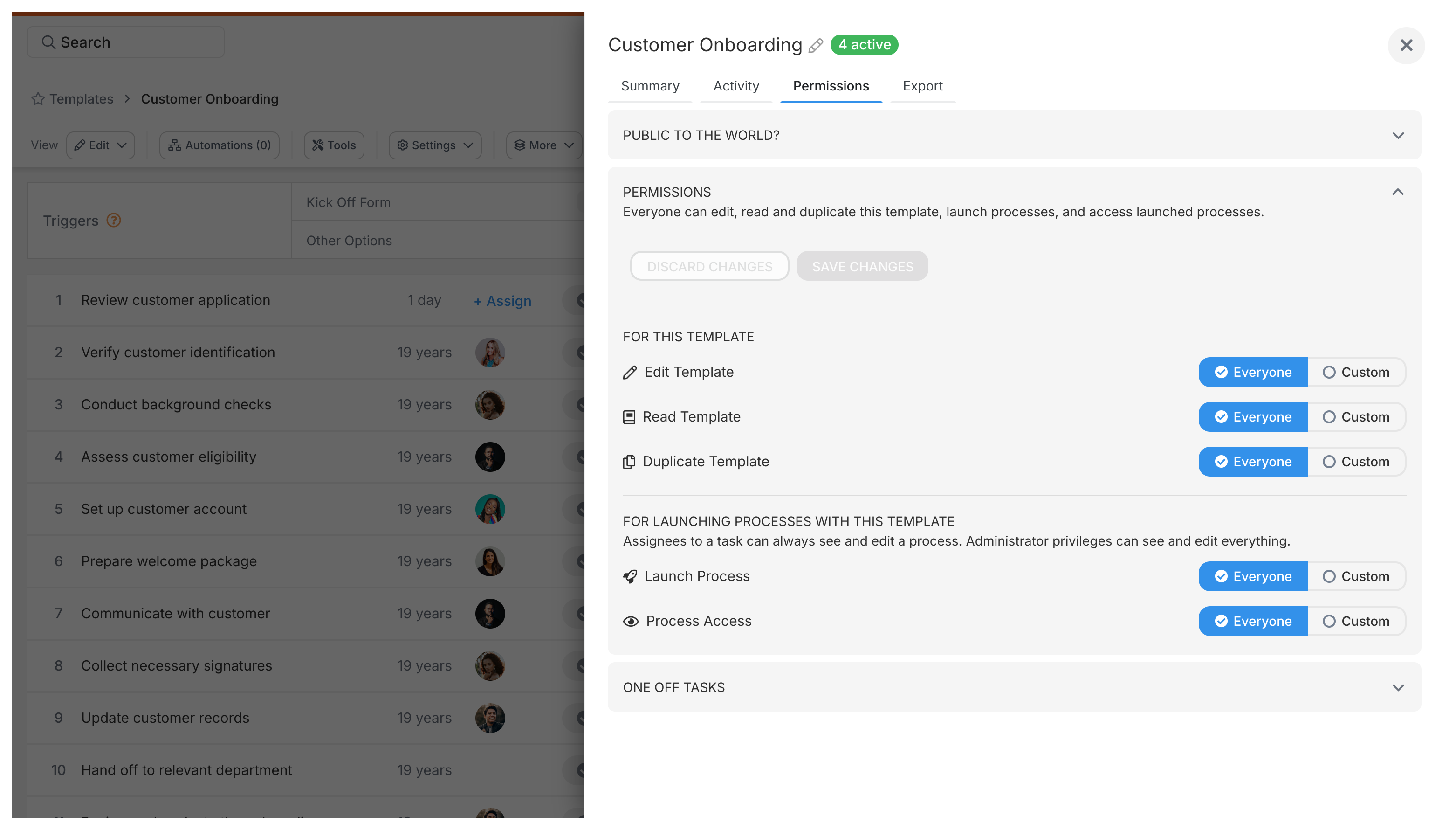
Control who can interact with this template. You can allow everyone or pick specific people or groups.
Five permission types:
Decide if people can add unplanned tasks to running processes. Look for “Can people add one-off tasks to this process?”
Set this to No for compliance or safety procedures that must follow exact steps.
This section shows IDs you’ll need for integrations or support.
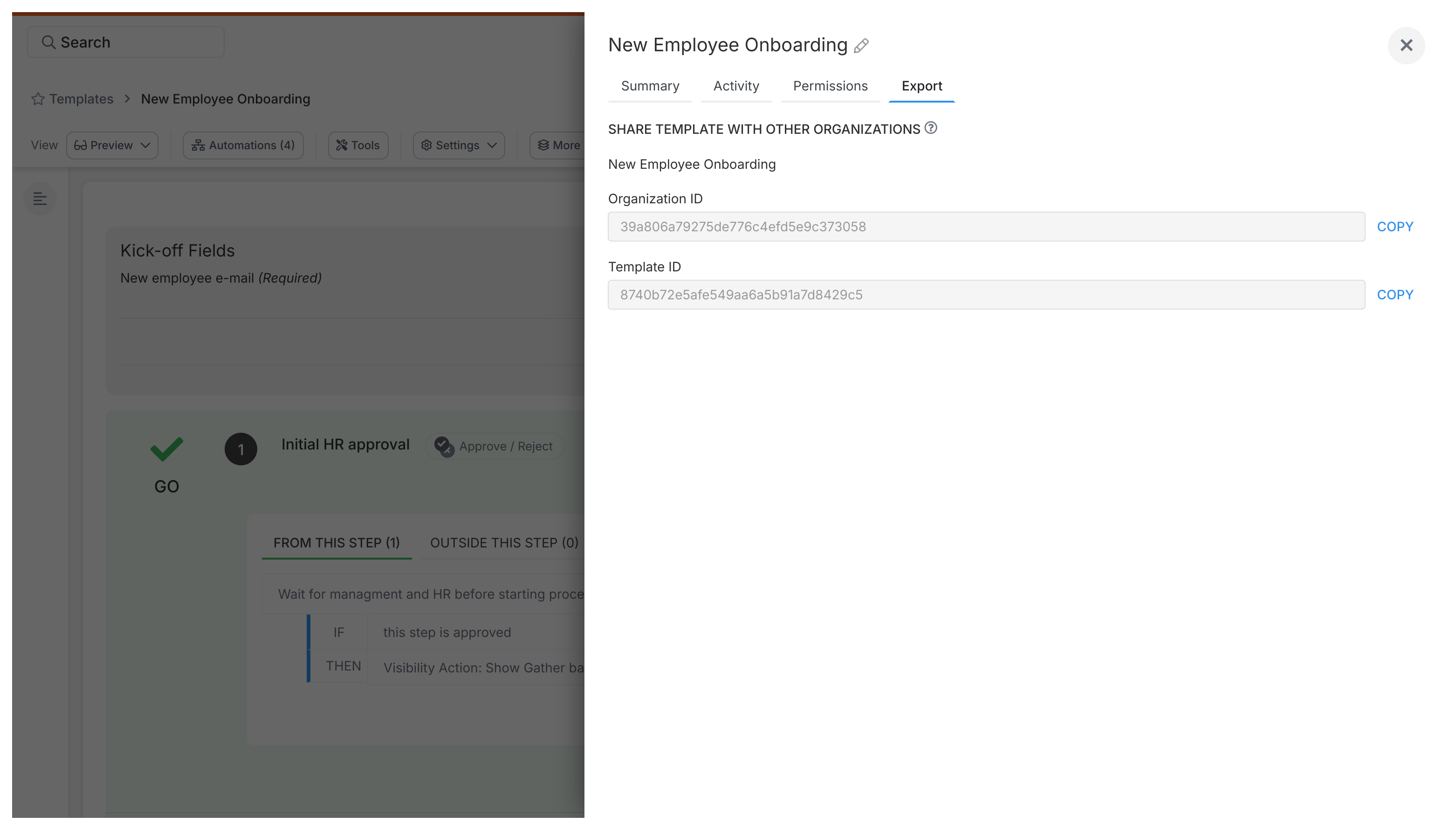
You’ll need these when:
Members > Manage member permissions
Templates > Organizing templates