Invite new users to your Tallyfy organization by sending a POST request with their email, name…
Invite and activate members
Inviting members and managing activation
Section titled “Inviting members and managing activation”Click the Invite+ button anywhere in Tallyfy, enter an email address, and that person gets an invitation to set up their account.
What you’ll need
Section titled “What you’ll need”- Administrator permissions by default (admins can also allow Standard members to invite others via org settings)
- An available paid member seat in your plan
- The email addresses of people you’re inviting
Inviting new members
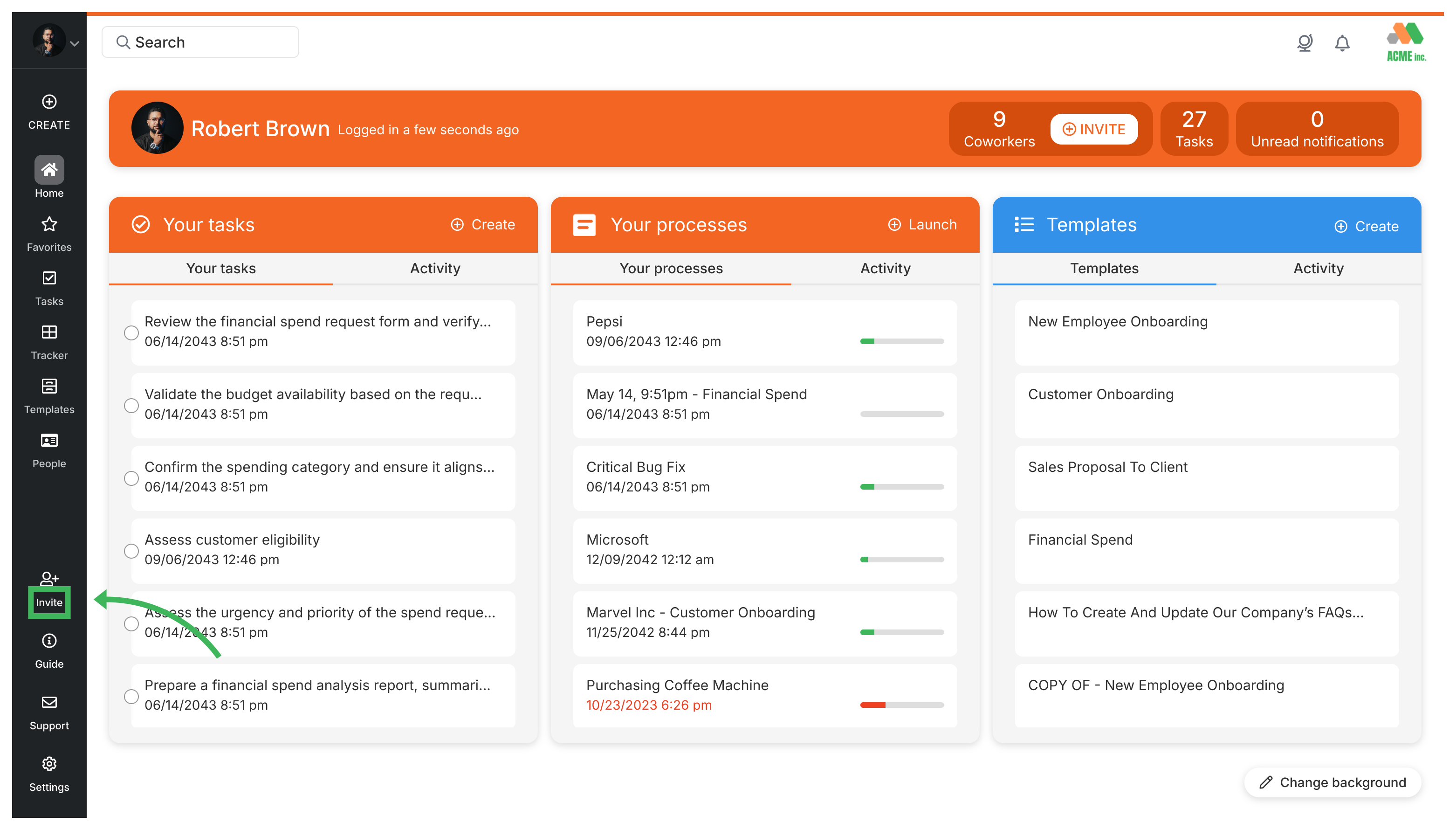
Section titled “Inviting new members”- Find the Invite+ button - it appears in several places:
- In the left sidebar
- Under your name (top right corner)
- In Settings > Organization > Members
- In the +Create menu at the top
- Enter the person’s email address.
- Add their first and last name.
- Pick their Role - Administrator, Standard, or Light.
- Write a welcome message (required, up to 5,000 characters).
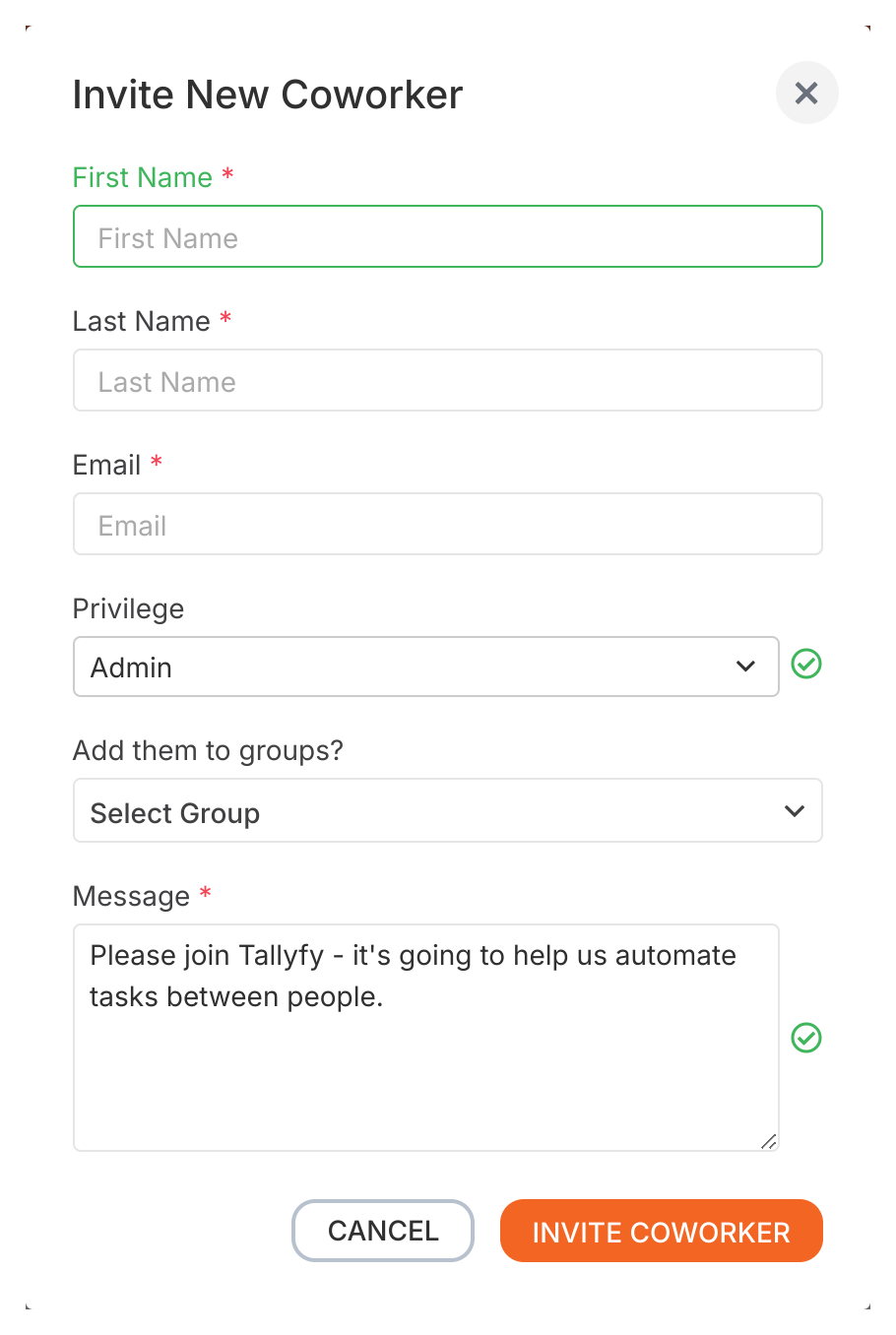
- Click Send Invitation.
Invites hold a seat straight away
Section titled “Invites hold a seat straight away”An invitation reserves its seat the moment you send it, not when the person accepts. That’s deliberate. It means the seat is guaranteed to be there when they arrive, and it means you find out you’re short a seat while you’re still on the invite screen, rather than days later when someone can’t sign in.
Two consequences worth knowing:
- If the pool is already full, the invitation itself is refused and Tallyfy offers to sell you the seat there and then. Buy it from that prompt and the invite goes out.
- A pool can read as full because of invites nobody has accepted. Invitations don’t expire, so they hold their seats until someone accepts or an administrator revokes them. Revoking a pending invite frees its seat immediately, which is the quickest way to recover a seat you need right now.
The role you pick decides which pool the seat comes from: Administrator and Standard draw a full seat, Light draws a light seat. Guests are free and unlimited and never touch either pool.
Managing sent invitations
Section titled “Managing sent invitations”Go to Settings > Organization > Members and look for anyone with “Invited” status - that’s everyone who hasn’t joined yet.
You can resend an invitation right from that page. Invited the wrong person? Click Withdraw to cancel it.
The activation process
Section titled “The activation process”Here’s what your new team member does after receiving the invite:
- Open the Tallyfy invitation email.
- Click the Join Now button.
- Create a password for their account.

- Complete any remaining profile setup.
Verifying someone joined
Section titled “Verifying someone joined”- Go to Settings > Organization > Members.
- Find the person’s name - if their status shows Active, they’re in.
Related articles
Section titled “Related articles”Org Settings > Member statuses
Every Tallyfy organization member has one of four statuses: Active, Invited, Deactivated, or…
Members > Standard and admin members
Tallyfy has three member roles. Administrators get full account control, Standard members create…
Members > Change a member's role
Administrators can change any member’s role between Administrator, Standard, and Light by going…
About Tallyfy