Tableau > Connecting Tableau to analytics data
Troubleshoot issues
Fixing Tableau connection problems with Tallyfy Analytics
Section titled “Fixing Tableau connection problems with Tallyfy Analytics”Tableau connects to Tallyfy Analytics data through Amazon Athena using JDBC. When that connection breaks, here’s how to diagnose and fix it.
Use the right credentials
Section titled “Use the right credentials”Tallyfy provides two credential sets when Analytics is activated. Using the wrong one is the most common connection failure.
| Credential type | Use for | Common problem |
|---|---|---|
| IAM Username/Password | AWS web console access only | Causes “security token invalid” errors in Tableau |
| Access Key/Secret Key | Tableau and all BI tool connections | More reliable - use this one |
Authentication errors
Section titled “Authentication errors”If you see “The security token included in the request is invalid”:
- Confirm you’re using the Access Key/Secret Key pair - not your IAM console login
- Check that your credentials haven’t been rotated or expired
- Verify the region setting matches your Athena endpoint (e.g.,
us-east-1)
Missing or broken data source
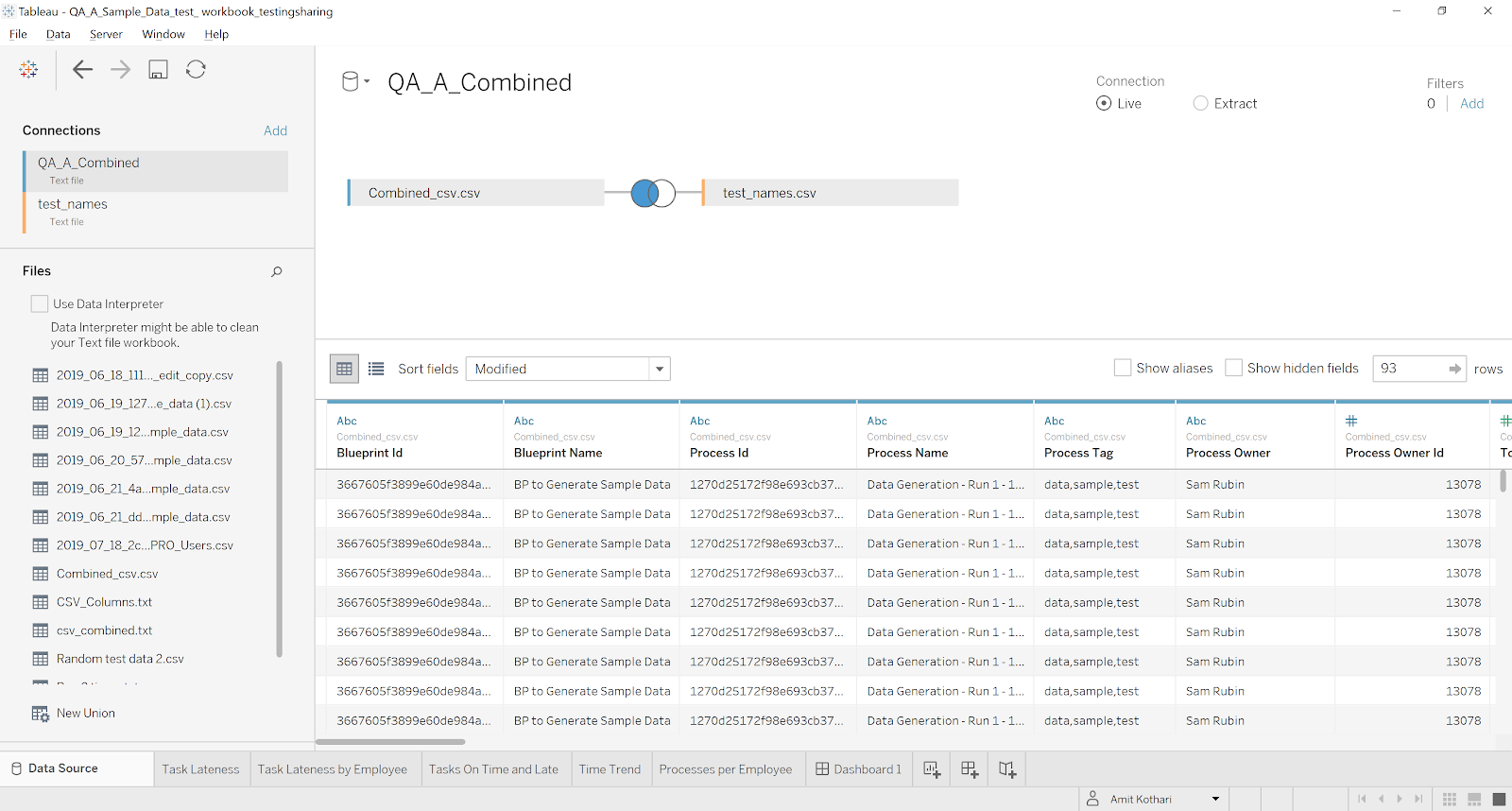
Section titled “Missing or broken data source”When Tableau can’t find a previously working data source:
-
Open the Tableau workbook showing the disconnected data source
-
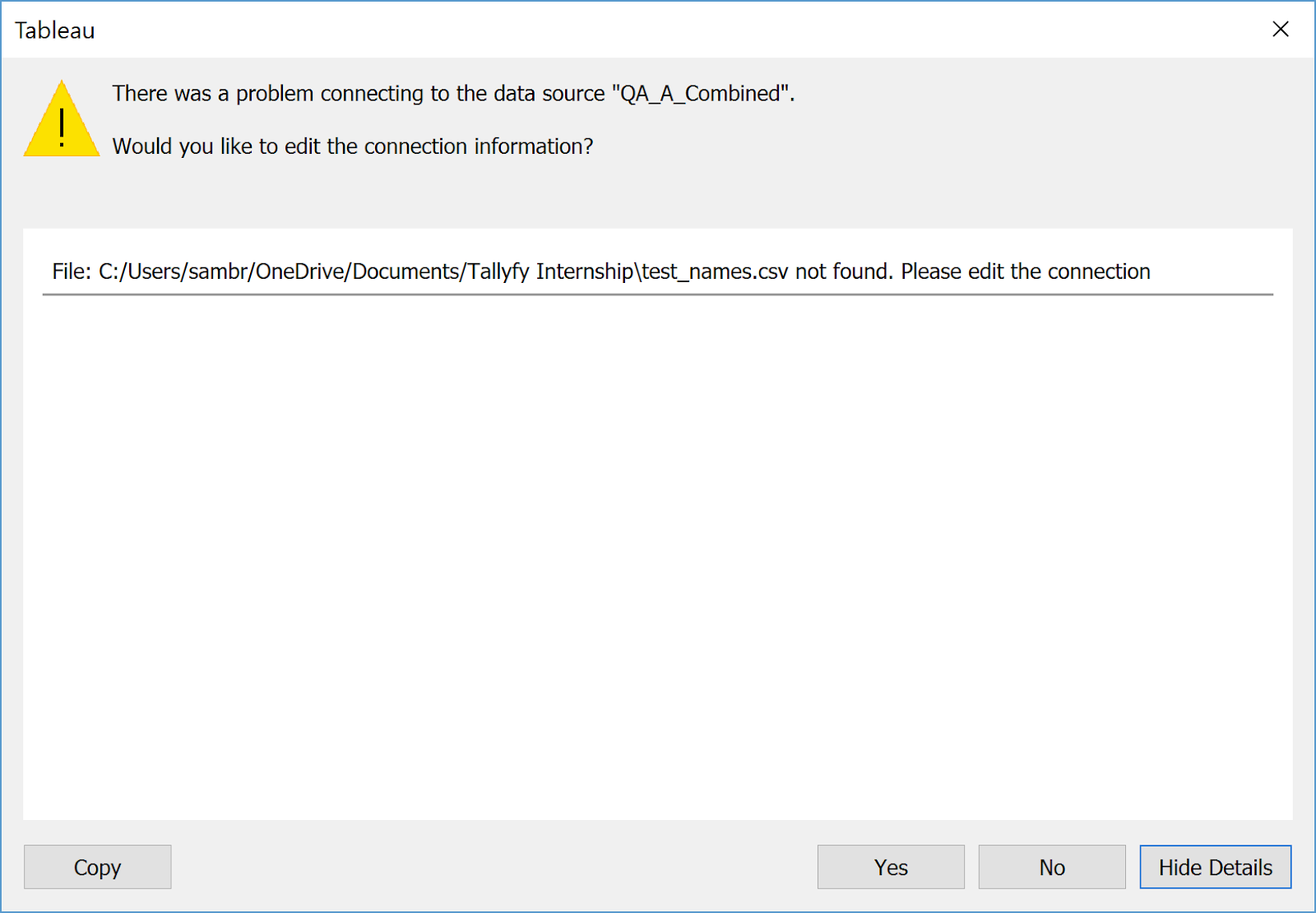
Select Show Details when prompted about the missing data source to see the specific error
-
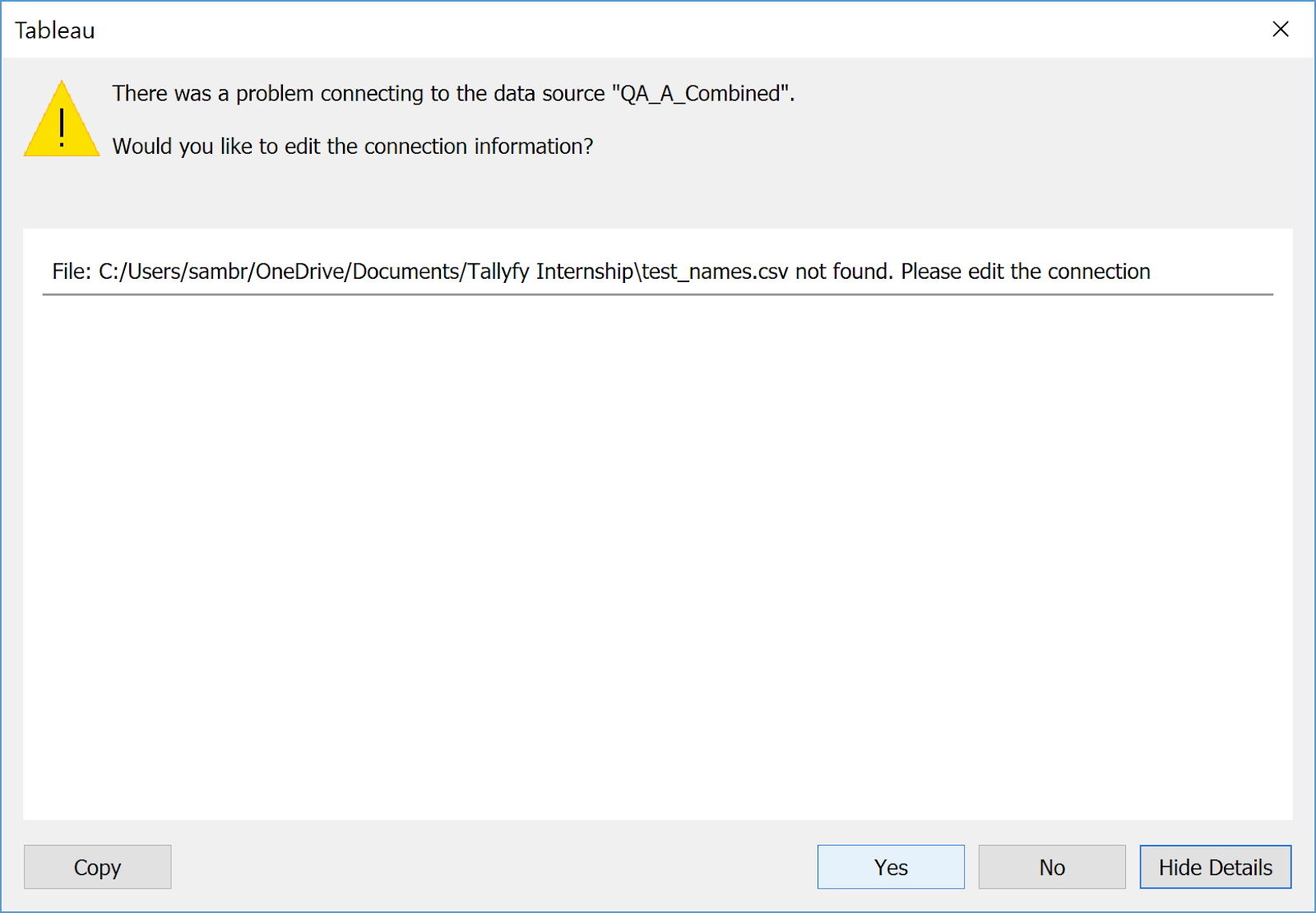
Click Yes when asked if you want to reconnect
-
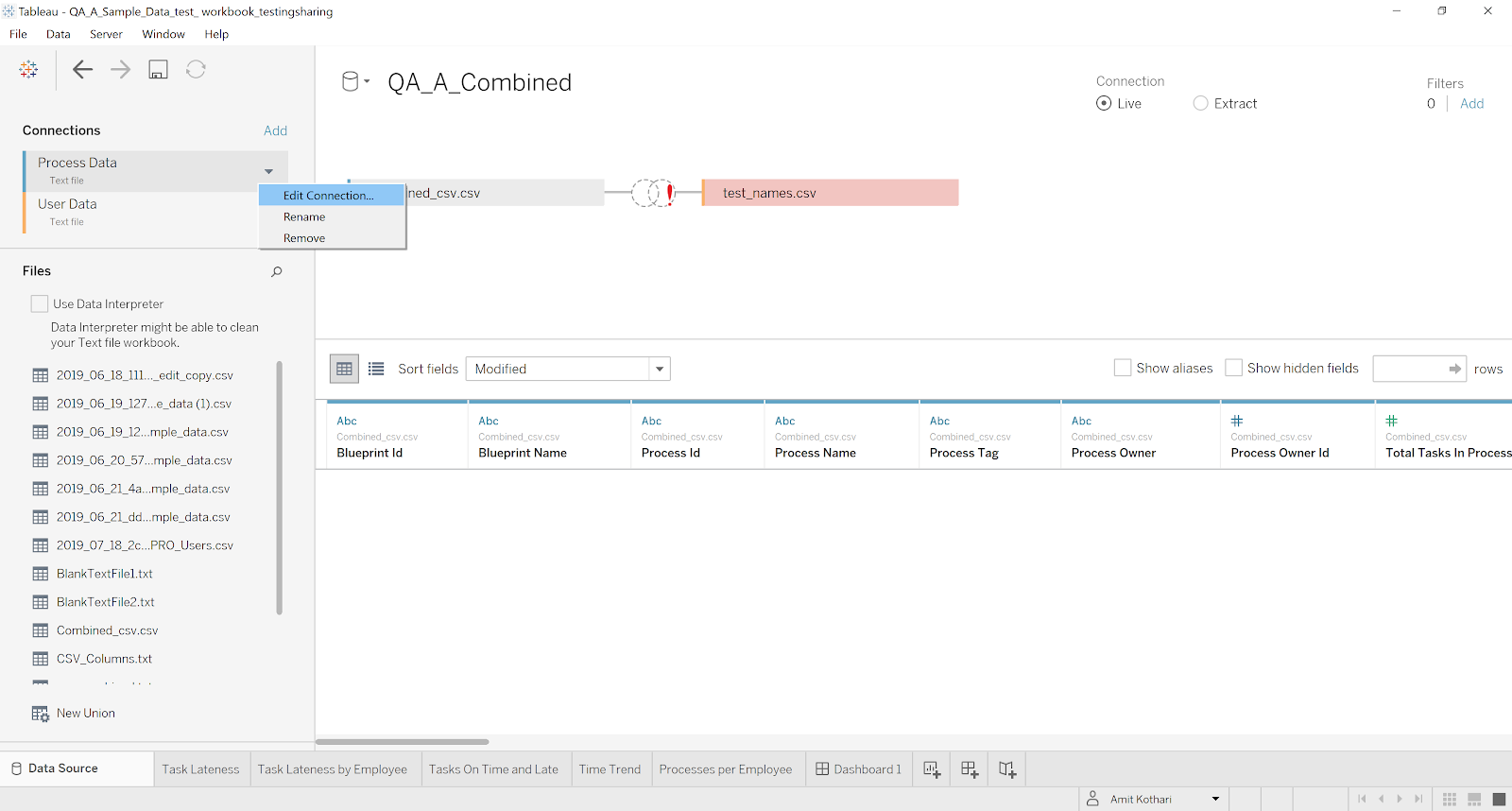
Select Edit Connection to update your settings
-
Re-enter your Access Key, Secret Access Key, S3 staging directory, and region
-
A successful connection will refresh your dashboard with current data
Connection that can’t be edited
Section titled “Connection that can’t be edited”If Edit Connection is grayed out or unresponsive, remove and recreate the connection:
- Delete the existing data connection from your workbook
- Add a new connection to Amazon Athena
- Enter all connection parameters - Access Key, Secret Access Key, Athena endpoint, port
443, S3 staging directory, and region - Select your database and reconnect to your data tables
Date fields showing wrong types
Section titled “Date fields showing wrong types”Tallyfy stores timestamps in Y-m-d H:i:s format. After reconnecting, date fields like due_by and completed_on sometimes lose their type mapping.
- Go to the Data Source tab and find your date fields
- Right-click each date field and select Change Data Type > Date & Time
- Verify that date-based filters and calculations work correctly
Sharing workbooks securely
Section titled “Sharing workbooks securely”When sharing Tableau workbooks that connect to Tallyfy Analytics:
- Use Tableau’s Extract feature to create a local snapshot of the data - this avoids sharing credentials
- For ongoing access, use Published Data Sources in Tableau Server/Online
- If sharing live connections, make sure recipients have their own Tallyfy Analytics credentials
- Never embed your Access Key or Secret Access Key in shared workbooks
Preventing connection issues
Section titled “Preventing connection issues”- Keep Tableau Desktop and JDBC drivers up to date
- Run Test Connection after driver updates or credential changes
- Store your connection settings (endpoint, region, S3 staging directory) in a secure location
- Create data extracts as backups for critical dashboards
- Schedule regular extract refreshes in Tableau Server/Online
Still stuck? Contact Tallyfy Support with the exact error message and a screenshot - that speeds up troubleshooting.
Related articles
Section titled “Related articles”Looker > Connecting Looker to analytics data
Was this helpful?
- 2026 Tallyfy, Inc.
- Privacy Policy
- Terms of Use
- Report Issue
- Trademarks