Tutorials > Create an automation
Tallyfy automations pair an If with a Then to adapt workflows at runtime. You can hide and…
Exclusive choice automation sends your process down exactly one path from multiple options based on a condition. It’s the “pick A or B, never both” pattern.
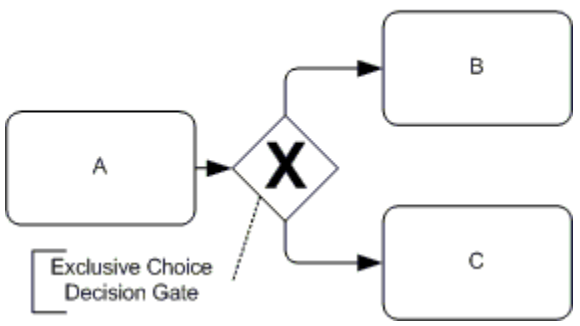
You set up several automations, each with its own condition. When someone fills out a form or completes a task, Tallyfy checks which condition matches and runs only that one. One path. That’s it.
Say you’re onboarding new employees. Field workers need safety training and equipment setup. Office workers need IT access and desk assignments. Same process - completely different steps.
Add a step asking for the employee’s role using a Radio Button form field (radio buttons only allow one selection).
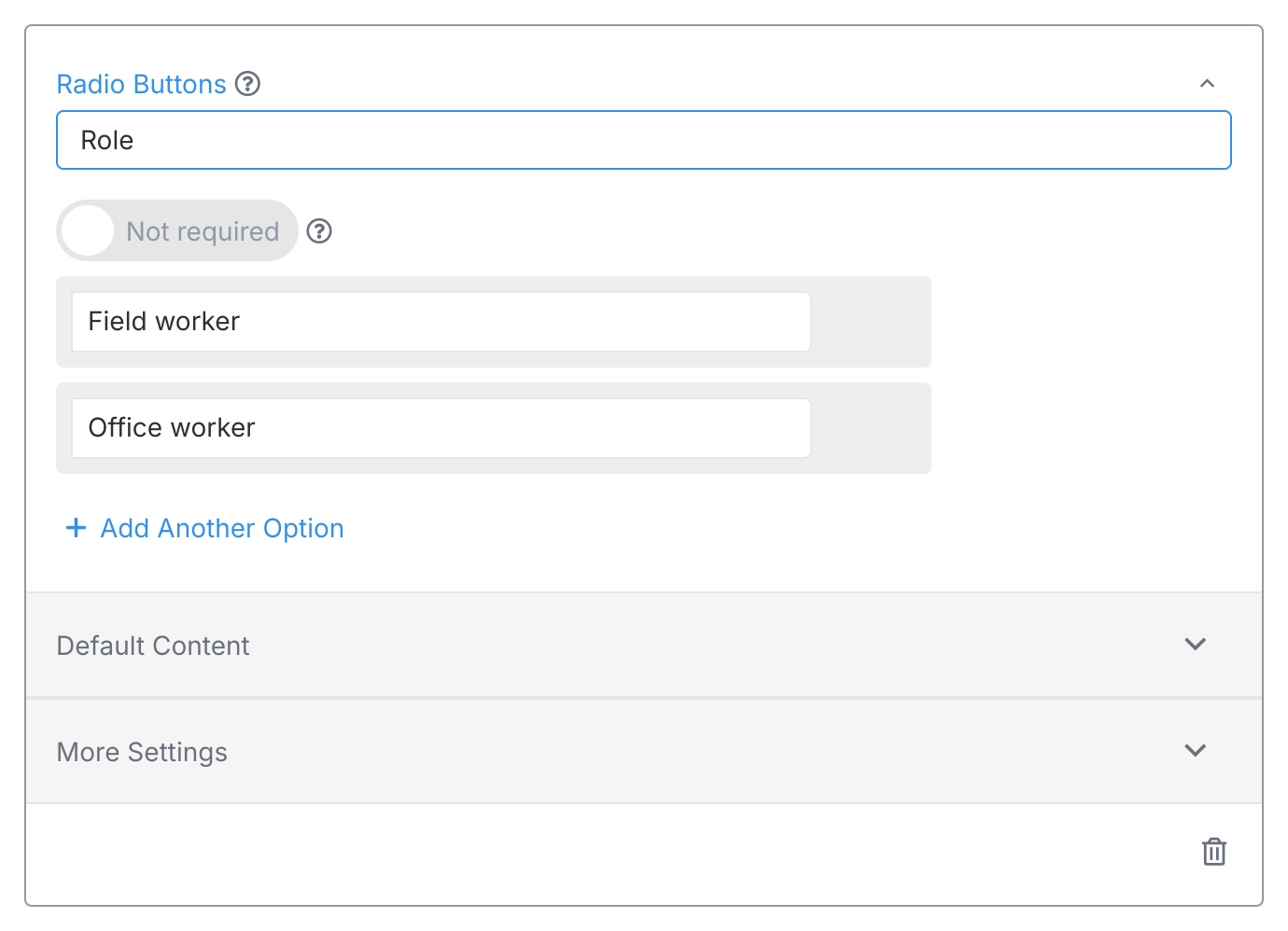
Then create two automations using visibility actions1:
Automation 1:
Show the field worker steps
If
Then
AUTOMATION Show the field worker steps
IF field "Role" is "Field worker"
THEN show "Safety training"
AND show "Equipment setup"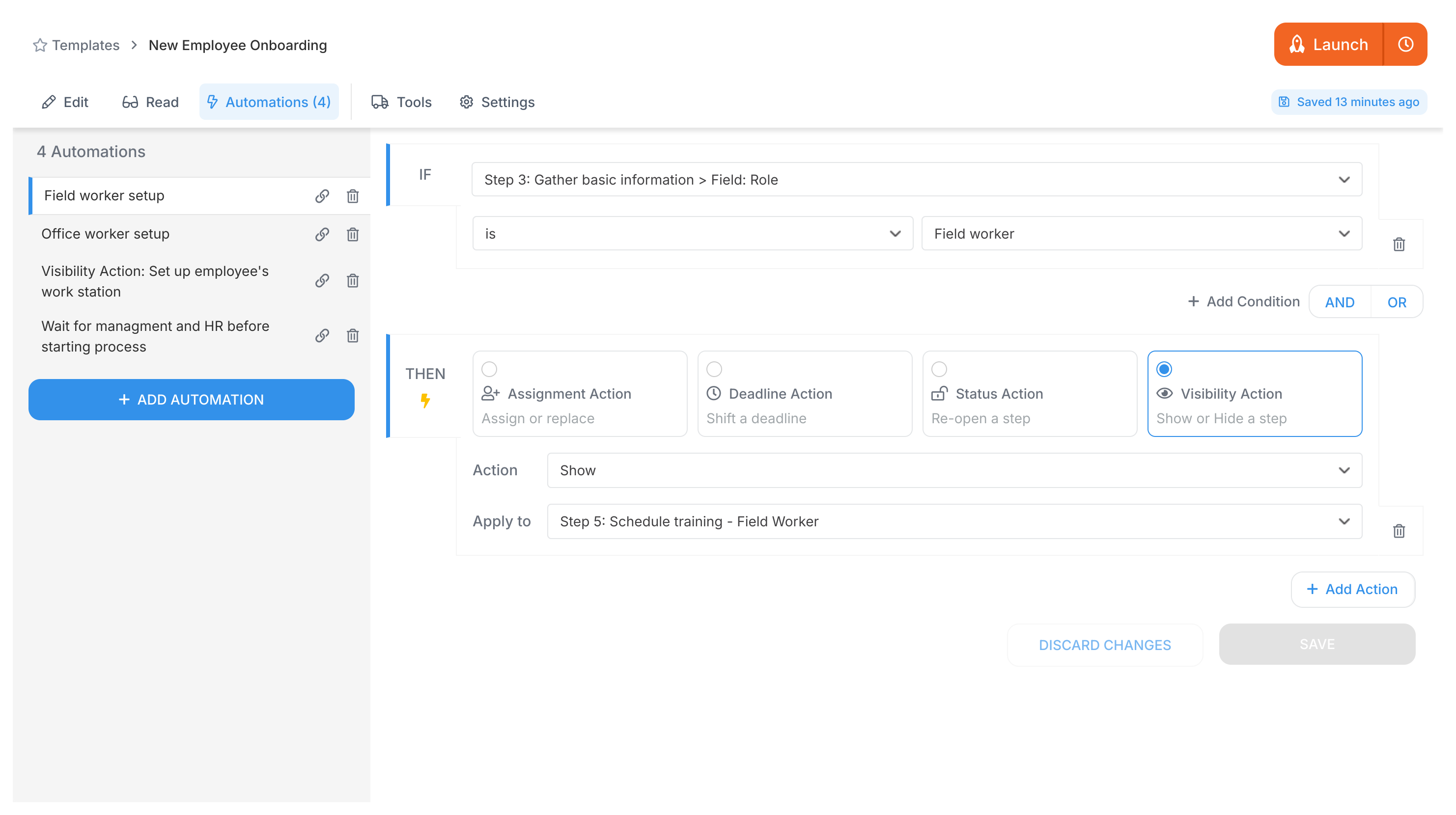
Automation 2:
Show the office worker steps
If
Then
AUTOMATION Show the office worker steps
IF field "Role" is "Office worker"
THEN show "IT access"
AND show "Desk assignment"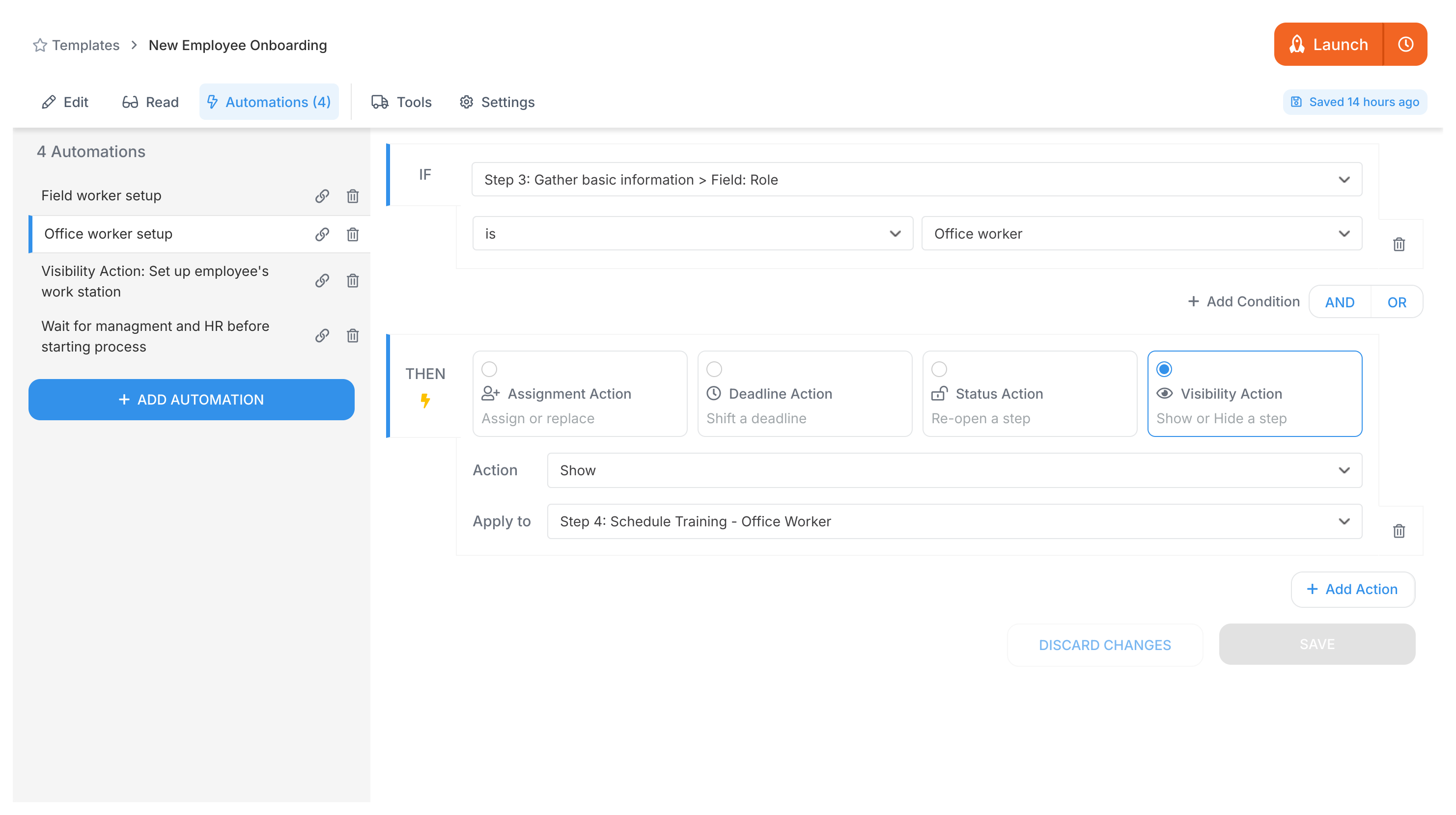
The Role field can only hold one value, so only one automation fires. Field workers see safety protocols and equipment checklists. Office workers see IT setup and workspace prep. Never both.
The key: use conditions that can’t be true at the same time (like radio button options). Tallyfy picks the right path automatically.
Tutorials > Create an automation
Automations > Conditional visibility
Automations > Logic operations explained
Actions that show/hide steps based on conditions, part of Tallyfy’s automation engine ↩