Org Settings > Remove a member
Remove a member
Removing members from your organization
Section titled “Removing members from your organization”To remove a member from Tallyfy, go to Settings > Organization > Members, click their name, and select Deactivate Account at the bottom of their profile. Access is revoked immediately, and you’ll decide what happens to their current tasks.
What you need
Section titled “What you need”- Administrator permission level
- The name of the member you want to remove
Removing a member
Section titled “Removing a member”- Go to Settings > Organization > Members.
- Click the member’s name.
- Scroll to the bottom of their profile page.
- Click Deactivate Account.

Deactivation happens instantly.
Choosing what happens to their tasks
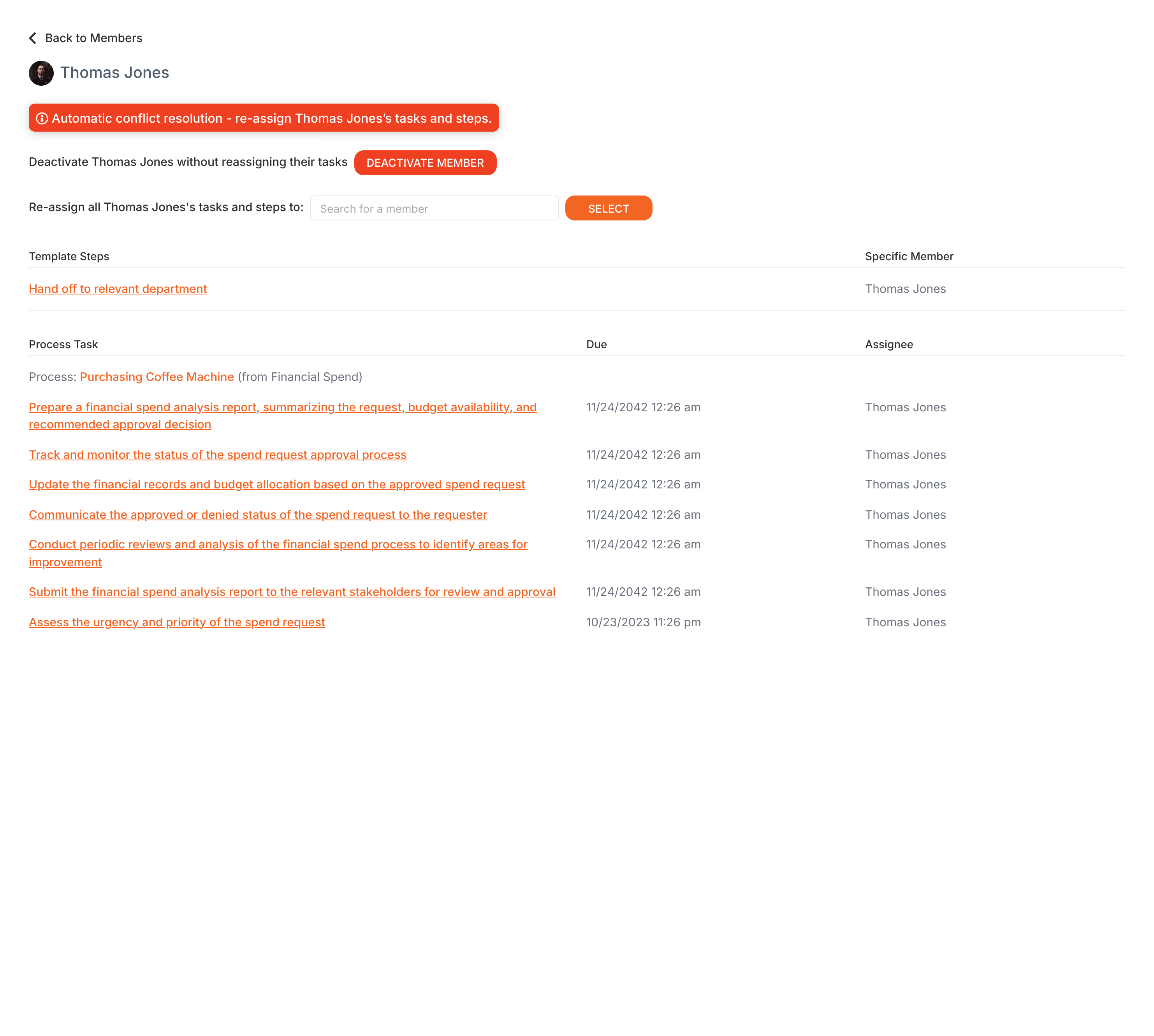
Section titled “Choosing what happens to their tasks”When you deactivate a member, you’ll decide what happens to their current tasks. Two options:
-
Reassign their tasks (recommended):
- Pick other active members to take over the work
- Choose specific tasks or reassign everything from certain templates

-
Leave tasks unassigned:
- Select Deactivate without reassigning their tasks
- Tasks become unassigned - you’ll need to reassign them manually later
What happens after deactivation
Section titled “What happens after deactivation”- They lose access to your Tallyfy organization immediately
- Their paid seat1 opens up for new team members
- Tallyfy records who performed the deactivation and when (visible in the member’s Activity section)
Check public kick-off forms first
Before deactivating anyone, check if they’re the inviter or creator for any templates used in public kick-off forms2.
- Member was the inviter (but didn’t create the template) - Tallyfy automatically switches the inviter to the template creator. Public sharing stays ON.
- Member was the creator of the template - Tallyfy may turn OFF public sharing for that form, breaking the public link immediately. An Administrator would need to turn public sharing back ON and pick a new member to associate with the form.

Checking deactivation history
Section titled “Checking deactivation history”- Go to Settings > Organization > Members
- Find the deactivated member’s name (you may need to filter the list)
- Check the Activity section at the bottom of their profile page
The activity log shows who deactivated the member and when.
Related articles
Section titled “Related articles” To remove a member from a Tallyfy organization, admins must first deactivate them. Tallyfy…
Tallyfy’s API lets you deactivate a member from your organization using a DELETE request with…
Org Settings > Member deletion
To delete a member in Tallyfy, you must disable them first. This guide covers common blockers…
Org Settings > Member statuses
Every Tallyfy organization member has one of four statuses: Active, Invited, Deactivated, or…
Footnotes
Section titled “Footnotes”Was this helpful?
About Tallyfy
- 2026 Tallyfy, Inc.
- Privacy Policy
- Terms of Use
- Report Issue
- Trademarks