Tableau connects to Tallyfy Analytics through Amazon Athena, letting teams build interactive…
Share a Tableau workbook
Sharing Tableau workbooks without exposing Tallyfy data
Section titled “Sharing Tableau workbooks without exposing Tallyfy data”Disconnect your Tallyfy Analytics data sources before sharing a Tableau workbook. Recipients get all your visualizations and dashboard layouts, but they’ll connect their own credentials. Your connection details stay private.
Sharing methods at a glance
Section titled “Sharing methods at a glance”| Method | Best for | Data protection |
|---|---|---|
| Data source disconnection | One-time sharing | Medium - structure visible, data removed |
| Filtered data extract | Recurring sharing | High - only selected data included |
| Tableau Server / Tableau Cloud | Team collaboration | High - centralized permission control |
| PDF/PNG export | Quick, read-only sharing | Complete - no data connectivity at all |
Before you start
Section titled “Before you start”- Tableau Desktop installed
- Working Tallyfy Analytics connection in Tableau
- Visualizations and dashboards already built
Method 1: Disconnect data sources
Section titled “Method 1: Disconnect data sources”This approach strips your data while preserving the workbook structure. Recipients reconnect with their own credentials.
Prepare your workbook
Section titled “Prepare your workbook”Confirm your Tableau workbook contains all the visualizations and dashboards you want to share.
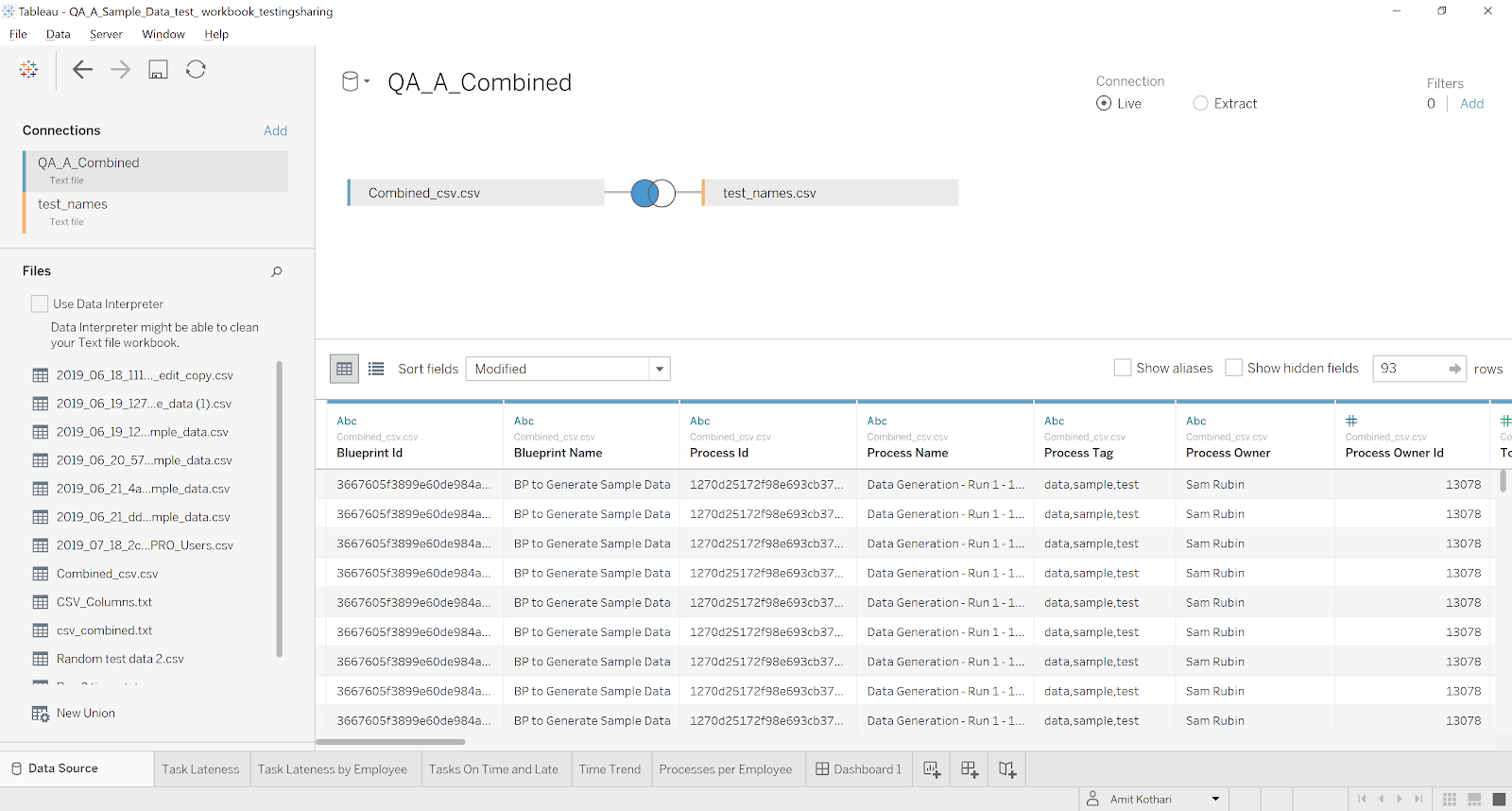
Disconnect the data sources
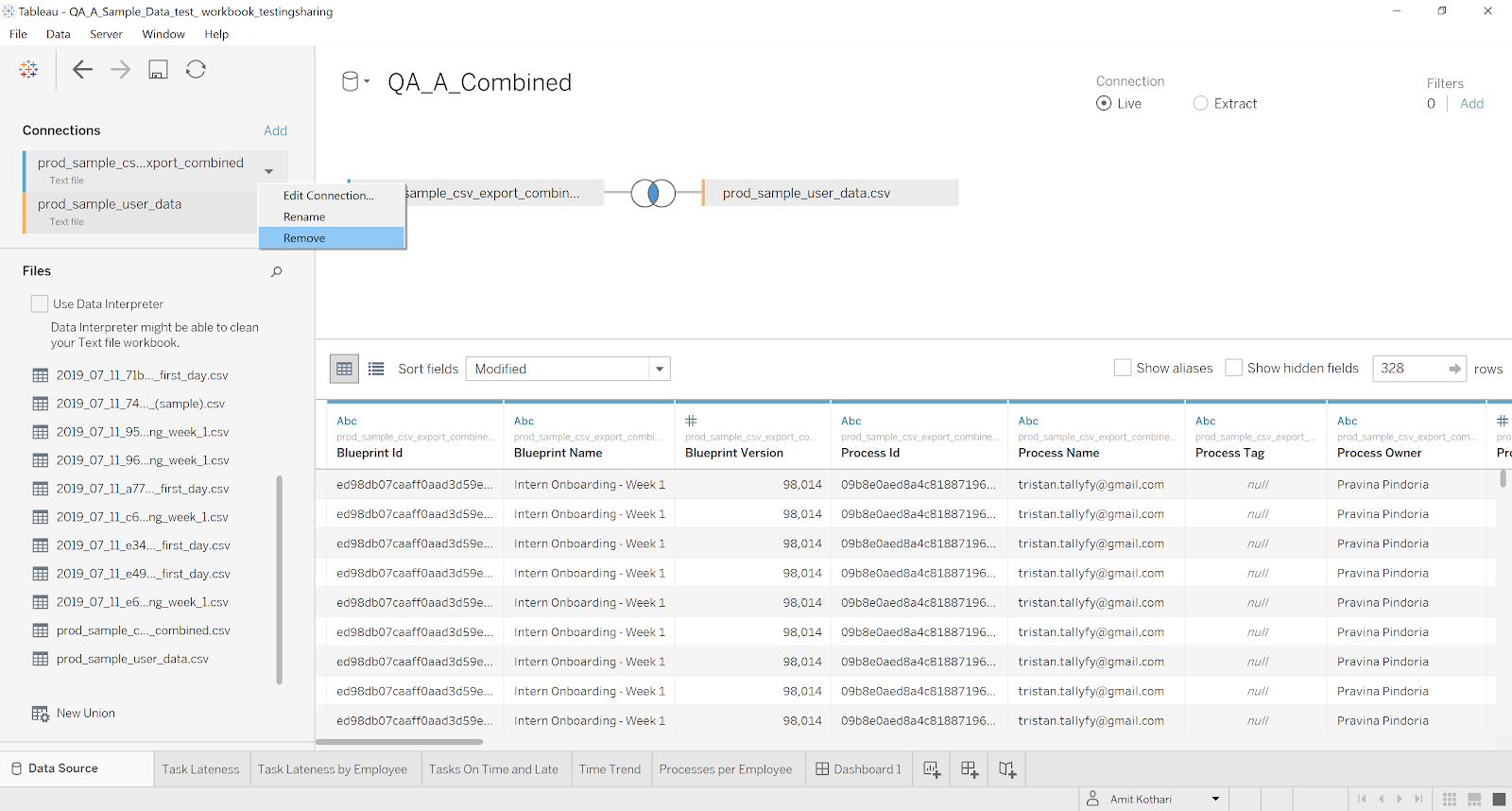
Section titled “Disconnect the data sources”- In the Data pane, right-click each data source
- Select Close to remove the connection
Alternatively, you can redirect the connection instead of closing it:
-
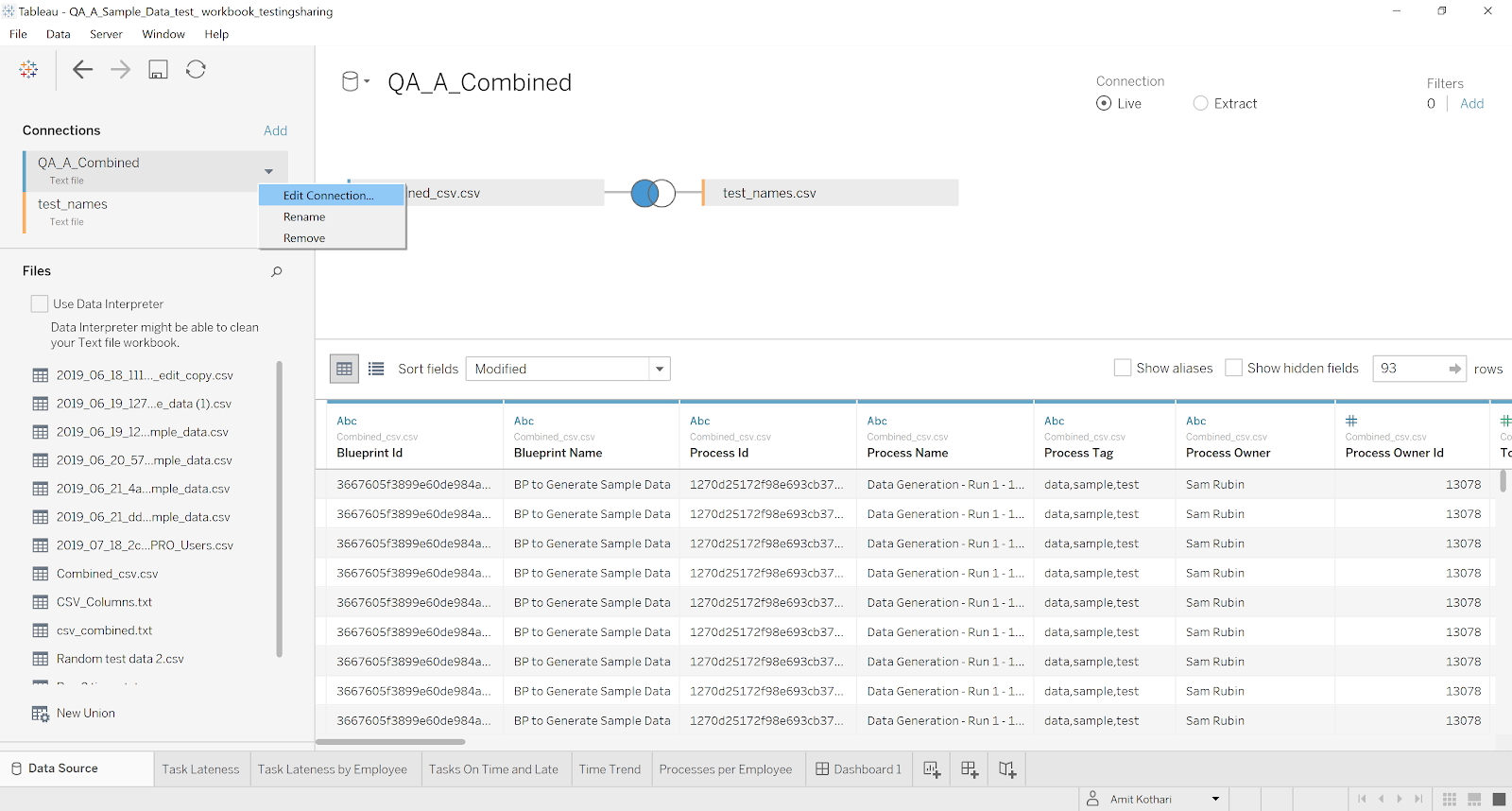
Go to the Data Source tab
-
Click the dropdown for each data source
-
Select Edit Connection
-
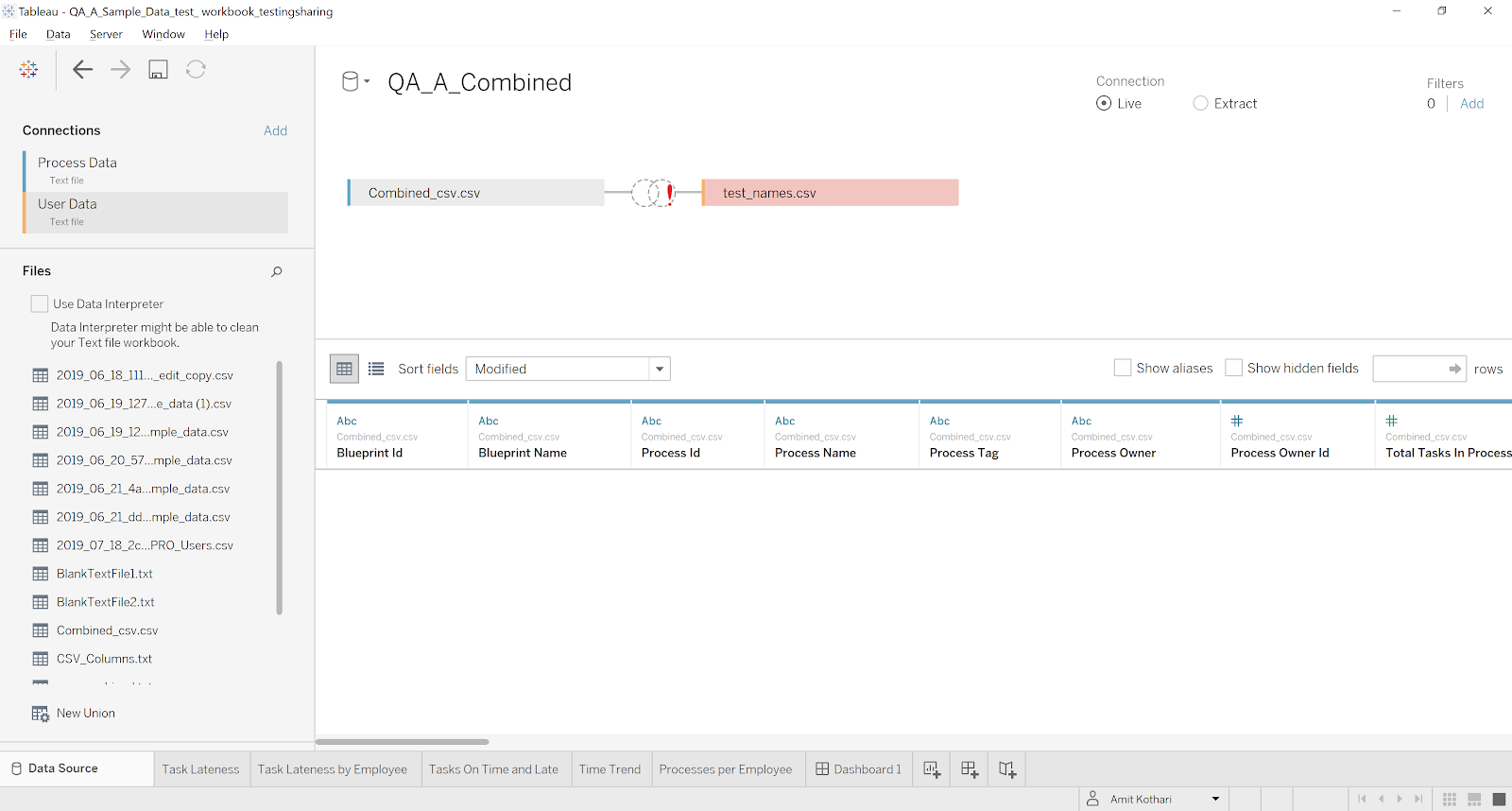
Change the connection path to a non-existent location
Save and share
Section titled “Save and share”- Select File > Save As to preserve your original workbook
- Give the copy a descriptive name (e.g., “Dashboard - no data”)
- Share the saved .twb file with your recipients
What recipients see when they open it
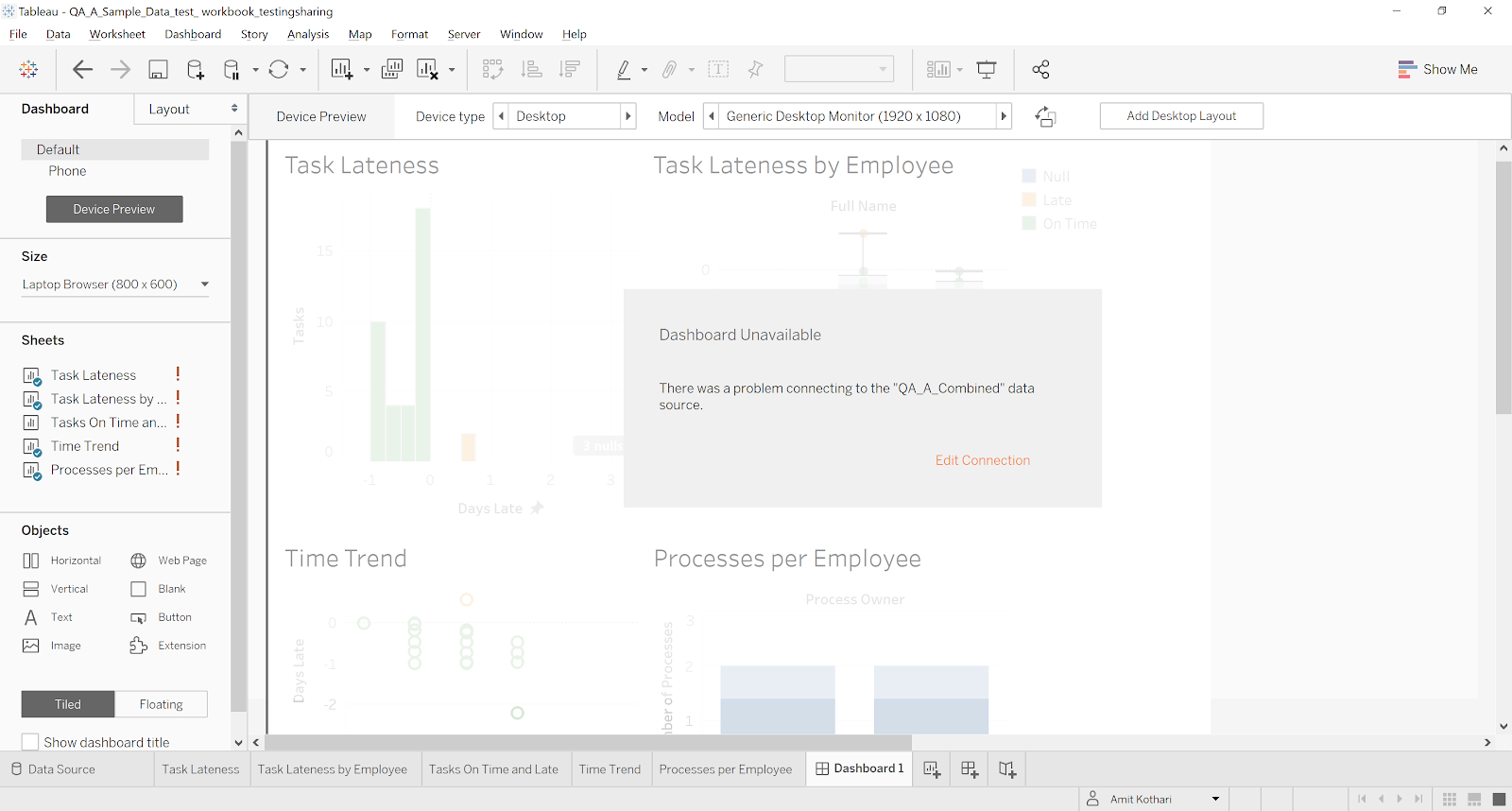
Section titled “What recipients see when they open it”Recipients will see connection errors when they open the workbook - that’s expected:
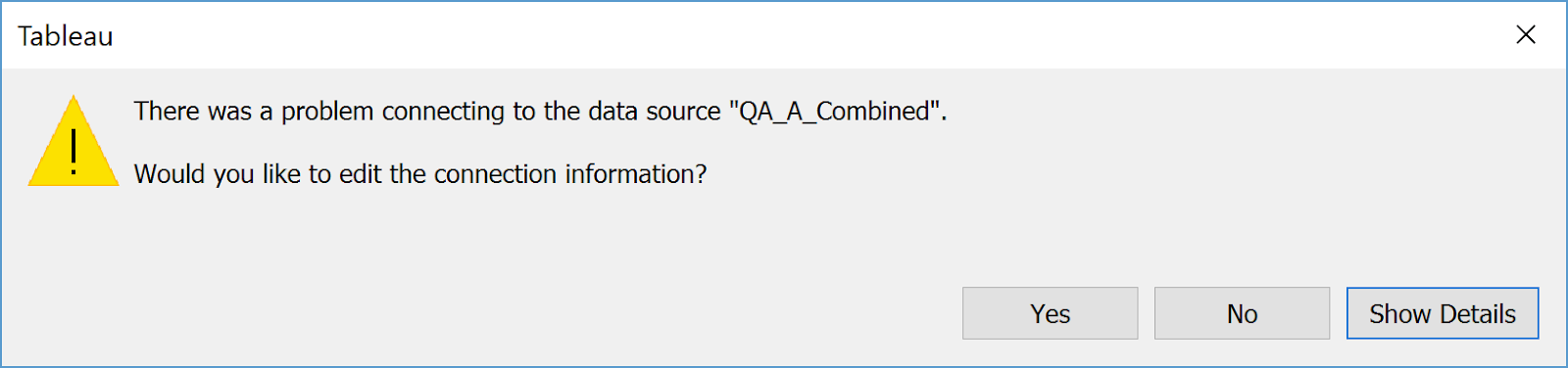
They can click to see full error details:
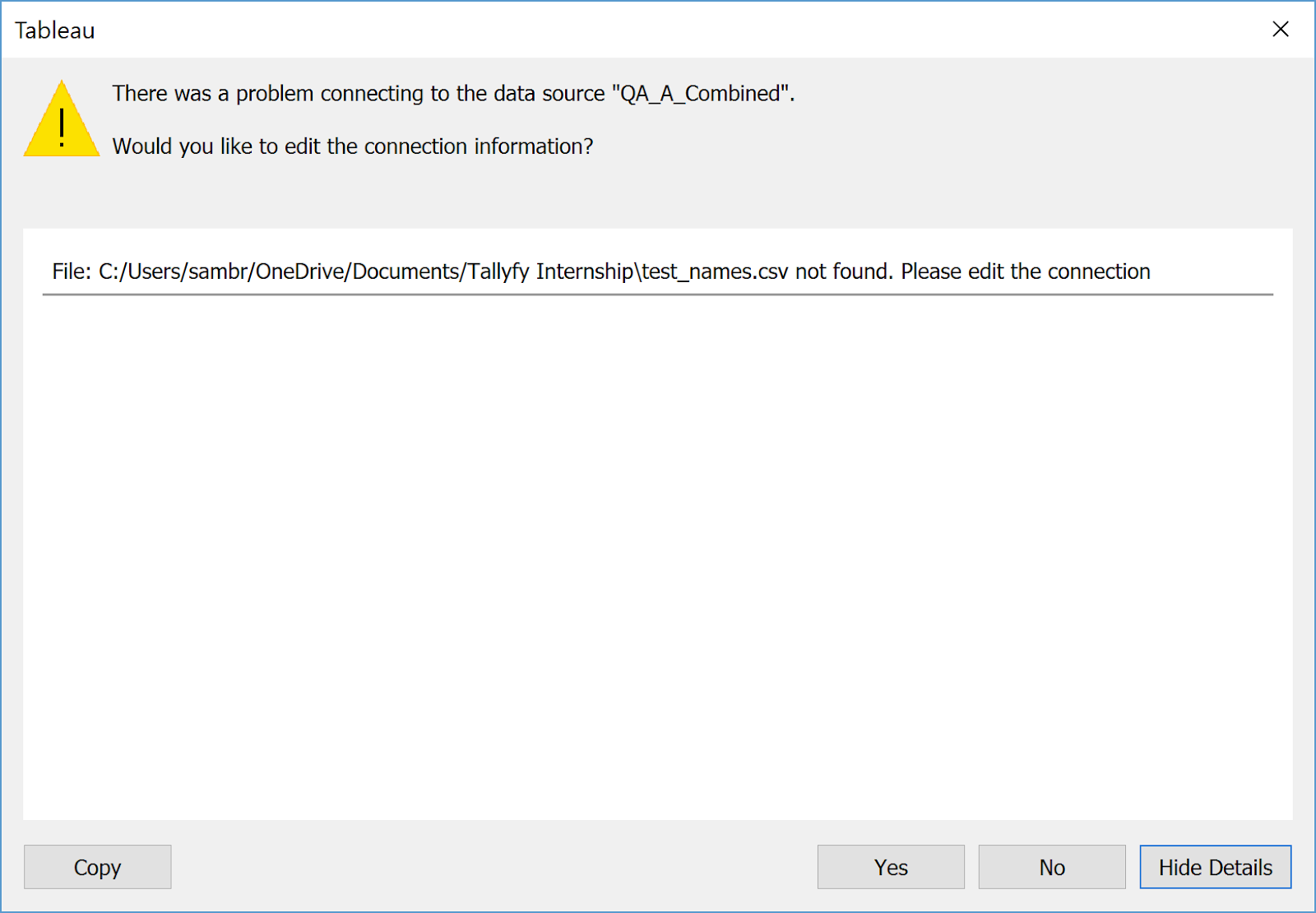
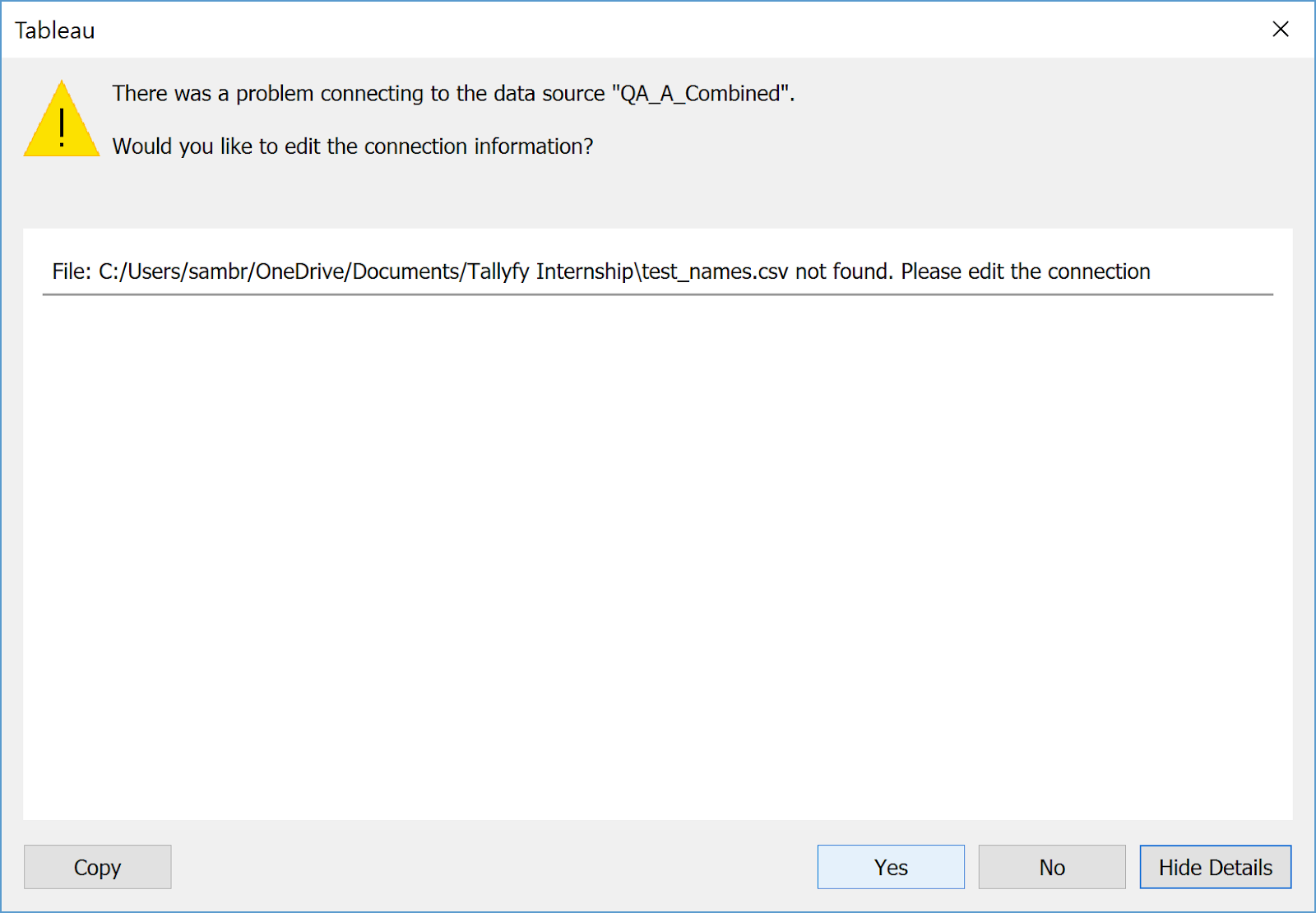
To reconnect their own data:
-
Click Yes when prompted to connect to data
-
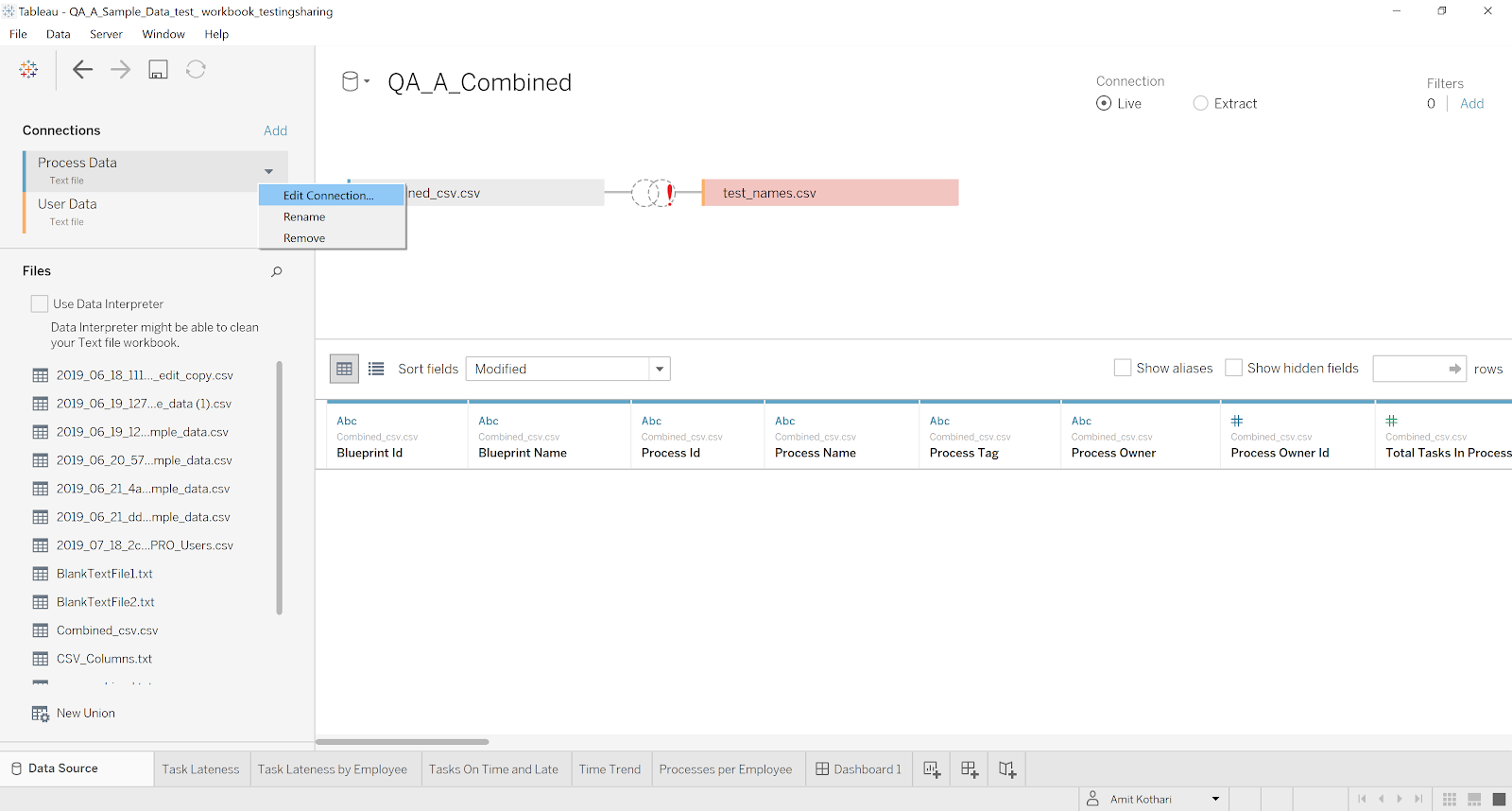
Select Edit Connection and enter their own Tallyfy Analytics credentials
-
If Edit Connection doesn’t work, remove the existing connection and create a new one
-
Once connected, the dashboard populates with their data
Fixing data types after reconnection
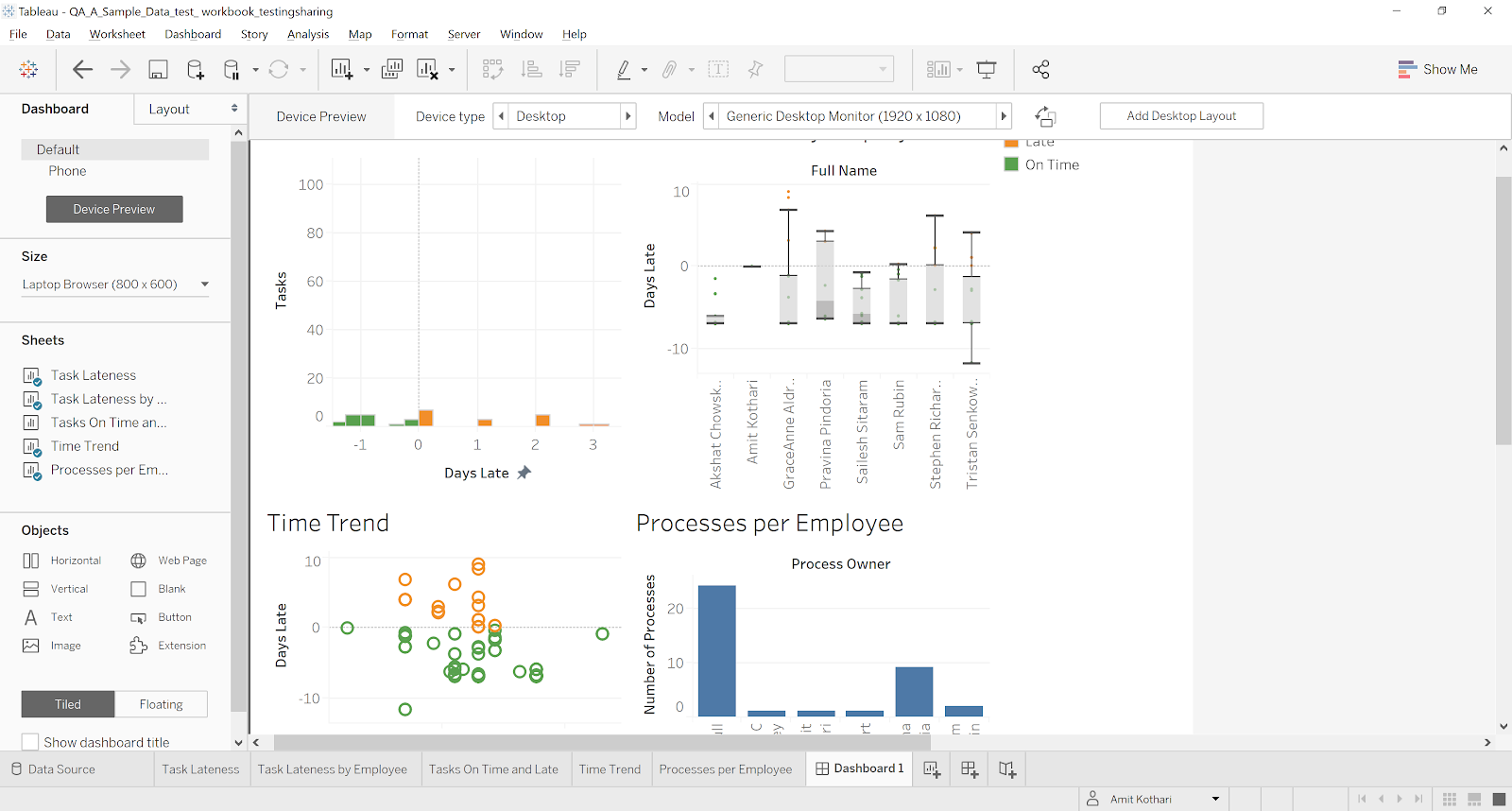
Section titled “Fixing data types after reconnection”After reconnecting, date fields like due_by and completed_on sometimes need their data types reset. This takes about two minutes:
-
Open the Data Source tab
-
Find the date fields (e.g.,
due_by,completed_on) -
Right-click the field and select Change Data Type > Date & Time
-
Repeat for any other date fields
-
Verify that date-based calculations and comparisons work correctly
Other sharing methods
Section titled “Other sharing methods”Method 2: Share a filtered data extract
Section titled “Method 2: Share a filtered data extract”Don’t want to share everything? Create a filtered extract with just the data you need:
- Create a Tableau Data Extract (.hyper file)
- Apply filters to limit which rows and columns are included
- Save and share the workbook with the embedded extract
Method 3: Publish to Tableau Server or Tableau Cloud
Section titled “Method 3: Publish to Tableau Server or Tableau Cloud”For enterprise-grade sharing with role-based access control:
- Publish the workbook to Tableau Server or Tableau Cloud
- Set user permissions to control who sees what
- Recipients access dashboards through their browser
- Enable or disable download capabilities as needed
Method 4: Export as PDF or PNG
Section titled “Method 4: Export as PDF or PNG”For a quick, read-only share with no data connectivity:
- Select Dashboard > Export
- Choose PDF or Image format
- Share the static file
Best practices
Section titled “Best practices”- Remove unnecessary sheets and dashboards before sharing
- Document which data sources recipients need and how to connect
- Test the reconnection process yourself before sending
- Strip out sensitive calculations or parameters
- Consider including sample data so recipients can verify the layout works
Related articles
Section titled “Related articles” Tallyfy Analytics connections through Tableau can break due to wrong credential types or expired…
Tableau > Connecting Tableau to analytics data
Tallyfy Analytics connects to Tableau Desktop through Amazon Athena in about 15 minutes. Install…
Looker > Connecting Looker Studio to analytics data
Looker Studio connects to Tallyfy Analytics data through a CData or OWOX connector in about…
About Tallyfy