Tracker View > Check process activity
Track activity
Tracking template activities and changes
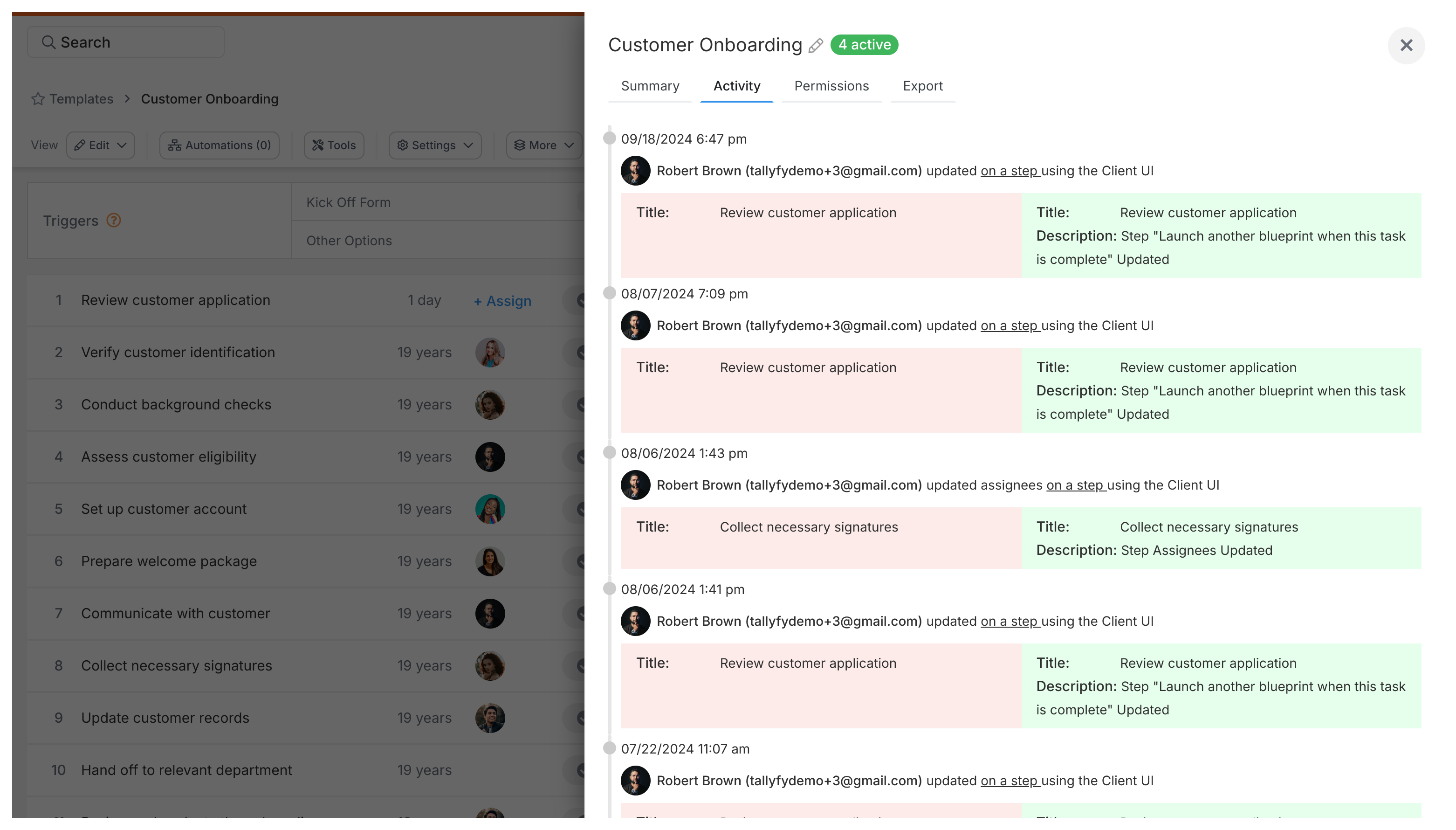
Section titled “Tracking template activities and changes”Click the Activity tab when viewing any template in Tallyfy to see a full history of who changed what and when. Every modification - from title edits to automation updates - gets recorded automatically.
Who can view template activity logs?
Section titled “Who can view template activity logs?”Tallyfy restricts activity log access to:
- Administrators
- Standard members with read or edit permission on that template
- The template creator
Why activity tracking matters
Section titled “Why activity tracking matters”Think someone accidentally broke your workflow? The activity log shows exactly when things changed.
- Change history - every modification gets recorded, perfect for audits
- Accountability - you’ll know exactly who made each change
- Troubleshooting - check when the last changes were made and undo if needed
- Compliance - prove how your processes are controlled and who’s responsible
What gets tracked?
Section titled “What gets tracked?”Tallyfy records four main categories of template changes:
Content changes
Section titled “Content changes”- Template title and summary updates
- Step creation, deletion, and reordering
- Step descriptions, deadlines, and assignee changes
- Guidance text added, updated, or removed
Form field updates
Section titled “Form field updates”- Kick-off form field descriptions added or changed
- Form field values added or updated
Configuration changes
Section titled “Configuration changes”- Tags added or removed
- Permission changes
- Webhook updates on steps
- Automation rules created, updated, or deleted
- Template archiving and unarchiving
- Folder assignment changes
Other tracked actions
Section titled “Other tracked actions”- Template creation and deletion
- Auto-naming configuration changes
- Owner changes
How to check the activity log
Section titled “How to check the activity log”- Go to your Templates library
- Open the template you want to check
- Click View
- Select the Activity tab

Reading the activity log
Section titled “Reading the activity log”The newest changes appear at the top. Each entry shows:
- When - exact date and time
- Who - which team member made the change
- What - the type of change (created, updated, deleted, archived, etc.)
- Details - what specifically was modified
For example: “March 15, 2025 at 2:47 PM - Sarah Johnson - Step Deadline Updated - Changed ‘Review proposal’ deadline from 2 days to 3 days.”
How long do logs last?
Section titled “How long do logs last?”Activity logs persist as long as the template exists. Archive a template? The history stays intact.
Copied templates start fresh with a blank activity log - they’re treated as new templates.
You can’t edit or delete log entries. This keeps the audit trail2 trustworthy.
Access control
Section titled “Access control”Activity logs are only visible to administrators, members with template read/edit permissions, and the template creator.
Related articles
Section titled “Related articles”Templates > Organizing templates
Templates > Configure your template
Footnotes
Section titled “Footnotes”Was this helpful?
- 2026 Tallyfy, Inc.
- Privacy Policy
- Terms of Use
- Report Issue
- Trademarks