Edit template steps in Tallyfy by adding new ones or modifying details like descriptions…
Template tools
Template tools
Section titled “Template tools”Template Tools let you change multiple parts of a template at once - bulk-create steps, assign people, adjust deadlines, and manage favorites. There’s no need to click through each step individually.
Requirements
Section titled “Requirements”- Edit access to the template
- Standard role with edit permission, or Administrator role
Accessing Template Tools
Section titled “Accessing Template Tools”- Open a template in edit mode.
- Click Tools in the toolbar at the top of the editor.
- The Tools modal opens with tabs: Build Steps, Assign, Deadlines, and (for Administrators) Favorites.
Bulk step creation
Section titled “Bulk step creation”Add many steps at once instead of creating them one by one.
- Copy/paste friendly - got your process in a Word doc? Paste the whole list
- Fast - go from blank template to fully structured in minutes
How to bulk-create steps
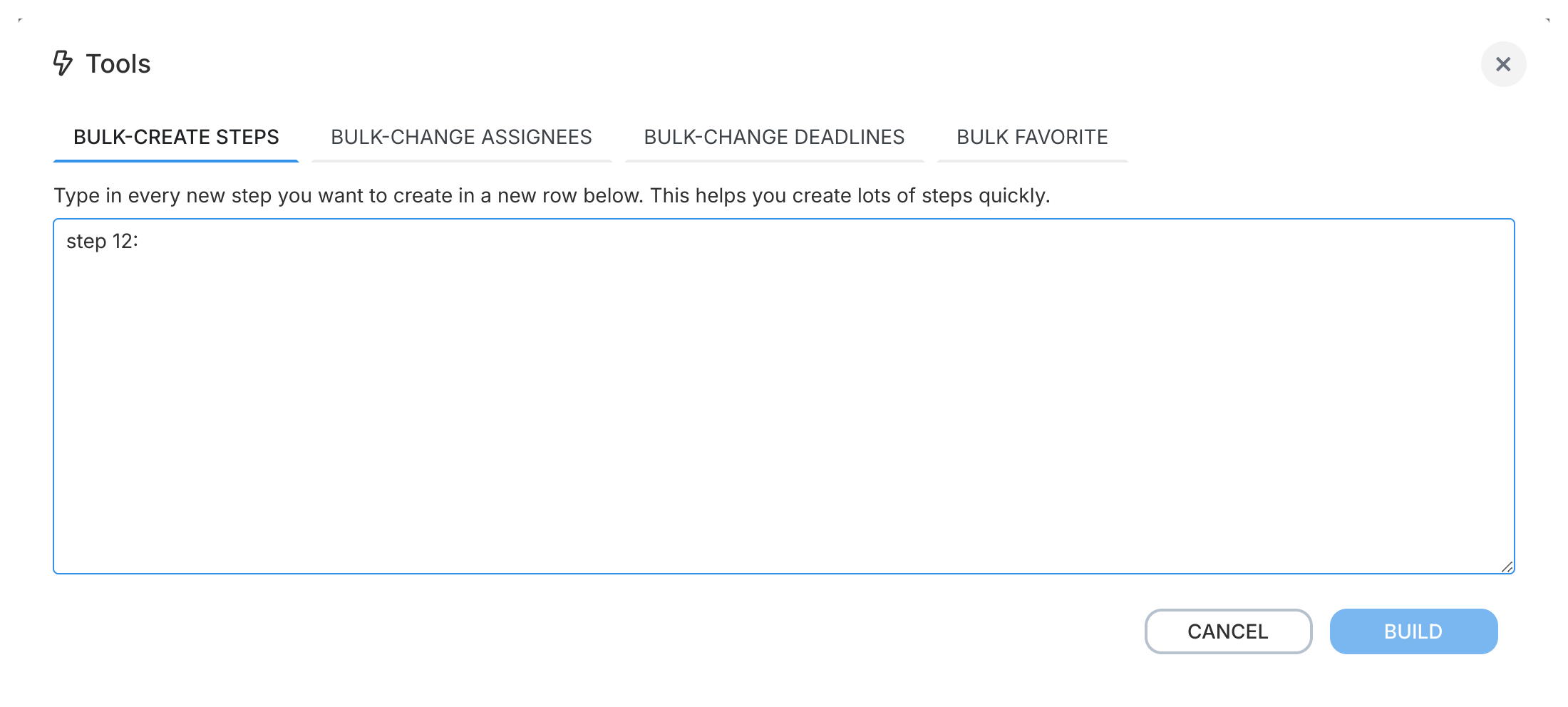
Section titled “How to bulk-create steps”- Open the Build Steps tab in Template Tools.
- Type or paste your step names into the text box. Put each step name on its own line.
- Click BUILD. Tallyfy adds all steps to your template in the order you listed them.
Batch assignment
Section titled “Batch assignment”Assign (or unassign) one person or group to many steps at once.
- Consistency - when the finance team owns all budget approvals, they actually get assigned to all of them
- Fewer mistakes - you can’t forget step 17 when you’re assigning in bulk
How to batch-assign
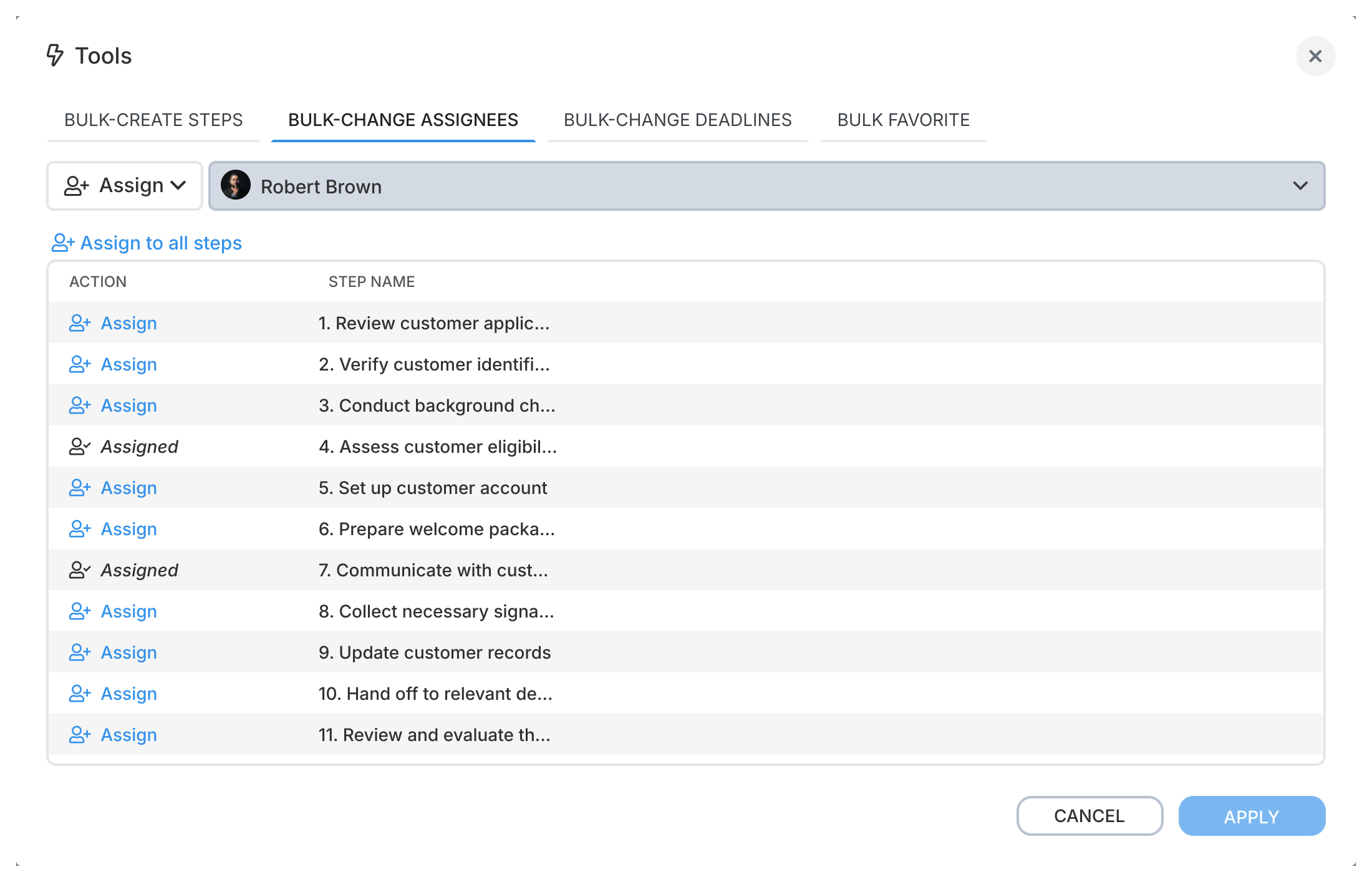
Section titled “How to batch-assign”- Open the Assign tab in Template Tools.
- Choose the person or group (assignee) from the dropdown.
- Toggle Assign or Unassign on each step you want to change.
- Click APPLY to save.
Bulk deadline adjustment
Section titled “Bulk deadline adjustment”Adjust deadlines across multiple steps without editing each one.
- Quick updates - contract terms changed? Adjust every deadline in seconds
- Consistent SLAs - set the same timing across all review steps at once
How to adjust deadlines in bulk
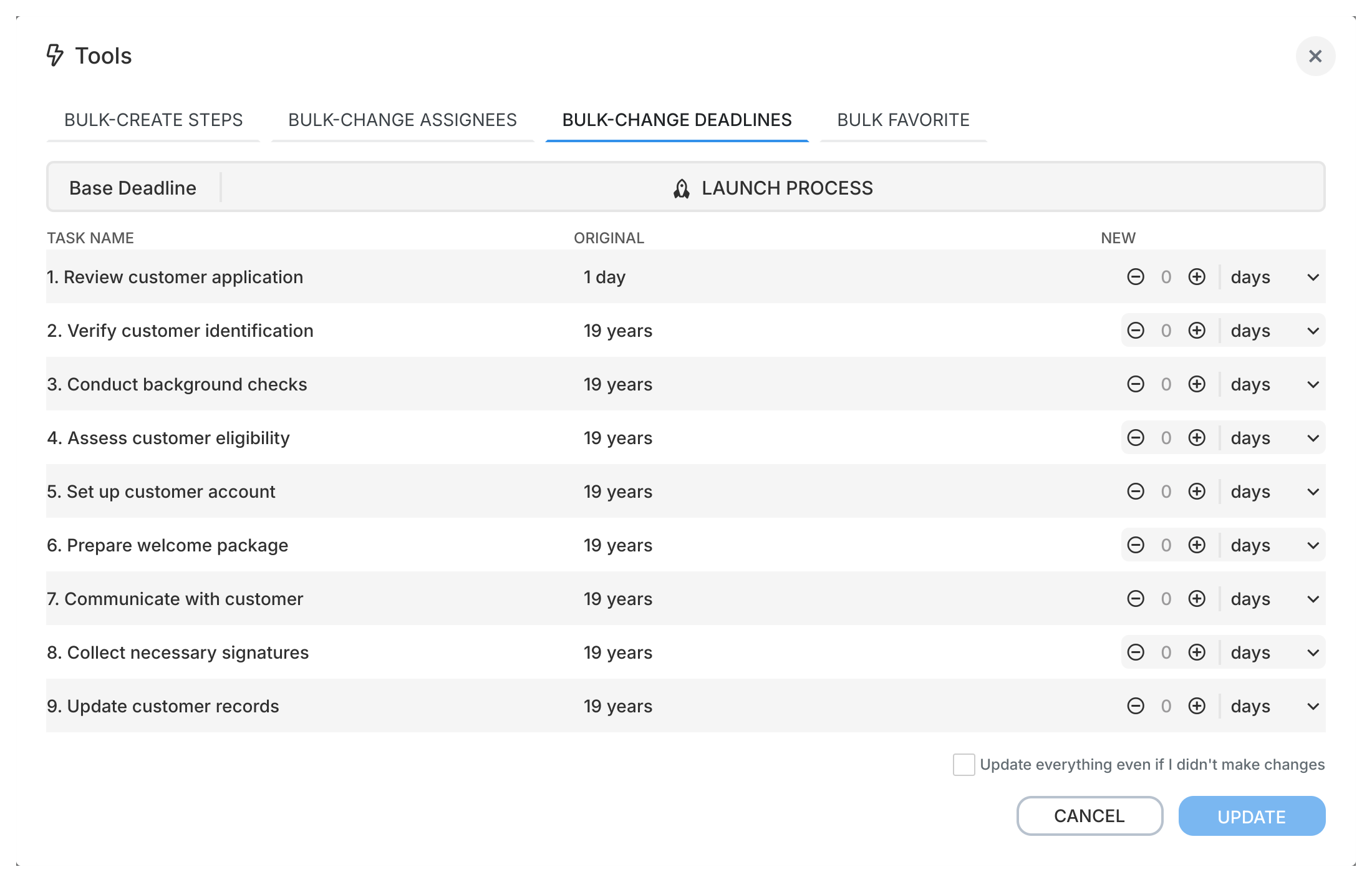
Section titled “How to adjust deadlines in bulk”- Open the Deadlines tab in Template Tools.
- For each step, use the increment (+) and decrement (-) buttons to adjust the deadline value.
- Choose the time unit per step (minutes, hours, days, weeks, months)1.
- Click UPDATE.
Note: For templates, deadlines are relative to when the process is launched. You can’t set deadlines based on when other steps complete.
Template favoriting (Administrators only)
Section titled “Template favoriting (Administrators only)”Add a template to other users’ favorites so they can find and use it quickly.
- Visibility - put the right templates front and center for your team
- New hires - day one, they’ve got essential processes starred and ready
- Notifications - watchers get notified when a favorited template is updated2
How to favorite a template for others
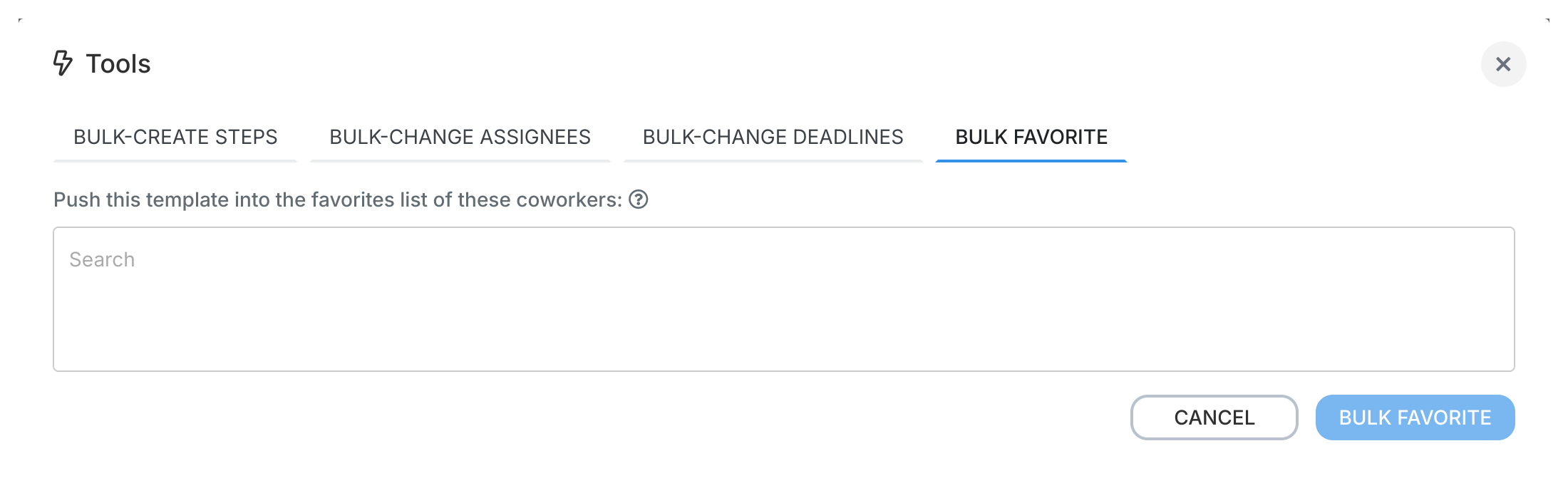
Section titled “How to favorite a template for others”- Open the Favorites tab in Template Tools (visible only to Administrators).
- Search for and select the team members you want to add this template as a favorite for.
- Click Favorites to save.
- The template appears in those users’ Favorites section.
Learn more about favorites in the Favorite section guide.
- Double-check your work after bulk changes
- Use bulk step creation when building templates with 10+ steps
- Use batch assignment for role-based workflows where one person handles multiple steps
- Adjust deadlines in bulk when timing requirements change
Related articles
Section titled “Related articles” Tallyfy templates are reusable blueprints you create once and launch repeatedly. They assign…
Edit Templates > Assign steps in the Tallyfy template builder
Tallyfy lets you assign template steps to specific members, groups, job titles, or guests…
Tasks > Duplicate or clone tasks
Duplicate any template step in Tallyfy to clone its name, type, form fields, assignments…
Footnotes
Section titled “Footnotes”About Tallyfy