Tallyfy connects with email through custom SMTP for branded notifications, a Gmail add-on for…
Gmail add-on
Using the Tallyfy Gmail add-on
Section titled “Using the Tallyfy Gmail add-on”The Gmail add-on lets you create tasks, start processes, and view your task list - right from your inbox. No tab switching needed.
What you need
Section titled “What you need”- A Google Workspace or standard Gmail account
- An active Tallyfy account
- Permission from your Google Workspace admin to install add-ons (for work accounts)
Key features
Section titled “Key features”- Create Task - turn any email into a Tallyfy task with the subject and body pre-filled
- My Tasks - view, edit, and complete your assigned tasks without leaving Gmail
- Start Process - pick a template and launch a workflow from any email
- Link Email to Task - attach a Gmail thread to an existing Tallyfy task as a comment
How to install it
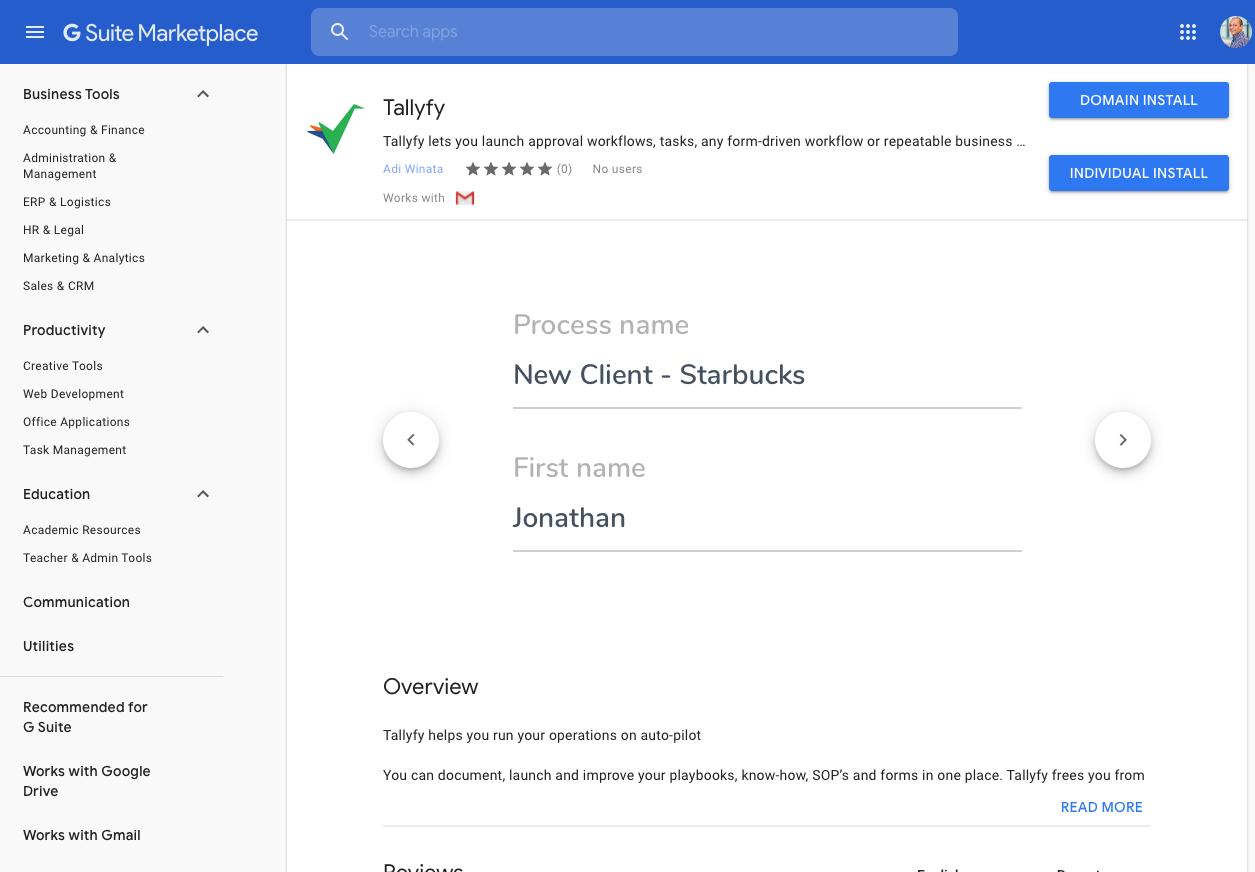
Section titled “How to install it”- Go to the Tallyfy Add-on page in the Google Workspace Marketplace ↗
- Click Install
- Grant the required permissions so Gmail can connect with Tallyfy
- Look for the Tallyfy icon in Gmail’s right sidebar
Using the add-on in Gmail
Section titled “Using the add-on in Gmail”Click the Tallyfy icon in Gmail’s right sidebar. Sign in once, then you’ll see the dashboard.
The dashboard shows these buttons: Create Task, My Tasks, Start Process, Link Email to Task, and Settings.
Creating a task from an email
Section titled “Creating a task from an email”- Click Create Task on the dashboard
- The task name auto-fills from the email subject, and the details field pulls in the email body
- Set a deadline using natural language (e.g., “Tomorrow night”, “May 6th at 5:30pm”)
- Assign the task to a team member or guest
- Click Create
Starting a process from an email
Section titled “Starting a process from an email”- Click Start Process on the dashboard
- Select a template from the dropdown
- Fill in any kick-off form fields
- Click Continue to launch
Templates on a Docs plan won’t appear here - you need a Basic or Pro plan to start processes.
Checking your tasks
Section titled “Checking your tasks”- Click My Tasks on the dashboard
- Your active tasks appear with View, Edit, and Complete buttons on each
- Use Prev / Next to page through results
- Click View in browser to open Tallyfy’s full task view
Linking an email to a task
Section titled “Linking an email to a task”This lets you post a Gmail thread as a formatted comment on any existing task.
- Click Link Email to Task on the dashboard
- Select a template, then a running process, then a specific task
- The email thread (subject, sender, body) gets posted as a comment on that task
Troubleshooting
Section titled “Troubleshooting”| Problem | Fix |
|---|---|
| Tallyfy icon missing | Refresh Gmail and clear your browser cache |
| Can’t sign in | Sign out of the add-on completely, then sign back in |
| Can’t create tasks | Check your Tallyfy permissions - Light users have limits |
| Add-on is slow | Try refreshing - it’s usually a connection issue |
Where it works
Section titled “Where it works”The add-on works on desktop Gmail and the mobile Gmail app. Desktop gives the fullest experience.
Related articles
Section titled “Related articles”Integrations > Actions within emails
Tallyfy’s exploring interactive email actions that let users approve requests and complete tasks…
Connect Your Email > Google Workspace email connection
Tallyfy’s planned Google Workspace integration sends workflow emails from your own Gmail address…
Connect Your Email lets each user send Tallyfy workflow notifications from their personal Gmail…
About Tallyfy