Full-seat members
Tallyfy builds a table of contents from your headings automatically. Add headings, and the navigation appears - no manual linking or page numbers. Your documents and procedure templates 1 become instantly navigable.
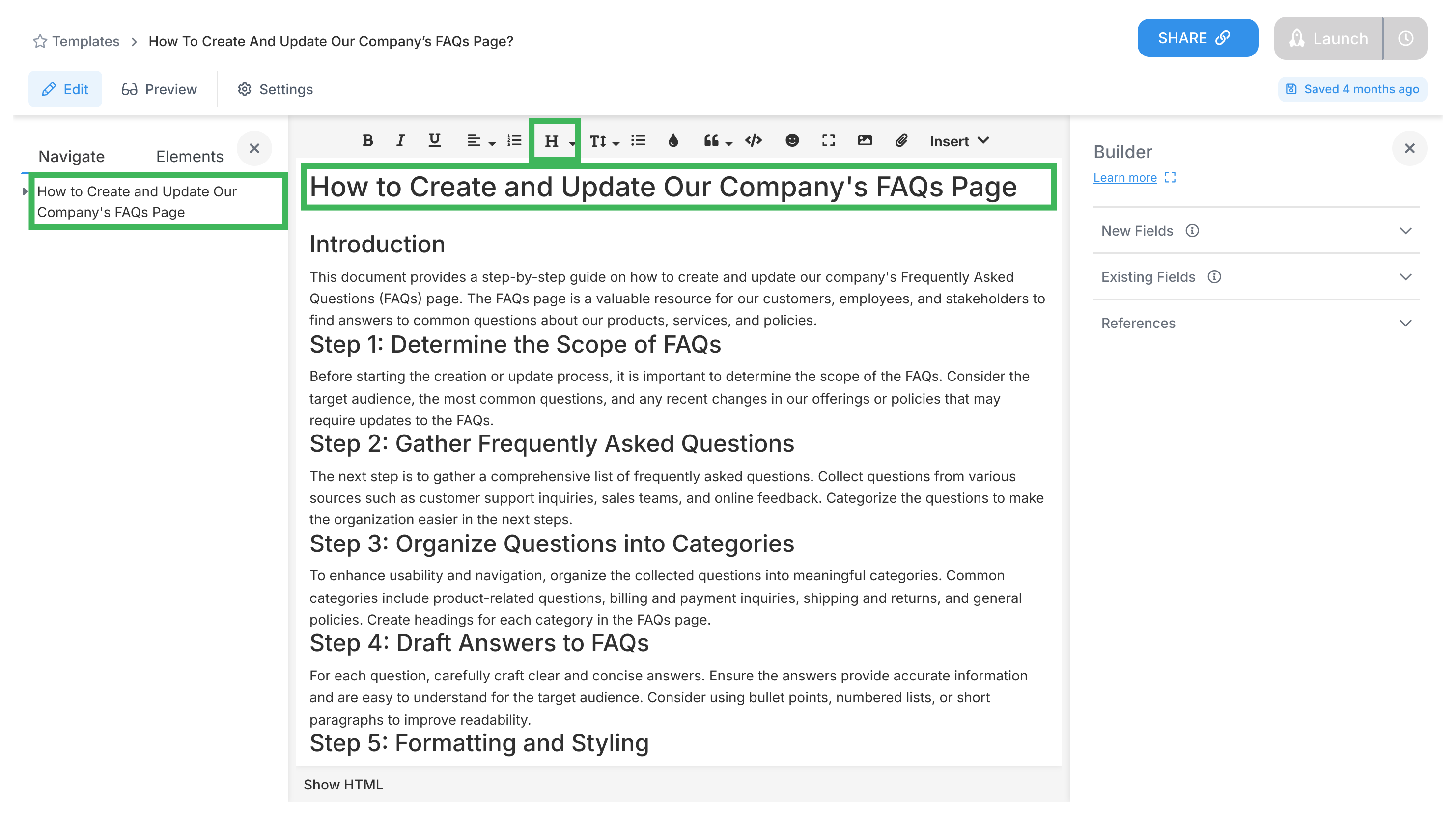
A document or procedure template open for editing
Text you want to organize with headings
Word’s table of contents needs manual refreshing, page numbers break, and formatting fights you. Tallyfy works differently:
Instant creation - add a heading and it appears in navigation immediatelyLive updates - change a heading and the table of contents updates in real-timeScreen-optimized2 - built for clicking and navigating, not printingZero maintenance - you’ll never manually update navigation again
Highlight the text you want as a main section heading.
Click the formatting menu in your toolbar (it may show Normal text or heading styles).
Choose H1 to make it a main heading.
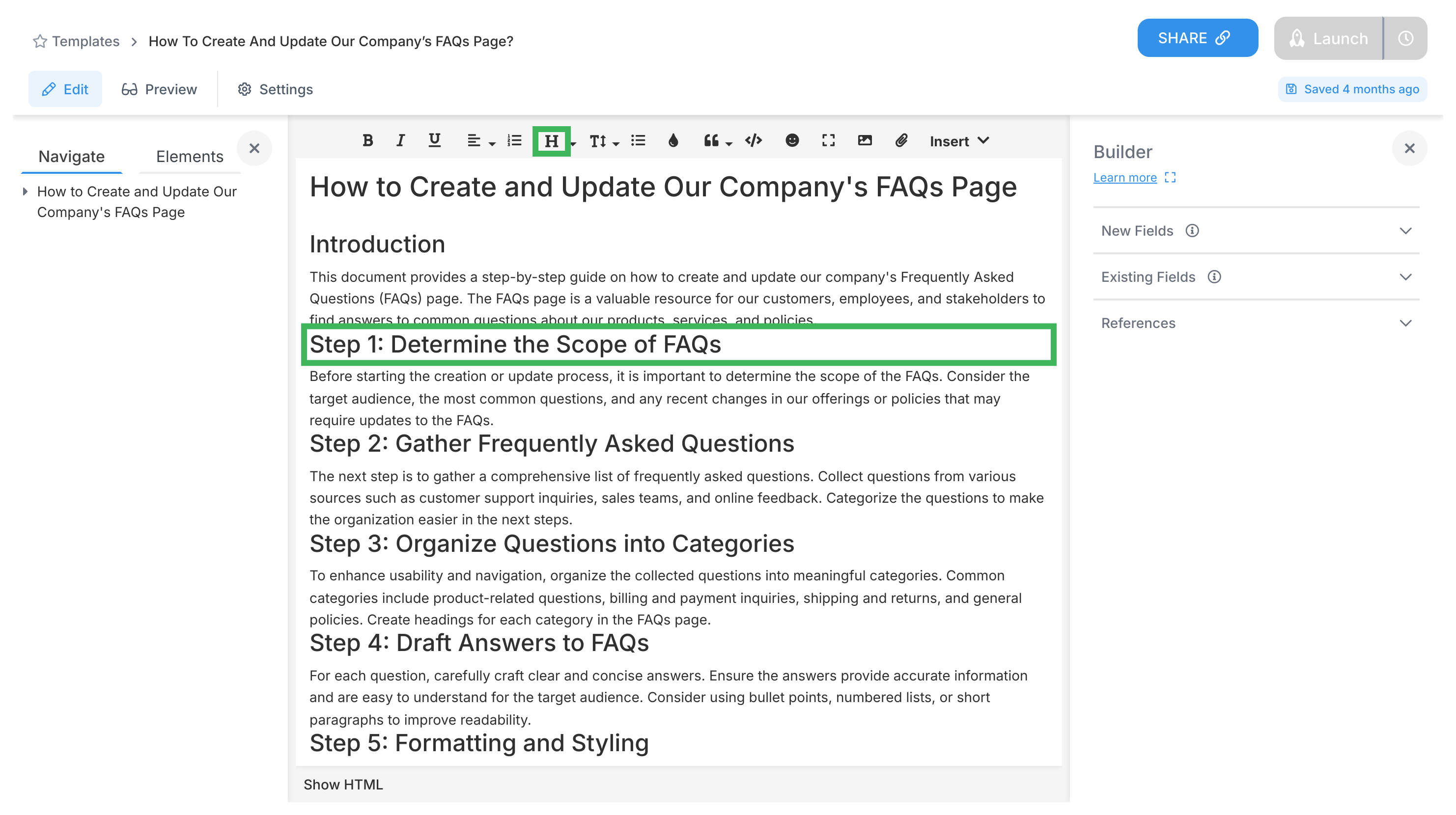
For sub-headings, highlight text in that subsection.
Pick H2 (sits under H1) or H3 (sits under H2) from the menu.
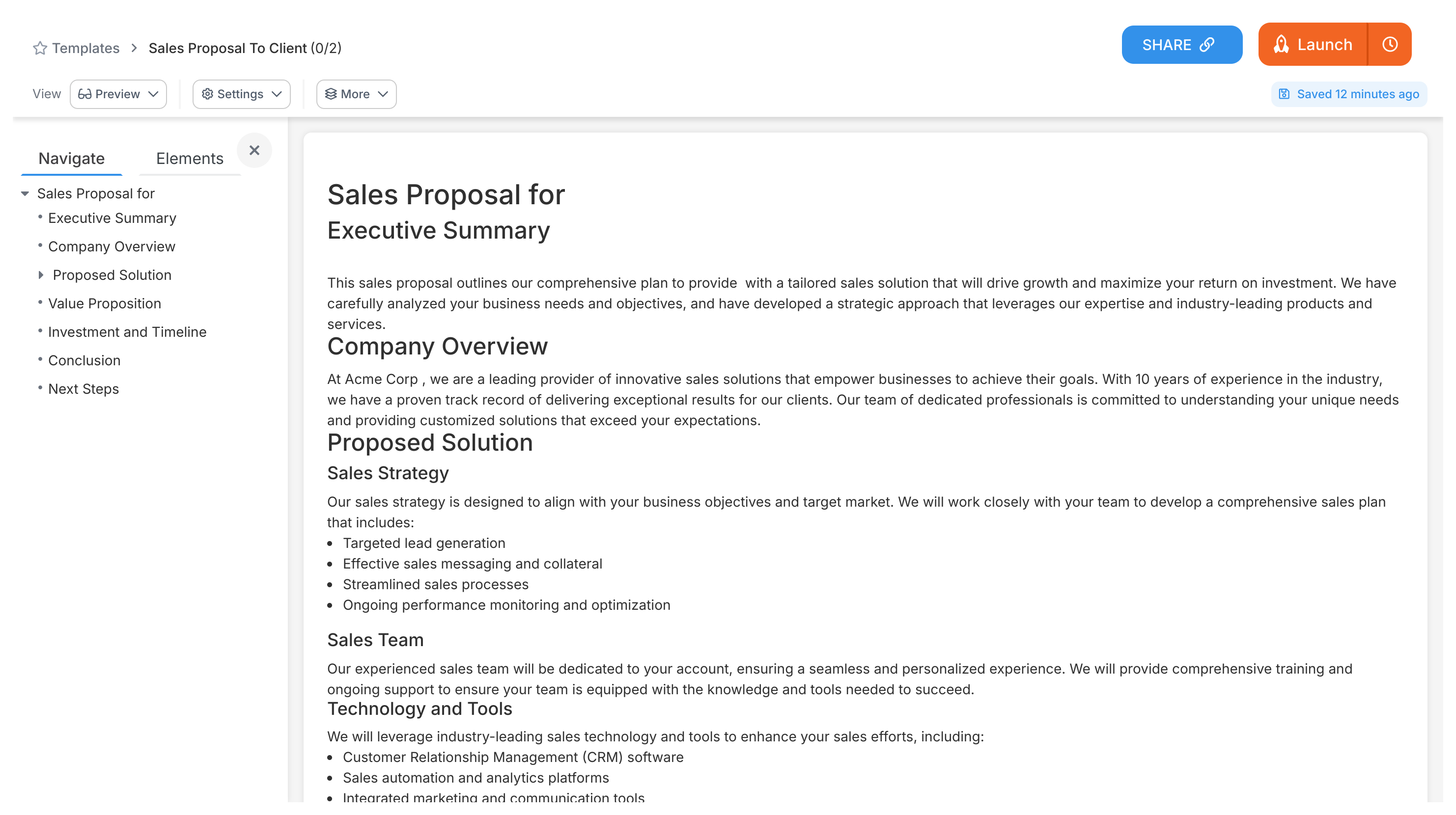
Your headings instantly appear in the table of contents panel as clickable links.
H1 is for main sections only - think chapter titlesH2 goes inside H1 sections - your subchaptersH3 goes inside H2 sections (if you really need that level)Don’t skip levels - no jumping from H1 to H3
Keep headings short. Really short.
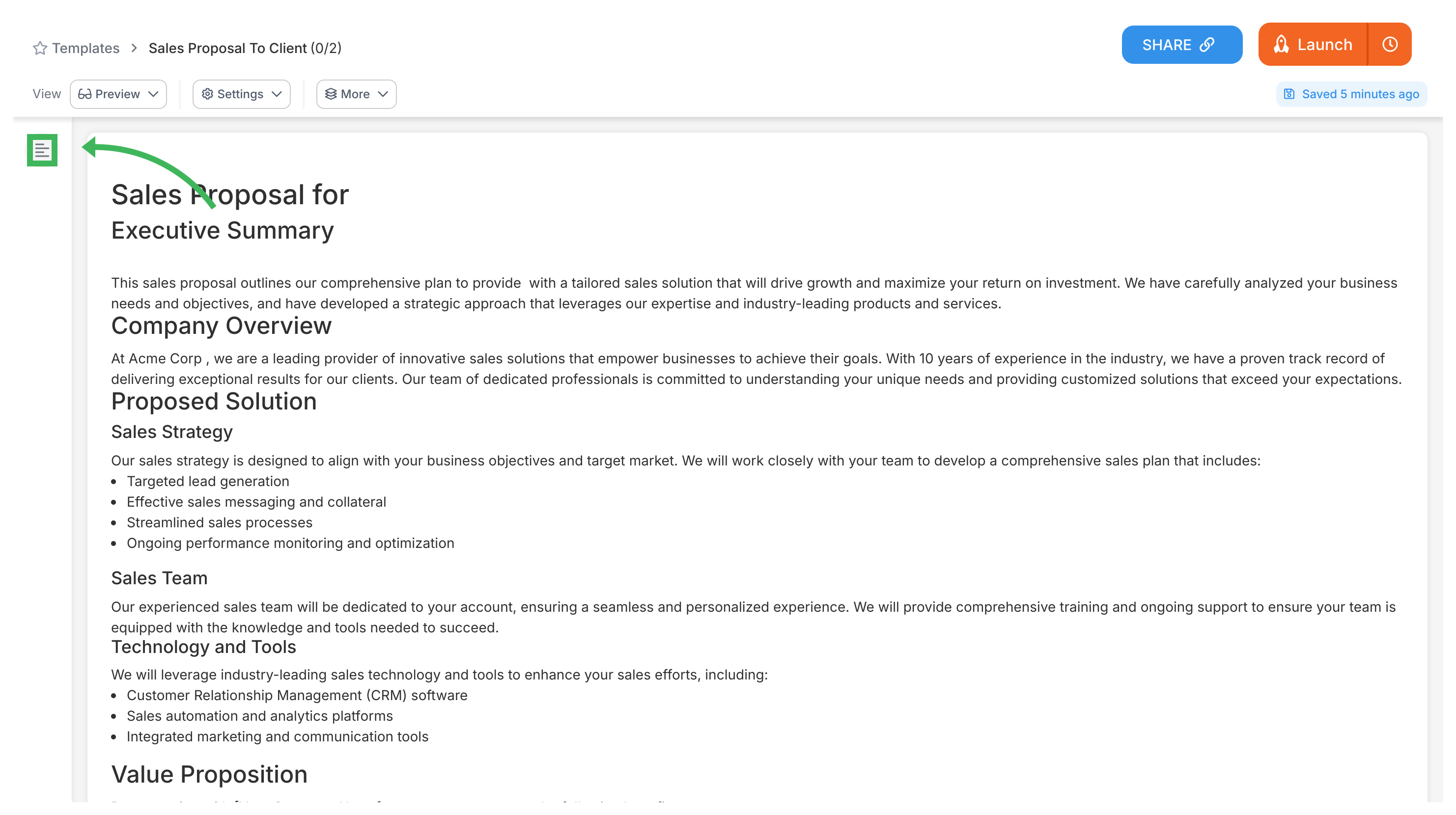
Procedure templates work a bit differently. You’ll still get automatic navigation, but you access it through preview mode:
Open your procedure template.
Click Preview to see the user view.
Look for the table of contents icon in the top right (looks like stacked lines).
Click any heading to jump directly to that section.
An automatic table of contents gives readers:
A clear view of your document’s structure in seconds
One-click jumps to any section - no scrolling marathons
A reason to organize content logically (this makes your docs better, too)
Equal ease of navigation whether a document is 5 or 50 pages
How To > Effective operations manuals
Tallyfy turns static operations manuals into live digital workflows. Your team tracks and runs…
Introduction
Tallyfy helps you fix your processes first. Move your SOPs, flowcharts and checklists into…
Pro > Essentials
Tallyfy offers three template types. Procedure Templates for tracked workflows with automation…
Pro > Lists
Tallyfy Lists are reusable data tables you define once and reference across all templates and…