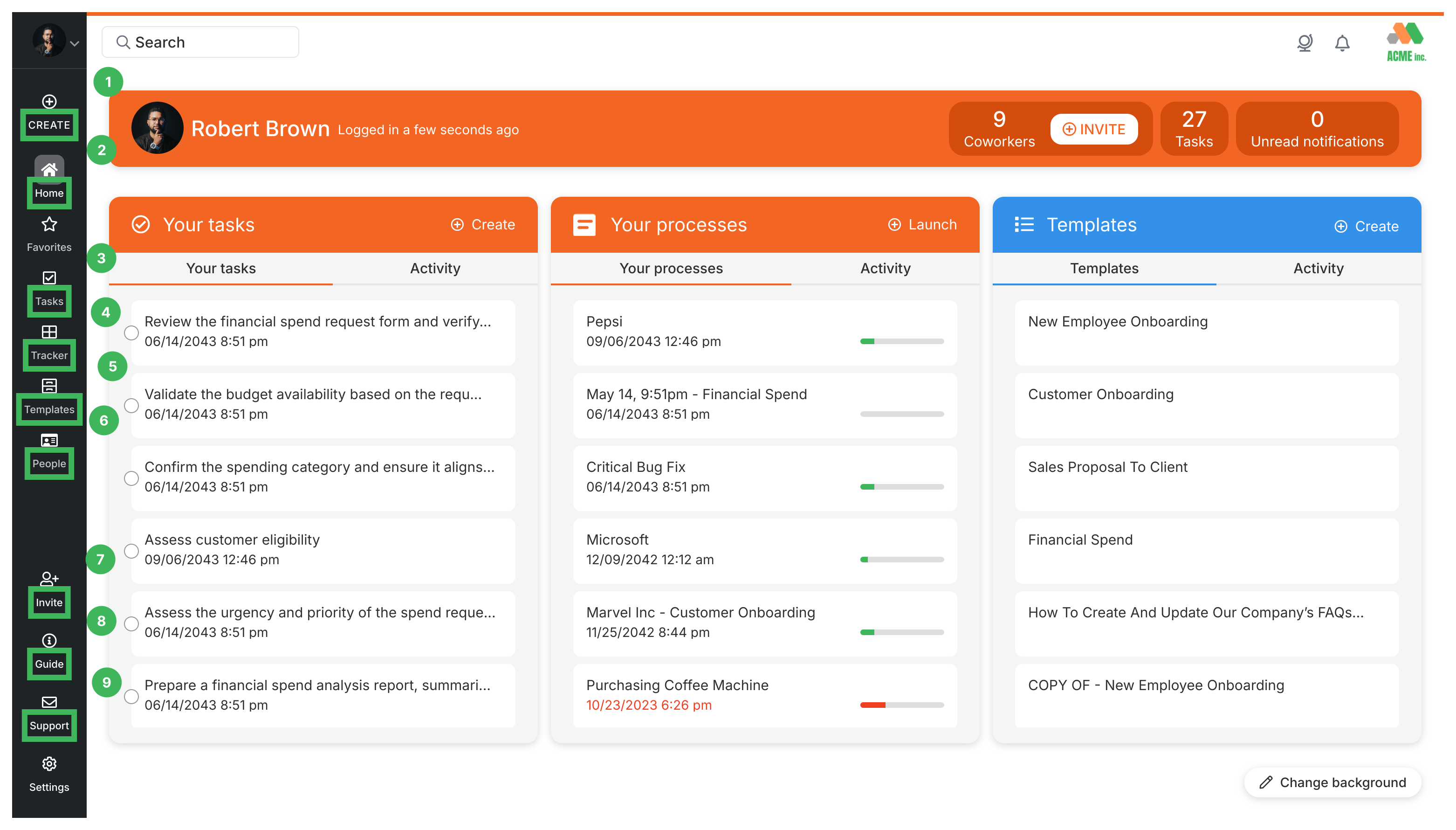
TEMPLATES: Access your template library (learn more)
PEOPLE: Manage team members (Administrators only)
INVITE+: Invite new members to your organization
GUIDE: Open help documentation
SUPPORT: Contact the support team
SETTINGS: Access personal and organization settings
How does universal search work?
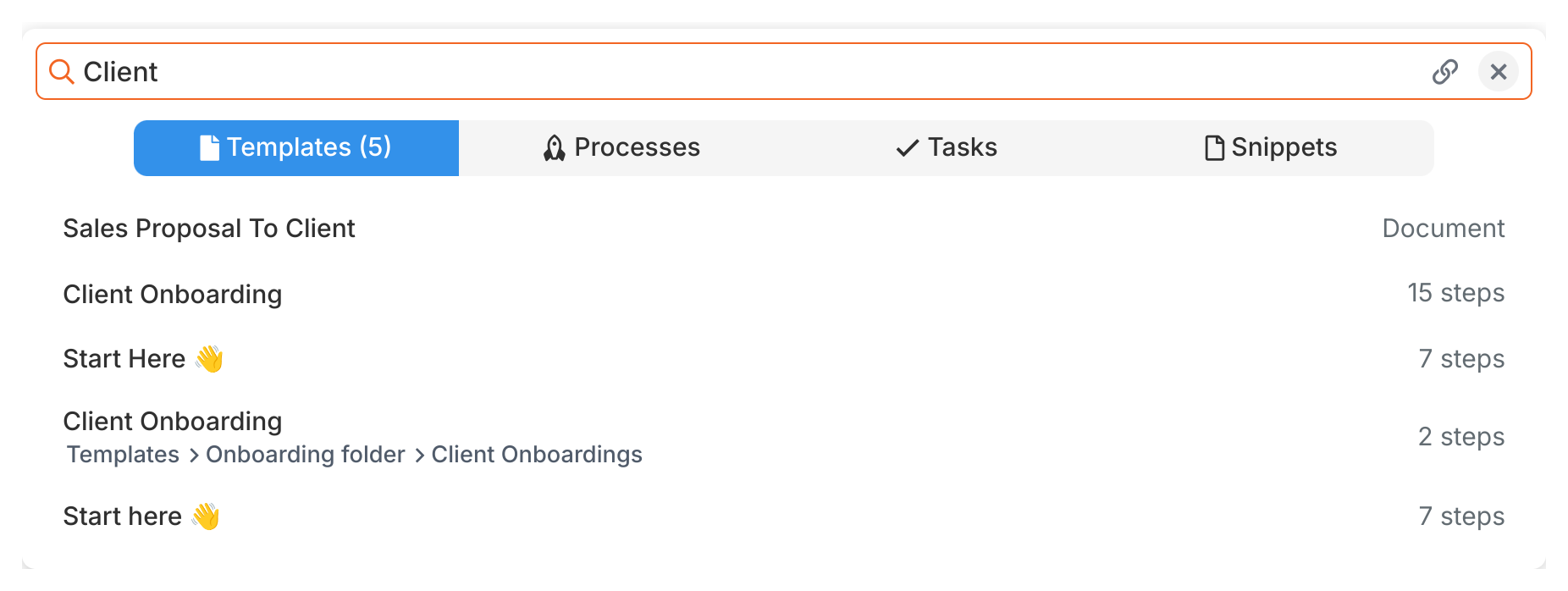
The search bar at the top lets you find anything across your Tallyfy account - processes, templates, tasks, snippets, and team members. Just type keywords.
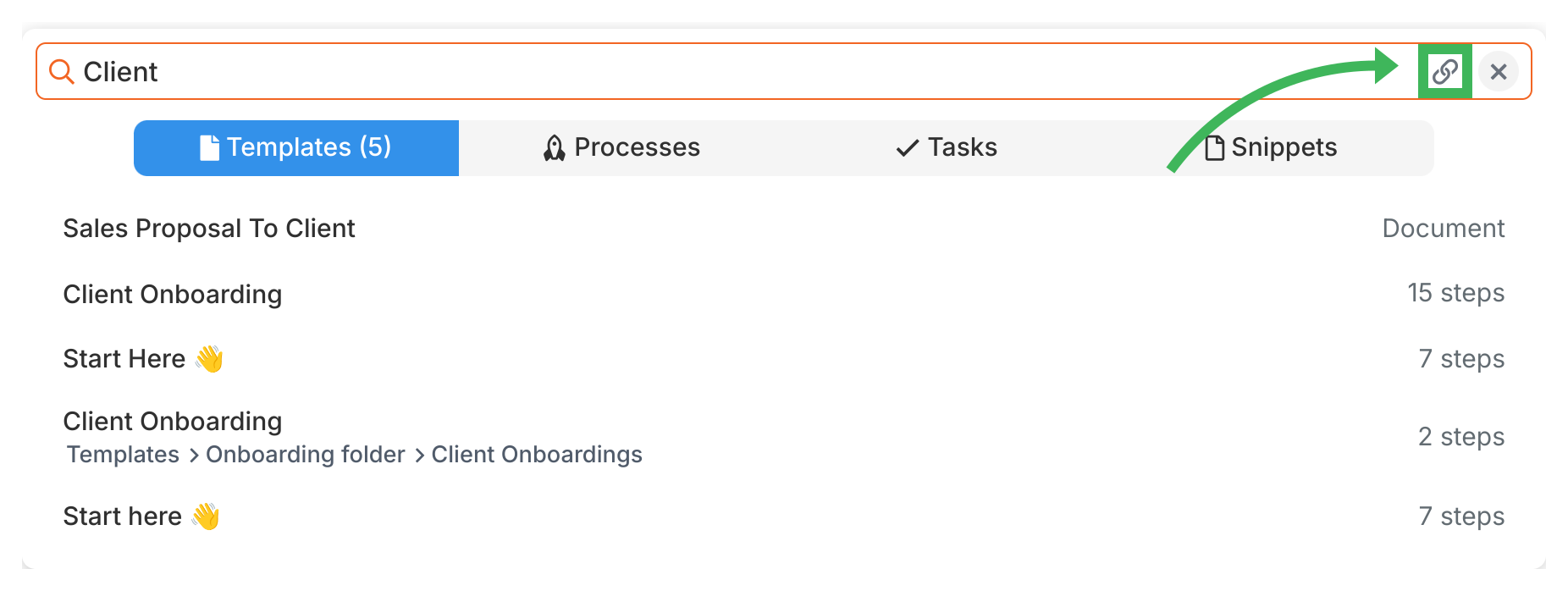
Sharing results: Click the share icon next to any search result to copy a direct link to that item.
What are the top bar icons?
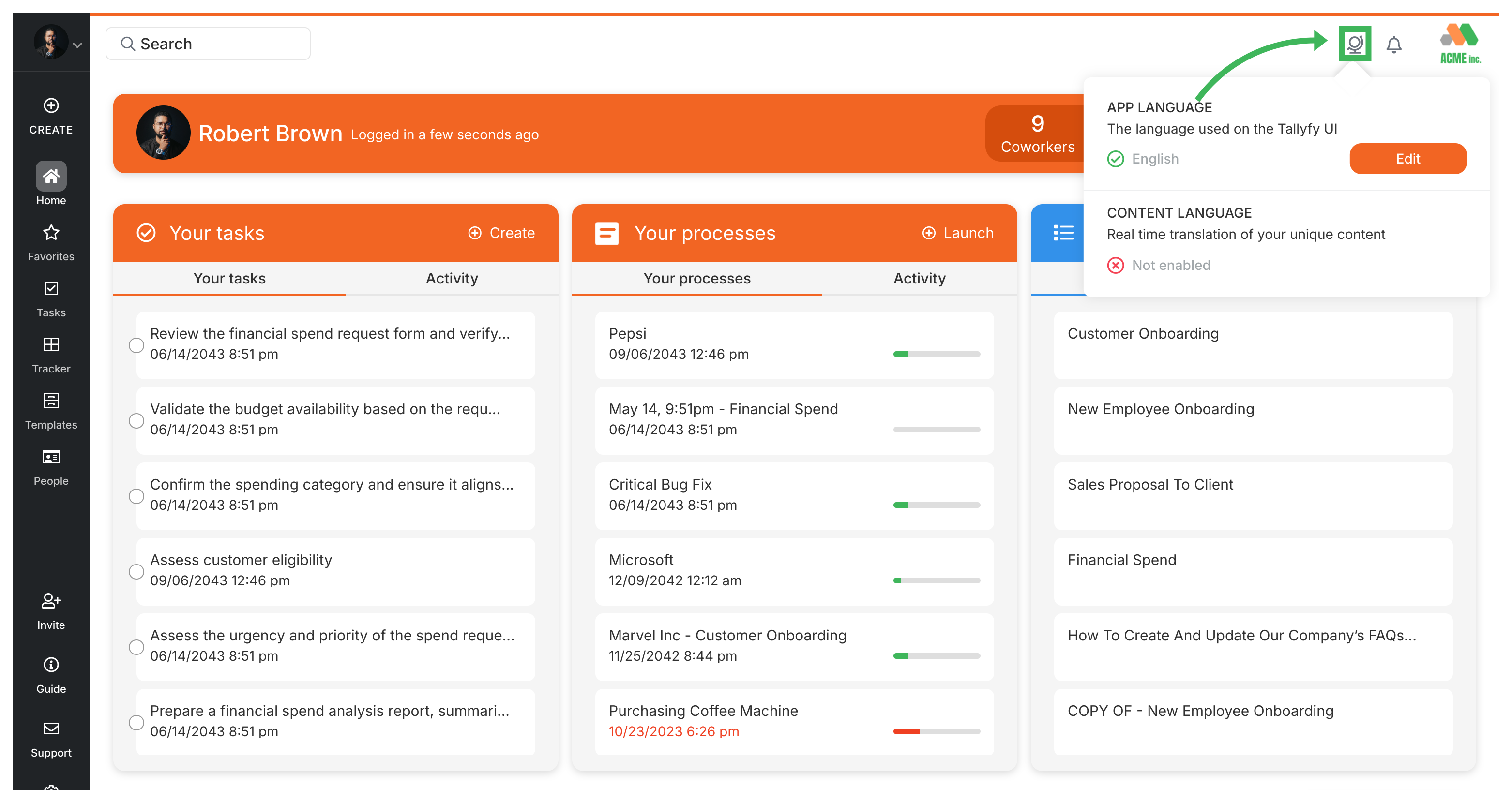
Language selector (Globe icon): Click to change the display language for menus and buttons. If your organization uses the Azure Translation integration, you can also select a language for automatic content translation.
Notifications (Bell icon): Click to view recent notifications about task assignments, comments, and other activity. See Check Notifications.
Tallyfy’s universal search lets you instantly find any template, running process, task, or snippet across your entire workspace by searching through names, descriptions, tags, comments, and notes with results that include folder paths and shareable links.
Tallyfy includes a built-in user guide accessible either by clicking the ? icon in the left sidebar to search help articles and message support or by selecting Help and FAQs from your profile menu to open the full documentation site in a new tab.
Tallyfy lets new users go from zero to a fully working tracked business process in under 30 minutes through a four-step tutorial path covering organization setup and dashboard orientation and template creation and process launching while also providing guidance on team adoption strategies and trial evaluation and industry-specific use cases for emergency services and small businesses and client management.
Tallyfy offers a range of resources beyond its core workflow tools including company background and trust information along with support and troubleshooting guides and details on browser compatibility and system features like file storage and search and translation and legal documentation.