Tallyfy automations are IF-THEN rules added to templates that automatically adapt running processes based on form field entries and task events by showing or hiding steps and assigning tasks and setting deadlines without any manual routing.
Create an automation
Tallyfy automation rules let you build “if-this-then-that” logic so your workflows adapt automatically - no manual adjustments needed.
Every rule has two parts:
- IF a specific event happens (the Condition) - like a task completion, a form field value, or an approval decision…
- THEN Tallyfy runs a defined action (the Action) - like revealing hidden steps, reassigning tasks, or changing deadlines
Example scenario: In an Employee Onboarding process, you want to show different steps based on whether the new hire is a “Field worker” or an “Office worker”.
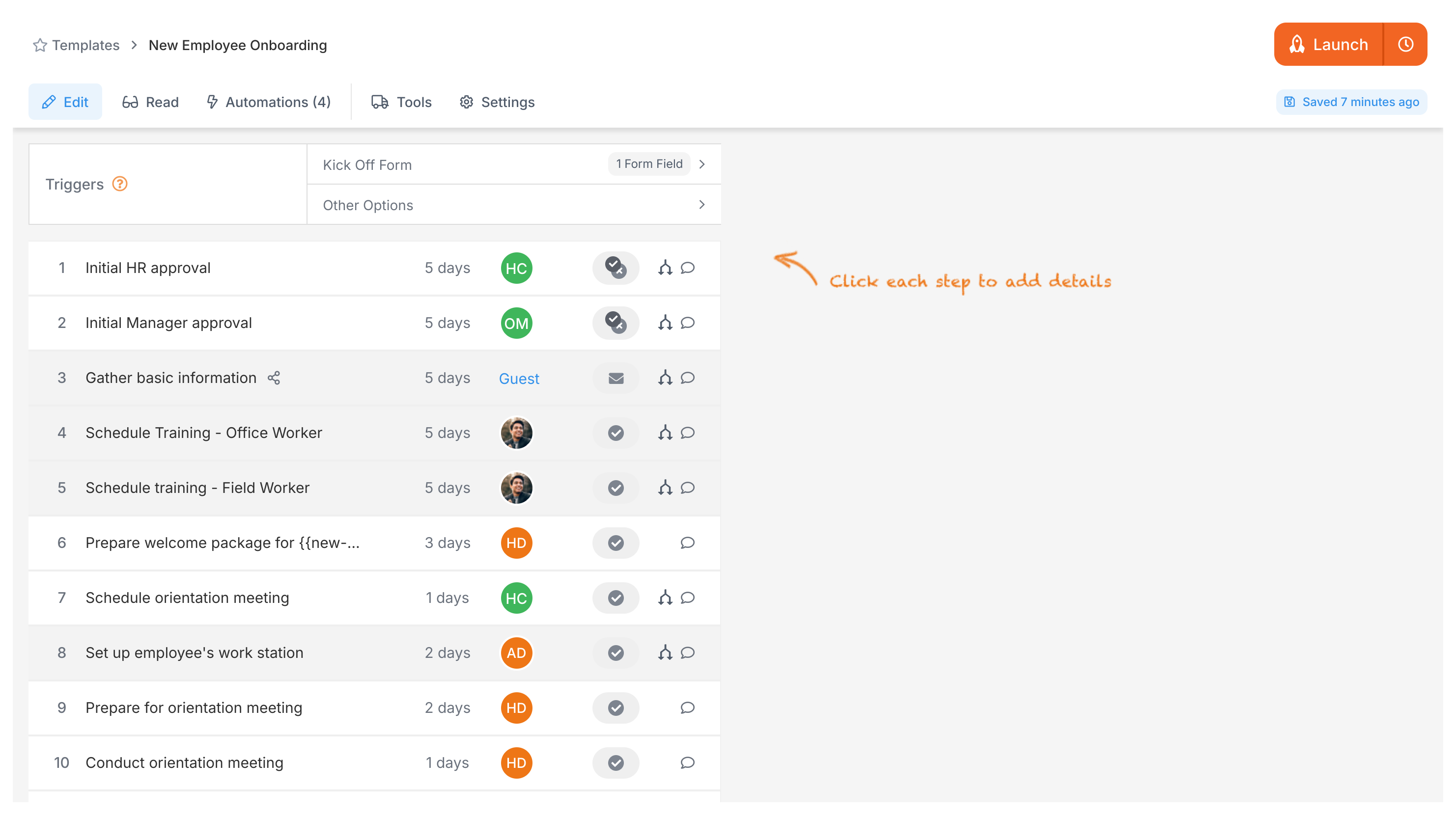
- Create the template: Build your “Employee Onboarding” template. Step 1 collects basic info. Step 2 is “Field Training” and Step 3 is “Office Orientation”.
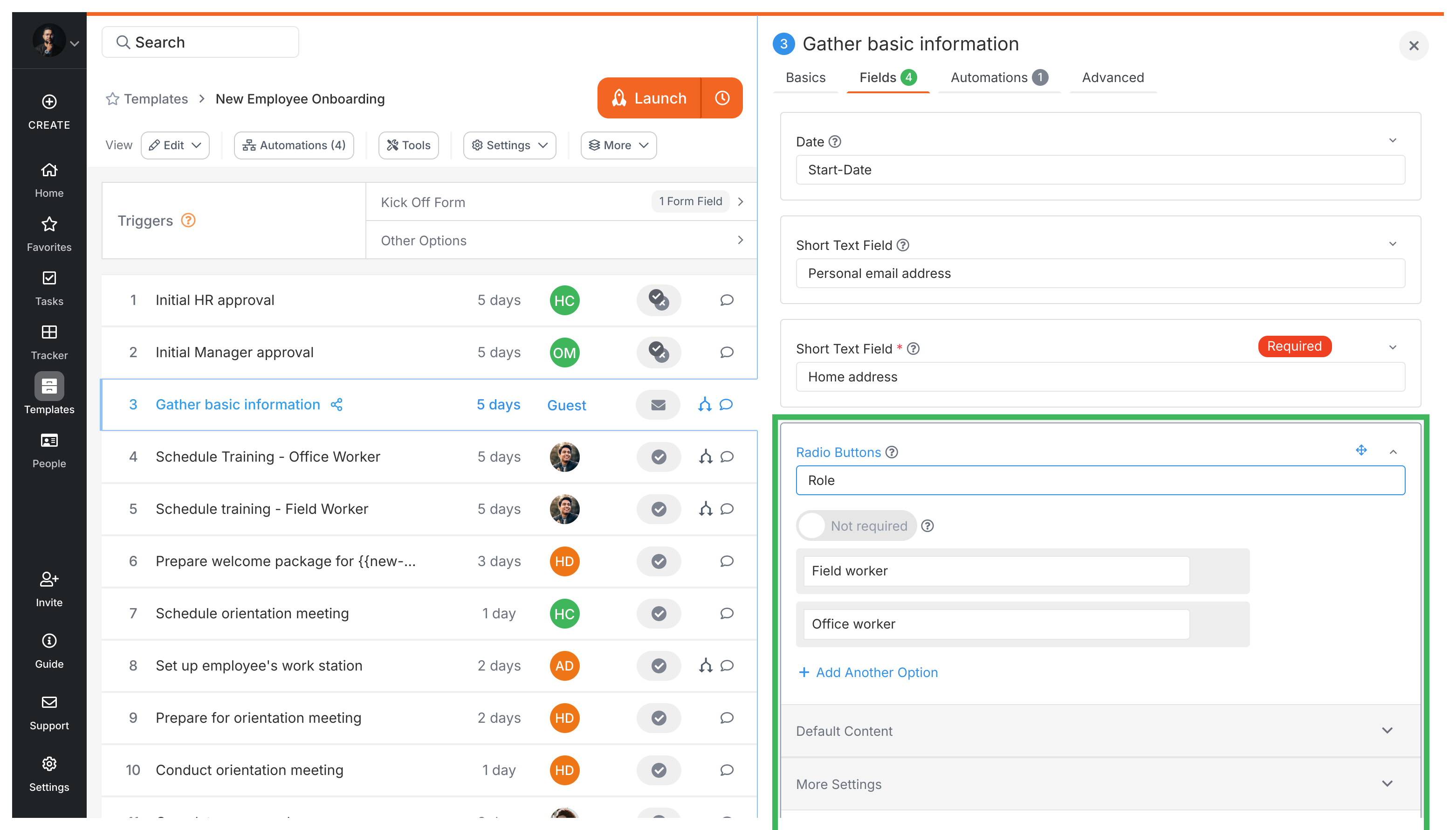
- Add the form field: In Step 1, add a form field for the employee’s role. Use the Radio Button type with two options: “Field worker” and “Office worker”.
- Hide steps initially: In the template editor, set both Step 2 (“Field Training”) and Step 3 (“Office Orientation”) to hidden by default.
- Create automation rule 1 (for Field Worker):
- Go to the Automations section in the template editor.
- Create a new rule.
- IF condition: The “Role” form field (from Step 1) Is “Field worker”.
- THEN action: Visibility > SHOW Step 2 (“Field Training”).
- Name it descriptively, e.g., “Show Field Training if Role is Field Worker”.
- Create automation rule 2 (for Office Worker):
- Create another new rule.
- IF condition: The “Role” form field (from Step 1) Is “Office worker”.
- THEN action: Visibility > SHOW Step 3 (“Office Orientation”).
- Name it descriptively, e.g., “Show Office Orientation if Role is Office Worker”.
- Launch the process: When you launch this process, only Step 1 is visible at first. After the user picks a role and completes Step 1, the matching rule fires and reveals the right follow-up step.
What happens at runtime:
- Only Step 1 appears at first.
- Once the employee picks their role in Step 1, the relevant step (2 or 3) becomes visible and assigned. Assignees get automatic notifications.
- Assignees click the task link in their email to complete their step.
Automations > Conditional visibility
Tallyfy lets you show or hide entire tasks in a workflow based on form field values using IF-THEN automation rules with AND/OR logic so that only relevant steps appear for each unique process path instead of maintaining separate templates for every variation.
Automations > Logic operations explained
Tallyfy automations use simple IF-THEN rules instead of complex flowcharts to watch user inputs and automatically adjust workflows by showing or hiding steps and reassigning tasks and changing deadlines based on conditions that can be combined with AND/OR logic and evaluated left to right in the order you add them.
Tallyfy’s conditional logic lets workflows make automatic decisions using simple “IF X happens” rules based on form field answers and step statuses so processes adapt in real time without manual intervention or complex flowcharts.
Was this helpful?
About Tallyfy
- 2025 Tallyfy, Inc.
- Privacy Policy
- Terms of Use
- Report Issue
- Trademarks