Skip to content

Archive and unarchive processes in Tracker view

Archive and unarchive processes

This article explains how to archive and unarchive processes in Tallyfy. Archiving removes a process from active views without permanently deleting it. This feature provides workflow organization while preserving data for future reference.

How do I archive a process?

To archive a process:

  1. Go to the Tracker view from the sidebar.
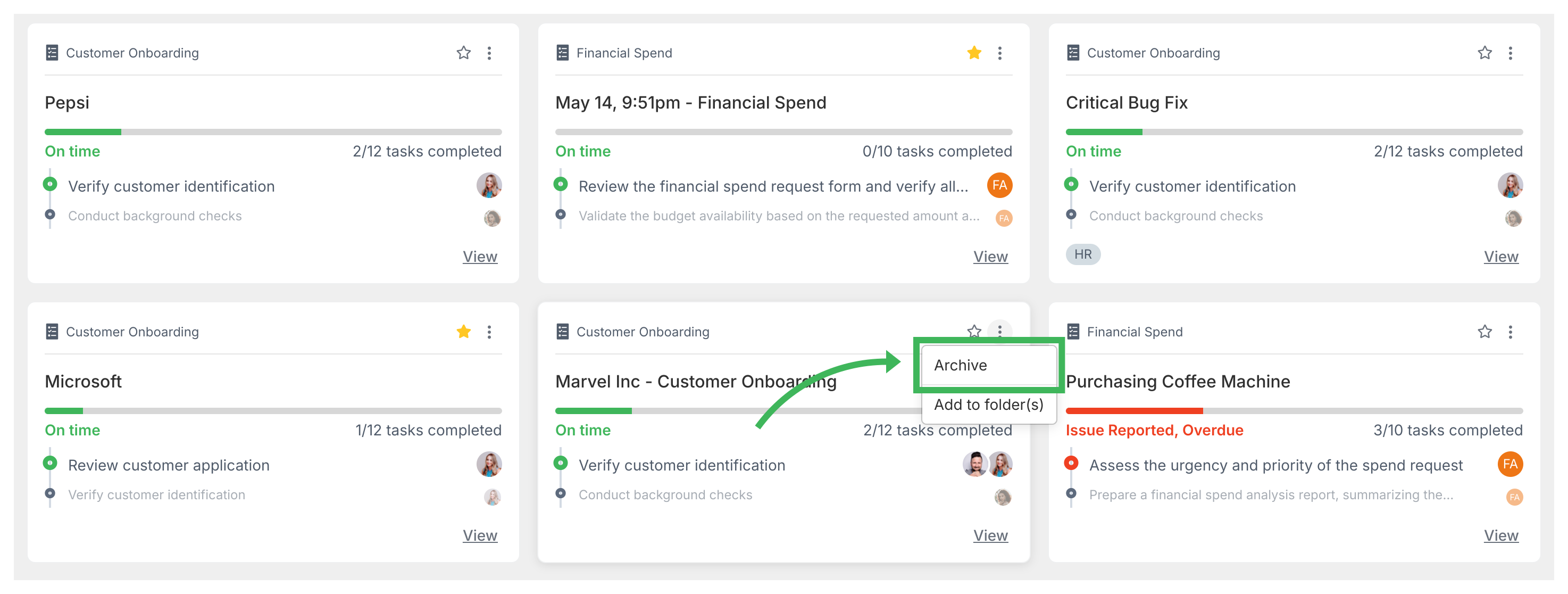
  2. Find the process to archive and click the three-dot menu (…) icon on its card.
  3. Select Archive from the menu. Process cards with Archive menu option highlighted

How do I unarchive a process?

To unarchive (restore) a process:

  1. Go to the Tracker view.
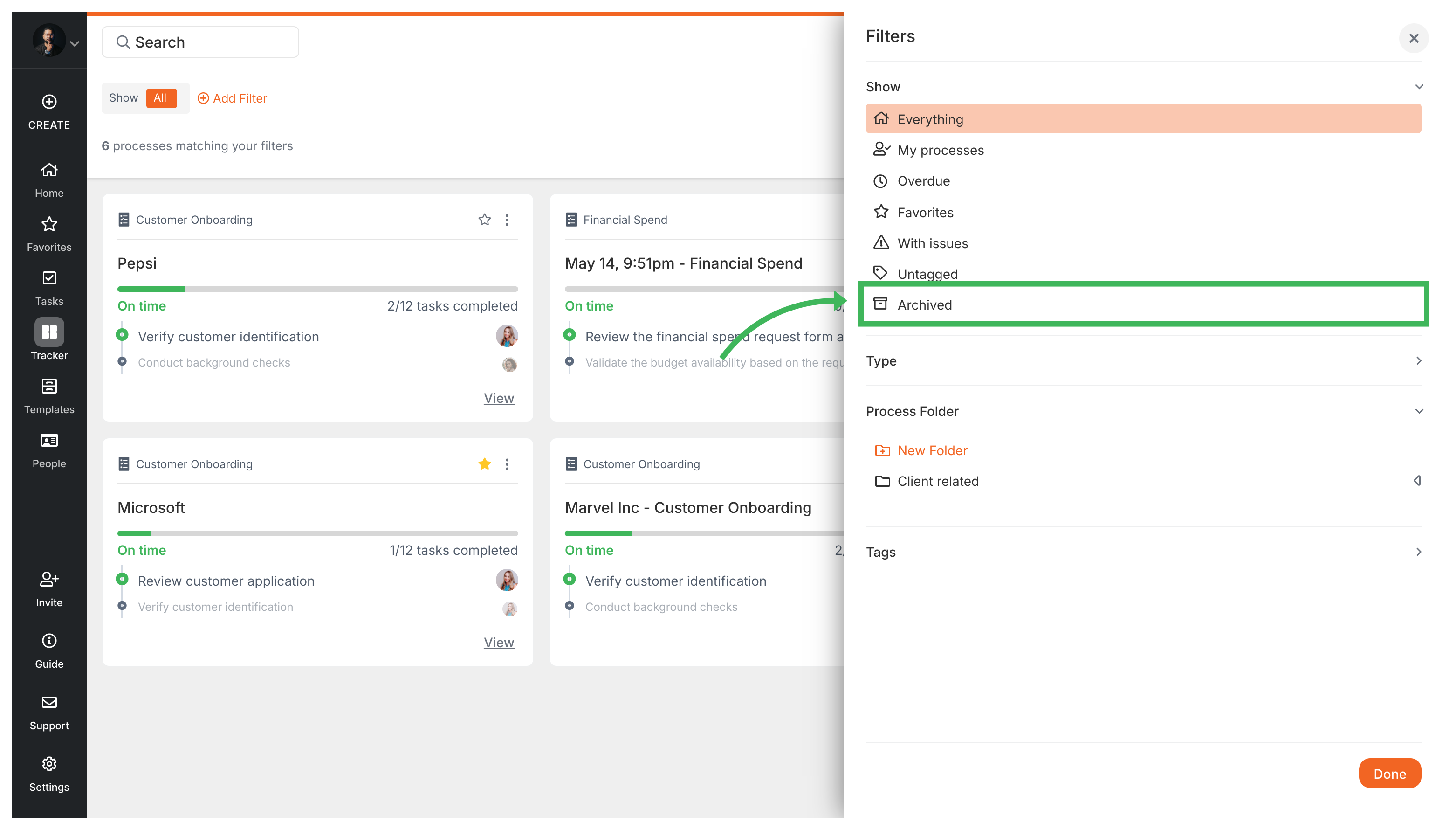
  2. Click Add Filter and filter by Status = Archived. Filter and view archived processes view view
  3. You’ll see a list of your archived processes. Find the one you want to restore.
  4. Click Unarchive on the process card or in its (…) menu.

Edit Processes > Delete a process

Tallyfy requires users to first archive active or completed processes before permanently deleting them through a two-step safety mechanism that prevents accidental data loss with no recovery option available.

Tracker View > Organize processes

Tallyfy offers multiple organization methods including folders favorites filtering and archiving to help users efficiently manage and view their active processes for improved workflow visibility.

Tracking And Tasks > An overview of processes

Processes in Tallyfy are running instances of templates that transform workflow blueprints into trackable work with unique names and activity logs while template changes don’t affect already-running processes.

Tracking And Tasks > Tracker view

The Tracker view in Tallyfy serves as a real-time dashboard that provides a centralized bird’s-eye view of all running organizational processes with flexible display options smart filtering capabilities and complete management actions to monitor progress spot bottlenecks and prevent issues before they become problems.