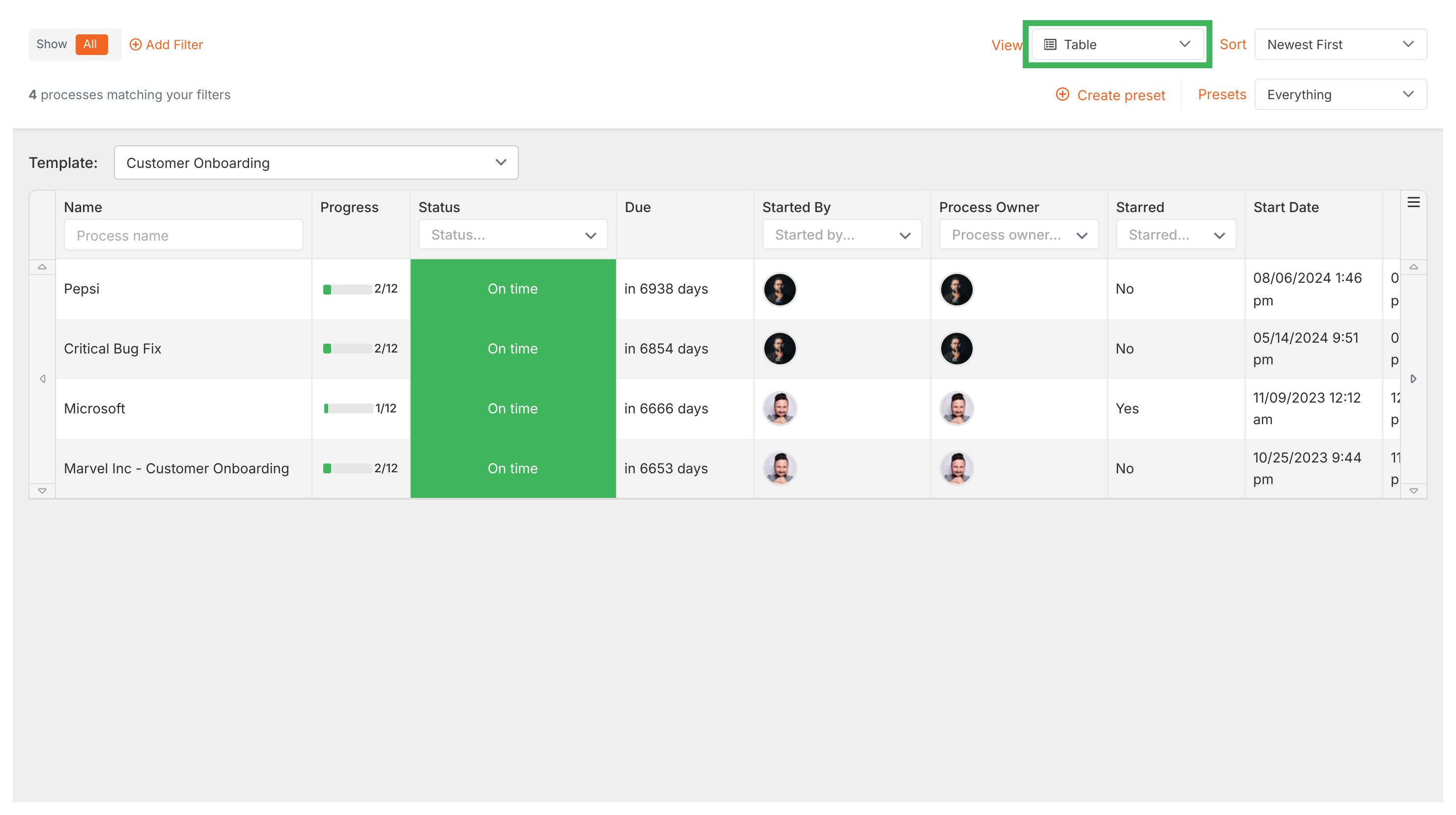
The Tracker has two view formats you can switch between at any time:
Board view (default) - Shows processes as visual cards you can group and scan quickly
Table view - Lists processes as rows with sortable, filterable columns for detailed tracking
How do I switch between views?
Open the Tracker from the left sidebar.
Find the View dropdown near the top of the page.
Select Board or Table.
How can I customize the table view?
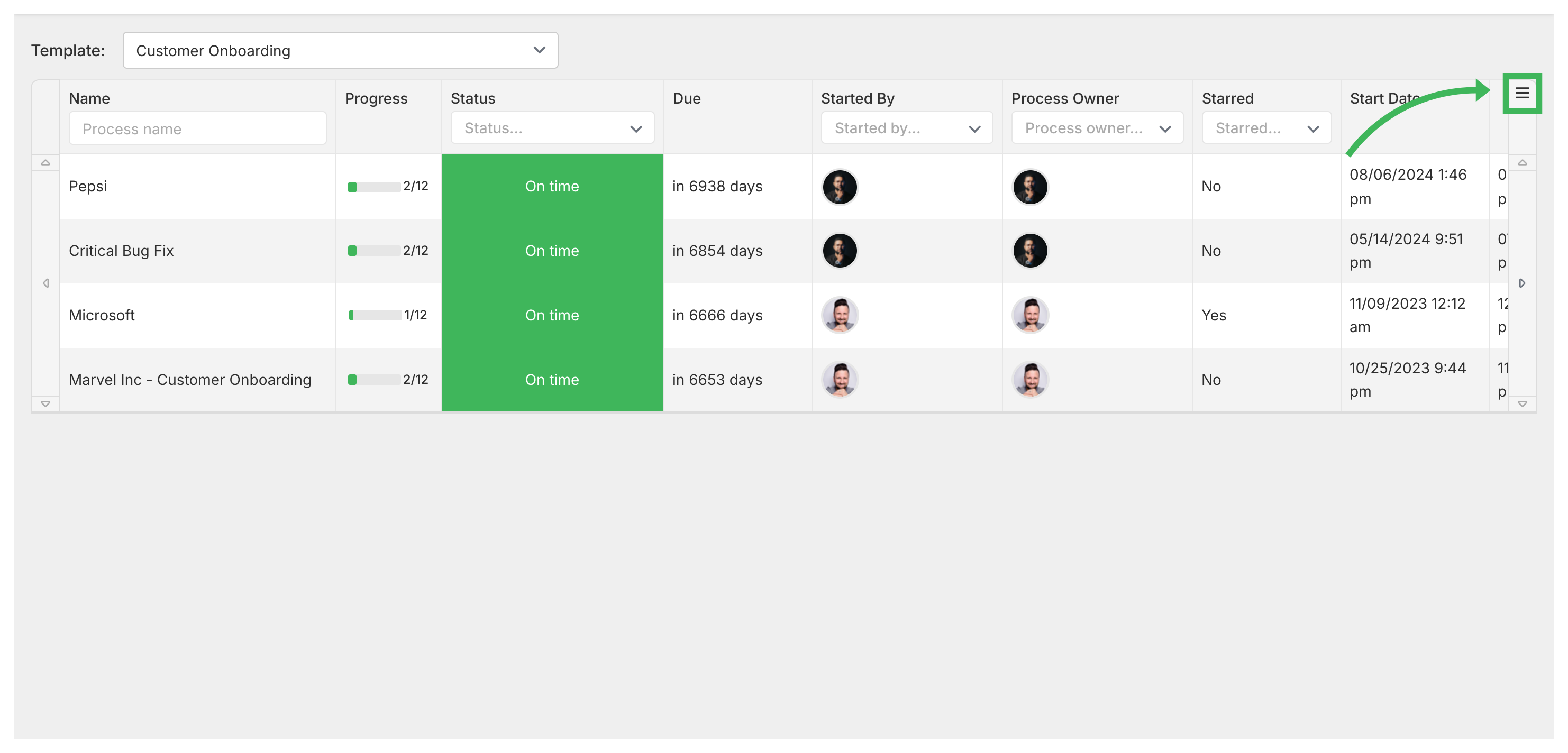
Table view requires you to pick a template (blueprint) first. Once selected, you’ll see processes listed as rows with columns like Name, Progress, Status, Due, Started By, Process Owner, Start Date, Last Updated, Assigned, Next Step, and more.
You can show or hide columns to focus on what matters most.
Table view navigation tips
Known behavior - Table view resets to the first blueprint in your dropdown when you navigate away and come back. This happens because the selected blueprint isn’t always preserved in the URL.
Common triggers:
Using the browser back button instead of Tallyfy’s sidebar navigation
Navigating from external links back to the tracker
Page refreshes or session timeouts
Bookmarks that don’t include the blueprint parameter
How to work around it:
Use in-app navigation - Click the Tracker menu item instead of browser back
Bookmark after selecting - The URL includes your blueprint selection once chosen
Expect reselection after refresh - Just pick your blueprint again from the dropdown. Your data isn’t affected - only the view selection resets.
Tallyfy’s Tracker view serves as a real-time organizational dashboard for monitoring all running processes through board or table formats with built-in filtering presets and sorting options that let you spot bottlenecks and manage work across your entire organization from a single screen.
Tallyfy offers two tracking views in its sidebar: Tracker View for monitoring entire workflows across your organization and Tasks View for managing your personal to-do list of individual assignments and process steps.
Tallyfy lets you organize active processes through folders and favorites and filters and archiving so you can quickly find and manage running workflows in whatever way suits your team best.
Tallyfy’s Tracker view gives you a bird’s-eye dashboard of every running process in your workspace showing status cards with color-coded deadlines and sorting plus filtering options to quickly spot overdue or blocked work.