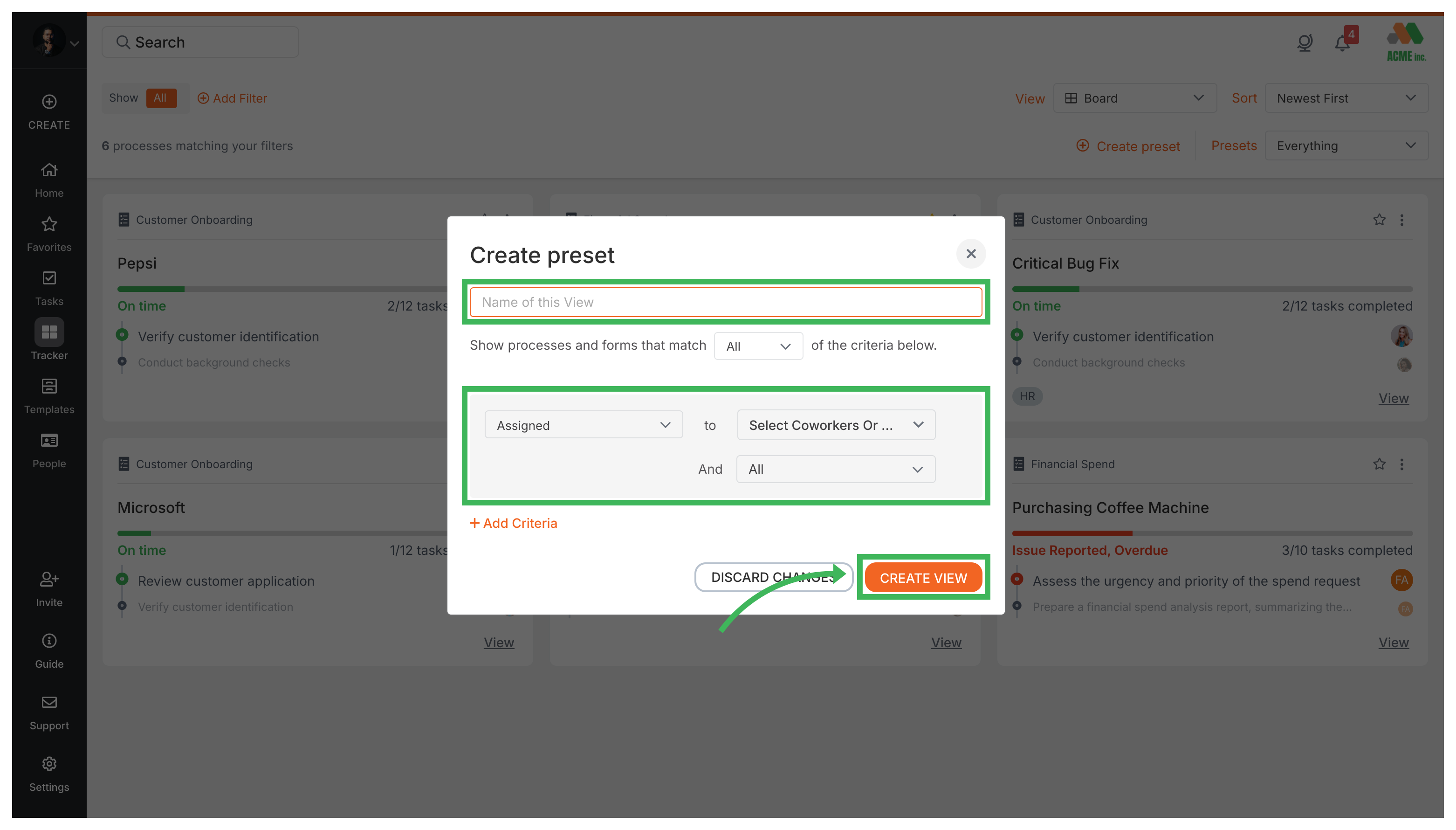
Save filtered views as Presets in the Tracker to instantly access specific process subsets. For example, you could create a preset showing processes assigned to your team, tagged “Urgent”, and approaching their deadlines.
Go to the Tracker view.
Click Add Filter and apply the filters you want - assignee, tag, status, template, or folder. You can combine multiple filters.
Once the Tracker shows the right processes, click Save Preset near the filters.
Name your preset (e.g., “My Team’s Urgent Issues”).
Click Save.
Your saved preset appears in the Custom Views dropdown in Tracker. Click it to re-apply that filter combination anytime.
Tallyfy’s Tracker view serves as a real-time organizational dashboard for monitoring all running processes through board or table formats with built-in filtering presets and sorting options that let you spot bottlenecks and manage work across your entire organization from a single screen.
Tallyfy’s Tasks View lets you stack filters like status and assignee and tag and template to narrow down your task list and then sort results by most recent or most delayed to quickly spot overdue work or check specific people’s workloads.
Tallyfy lets you organize active processes through folders and favorites and filters and archiving so you can quickly find and manage running workflows in whatever way suits your team best.
Tallyfy’s Tracker view gives you a bird’s-eye dashboard of every running process in your workspace showing status cards with color-coded deadlines and sorting plus filtering options to quickly spot overdue or blocked work.