Tallyfy’s Activity tab on any template provides an immutable audit trail showing exactly who changed what and when across all content edits and configuration updates and form field modifications with timestamps displayed in your local timezone and access restricted to administrators and permitted members.
Check process activity
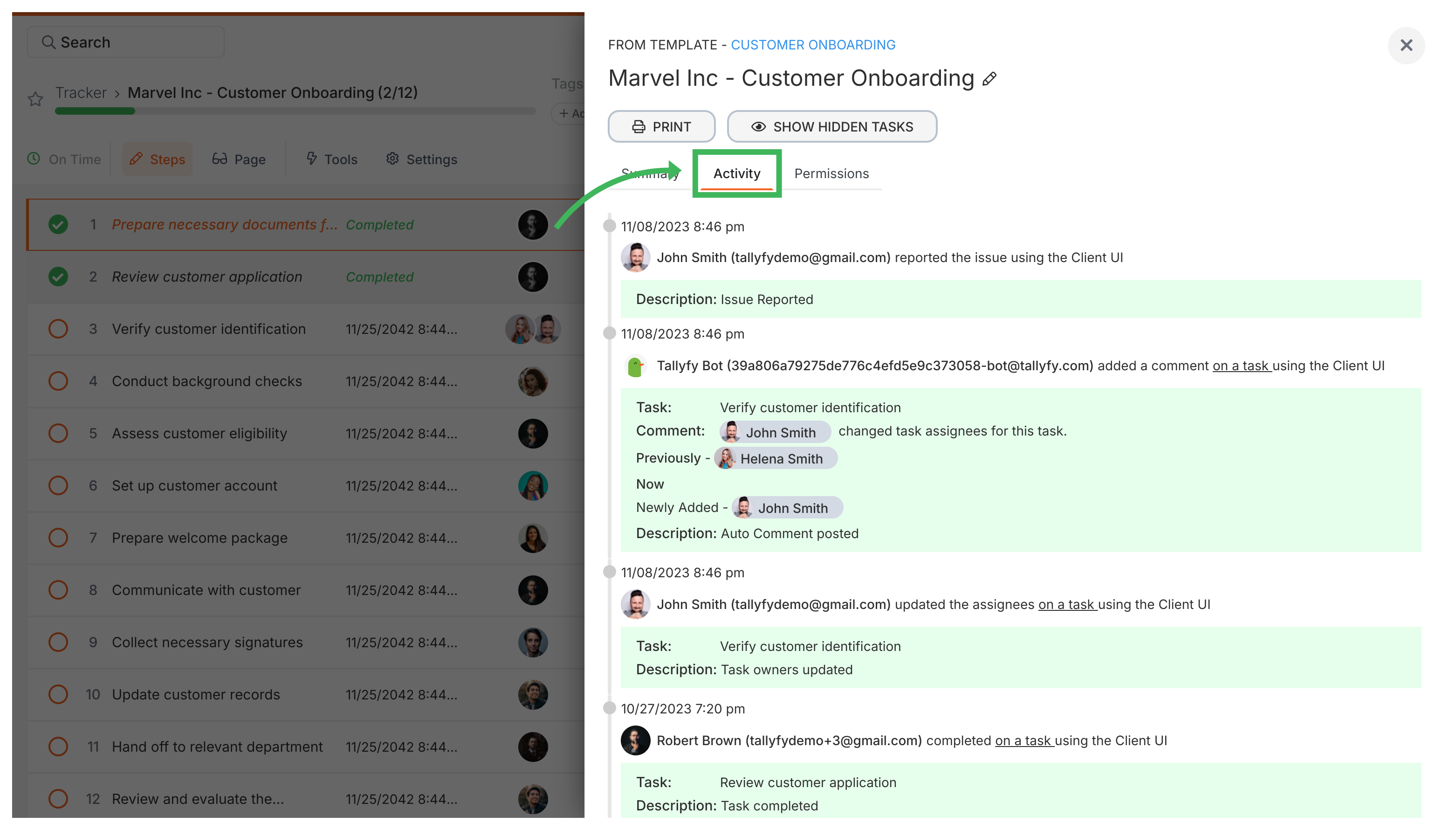
Every running Tallyfy process has an activity log showing what happened and who did it. Use it to track progress or troubleshoot issues.
The log records actions like:
- Task completions or re-opens
- Deadline changes
- Comments added
- Process archiving/unarchiving
- Assignment and ownership updates
- Open the running process (e.g., from the Tracker view).
- Click the Settings button (gear icon) in the top right corner.
- Click the Activity tab in the panel that opens.
- The most recent events appear at the top.
Tracker View > Manage and track my processes
Tallyfy’s Tracker view gives you a bird’s-eye dashboard of every running process in your workspace showing status cards with color-coded deadlines and sorting plus filtering options to quickly spot overdue or blocked work.
Edit Processes > Edit tasks and process properties
Tallyfy lets you modify a running process without restarting it by opening the process from Tracker view and clicking the Settings gear icon to rename it and reassign the owner and add notes or export data.
Tracker View > Organize processes
Tallyfy lets you organize active processes through folders and favorites and filters and archiving so you can quickly find and manage running workflows in whatever way suits your team best.
Was this helpful?
About Tallyfy
- 2025 Tallyfy, Inc.
- Privacy Policy
- Terms of Use
- Report Issue
- Trademarks