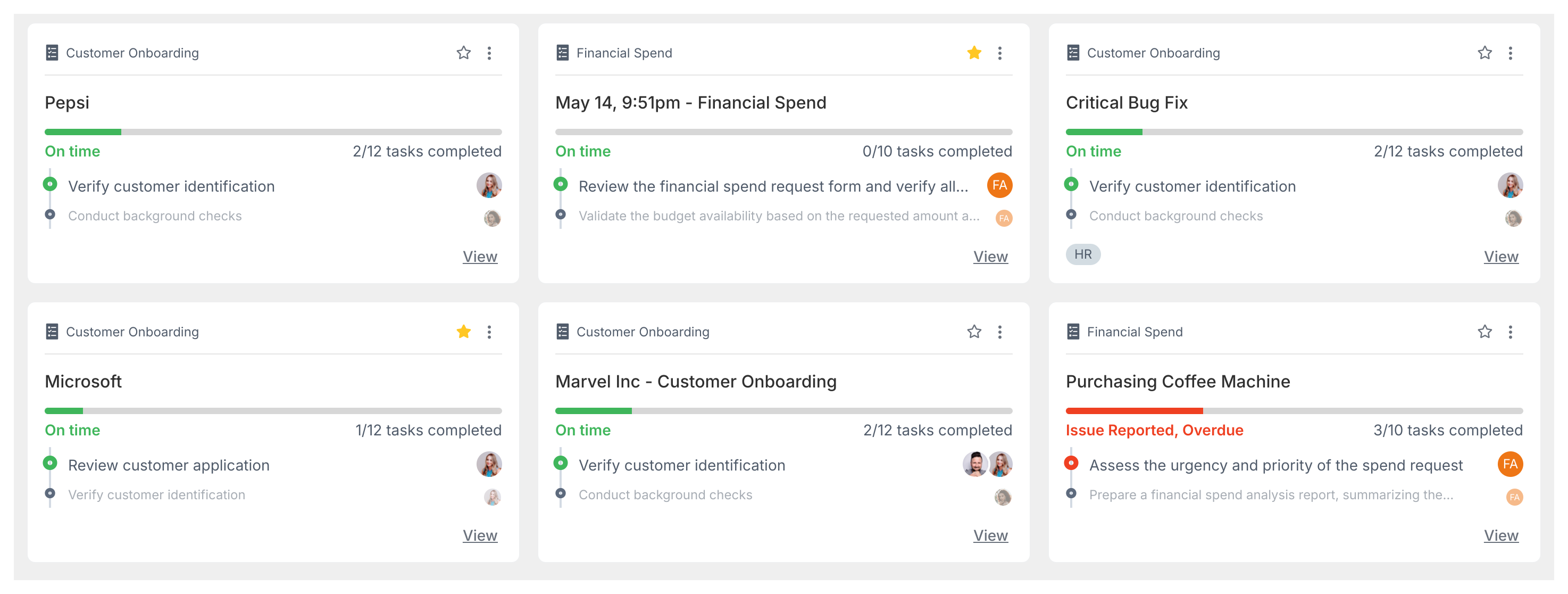
Open the Tracker from the left sidebar to get a high-level view of all running processes across your Tallyfy workspace.
What does the Tracker view show?
Each running process appears as a card showing the process name, source template, current status (On-time, Due soon, or Overdue), tasks completed, next due date, and who’s assigned the next task.
How can I sort and filter processes?
Sorting - Use the sort dropdown to order processes by Newest/Oldest, Most Delayed, or alphabetically (A-Z or Z-A).
Filtering - Click Add Filter to show only processes matching specific criteria - like assigned person, tags, template, status, type, or folder. See Customize the Tracker view.
What do the status colors mean?
On-time - Running normally, no deadlines missed.
Due soon - One or more tasks are due within 24 hours.
Tallyfy’s Tracker view serves as a real-time organizational dashboard for monitoring all running processes through board or table formats with built-in filtering presets and sorting options that let you spot bottlenecks and manage work across your entire organization from a single screen.
Tallyfy’s Tasks View lets you stack filters like status and assignee and tag and template to narrow down your task list and then sort results by most recent or most delayed to quickly spot overdue work or check specific people’s workloads.
Tallyfy’s Tasks view acts as a unified personal to-do list in the left sidebar that pulls together every task from all running processes and standalone one-off tasks while offering powerful filters by assignee and status and tags to quickly find and manage your work.
Tallyfy offers two tracking views in its sidebar: Tracker View for monitoring entire workflows across your organization and Tasks View for managing your personal to-do list of individual assignments and process steps.