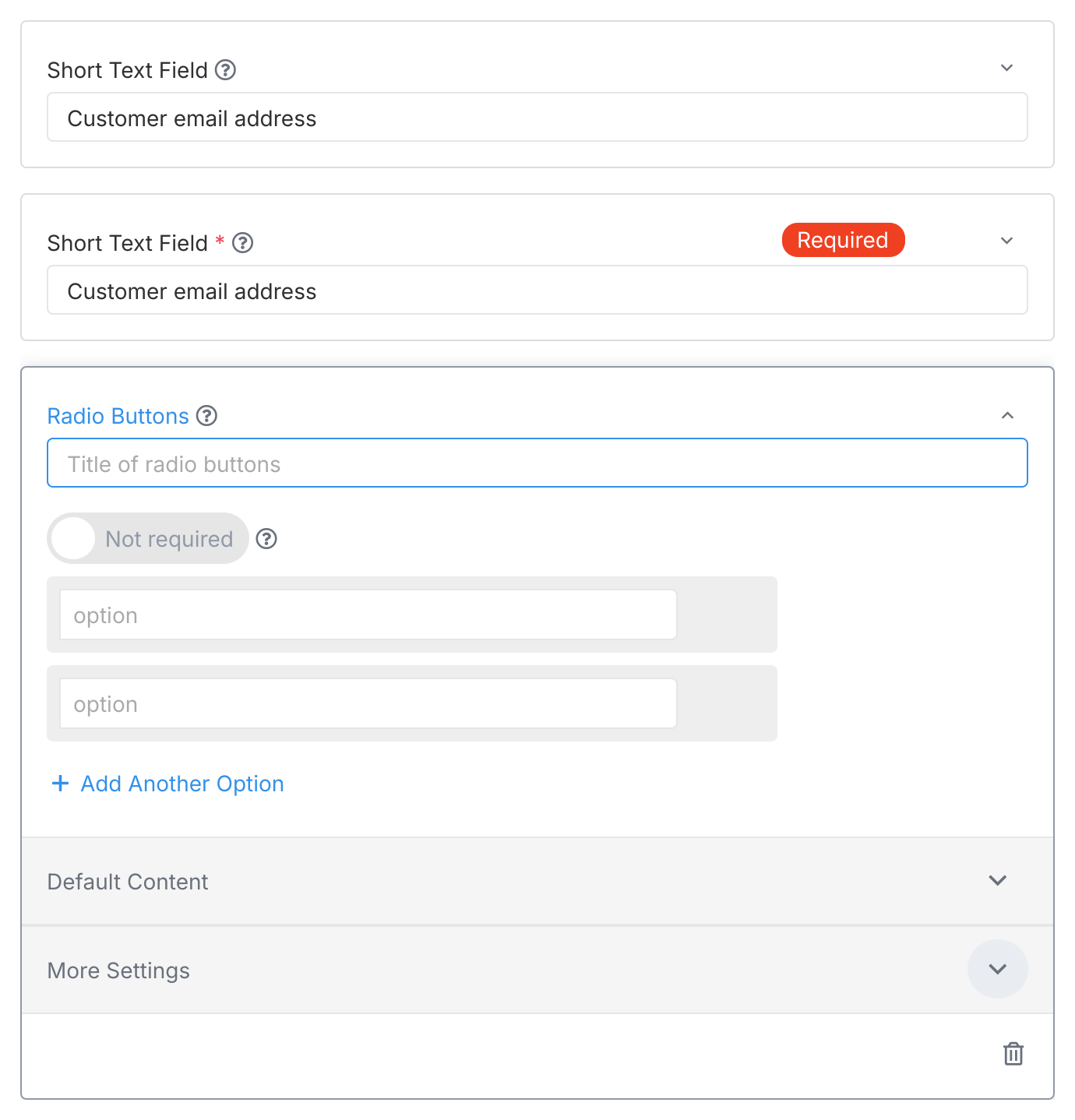
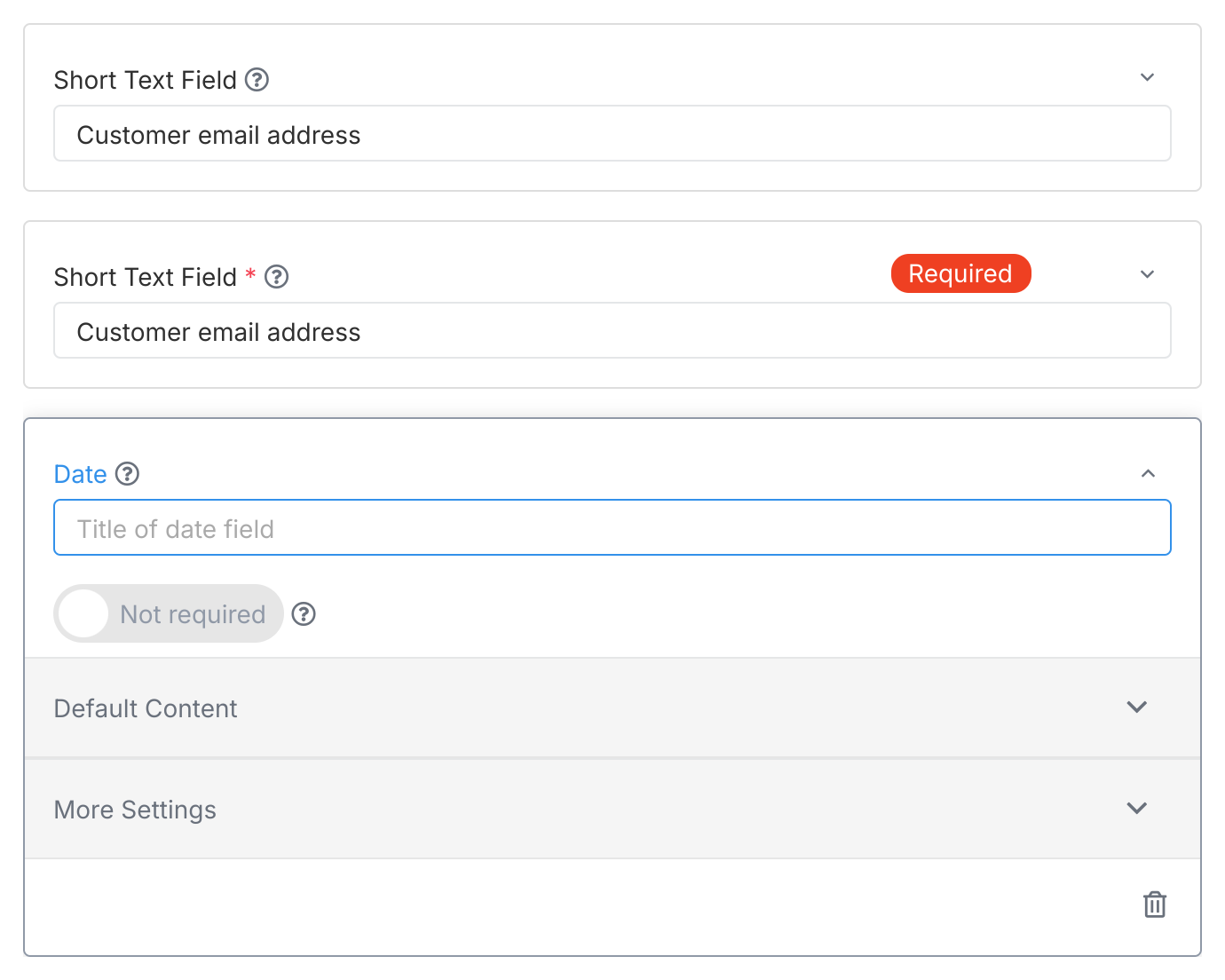
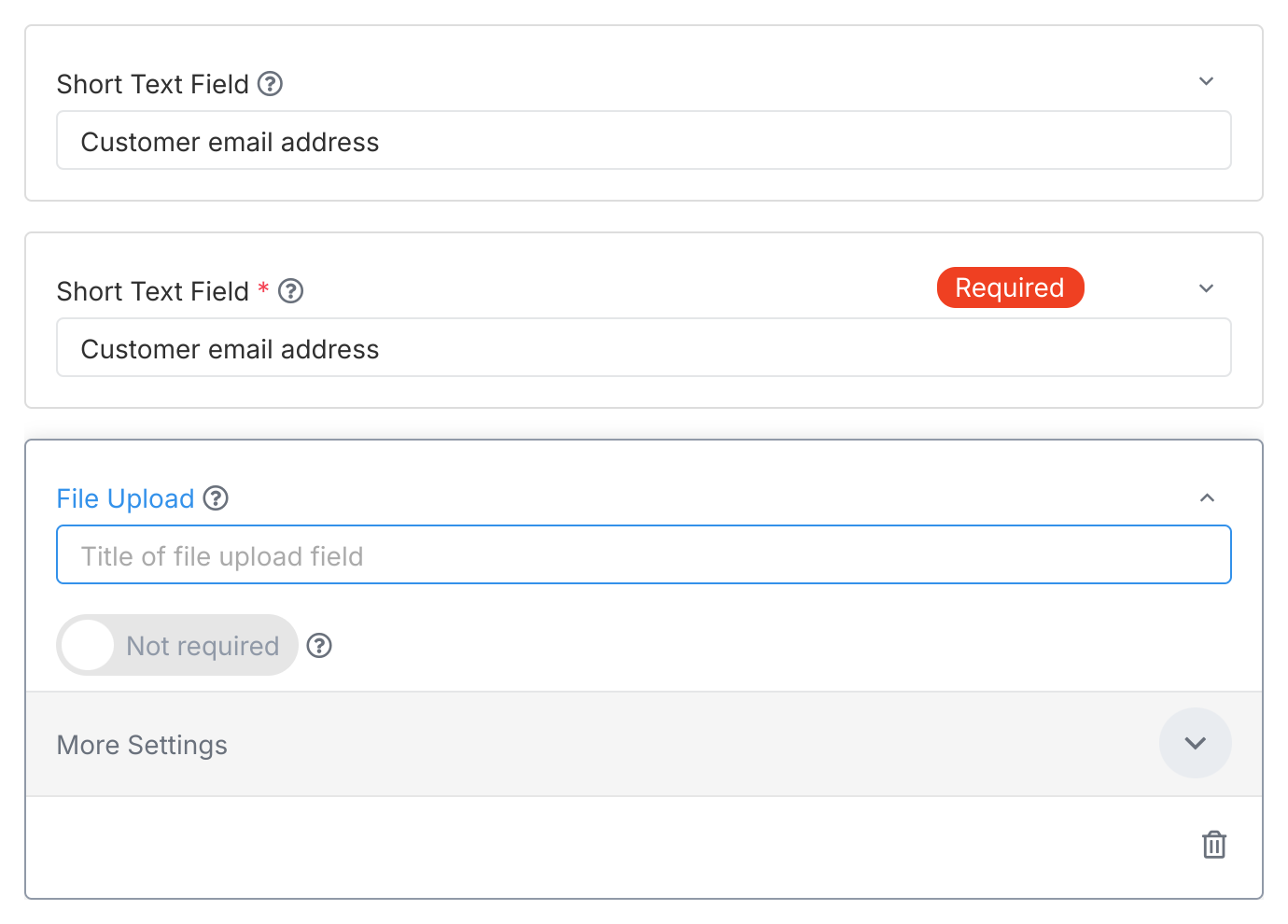
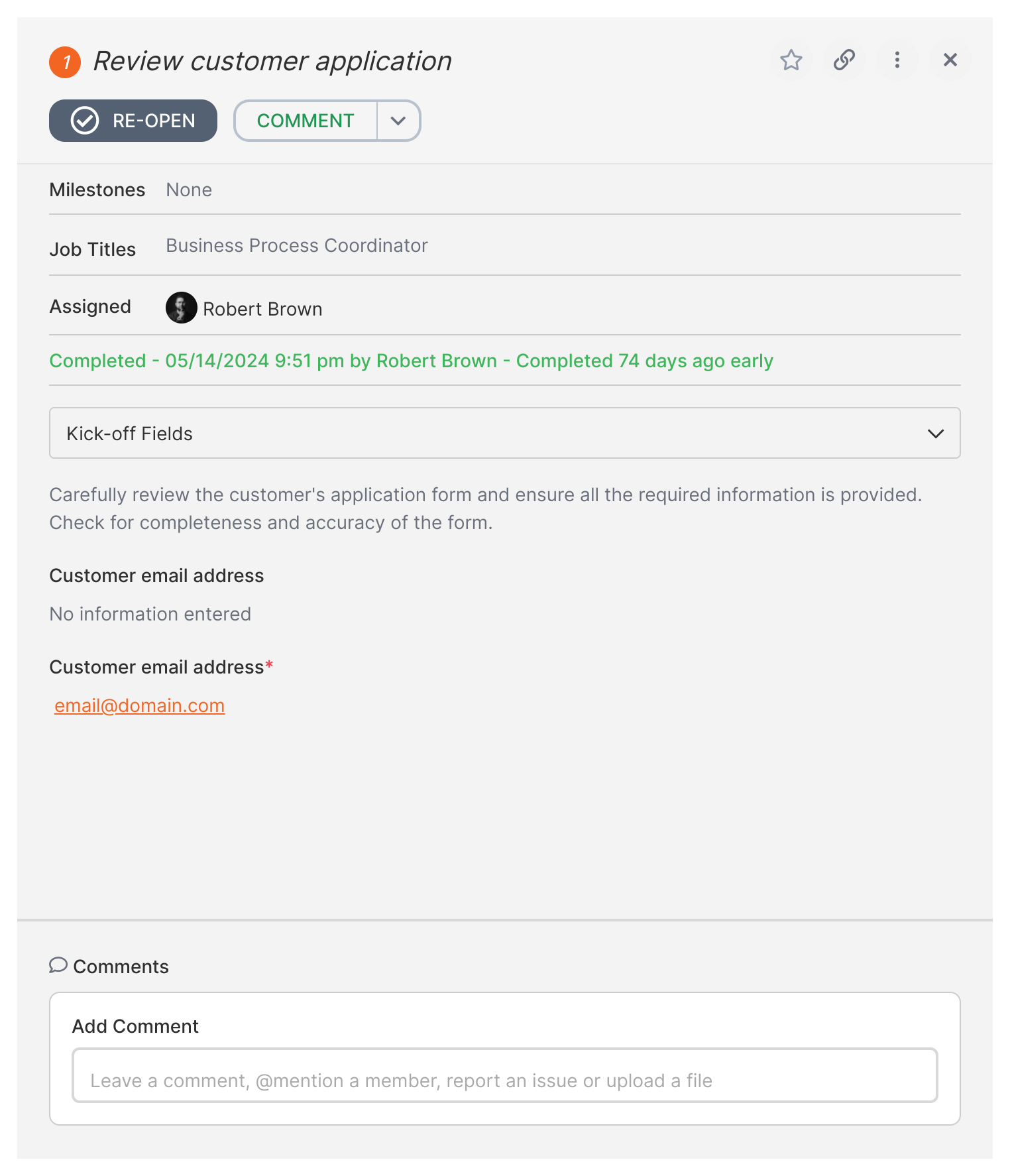
Form fields let Tallyfy processes collect user input that can change how the process flows. Add them to the Kick-off Form (filled before the process starts) or to individual tasks.
How do different field types work?
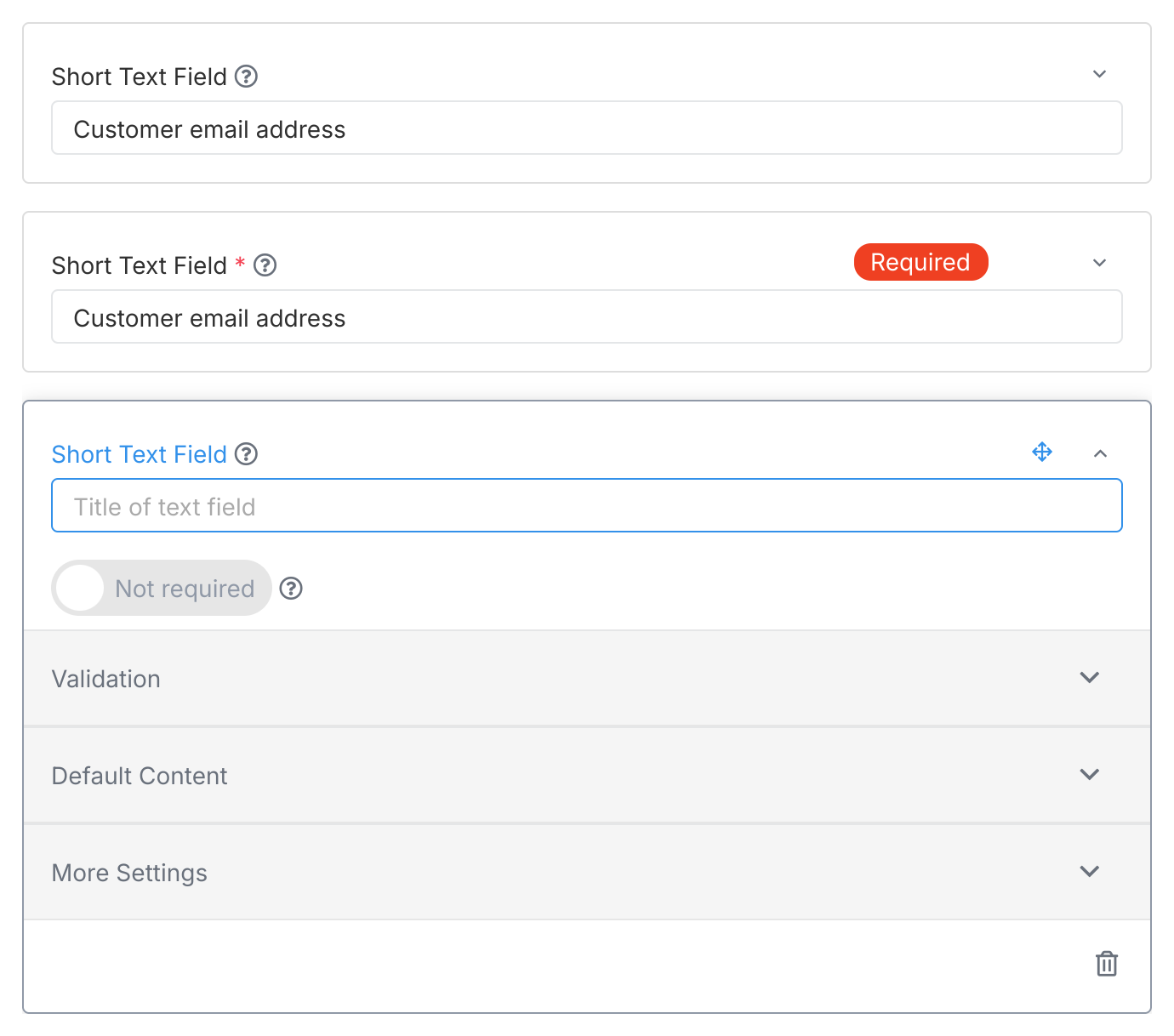
Short text
Single line for brief input (up to 200 characters).
Use for collecting docs, images, or reports. Supports multiple file uploads in a single field.
Alternative: For sensitive or larger files, use file request links from your document management system.
Table
Define columns, and users add rows of data. Default values aren’t supported for tables.
Adding columns: In the template editor, click Add New Column to define the structure.
Using in tasks: Users click Add Row to enter data into your defined table.
Using with variables: Insert the entire table’s data into a later step description using the Insert Variable feature.
Using in rules: Create automation rules that check if a specific column Contains a certain value.
Assignee picker
Select a Tallyfy member, guest, or group. Default values aren’t supported for this field type.
Options: Set as required.
Use when the person doing a later task needs to be chosen during the process.
Assignee picker captures data but doesn’t auto-assign
The assignee picker captures who was selected but does NOT automatically reassign tasks.
To use the selected assignee, create an automation rule:
Add the assignee picker field to your step
Go to Automations in your template
Create a rule with:
IF condition: When the step with assignee picker is completed
THEN action: Assign/unassign specific tasks
Use the assignee picker field value to determine assignment
Common use case: Manager selects team member in Step 1 → Automation assigns Step 2 to that person.
Without the automation rule, the selection is just stored data. It won’t change any task assignments.
Form field limitations
What other field settings are available?
Most fields have these settings:
Name: The field label (the question your process asks).
Guidance: Optional help text below the label. Add this in the Advanced section of field settings in the template editor. It appears in italics below the field name when the task is active, and any URLs become clickable links.
Field Alias2: Auto-generated internal ID based on the first name you give the field. It doesn’t change even if you rename the field later, so automations and integrations using the alias keep working.
Required: Whether this field must be filled before the task can be completed.
Default Value: Pre-fill a value (can use variables for text fields). Not available for table, file upload, or assignee picker fields. See Set default content for form fields for details.
Choosing the right form field type in Tallyfy—such as radio buttons for binary choices or dropdowns for longer lists—directly impacts data quality and enables powerful automation rules while avoiding common pitfalls like single-item checklists or unnecessary file uploads.
Tallyfy connects form submissions directly to trackable workflows so that every response automatically triggers defined process steps with email verification for public forms and supports conditional branching and document generation along with field validation and collaborative multi-step completion across teams.
Tallyfy lets you pre-fill form fields with static text, dynamic variables from earlier steps, or system values like today’s date so that users spend less time retyping common information and make fewer errors while still being free to change any pre-filled value.
Kick-off forms in Tallyfy collect essential information at the start of a template and feed that data directly into subsequent workflow steps while also supporting public sharing so external users like customers or vendors can submit a form to automatically launch an internal process with email verification and progress tracking.
Footnotes
Single file limit; multiple files can be uploaded but each must be under 100MB individually ↩
System-generated ID frozen after creation, safe for API/webhook integrations even if field renamed ↩