Skip to content

Report blockers and improvement feedback

Reporting and resolving issues

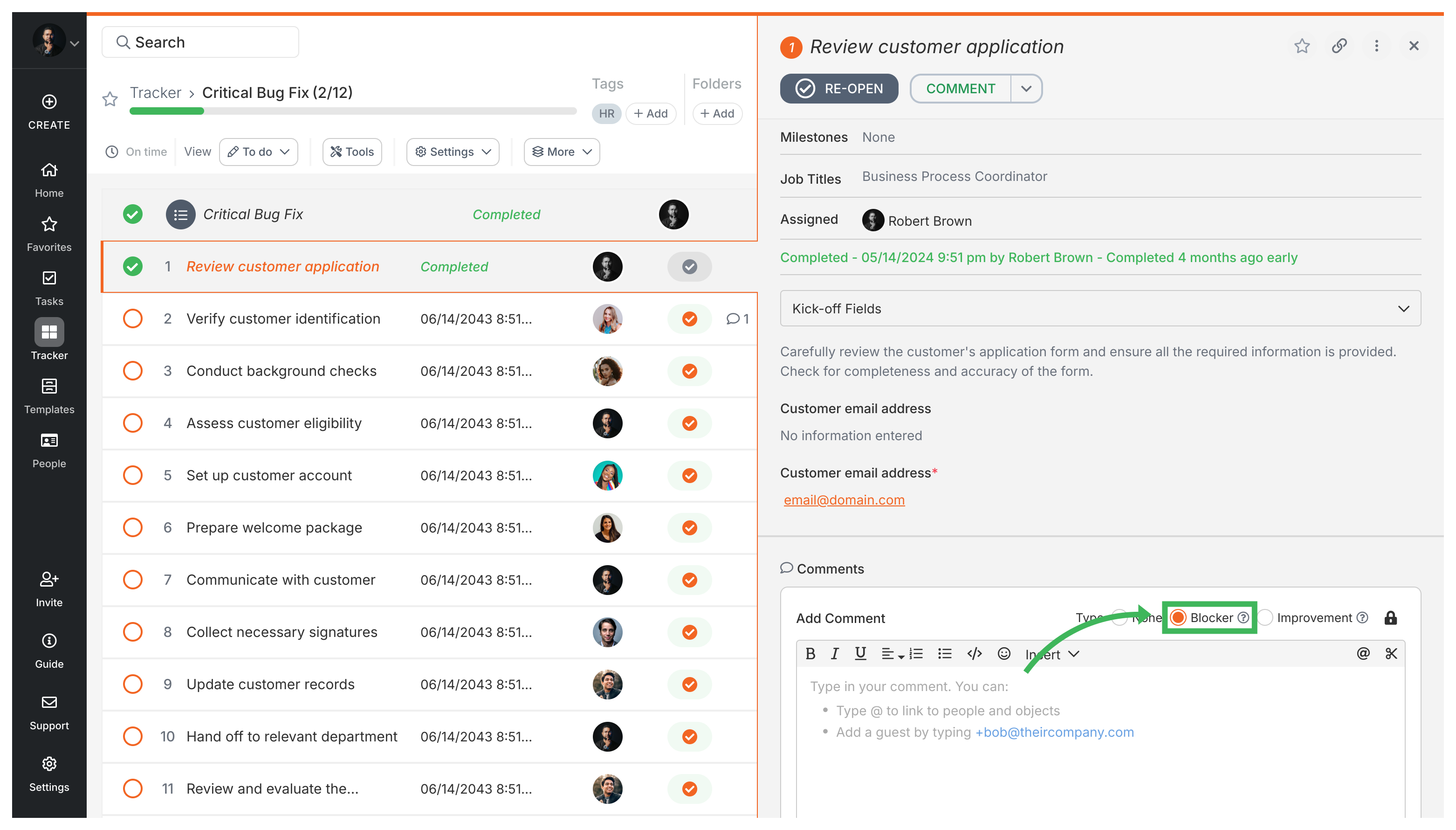
Report a problem on any task by checking Report issue in the comment area, typing your description, and posting. Everyone assigned to the task gets notified. To resolve it later, check Resolve issue and add a comment explaining the fix.

A task with an unresolved issue can’t be completed until the issue is resolved. If the task was already completed, reporting an issue automatically reopens it.

Report an issue on a task

  1. Open the task where the problem exists.
  2. Go to the Comments section.
  3. Check the Report issue checkbox and type your problem description. Task list with issue reporting feature visible
  4. Click Add Comment to post.
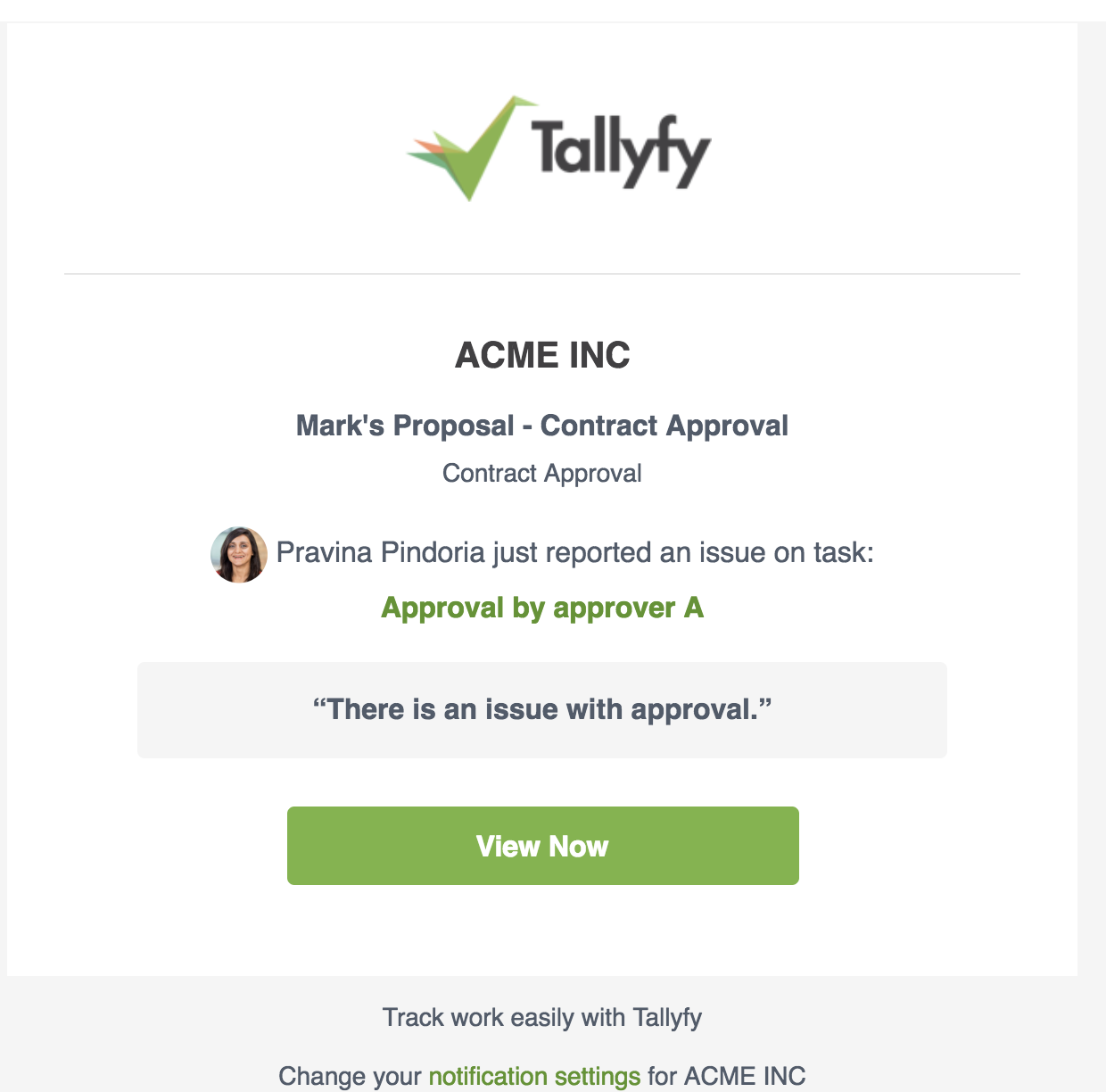
  5. All task assignees and participants get notified by email and in-app notification. Tallyfy issue reported email notification
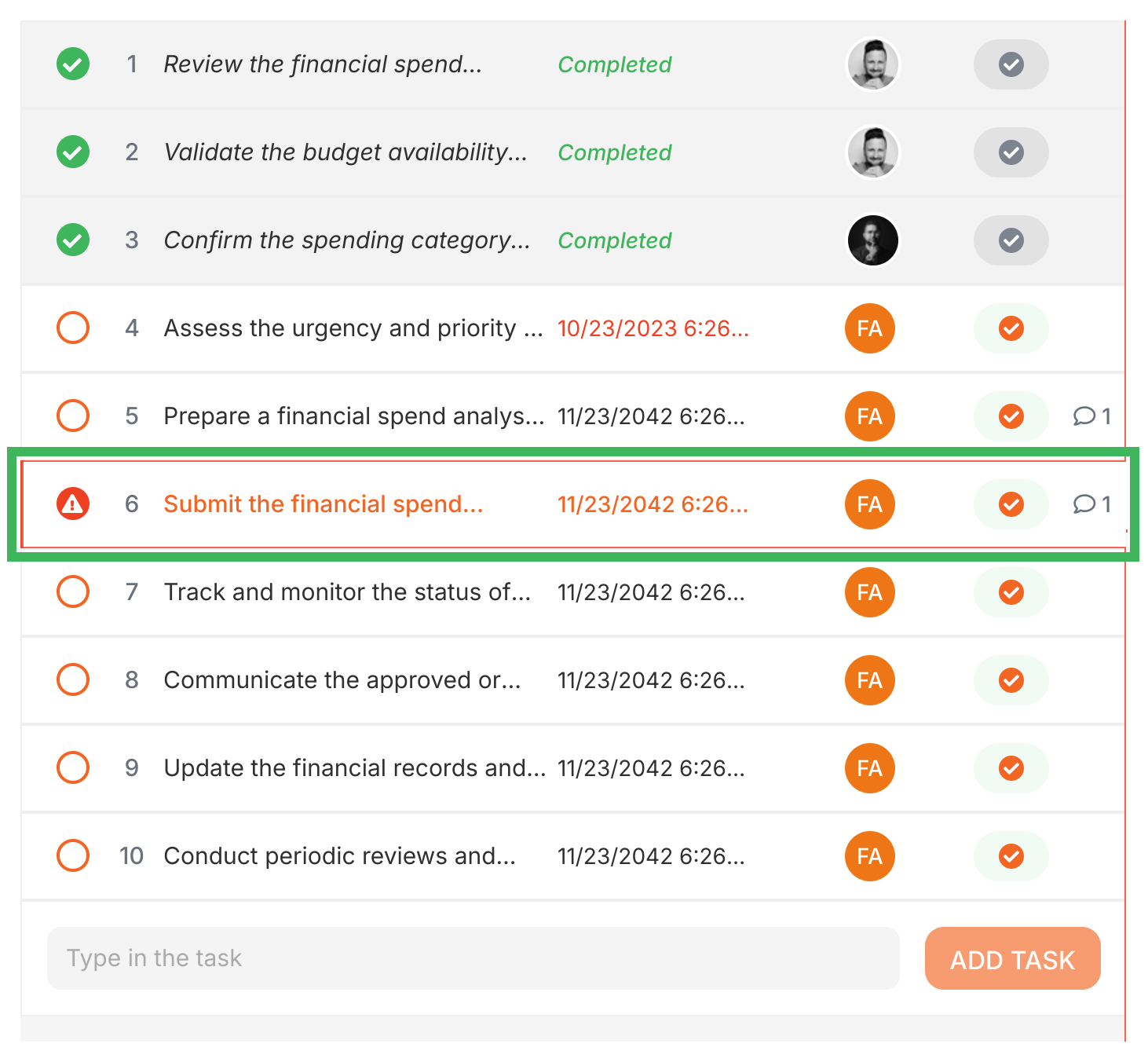
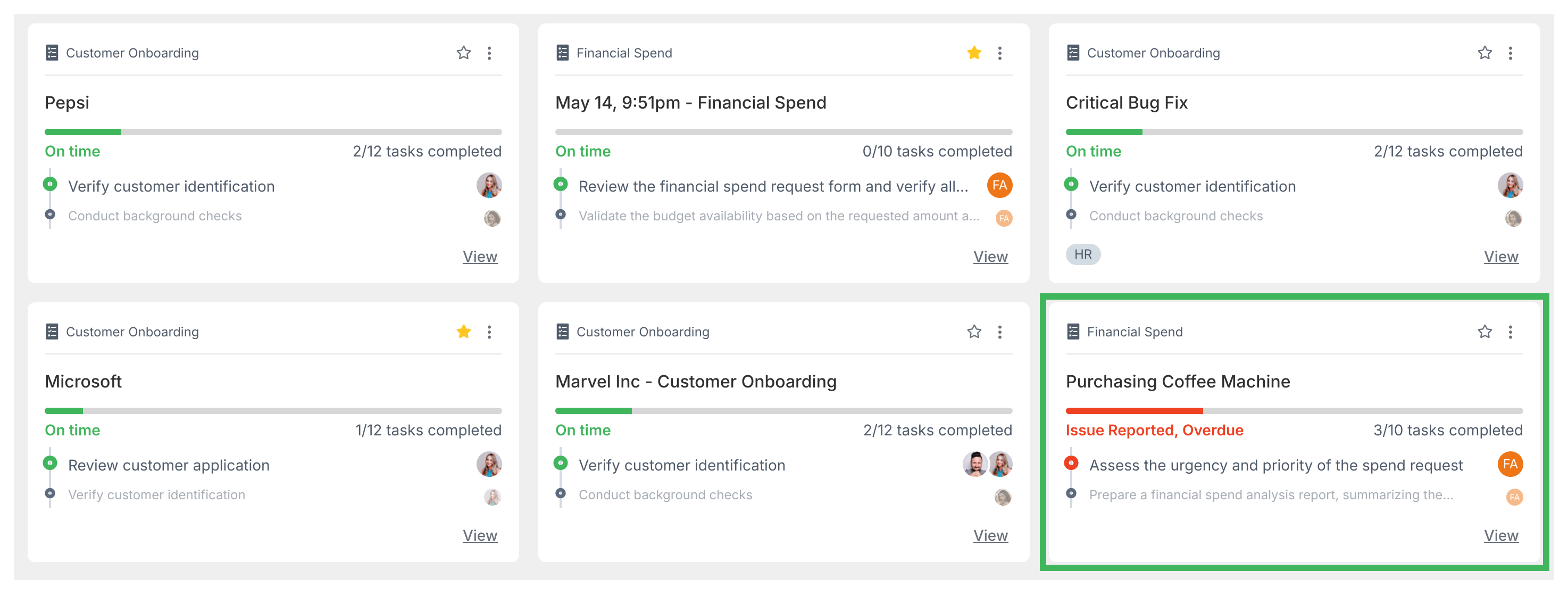
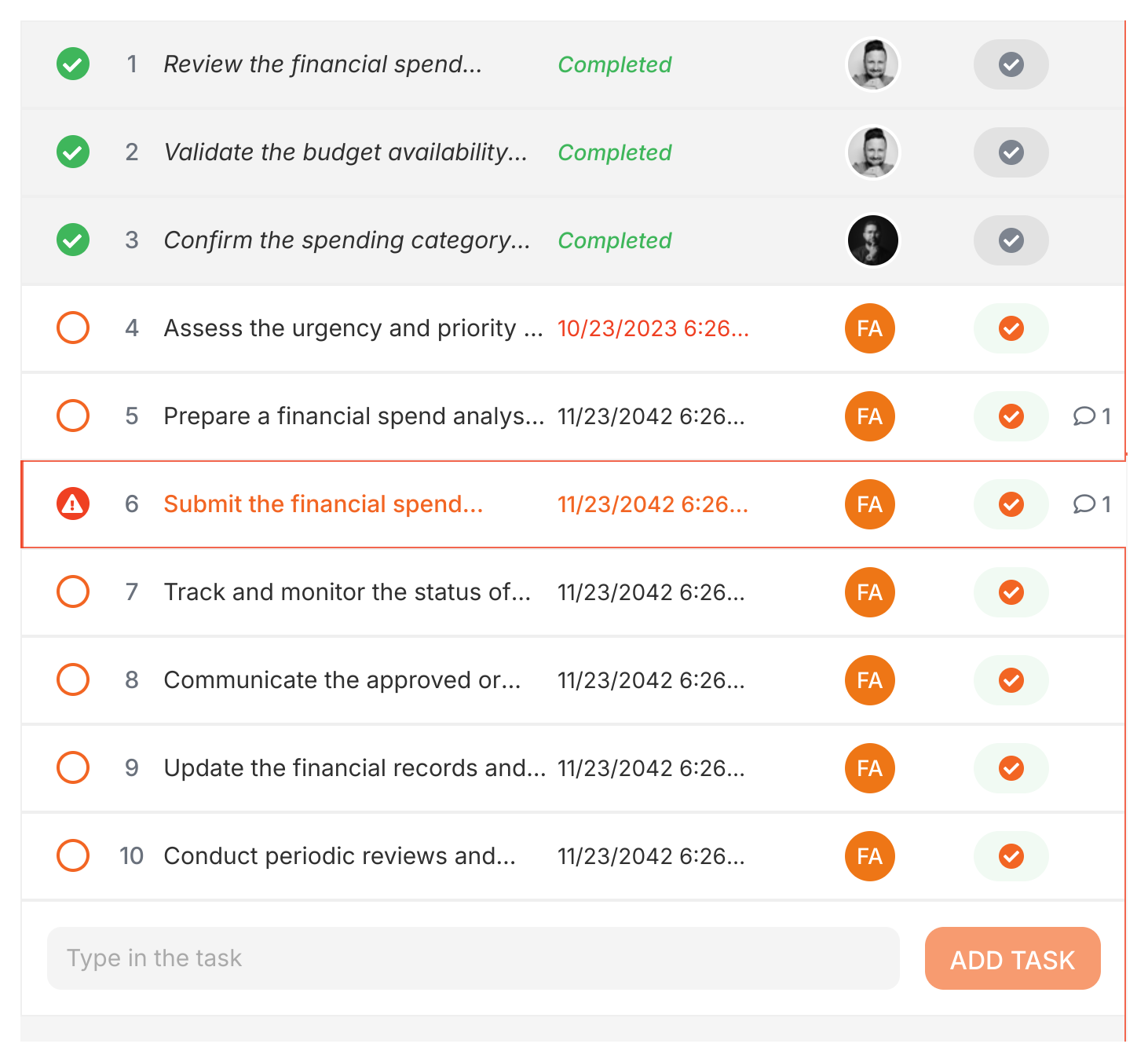
  6. The task shows a warning indicator, and the overall process status changes to “problem” while any issue remains unresolved. Process marked with issue or problem flag Active process with issue flag indicator

Resolve an issue

Anyone involved with the task can resolve a reported issue:

  1. Go to the comment where the issue was reported.
  2. Check the Resolve issue checkbox. Task list with issue alert on step 6     (40 chars)
  3. Type a comment explaining how it was fixed, then post it. The resolution comment is required.
  4. The warning indicators disappear and the process status returns to active.

Find processes with unresolved issues

  1. Go to the Tracker view.
  2. Click Add Filter.
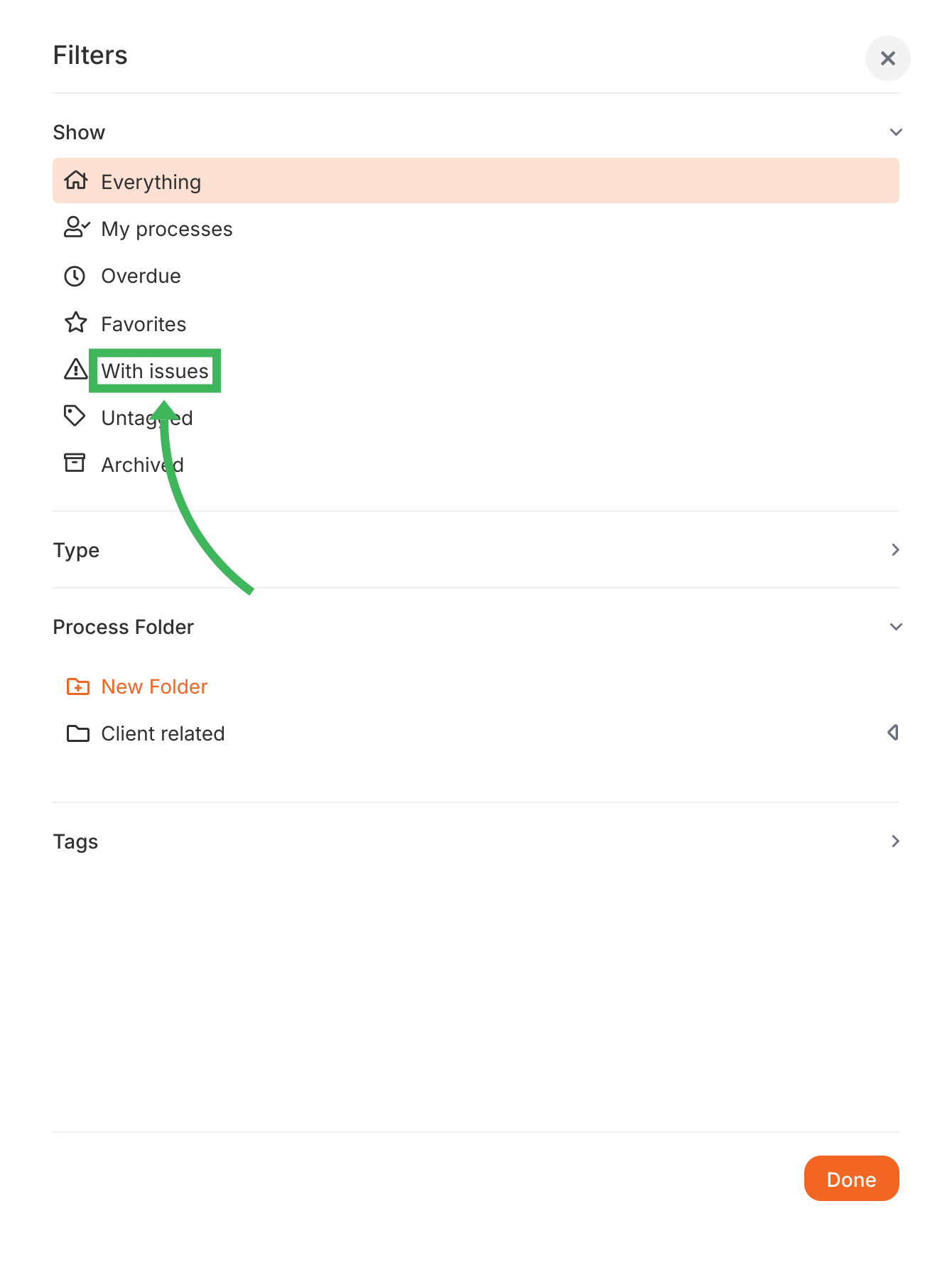
  3. Choose the filter Show > With issues. List of processes with unsolved issues feature

Suggest template improvements

You can add improvement comments directly on template steps to suggest changes for future processes.

Add improvement comments

  1. Go to the Templates library and View the template.
  2. Find the specific step you have feedback for.
  3. Click the Comment button on that step.
  4. Type your suggestion for improving the step in future processes.
  5. Click Submit.

These comments attach to the template step itself - they aren’t tied to any specific running process.

View improvement comments

  1. Open the template in Edit mode.
  2. Go to the Comments section in the sidebar.
  3. View comments grouped by step.
  4. You can also click a step in the editor - if it has comments, an indicator shows them.

Act on improvement comments

Template owners and editors can:

  • Mark comments as ‘Read’.
  • Edit the template based on feedback.
  • ‘Hide’ addressed comments.
  • Reply for clarification.

How To > Improve processes effectively

Tallyfy enables ongoing process improvement by letting teams capture feedback directly on tasks and using analytics to spot bottlenecks while instantly deploying template updates without version management or downtime.

Process Improvement > Using comments and AI for process improvement

Tallyfy accelerates process improvement beyond traditional workshops and suggestion boxes by letting team members comment directly on specific process steps to capture real-time feedback and by using AI to draft templates from plain language or legacy documents while also surfacing data-driven improvement suggestions that deploy instantly across all new process launches.

How To > Improve accountability

Tallyfy enforces task accountability through transparent dashboards showing task ownership and status along with automatic and manual reminders and a “Take Over” feature for single-person ownership while also supporting blocker documentation and escalation paths and expiring tasks that prevent backlog buildup.

How To > Ensure task completion

Tallyfy ensures tasks and approvals get done on time through automated reminders and escalation paths while also helping teams reduce overload by bundling related work and setting clear deadlines with built-in commenting and @mentions for direct follow-up.