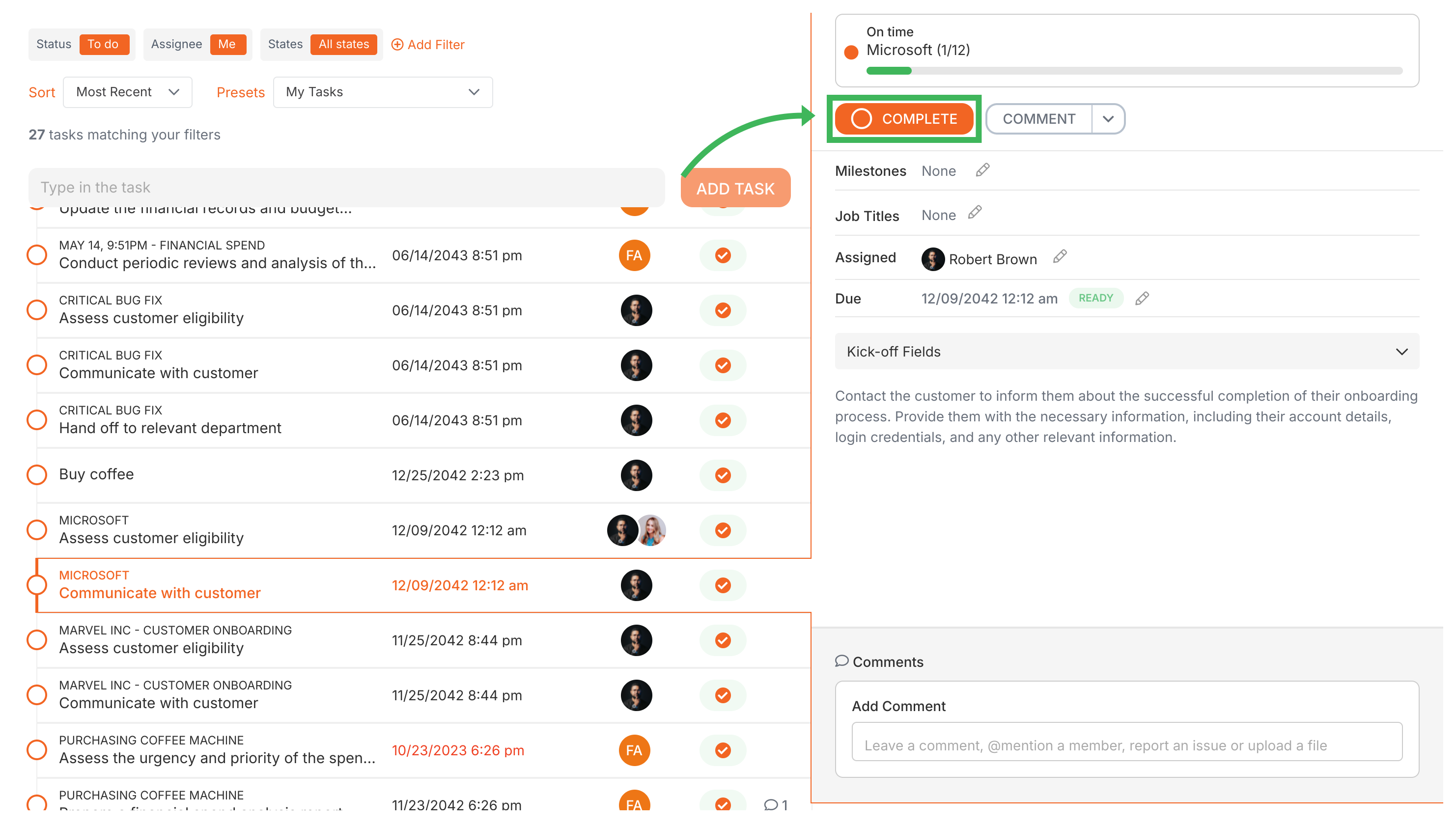
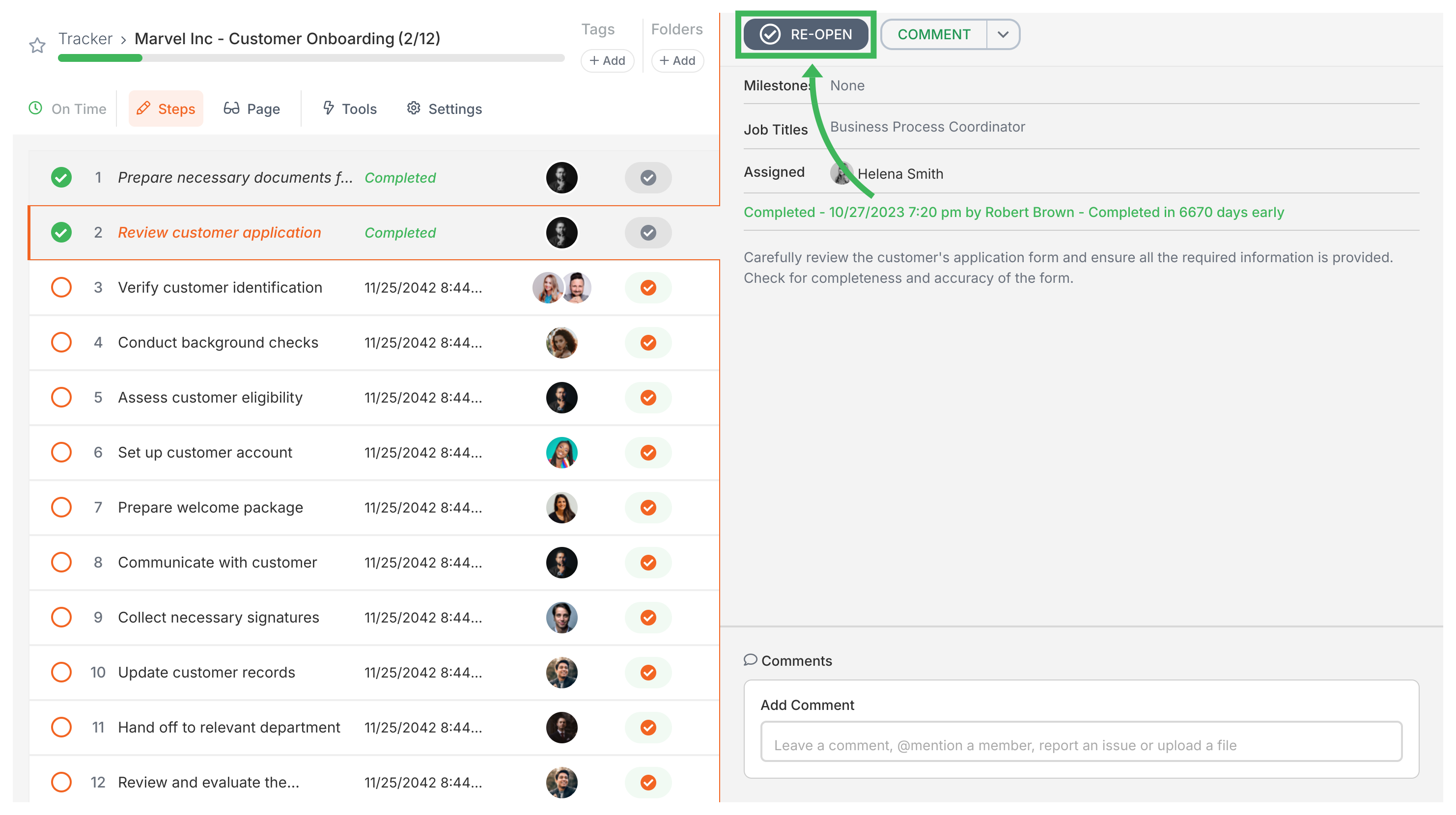
Complete tasks in two ways - click the checkmark icon in any list view, or open the task and hit Complete.
From list views (like Tasks or Tracker): Click the checkmark ✔️ icon to the left of the task name.
From the task view: Open the task, then click the Complete button (usually bottom right).
That’s it. Task marked complete.
How do I reopen completed tasks?
Need to undo a completion? Open the task and click Re-Open.
Open the completed task.
Click the Re-Open button.
The task goes back to active status.
How can I control who completes or reopens tasks?
Restrict task completion and reopening to assigned members only with the “Only assigned members can complete or edit this task” setting in the Advanced tab:
When editing the template, click the task step.
Go to the Advanced tab.
Switch ON the toggle “Only assigned members can complete or edit this task”.
When this is on:
Only assigned people can complete the task
Only assigned members can reopen it after completion
Non-assignees won’t see the Complete or Re-Open buttons
Nobody can accidentally complete someone else’s work
How do I complete tasks that have subtasks (checklists)?
Tasks with a checklist form field work a bit differently. The checklist acts like mini subtasks you need to check off.
Open the task containing the checklist.
Check off subtasks as you complete them.
Important - check the checklist’s completion rules (set in the template):
If it requires ‘at least one’ item checked - check at least one box.
If it requires ‘all items’ checked - check every box.
Once checklist rules and other required fields are met, the Complete button becomes available. Click it.
You can’t complete a task until all required fields are filled out - including checklist requirements. The Complete button stays grayed out until everything’s done.
Only members with Administrator or Standard permissions can re-open completed guest tasks in Tallyfy since guests cannot revert their own submissions and the re-open action automatically changes the task status back to active and notifies the guest via email.
Tallyfy’s advanced task options in template steps let you control behaviors like auto-launching linked processes and requiring all assignees to sign off and restricting who can complete tasks and firing webhooks to external systems and managing guest permissions and tagging steps for filtering.
Tallyfy ensures tasks and approvals get done on time through automated reminders and escalation paths while also helping teams reduce overload by bundling related work and setting clear deadlines with built-in commenting and @mentions for direct follow-up.