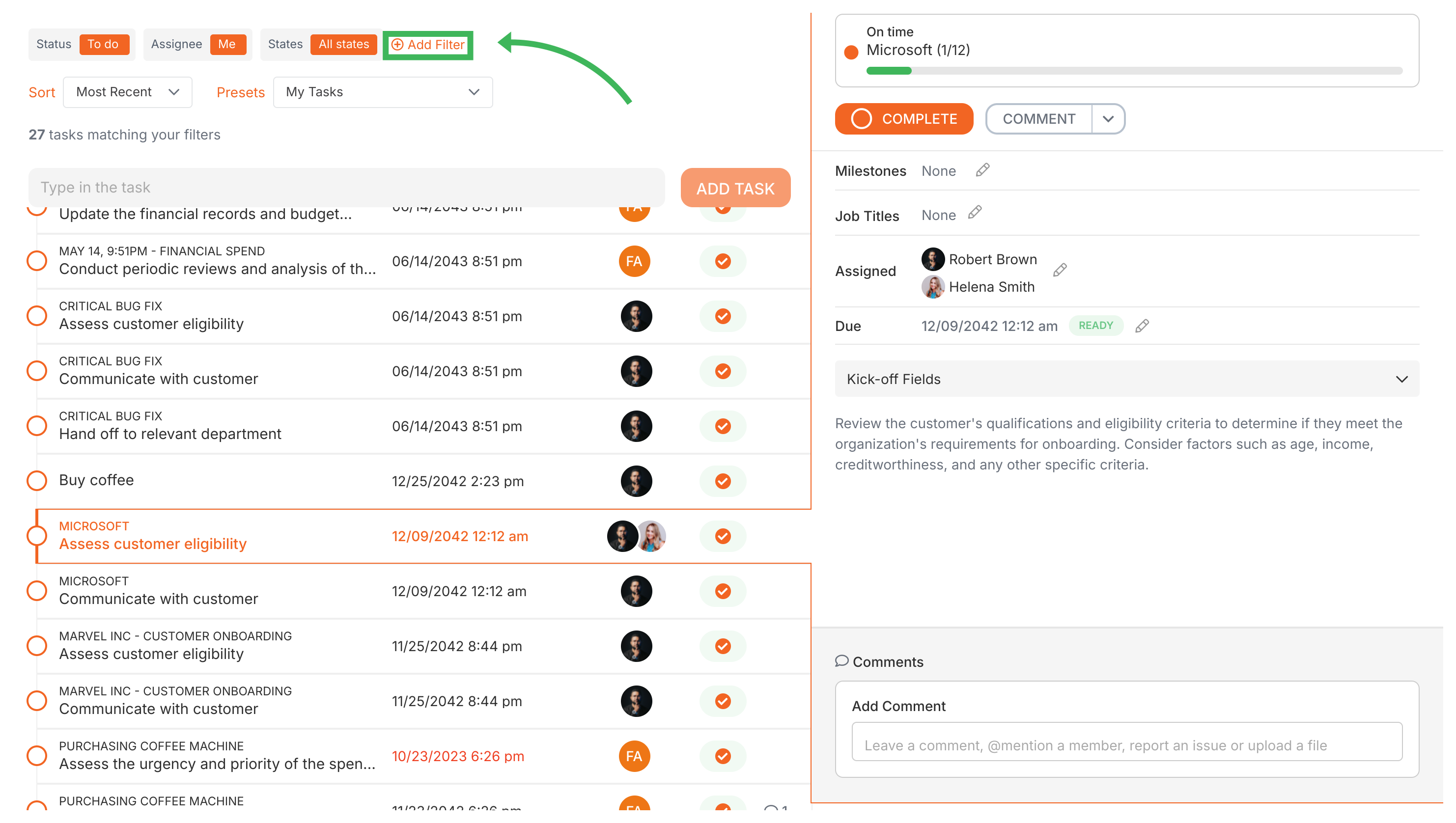
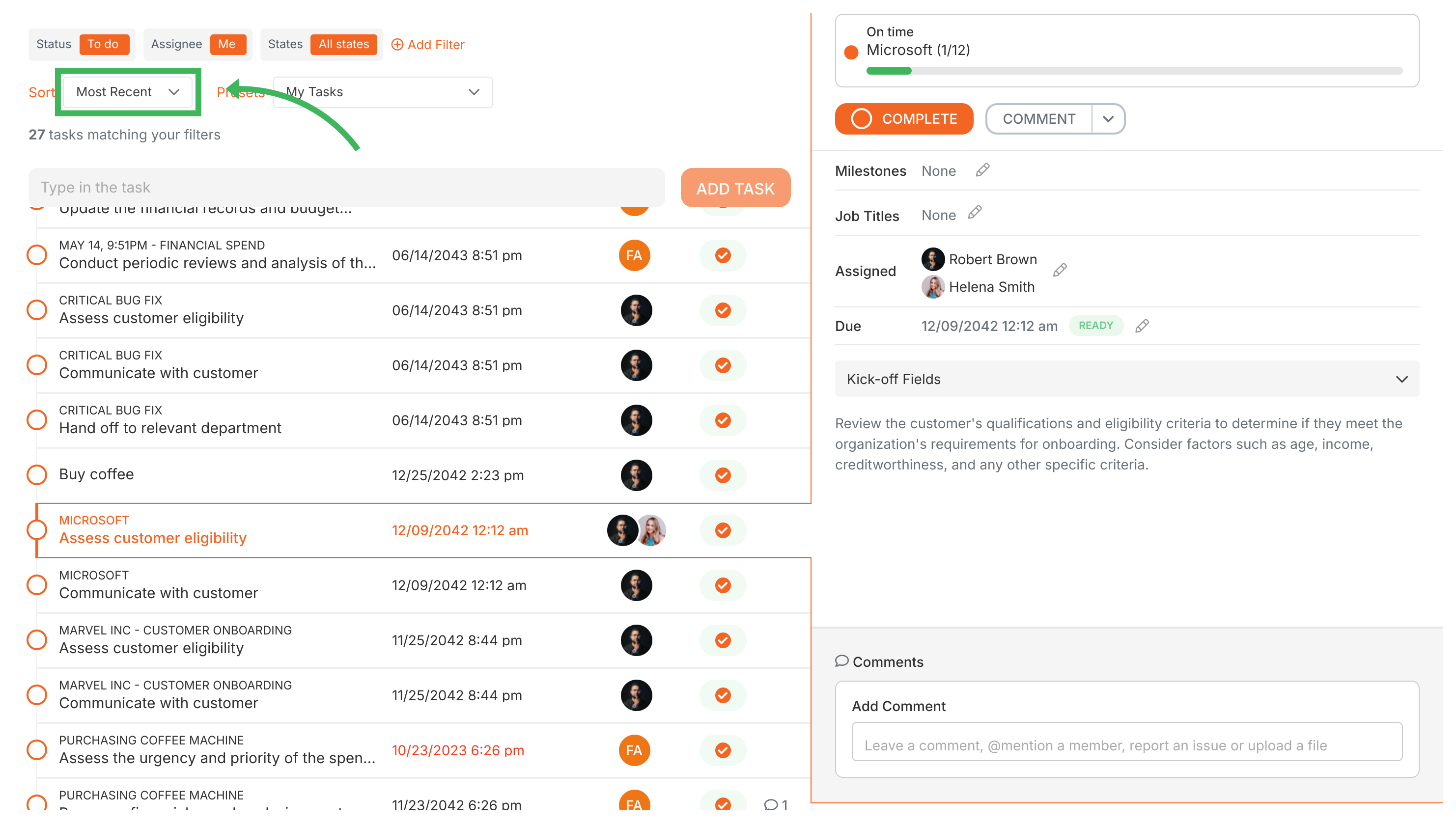
Tallyfy’s Tasks View shows all your tasks in one place. Filter and sort this list to find overdue tasks, work assigned to a specific person, or items from a particular template.
How do I add filters?
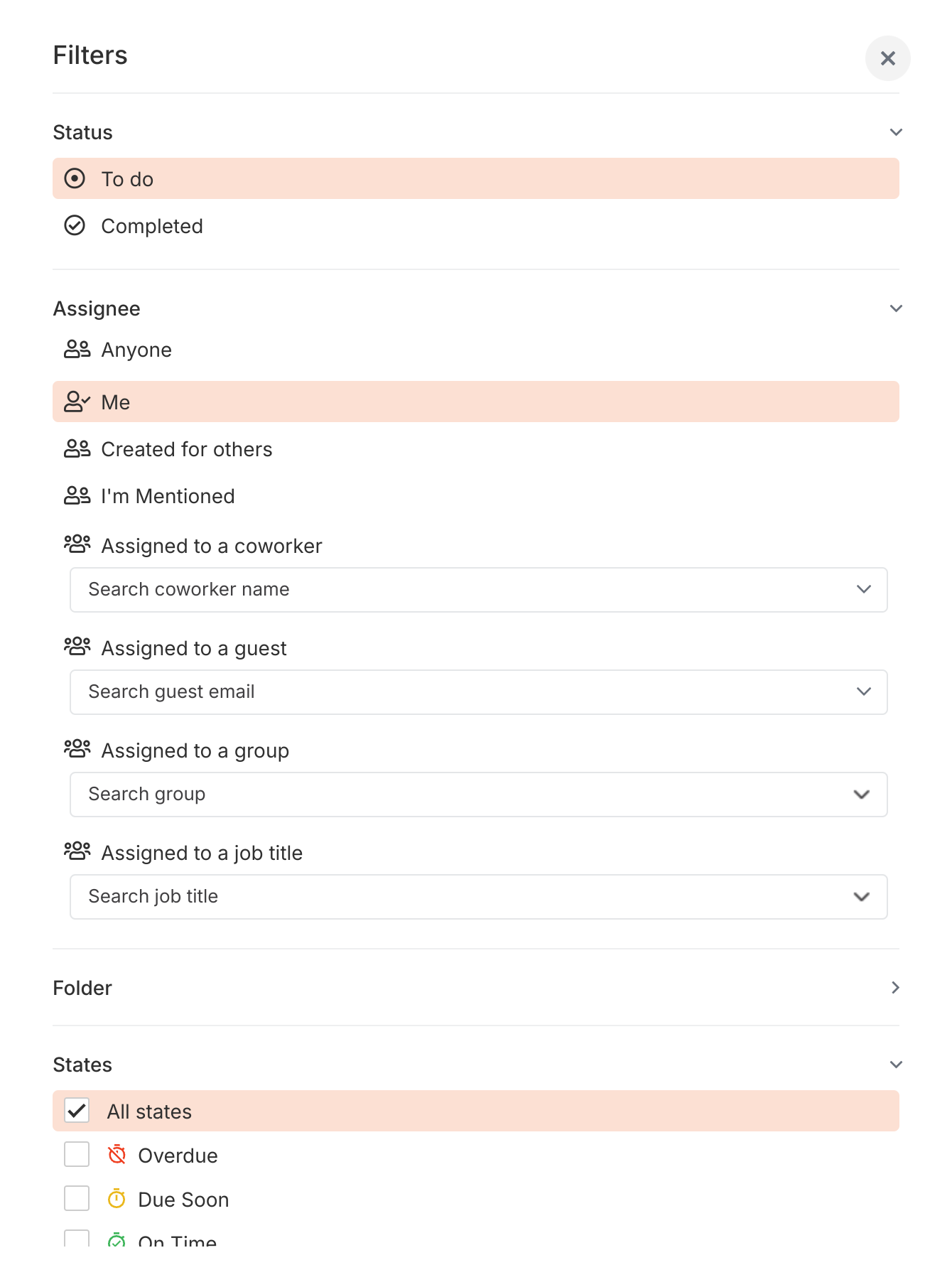
Click Add Filter at the top of the Tasks view. You can stack multiple filters - they work together to narrow your list. Here’s what you can filter by:
Status - See your ‘To Do’ tasks (the default), ‘Completed’, or ‘All’
Assignee - Find tasks for specific members, guests (by email), groups, or roles
Task State - Show what’s ‘Overdue’, ‘Due Soon’, ‘On Time’, or has a reported issue
Tag - Pull up tasks with specific tags
Template - Show only tasks from a particular template
Process Name - Find tasks within a specific process by name
Combine filters and sorting for fast results. Filter by assignee and sort by most delayed to see who’s falling behind. Filter by template and sort by most recent to track the latest activity on specific workflows.
Tallyfy’s Tasks view acts as a unified personal to-do list in the left sidebar that pulls together every task from all running processes and standalone one-off tasks while offering powerful filters by assignee and status and tags to quickly find and manage your work.
Tallyfy’s Tracker view gives you a bird’s-eye dashboard of every running process in your workspace showing status cards with color-coded deadlines and sorting plus filtering options to quickly spot overdue or blocked work.
Tallyfy’s Tracker view serves as a real-time organizational dashboard for monitoring all running processes through board or table formats with built-in filtering presets and sorting options that let you spot bottlenecks and manage work across your entire organization from a single screen.
Tallyfy lets you organize active tasks and running processes using two independent folder systems and flexible tags so you can group and filter your work quickly across the Tasks and Tracker views.