You can organize work in Tallyfy using two separate folder systems and tags. This article covers the Task/Process Folders used in the Tasks and Tracker views.
Two folder systems
Tallyfy has two completely separate sets of folders:
Template Folders - used only in the Templates library to organize master templates. Learn more here.
Task/Process Folders - used only in the Tasks and Tracker views to organize active work (running processes and individual tasks).
These are independent systems. For example:
Template Folder: HR Templates > Onboarding
Process Folders: Active Onboardings - Sales Team, Active Onboardings - IT Team
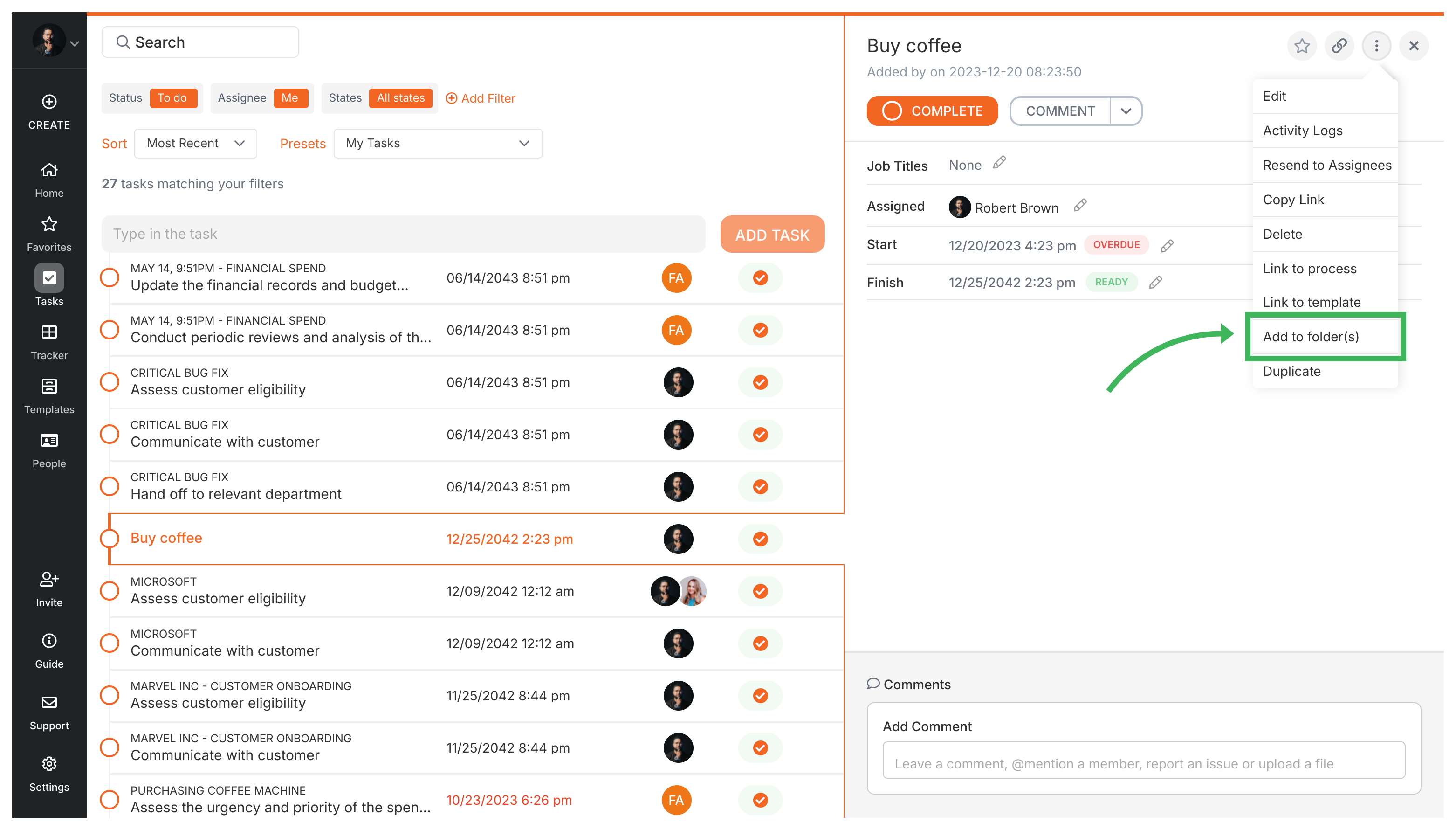
Adding tasks to folders
Find the task in your Tasks view.
Click the menu icon (three dots) on the task card.
Select Add to folder(s).
Choose an existing folder or create a new one.
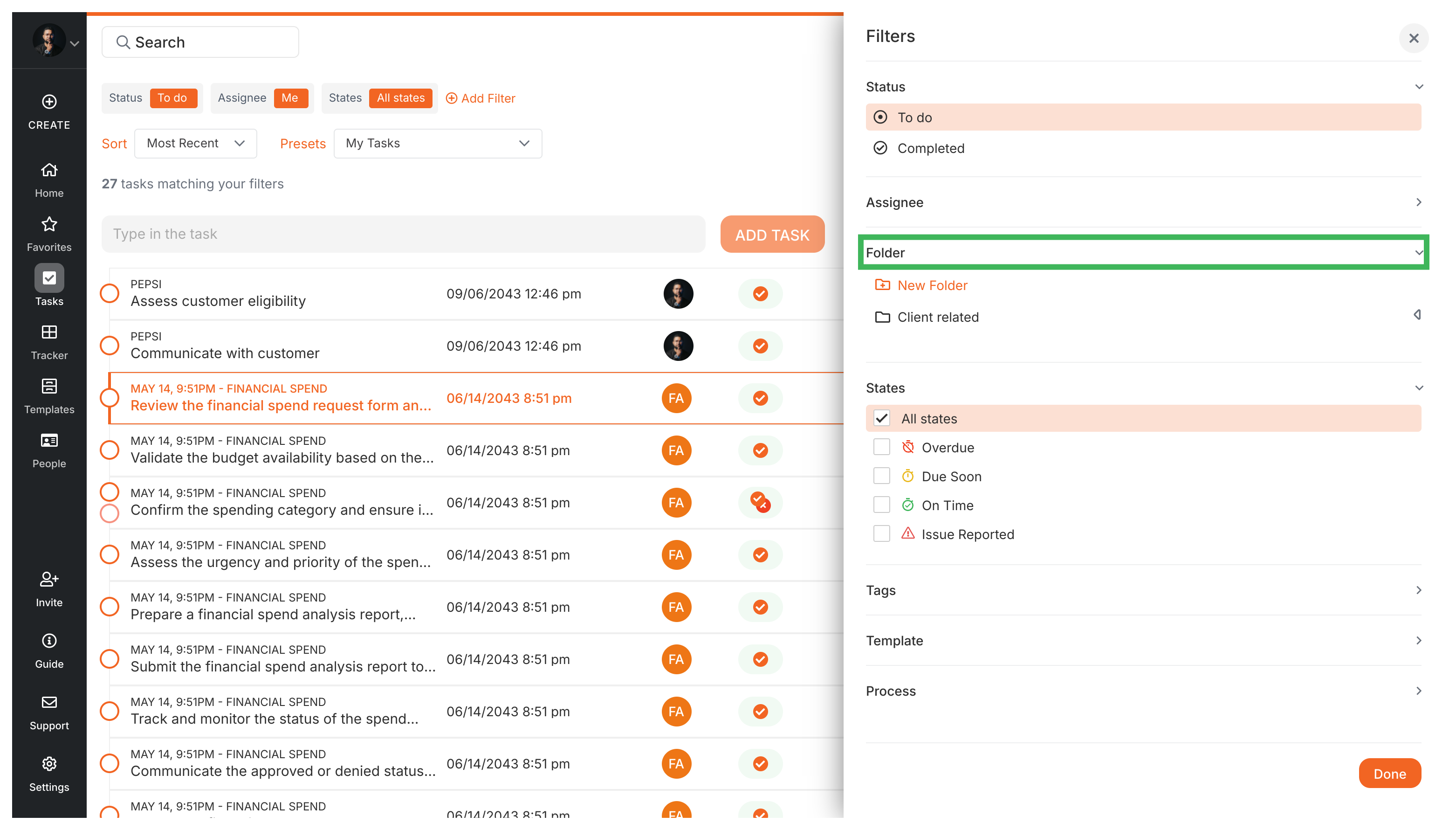
Filtering tasks by folder
Go to the Tasks view.
Click Add Filter.
Select Folder as the filter type.
Pick the folder you want to view.
Adding processes to folders
Go to the Tracker view.
Find the running process card.
Click the menu icon (three dots) on the process card.
Select Add to folder(s).
Choose an existing folder or create a new one.
Filtering processes by folder
Go to the Tracker view.
Click Add Filter.
Select Folder as the filter type.
Pick the folder you want to view.
Using tags
Tags work alongside folders as flexible labels for tasks and processes.
Tagging Processes: Open the process, click the menu, and select Add Tags.
Filtering by Tag: Use the Tag filter in both Tasks and Tracker views.
Tags let items belong to multiple categories at once - a task could be tagged “Urgent” and “Client A”. Folders give each item a single location.
Tallyfy lets you group active processes into folders in the Tracker view by client or project and uses separate folder systems for templates versus running processes so you can filter and find work instantly.
Tallyfy lets you create folders and subfolders to organize your workflow templates by department or function and these template folders are completely separate from the task/process folders used to organize running work in the Tasks and Tracker views.
Tallyfy lets you organize active processes through folders and favorites and filters and archiving so you can quickly find and manage running workflows in whatever way suits your team best.
Tags in Tallyfy let you attach color-coded keywords to templates and running processes so you can organize and filter items across multiple categories at once without being limited by a single-folder structure.