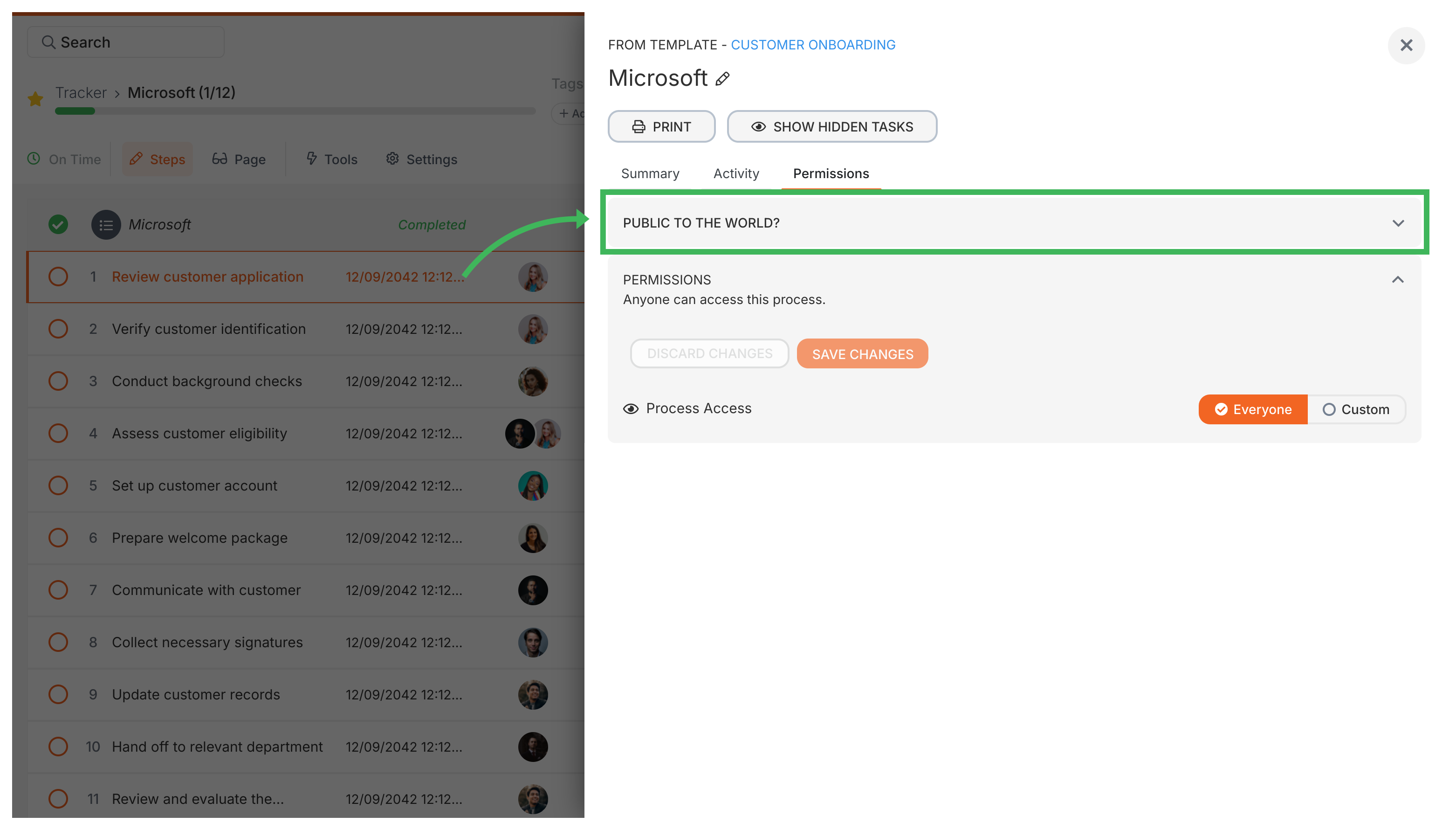
You can generate a read-only public link to any running process. Anyone with the link can view progress in real-time - no Tallyfy account needed. They can’t change anything.
Click the Settings button (gear icon in the top-right corner).
Go to the Permissions tab.
Find Public to the world and toggle it to Yes.
Three visibility toggles appear - choose what’s shown on the public link:
Comments - show or hide task comments
Form fields - show or hide form field data
Assignees - show or hide who’s assigned to each task
Copy the generated public link from the same Permissions section.
How does the public setting affect guest visibility?
Making a process public also changes what your guests can see in the Tracker view:
Private process (default) - guests only see their own assigned tasks
Public process - guests can see all tasks in the process, even ones they’re not assigned to
Guest visibility when public
With a public process, every guest assigned to any task can see all tasks in the workflow:
Tasks assigned to other guests or vendors
Internal company tasks
Form field data, comments, and file attachments
If multiple external vendors work on different parts of a project, they’ll all see each other’s tasks and your internal work. That’s great for transparency - but not always what you want.
The Tasks view works differently. Guests still only see their own assigned tasks there, regardless of the public setting.
Guest privacy
If your process has tasks assigned to different external guests who shouldn’t see each other’s work, keep the process private.
Tallyfy lets you publish any template publicly by toggling a single setting so anyone with the link can view your process structure and steps without needing a login or account while keeping all actual run data and form responses completely private.
Guest task links in Tallyfy let external people access and complete assigned tasks without logging in and you can find these links either from the task’s three-dot menu within a running process or from the guest list in Settings > Organization > Guests.
Tallyfy lets you bring external clients and partners into your workflows as free guests who complete specific tasks through secure email links without needing full accounts or logins while internal team members maintain oversight and control over the entire process.
Tallyfy guests are external people like clients and suppliers who complete specific workflow tasks through secure email links without needing accounts or paid seats and they can only see their own assigned tasks while your internal data stays fully protected.