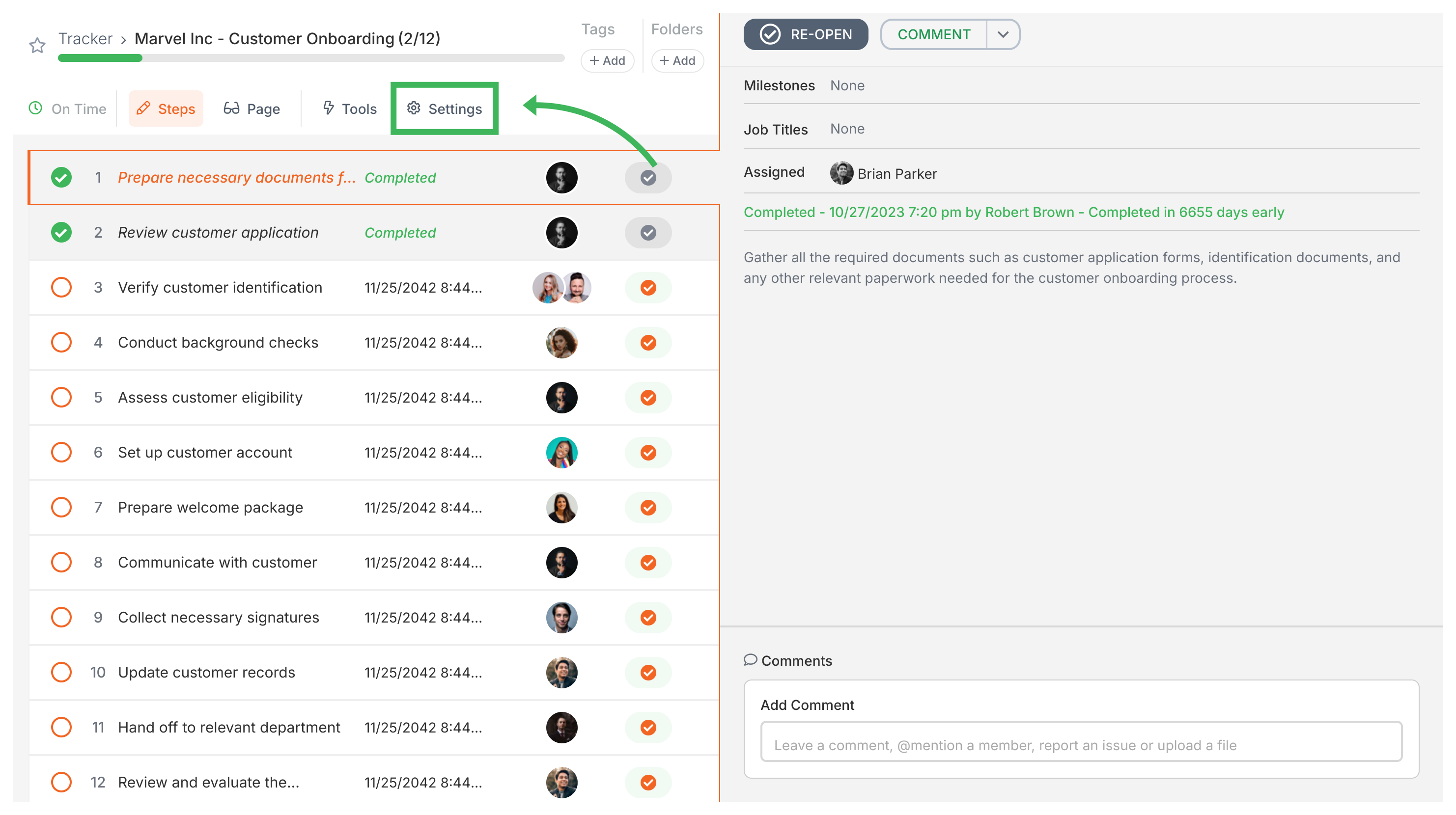
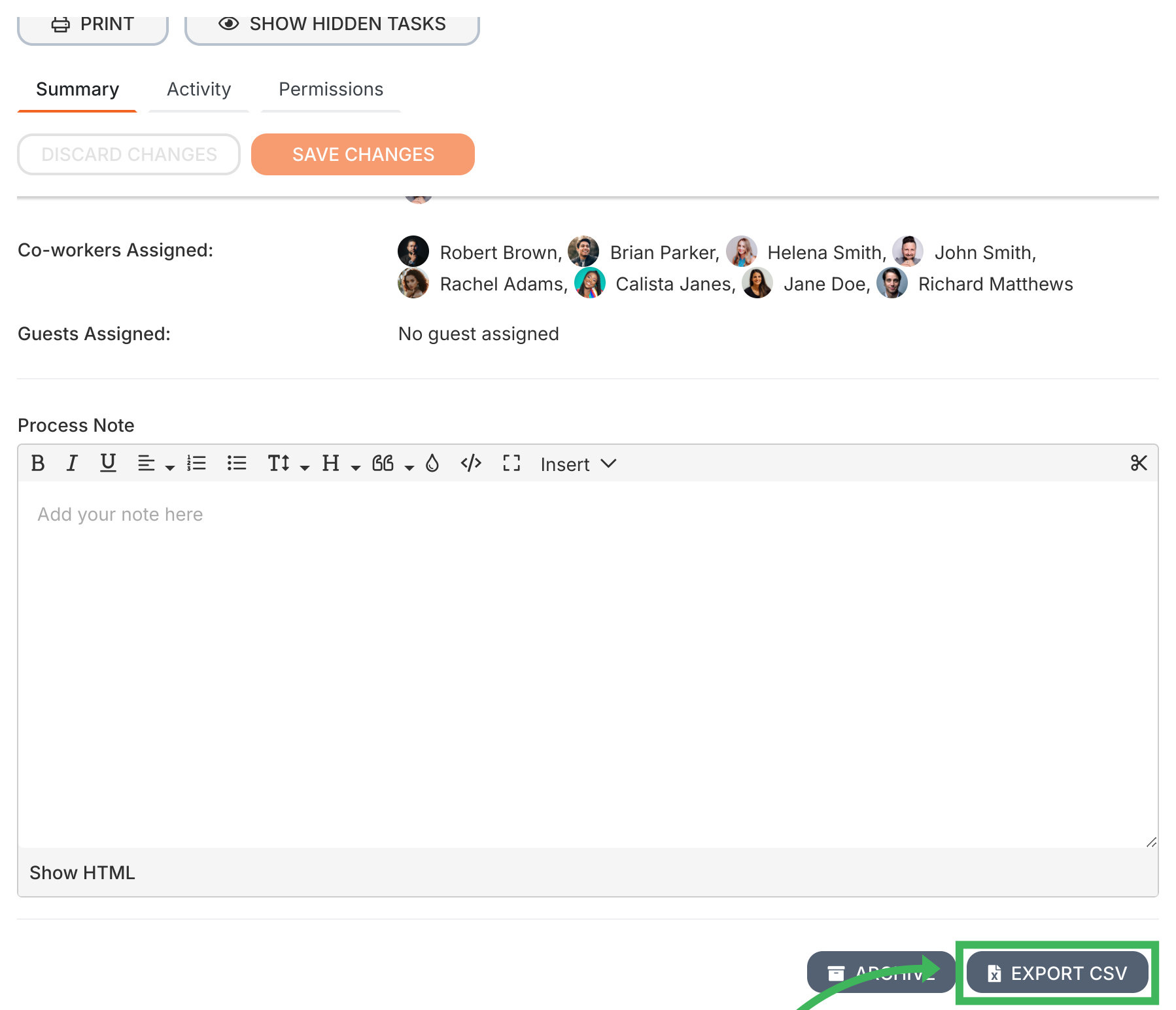
Export any running process to CSV directly from Tallyfy. Open the process, click the More menu, and select Export CSV. The file downloads in seconds with all tasks, form answers, comments, and timestamps.
This is a Pro plan feature. Light members can’t access it.
What do I need?
View access to the running process
Admin or Standard member role (not Light)
How do I export a process to CSV?
Open the running process you want to export.
Click the More dropdown in the process sub-navigation bar.
Select Export CSV from the menu.
The CSV file downloads to your computer automatically.
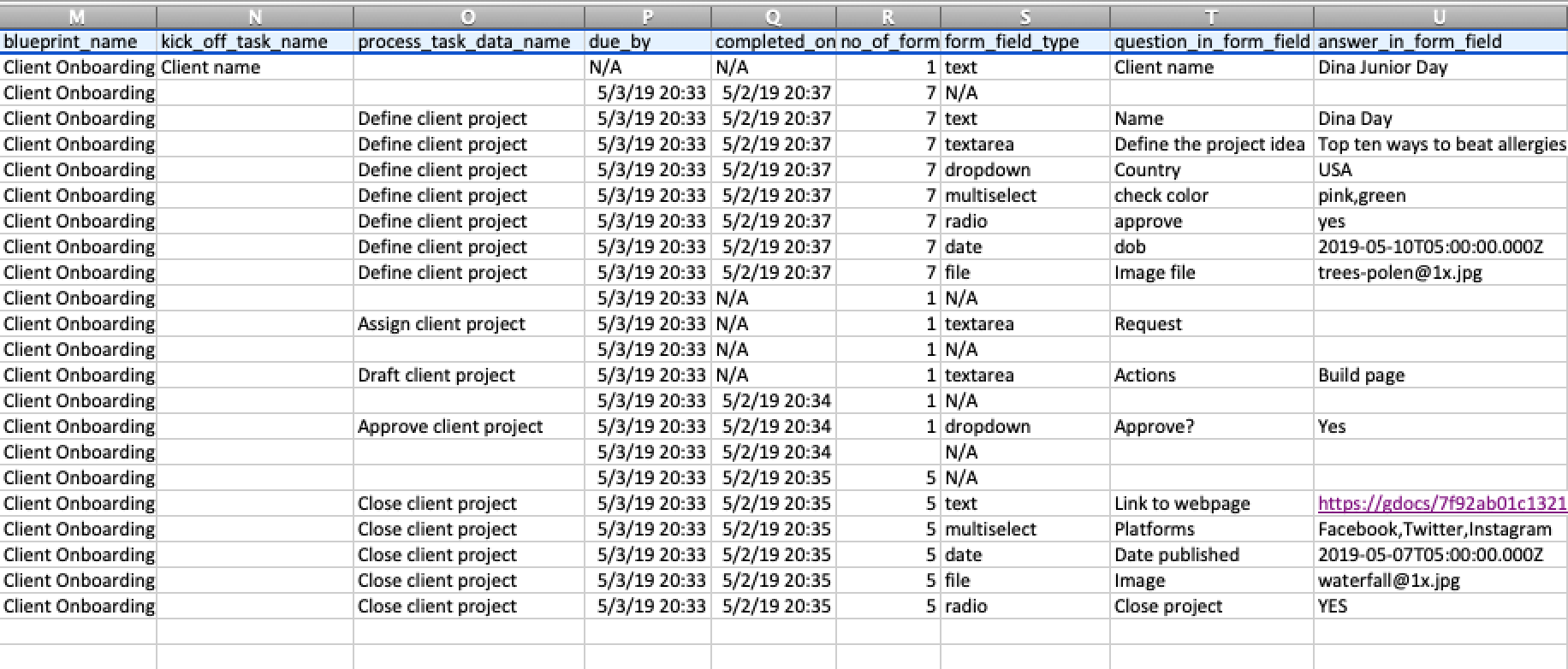
What’s in the CSV file?
Each row represents a task, form field answer, or comment. You get 49 columns covering:
Process info - name, ID, source template, start/end dates, owner
Task info - name, status (complete, active, waiting), due dates, completion times, assignees
Milestone data - IDs, names, and positions for milestone checkpoints
Form field data - field names, answers, field types, file upload details
Hidden tasks - even auto-skipped tasks appear in exports, which helps for audits
Comments and issues - comment text, issue reports, resolution status
Tallyfy’s CSV export flattens a running process into a 49-column spreadsheet file where each row represents a task or form field or comment and columns are grouped into process info and task details and assignments and form answers and comments — making it easy to analyze workflow data in any spreadsheet or BI tool while handling quirks like “NaN” date values in analytics platforms.
Tallyfy’s Tracker view serves as a real-time organizational dashboard for monitoring all running processes through board or table formats with built-in filtering presets and sorting options that let you spot bottlenecks and manage work across your entire organization from a single screen.
In Tallyfy a process is a live running instance of a template that you launch and track daily where each process captures a snapshot of its template at launch time and can be uniquely named or auto-named while allowing extra tasks to be added on the fly and then archived or restored after completion.
Every process in Tallyfy moves through five distinct phases—create a template with steps and assignments then launch a named instance where assignees complete tasks while you monitor progress in the Tracker view and finally review captured data after completion to improve your template based on patterns found across multiple runs.