Skip to content

Add process notes

How do process notes work in Tallyfy?

Process notes let you add rich text to a running process. They’re visible in the process settings and on every task in the Process Details section - so nobody misses key context regardless of which task they’re working on.
  • Add context - background info about what’s special about this run
  • Keep everyone aligned - notes show on every task automatically
  • One place for details - no more hunting through emails or chat threads

How do I add or edit process notes?

  1. Open the running process you want to add notes to.
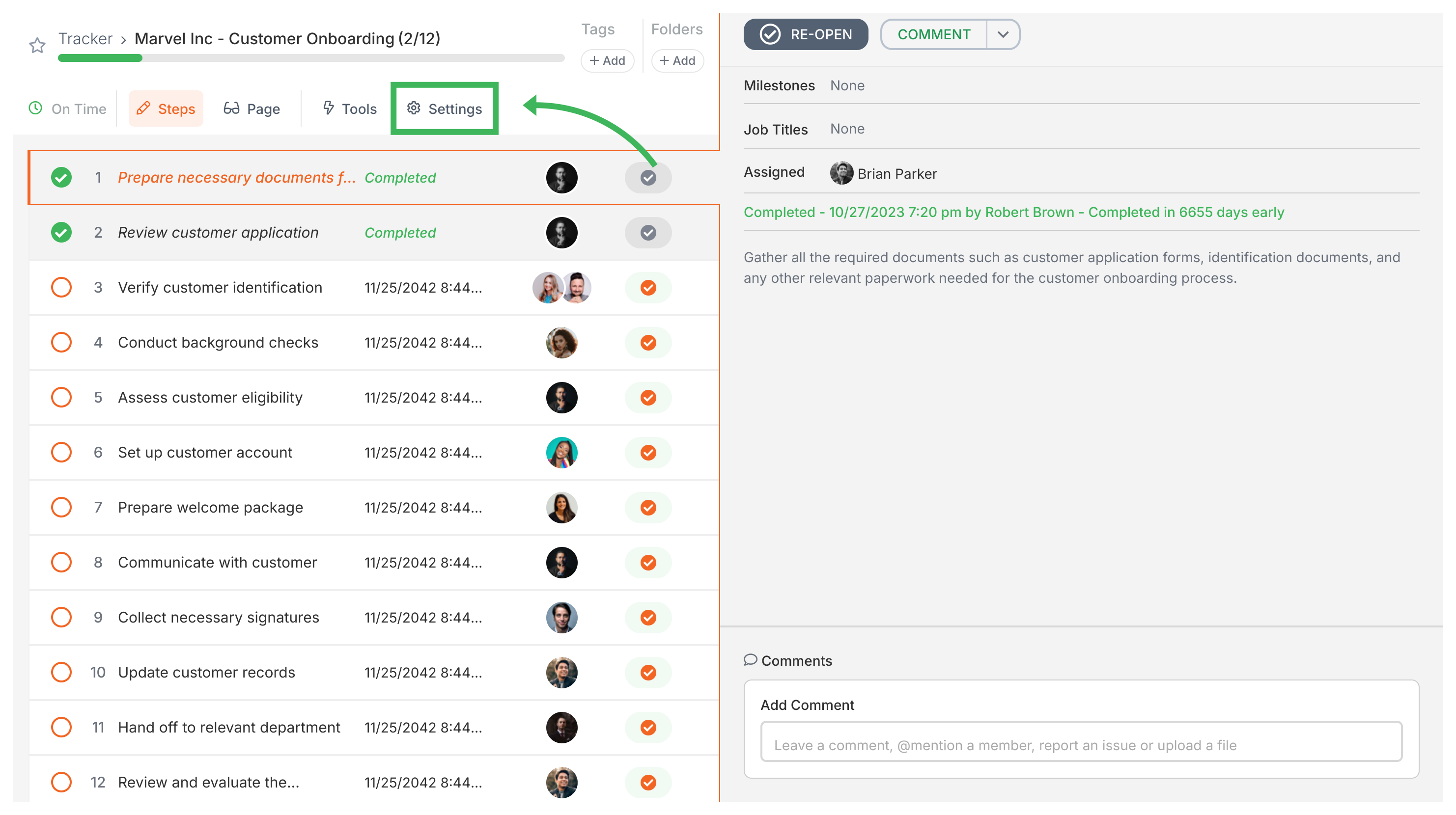
  2. Click the Settings button (gear icon) in the top-right corner. Active process configuration panel view view
  3. In the Summary tab, find the Process Notes section.
  4. Type your notes using the rich text editor - you can format text, add links, and embed content.
  5. Click Save to store your changes.

Where do process notes appear?

  1. Process settings - in the Summary tab where you edit them
  2. Every task - in the collapsible Process Details section, so all participants see the same info

What to include in process notes

  • Context - why you’re running this process and any special circumstances
  • Links - URLs to documents, systems, or tools people need
  • Contacts - people who aren’t in the process but might need to be reached
  • Exceptions - any unusual requirements for this specific run
  • Updates - add new info as it comes up during the process

Tips for writing good process notes

  • Keep it short - notes show on every task, so don’t write walls of text
  • Use formatting - bold text and bullet points make notes scannable
  • Skip duplicates - if it’s already in a task description, don’t repeat it in notes

Processes > Commenting processes

Tallyfy lets you add and manage comments on running processes for workflow-level discussions where you can @mention people to notify them directly and only comment authors or admins can edit or delete comments while template comments stay separate and never carry over to launched processes.

Edit Processes > Edit tasks and process properties

Tallyfy lets you modify a running process without restarting it by opening the process from Tracker view and clicking the Settings gear icon to rename it and reassign the owner and add notes or export data.

Tracking And Tasks > An overview of processes

In Tallyfy a process is a live running instance of a template that you launch and track daily where each process captures a snapshot of its template at launch time and can be uniquely named or auto-named while allowing extra tasks to be added on the fly and then archived or restored after completion.