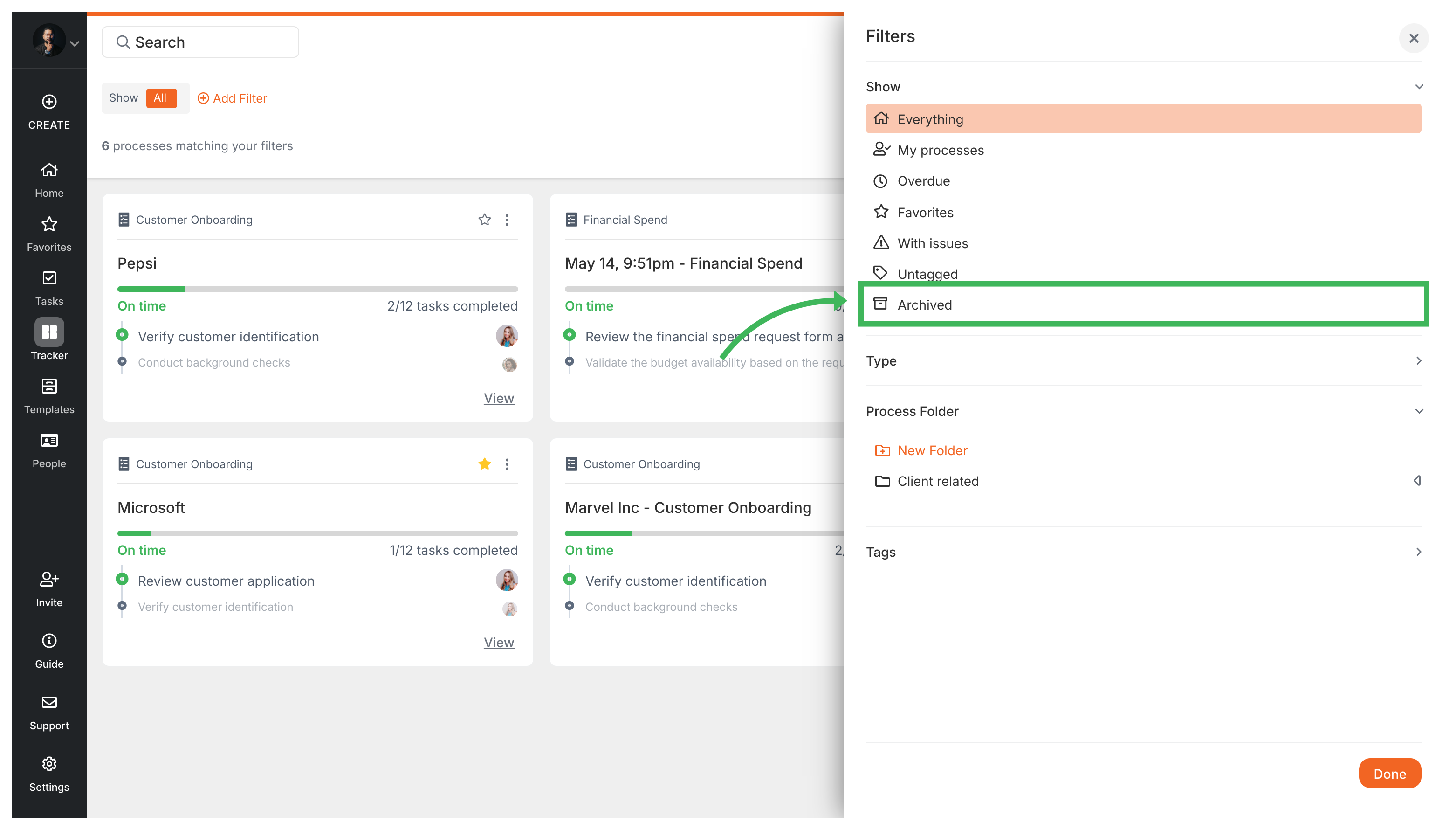
Tallyfy lets you archive processes to remove them from your active Tracker view without permanent deletion and unarchive them later through a status filter while light users lack archive permissions though auto-archive settings can handle completed processes automatically.
Tallyfy’s API lets admins permanently and irreversibly delete an already-archived process run along with all its associated tasks and data by sending a DELETE request to the /runs/[run_id]/delete endpoint with code samples provided in six languages.
Tallyfy’s API lets you soft-delete (archive) a running process via a DELETE request so it disappears from default views while preserving all tasks and data intact and can be fully restored later using the activate endpoint.
In Tallyfy a process is a live running instance of a template that you launch and track daily where each process captures a snapshot of its template at launch time and can be uniquely named or auto-named while allowing extra tasks to be added on the fly and then archived or restored after completion.