Tallyfy lets you manually launch a process by clicking Launch Process on any template card and naming the instance with specific details before it begins running and notifying assignees of their first tasks while also allowing you to modify deadlines and assignees or add extra ad-hoc tasks to any running process after launch.
Add tasks to active processes
You can add new tasks to running processes in Tallyfy - even after launch. No need to restart the process or touch the original template.
There are two ways to do this.
-
Open the active process where you want to add a task.
-
Scroll to the bottom of the task list.
-
Type a name in the “Add task” field.

-
Click the plus (+) icon or press Enter.
-
Click the new task to open its details panel.
-
Set the task details - type, description, assignees, deadline, and position.
-
Close the details panel. The task is now part of the active process.
-
To edit later, click the three-dot menu next to the task.
-
To remove it, click the three-dot menu and select Unlink from process.
-
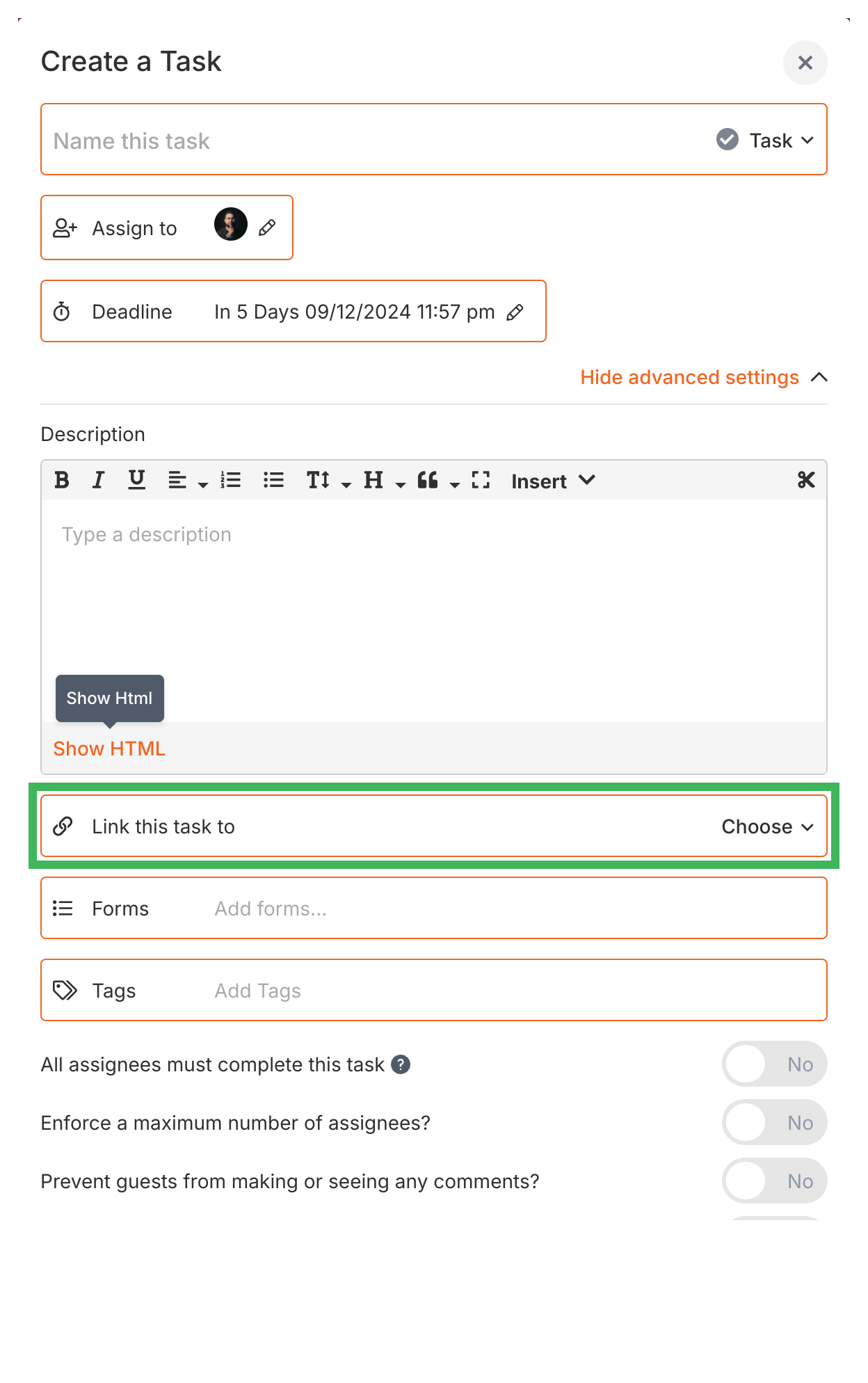
Create a one-off task with the details you need (name, type, assignees, deadline, etc.).
-
In the task creation panel, scroll to the Advanced settings section.
-
Under Link to process, select the active process you want to link this task to.
-
Choose the position - beginning, end, or after a specific task in the process.
-
Click Create Task.
-
The one-off task now appears at your chosen position in the active process.
-
To edit later, click the three-dot menu next to the task.
-
To remove it, click the three-dot menu and select Unlink from process.
- There’s no limit on how many tasks you can add.
- Added tasks show a “Linked to” indicator so you can tell them apart from original template tasks.
- Adding tasks to a running process does not change your original template.
Tallyfy lets you modify any running process independently from its original template by adding new tasks and reassigning existing ones and adjusting due dates and renaming or archiving the instance while keeping the master template completely unchanged.
Tracking And Tasks > An overview of processes
In Tallyfy a process is a live running instance of a template that you launch and track daily where each process captures a snapshot of its template at launch time and can be uniquely named or auto-named while allowing extra tasks to be added on the fly and then archived or restored after completion.
Launching a process in Tallyfy means turning a saved template into a live trackable instance by clicking Launch Process and naming it before optionally editing assignees and deadlines and then tracking progress automatically through the Tracker view.
Was this helpful?
About Tallyfy
- 2025 Tallyfy, Inc.
- Privacy Policy
- Terms of Use
- Report Issue
- Trademarks