Tallyfy organizes settings into Personal Settings that individual members control (like profile and notifications) and Organization Settings that only administrators can change (like billing and branding and integrations) so each role accesses only what they need.
Switch between organizations
If your Tallyfy login email is tied to more than one organization (e.g., your company and a client’s account), you can switch between them without logging out. The Switch Organization option only appears when you belong to two or more organizations.
-
Click your profile picture in the top-right corner.
-
Select Switch Organization from the dropdown menu.
-
You’ll see all organizations where you’re a member or guest.
-
Click the organization you want to switch to.
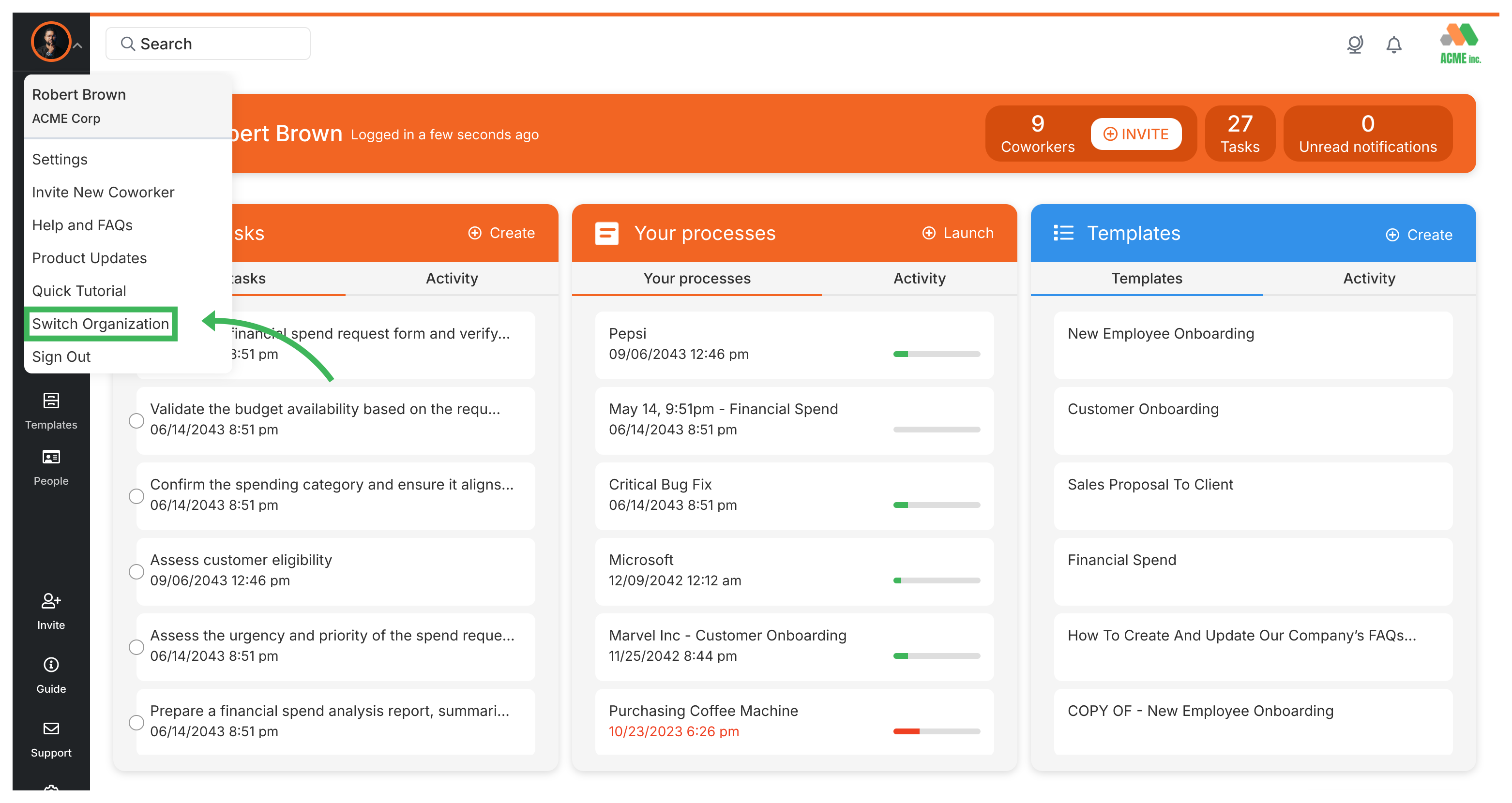
One login handles all your organizations - no need for separate credentials.
Personal Settings > Change my email address
Tallyfy lets regular email/password users update their login email through Settings > My Account > My Profile with a password confirmation while SSO and social login users must instead invite their new email as a member and deactivate the old account through a member transition process.
Settings > Organization settings
Tallyfy’s organization-wide settings let administrators control member permissions billing branding integrations and admin policies that apply to every team member across the entire company.
Members > Change the role of a member
Administrators in Tallyfy can change any member’s role between Administrator and Standard and Light by going to Settings > Organization > Members and selecting a new role from the dropdown which takes effect immediately.
Was this helpful?
About Tallyfy
- 2025 Tallyfy, Inc.
- Privacy Policy
- Terms of Use
- Report Issue
- Trademarks