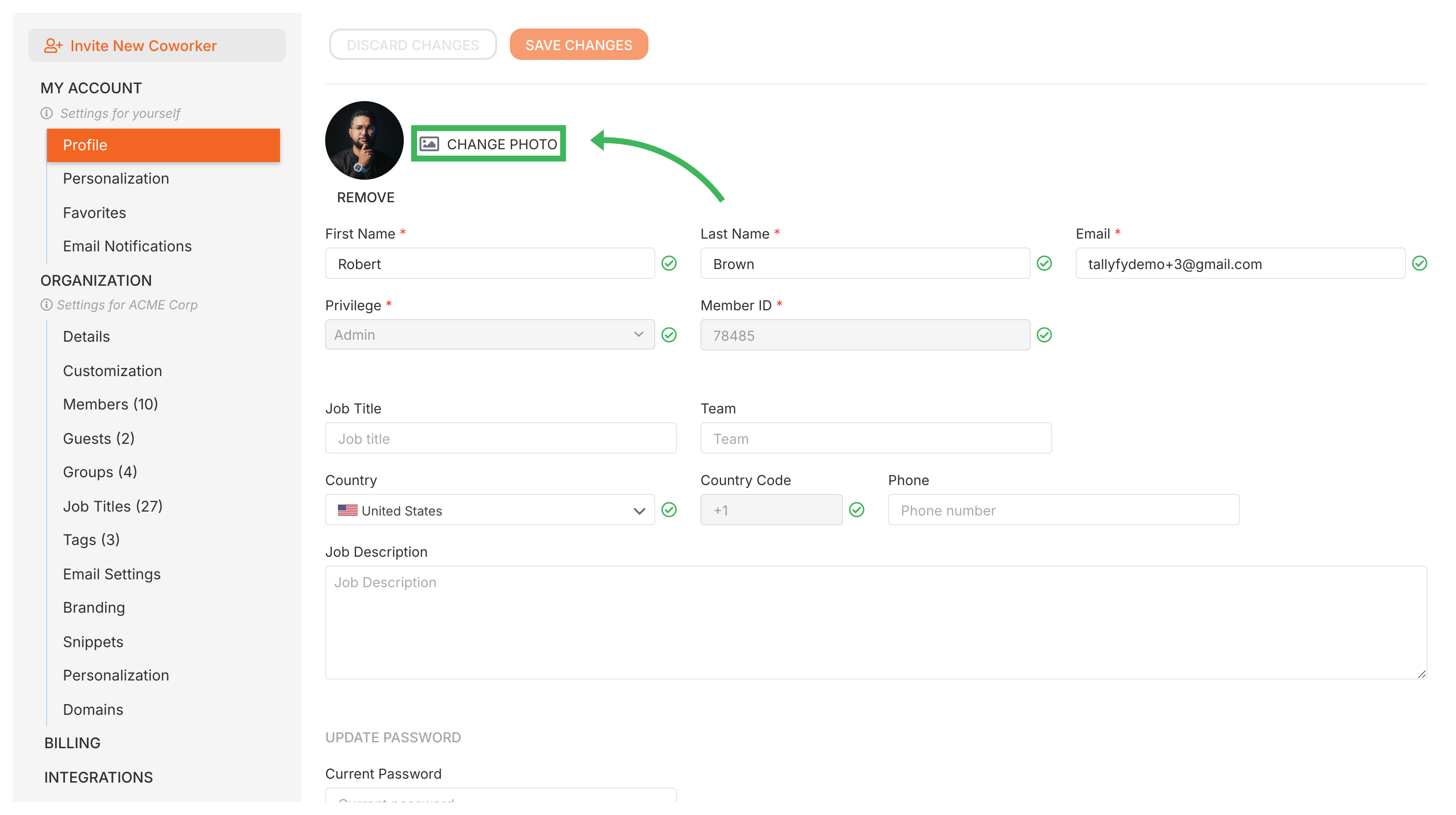
Tallyfy lets you personalize your experience through Settings > My Account where you can adjust display preferences like language and time zone and date formats as well as update profile details such as name and email and photo and password.
Tallyfy lets users linked to multiple organizations switch between them instantly from their profile menu without logging out or managing separate credentials.
Tallyfy’s personal settings let you customize your individual experience — including profile info password email notifications language time zone and date format — without affecting anyone else in your organization.
Tallyfy lets regular email/password users update their login email through Settings > My Account > My Profile with a password confirmation while SSO and social login users must instead invite their new email as a member and deactivate the old account through a member transition process.