Tallyfy lets you instantly send manual email reminders to all assignees on any active task by clicking the menu icon next to it — bypassing automatic reminder schedules when someone needs a direct nudge on urgent or stalled work.
Manage email notifications
You can control exactly which emails Tallyfy sends you - from task assignments to comment alerts to process completions.
To change your settings:
- Click your profile picture/name (top right) > Settings.
- Go to My Profile > Email Notifications tab.
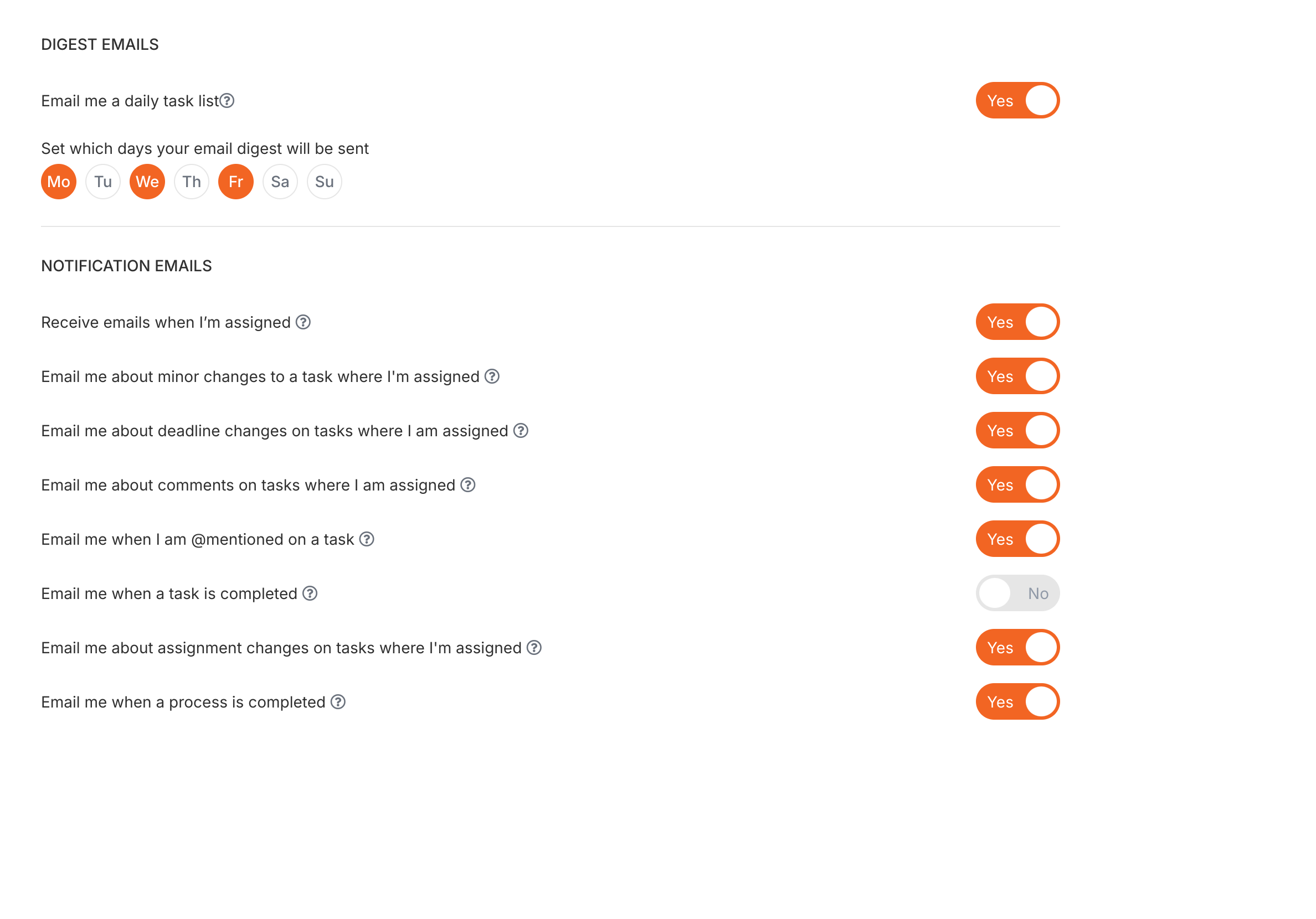
Toggle each notification type ON or OFF. For example, if you don’t want an email every time someone completes a task you assigned, turn that notification OFF.
The available notification types include:
- Task assignments - emails about tasks where you’re assigned
- Other people’s task updates - when others complete or update tasks
- Comments - comments on tasks where you’re assigned
- @mentions - when someone @mentions you in a comment
- Process completed - when a process you’re part of finishes
- Deadline changes - when task deadlines are changed
Process initiators and task notifications
When you start a process where you’re also assigned tasks, you typically won’t get immediate email notifications for those tasks. This prevents email spam when launching processes.
Why this happens:
- Tallyfy assumes you’re aware of tasks you just created by launching the process
- Prevents duplicate notifications (one for launching, one for each task)
- You’ll still see tasks in your dashboard right away
To make sure you get reminders:
- Turn on daily digest emails in your settings
- Set deadlines on tasks
- Other assignees will get immediate notifications as normal
Special case - Zapier-initiated processes: If a process is started via Zapier with you as the process starter, you won’t get task notifications either. Workaround: have Zapier assign a different user as the process starter, or use webhooks for external notifications.
Tallyfy sends digest emails at 6 AM in your local timezone, summarizing tasks that are due soon or overdue.
- Choose your days: Pick which days of the week you want to receive the digest. The default is Monday, Wednesday, and Friday.
- Turn it on or off: You can toggle the daily digest preference on or off in your notification settings.
- Troubleshooting: If someone says they aren’t getting reminders, have them check their notification settings first.
Even if someone has reduced their automatic reminders, you can always manually send an instant reminder for a specific task.
How To > Ensure task completion
Tallyfy ensures tasks and approvals get done on time through automated reminders and escalation paths while also helping teams reduce overload by bundling related work and setting clear deadlines with built-in commenting and @mentions for direct follow-up.
Tallyfy integrates with email through custom SMTP configuration for branded domain-based notifications and a Gmail add-on that lets you launch processes and convert emails into trackable tasks directly from your inbox along with upcoming features for in-email task actions and personal email account connections.
Tallyfy’s personal settings let you customize your individual experience — including profile info password email notifications language time zone and date format — without affecting anyone else in your organization.
Was this helpful?
About Tallyfy
- 2025 Tallyfy, Inc.
- Privacy Policy
- Terms of Use
- Report Issue
- Trademarks