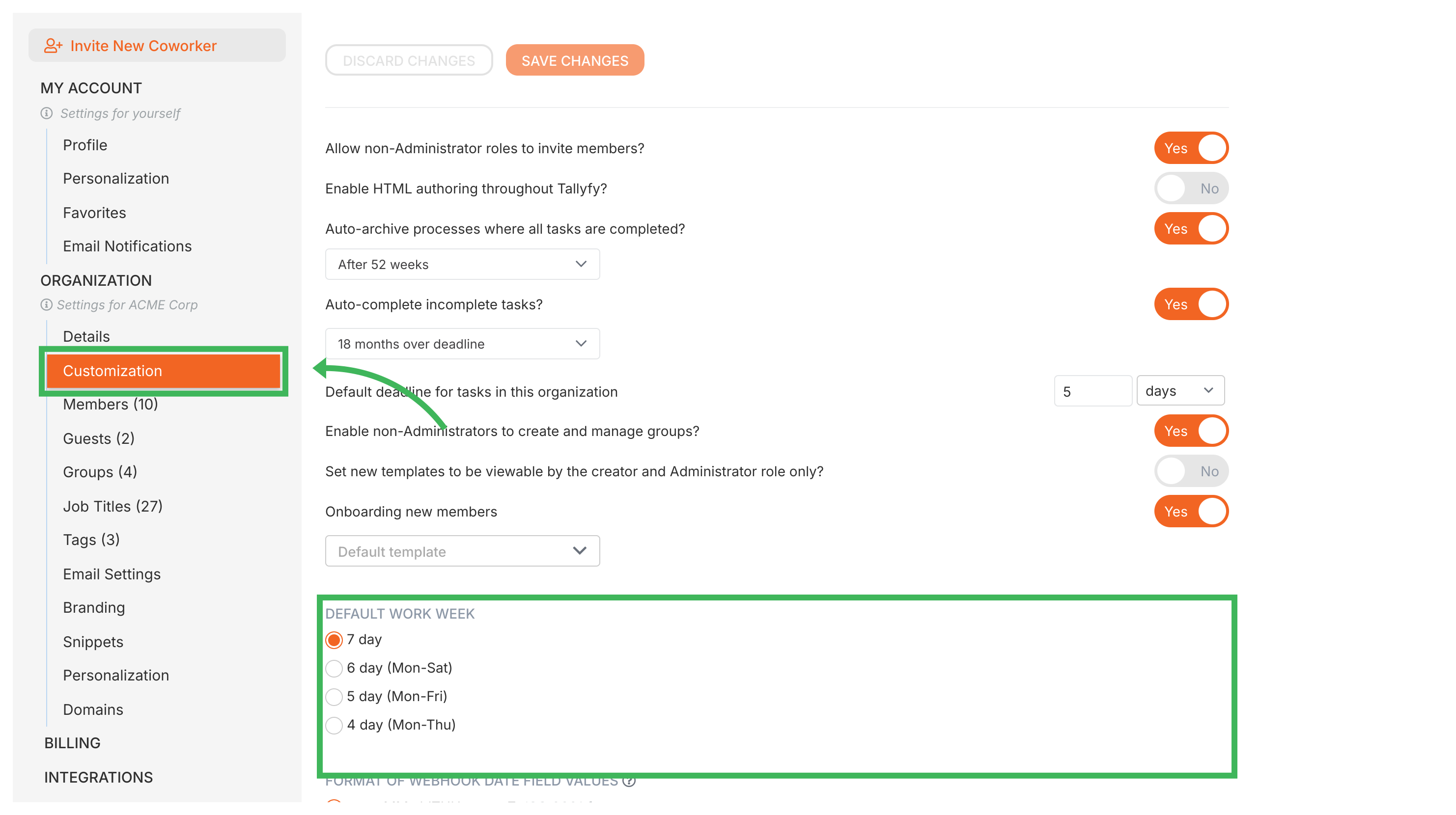
Tallyfy can automatically shift deadlines so they never land on non-working days or outside business hours. An Administrator configures this once, and it applies organization-wide.
Configuring working days and hours
Go to Settings > Organization > Customization.
Under Default work week, select your work week length - 7-day, 6-day (Mon-Sat), 5-day (Mon-Fri), or 4-day (Mon-Thu).
Under Default Working Hours, toggle each day between All hours (any time counts) or Fixed hours (set a start and end time with the slider).
Click Save Changes. Tallyfy will use these settings when calculating new deadlines.
What’s not supported yet
Tallyfy’s deadline calculations use the work week pattern you configure - but they don’t account for:
Tallyfy’s organization customization settings let admins control member permissions and invitations along with domain-based auto-join and guest detection and HTML editing and template visibility and automatic task completion and process archiving and default deadlines and onboarding template launches and working hours and email digest schedules and webhook date formats all from one central page.
Tallyfy’s deadline actions let you automatically shift task due dates forward or backward based on automation rule conditions using the step’s current deadline or another step’s deadline or a form field date value while respecting your configured work week settings.
Tallyfy lets admins customize branding by uploading a logo and selecting brand colors while also supporting global CSS for styling content elements like headings and tables though full white-labeling is not possible due to security and compliance constraints tied to the tallyfy.com domain.