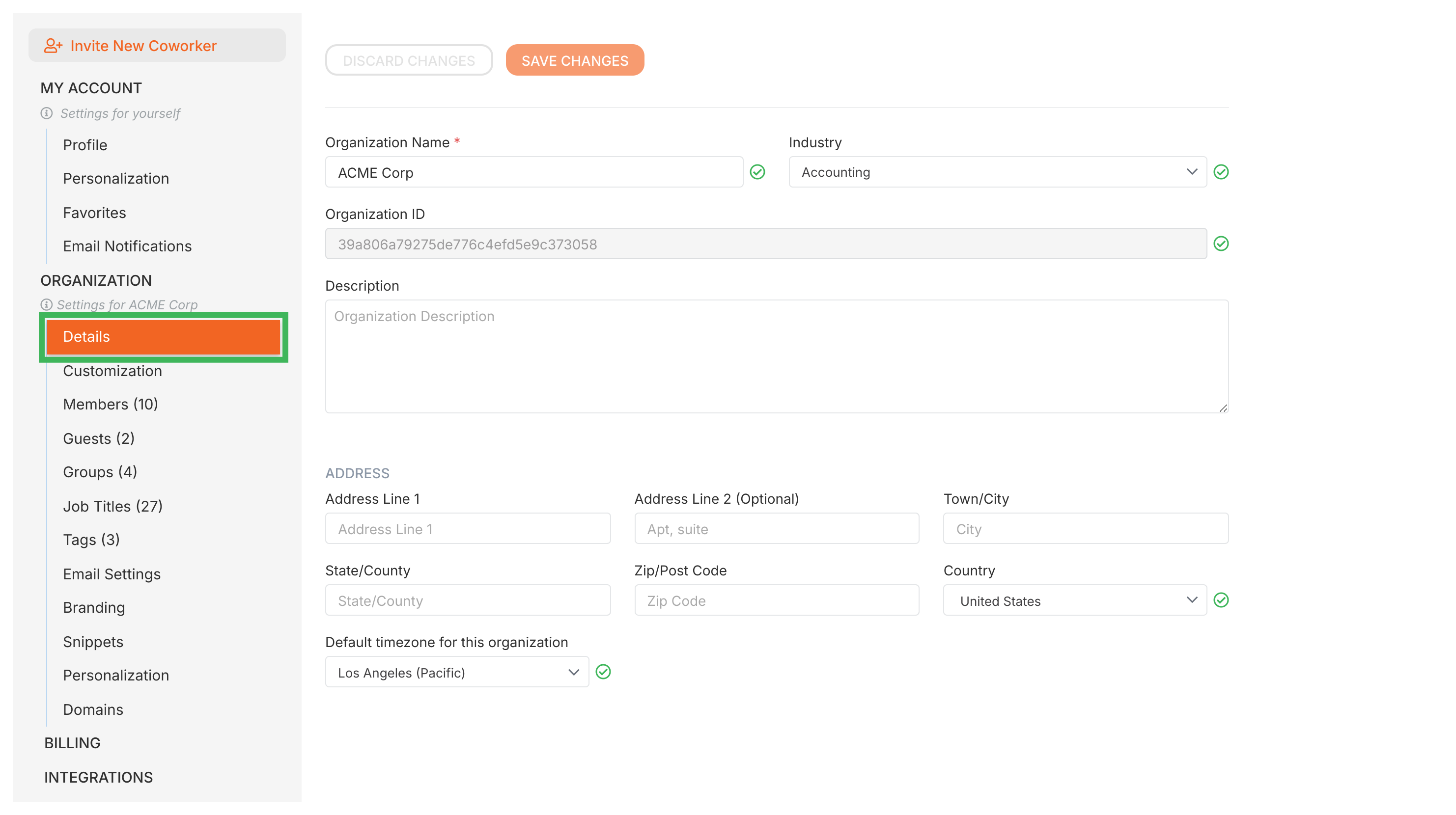
Tallyfy’s organization-wide settings let administrators control member permissions billing branding integrations and admin policies that apply to every team member across the entire company.
Tallyfy organizes settings into Personal Settings that individual members control (like profile and notifications) and Organization Settings that only administrators can change (like billing and branding and integrations) so each role accesses only what they need.
Tallyfy’s API lets admins update a member’s profile (name and timezone and optional fields like phone or job title) via a PUT request to /organizations/[org_id]/users/[user_id] and returns the full updated profile on success.
Tallyfy’s personal settings let you customize your individual experience — including profile info password email notifications language time zone and date format — without affecting anyone else in your organization.