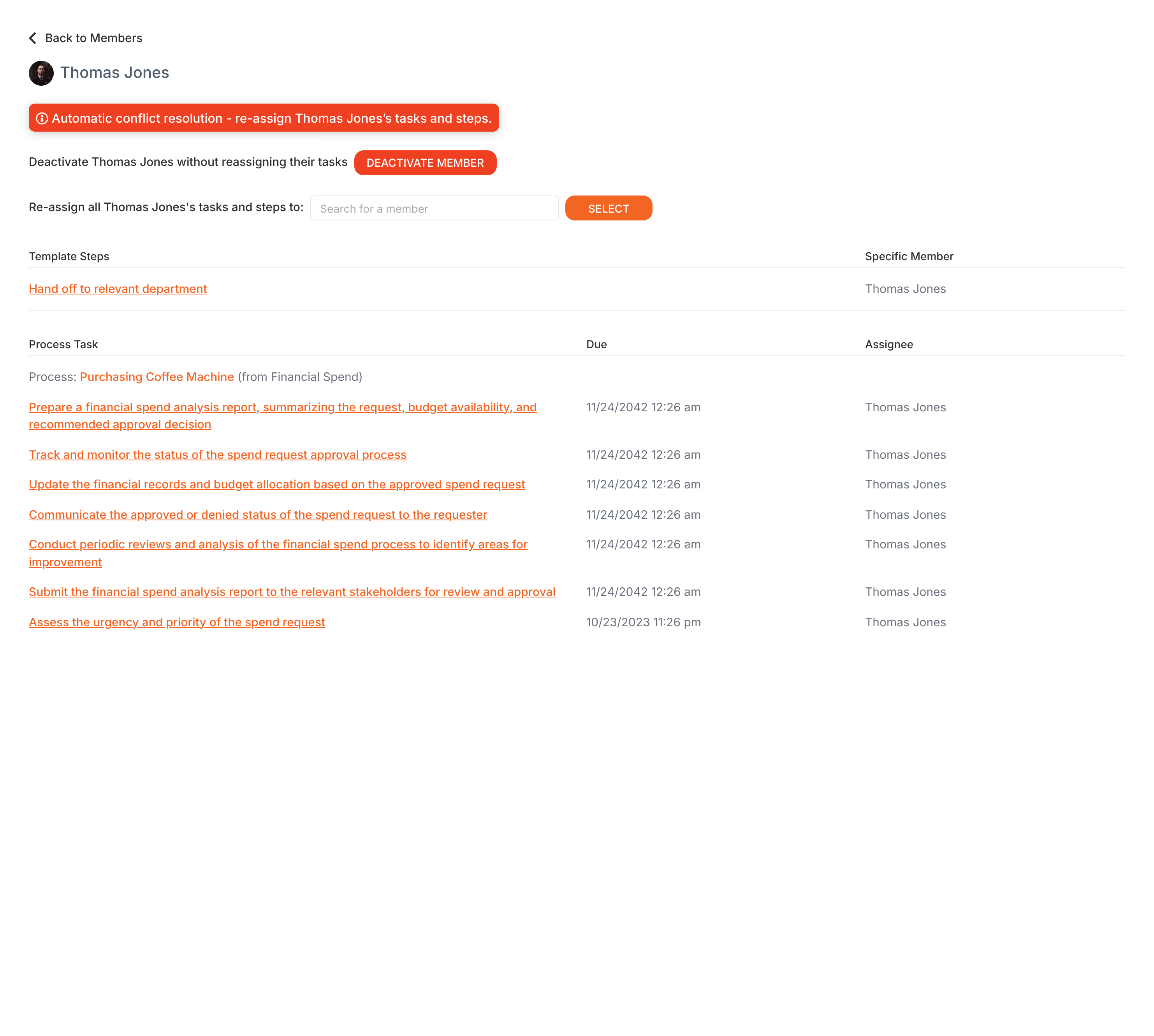
Admins can remove a member from a Tallyfy organization through a two-step process - disable first, then delete. This prevents accidental data loss and gives you a chance to reassign their work.
Deletion constraints
Administrator protection
Default Administrator - If the member being removed is the default admin and another member exists, Tallyfy auto-transfers the default admin role. If no other member exists, you’ll see: “Cannot modify the default administrator. Please assign another member as default administrator first.”
Last Administrator - You can’t remove the last admin. Promote another member to admin first.
Bot accounts - System accounts like “Tallyfy Bot” can’t be removed.
Common blockers
If you can’t remove a member, check:
Is the member already disabled? Check their status in the Members list
Is this the default administrator? Look for the “Default Admin” badge
Is this your only administrator? Verify you have another active admin
Are there pending task reassignments? Complete all reassignment dialogs
When you deactivate a member, Tallyfy prompts you to reassign their pending tasks and template steps to another active member.
Once you’ve reassigned everything, Tallyfy confirms the member has been removed.
Checking who removed a member
Find the deactivated member in the Members list (use filters if needed) and check the Activity section near the bottom of their profile. It shows who deactivated them.
Deleting a member in Tallyfy requires first disabling them and then permanently removing them while handling common blockers like default admin restrictions and bot user limitations along with proper task reassignment and data retention for compliance.
Administrators in Tallyfy can instantly remove a member by deactivating their account under Settings > Organization > Members and then choosing to either reassign that person’s open tasks to other team members or leave them unassigned for later handling.
Tallyfy’s API lets you deactivate a member from your organization using a DELETE request with optional task reassignment to another user and also supports a separate two-step flow for permanent deletion that requires disabling the member first.
Every Tallyfy organization member has one of four statuses—Active (billable and can use the platform) Invited (pending acceptance and not billed) Deactivated (removed and not billed) or Bot/Unbilled (integration or system accounts not billed)—and administrators manage these statuses along with task reassignment and deletion safeguards through the organization settings.