Customizing Tallyfy with your organization’s branding
Admins can customize Tallyfy to match your company’s visual identity - including your logo, brand colors, guest-facing interfaces, and custom CSS styling.
Changing logo and colors
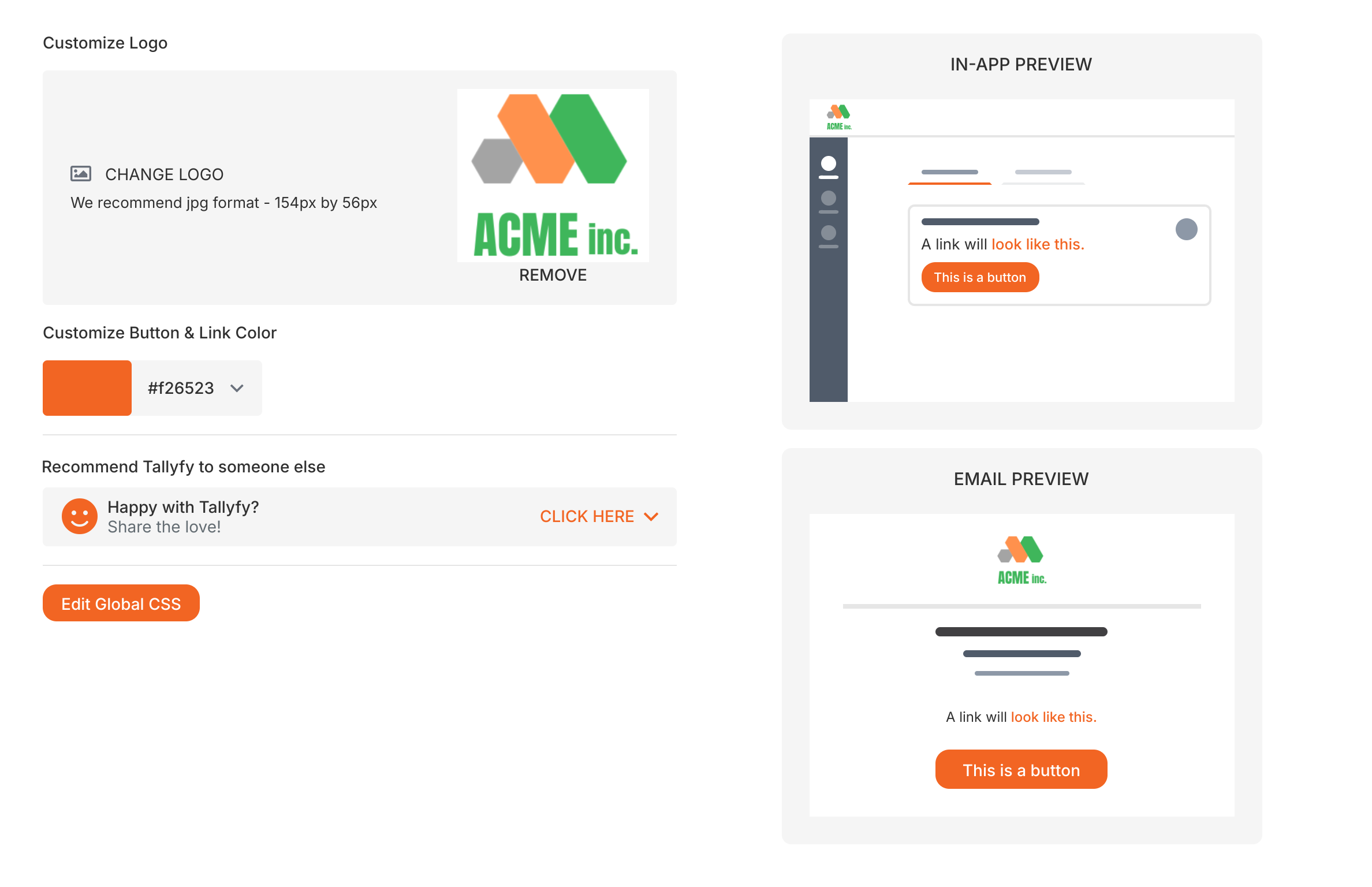
Go to Settings > Organization > Branding.
Upload your company logo.
Pick a brand color from the 14 predefined swatches, or type a specific hex code (e.g., #FF5733). Tallyfy auto-generates matching shades for text, links, and UI elements.
Check the live preview - it shows how both the app and emails will look with your branding.
Customizing content style with global CSS
You can add custom CSS rules to change how headings, lists, tables, and other elements appear in task descriptions, templates, and documents across your Tallyfy account.
For example, you could make all H2 headings use a specific brand color, or restyle tables to match your corporate design.
Tallyfy offers extensive branding options, but complete white-labeling (hiding all Tallyfy references) isn’t feasible. Here’s why.
Technical limitations
Security compliance: HSTS and BIMI compliance are tied to the tallyfy.com domain. These security protocols can’t function on custom domains.
JavaScript library restrictions: Several JavaScript libraries and security components can only run on the tallyfy.com domain for security and licensing reasons.
Clickjacking protection: Security controls prevent logins and signups outside the Tallyfy domain, protecting users from phishing attacks.
Operational realities
Documentation: This user manual is hosted on tallyfy.com. Your users will need access to help docs, revealing Tallyfy as the platform.
Support: Unless you handle 100% of support internally, users will contact Tallyfy support - immediately revealing the vendor.
Compliance: SOC 2 Type 2 certifications are assigned to Tallyfy, Inc. You can’t hide Tallyfy’s existence in the compliance lifecycle.
Billing: While Tallyfy partners can use “unbilled domains” to exclude their consulting domain from client billing, invoices still show “Tallyfy” as the service provider.
What you can customize
Visual branding: Your logo, colors, and custom CSS across the app
Email sending: Configure custom SMTP so emails come from your own server
Partner options: The Ambassador program ↗ provides extra branding options for qualified partners
Setting up custom email sending (SMTP)
You can configure Tallyfy to send all emails through your company’s email server instead of Tallyfy’s default. This keeps your brand consistent across all email communications. Learn more: Customize email sending.
Tallyfy’s organization customization settings let admins control member permissions and invitations along with domain-based auto-join and guest detection and HTML editing and template visibility and automatic task completion and process archiving and default deadlines and onboarding template launches and working hours and email digest schedules and webhook date formats all from one central page.
Tallyfy’s organization-wide settings let administrators control member permissions billing branding integrations and admin policies that apply to every team member across the entire company.
Tallyfy organizes settings into Personal Settings that individual members control (like profile and notifications) and Organization Settings that only administrators can change (like billing and branding and integrations) so each role accesses only what they need.
Tallyfy integrates with email through custom SMTP configuration for branded domain-based notifications and a Gmail add-on that lets you launch processes and convert emails into trackable tasks directly from your inbox along with upcoming features for in-email task actions and personal email account connections.