Tallyfy’s billing system uses pre-paid credits through Recurly where you only pay for active members and receive pro-rated credits back when removing users while failed payments trigger a escalating sequence from grace period to read-only mode to suspension and eventually data deletion after 30 days.
Manage billing
Go to Settings > Billing to manage your subscription, payment method, credits, and invoices. Only administrators can access this section.
-
Click Settings (bottom left).
-
Click Billing.
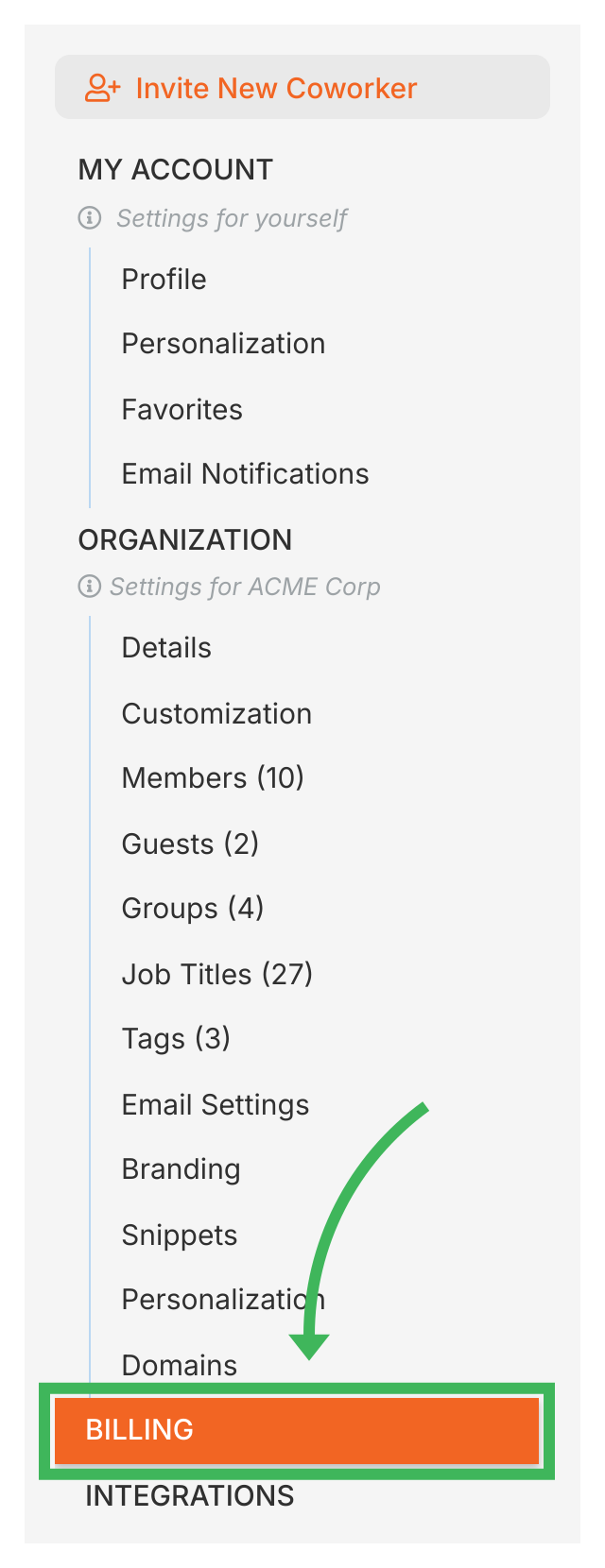
-
You’ll see your current plan, payment method, credit balance, and billing history.
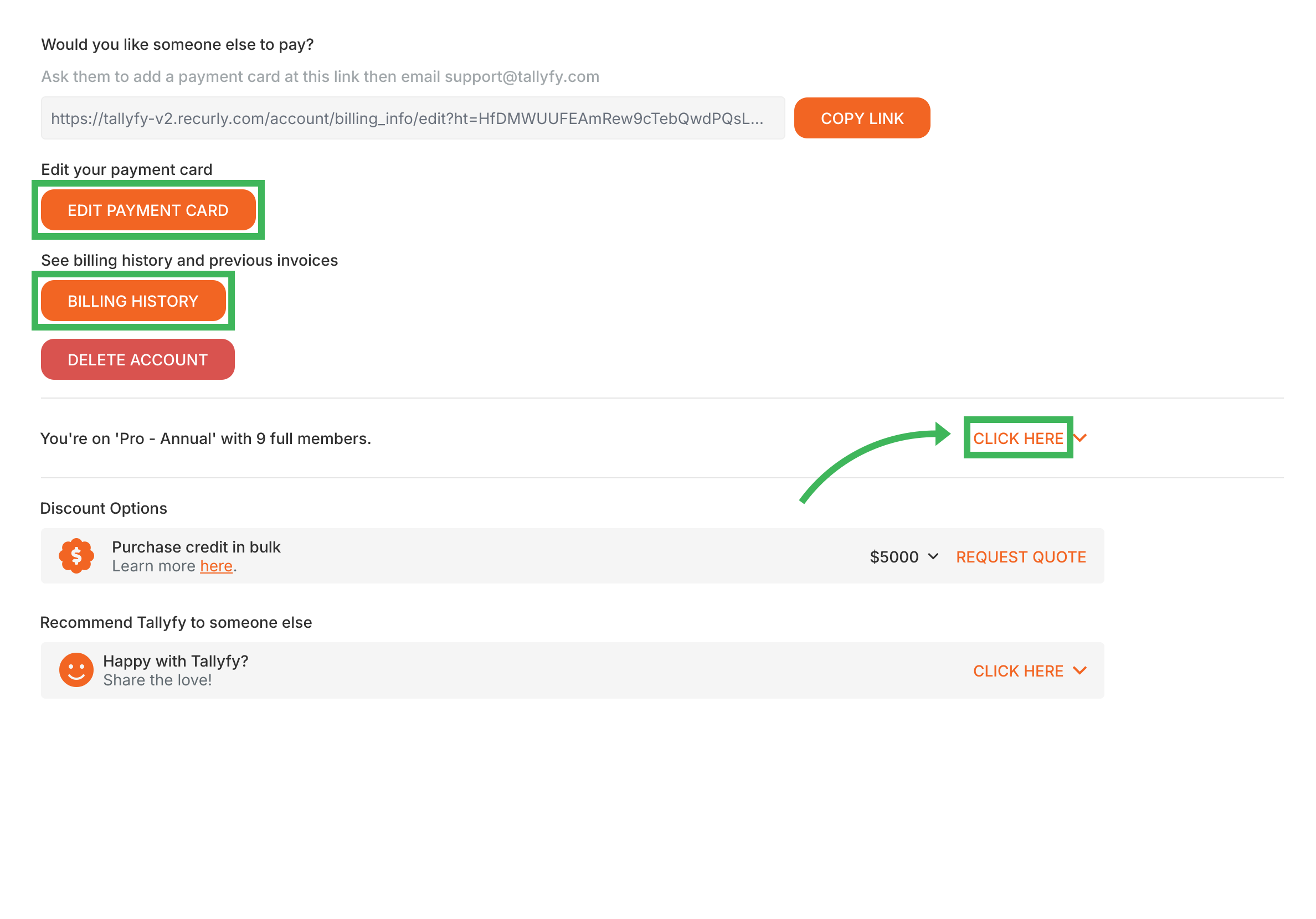
From the Billing screen:
- Click View Billing History for past invoices and a plan summary.
- Click Edit Payment Card to update your credit or debit card.
The user who created the organization is the default billing contact. To change it or add CC email addresses:
- Contact Tallyfy Support.
- Provide your Organization ID.
- Specify the new billing contact email address(es).
- Go to Settings > Billing.
- Click Update Plan.
- Select your desired plan and billing cycle (annual or monthly).
- Confirm and complete checkout.
Your credit balance appears in the billing section. Credits are applied before your card is charged. See the Billing overview for details on how credits work.
Billing emails (invoices, payment confirmations, subscription updates) are sent instantly by default. To receive fewer emails:
- Contact Tallyfy Support.
- Ask to switch to daily billing updates.
- You’ll then get one daily summary instead of individual emails.
- Go to Settings > Billing.
- Click Update Plan.
- Enter your code in the “Have a coupon?” field during checkout.
- Complete checkout - the discount applies to your payment.
Use the self-service cancellation form in Tallyfy when possible.
For monthly plans, cancellation takes effect at the end of the current month.
- Immediate email notification
- After 7 days: read-only mode (view and export only)
- After 14 days: access suspended
- After 30 days: Tallyfy reserves the right to delete data
Fix this by updating your card in Settings > Billing > Edit Payment Card or contact support.
- 30-day export window after termination
- 90-day backup retention after deletion (recovery may be possible)
- Permanent deletion after 90 days from all systems
Personal Settings > Delete your account
Administrators can permanently and irreversibly delete a Tallyfy organization by going to Settings > Billing and submitting an official account closure form with a 30-day data export window and 90-day backup retention period before all data is removed forever.
Tallyfy offers transparent and predictable pricing with annual and monthly billing options along with two member tiers (Full and Light) to control costs and includes a credit-based billing system through Recurly plus a Fair Price Guarantee for eligible countries and nonprofit discounts and a free plan option.
Tallyfy organizes settings into Personal Settings that individual members control (like profile and notifications) and Organization Settings that only administrators can change (like billing and branding and integrations) so each role accesses only what they need.
Was this helpful?
About Tallyfy
- 2025 Tallyfy, Inc.
- Privacy Policy
- Terms of Use
- Report Issue
- Trademarks