A process template where you want to add a starting form.
Clear understanding of what information you need to collect before the process starts.
Kick-off forms for process launching
Kick-off forms attach to the beginning of Tallyfy templates, ensuring information collection before main workflow tasks commence.
These forms accommodate both internal team usage and public access - enabling external stakeholders including customers or partners to initiate processes through form submission. Unlike standalone online forms, Tallyfy kick-off forms integrate directly with subsequent workflow steps.
Upon form submission, processes launch immediately with progress tracking across all participants.
Creating a kick-off form
Go to the Templates library.
Open the template you want to add the form to in Edit mode.
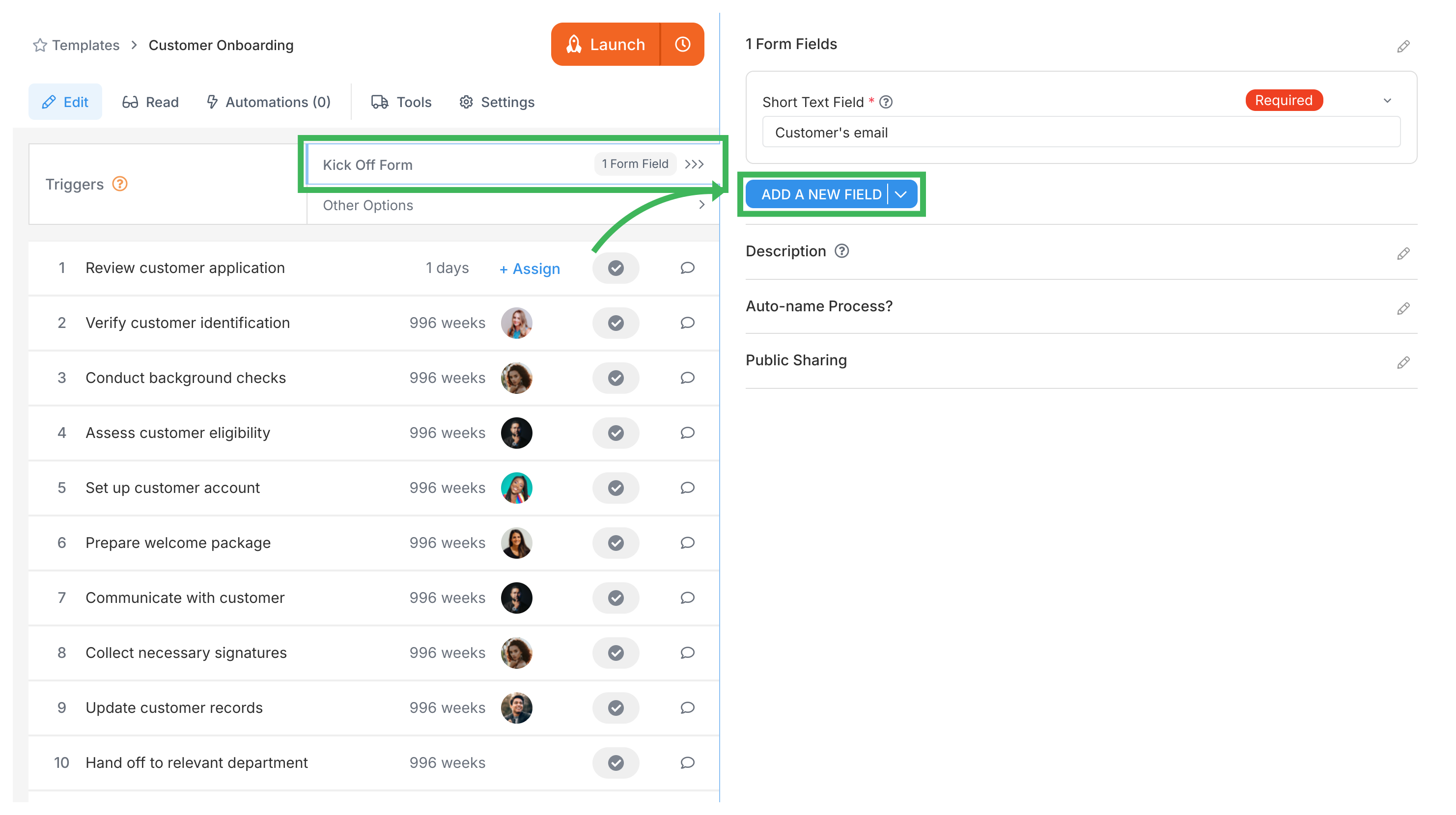
In the left sidebar of the editor, click Triggers.
Select Kick-off Form.
Click + Add Field to add your questions (form fields).
Set up each field (name, type, required?, help text, options, and default content if needed).
Save your changes to the template.
Available field types
You can use various field types to capture different types of information:
Short Text (for names, IDs, brief responses)
Long Text (for descriptions, detailed explanations)
Dropdown List (pick one from a predefined list)
Checklist (pick multiple from a list)
Radio Buttons (pick only one option)
Date (for scheduling)
File Upload (for documents, images, attachments)
Mark fields as Required if the process cannot start without that information. Note: Having required fields limits how the process can be started automatically (e.g., cannot be started by email or some API calls without providing the required data).
Completing kick-off forms
When someone launches a process that has a kick-off form:
They click Launch Process on the template.
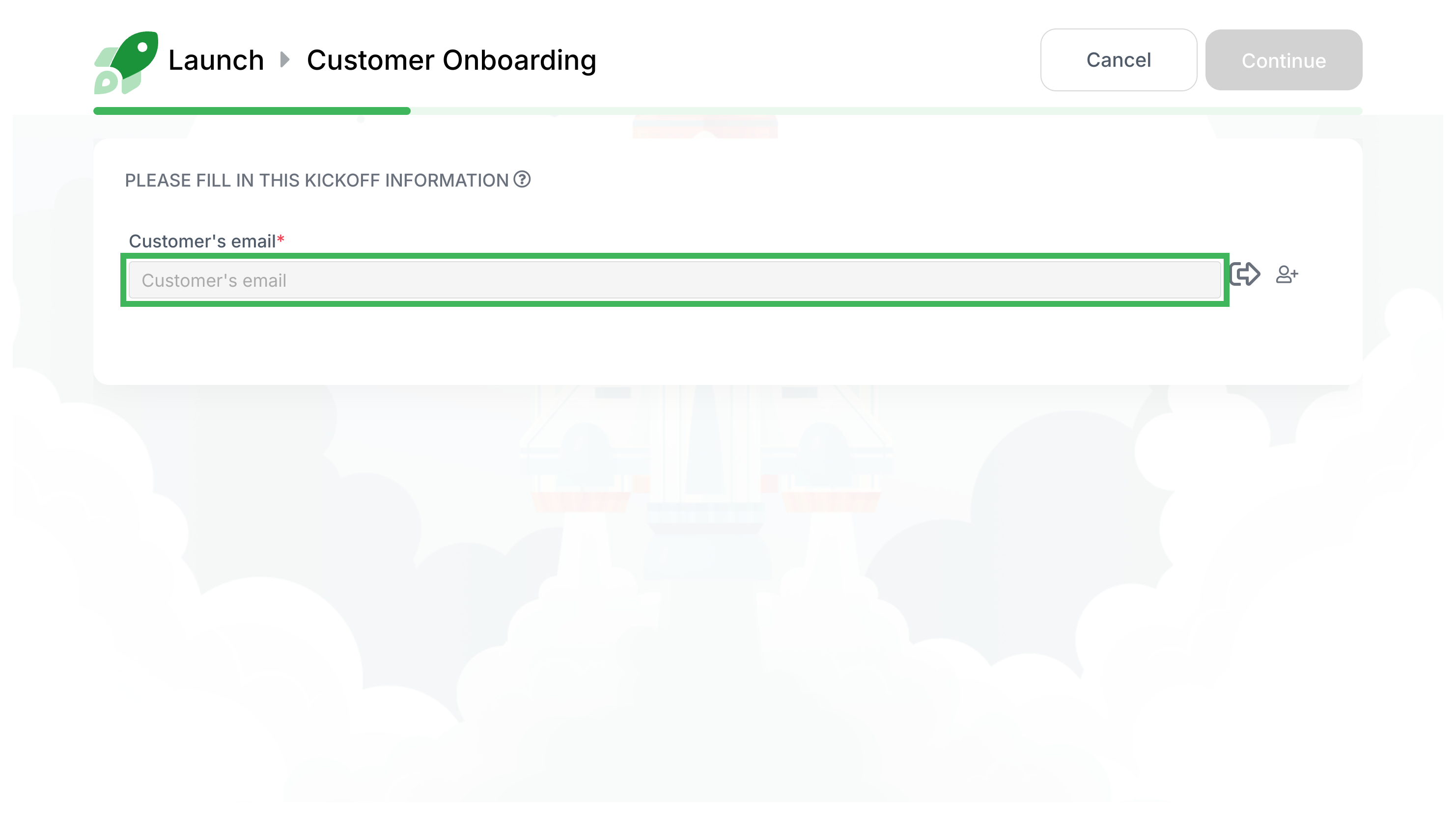
The kick-off form appears immediately.
They fill out the fields (required fields are marked with *).
They click Submit.
The process then starts, using the information entered.
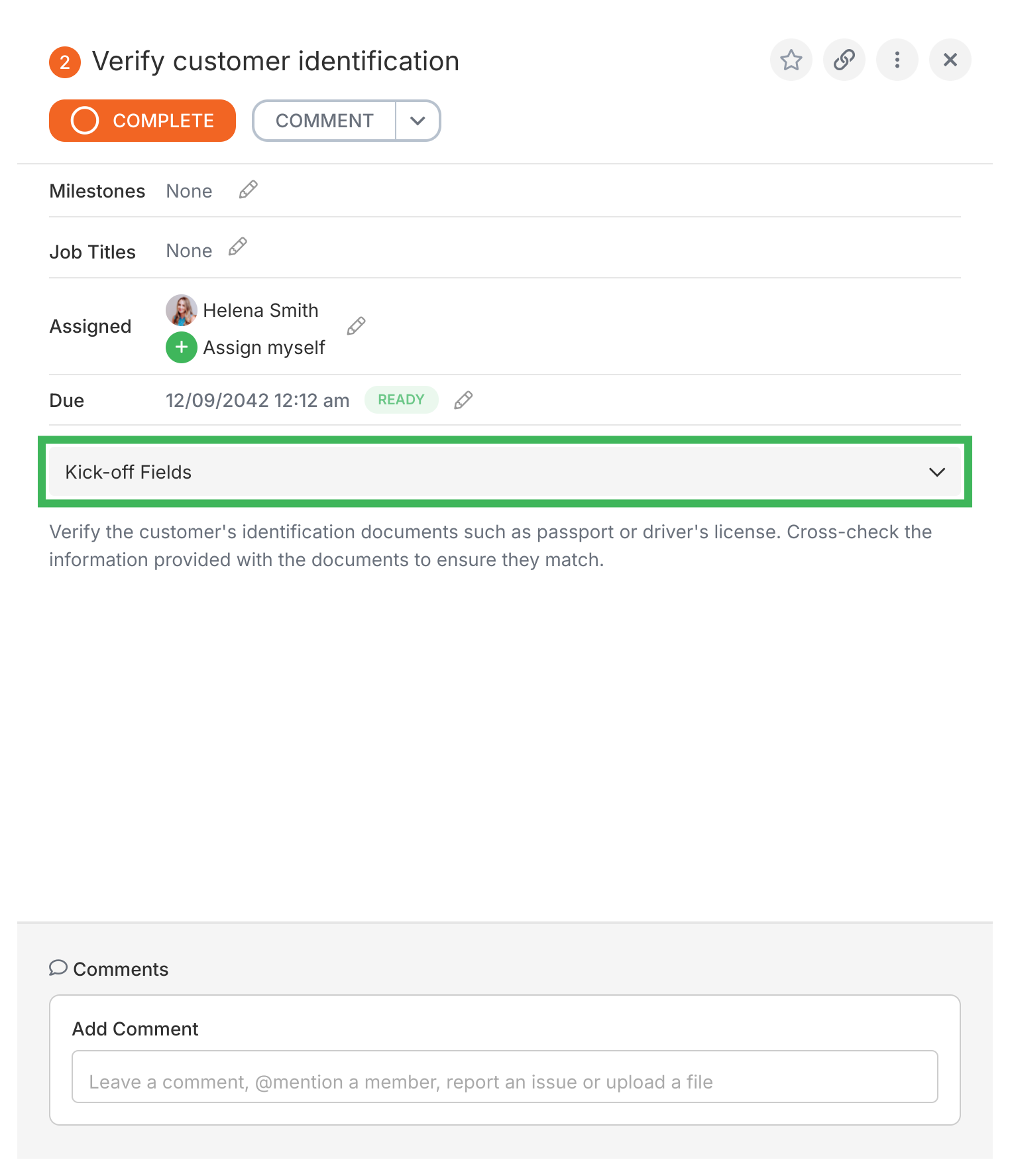
Accessing kick-off form answers
Anyone working on the process can see the information submitted in the kick-off form:
You can share a kick-off form publicly so anyone (even non-Tallyfy users) can fill it out to start a process.
Benefits of public forms
Starts workflow automatically: No delay between form submission and process start.
Submitter tracking link: The person who submits gets a unique, permanent link to track the progress (if they verify their email).
Email verification: Helps prevent fake submissions and allows Tallyfy to send updates to the submitter.
Save and return: Submitters can save partly filled forms and come back later using their link.
No extra tools needed: Directly integrates form submission with your Tallyfy process.
Important note on deactivated members and public forms
If the Tallyfy member associated with setting up the public form gets deactivated, it can affect the public link. Always check and potentially reassign public forms before deactivating members to avoid issues. (See Removing Members for details).
Making kick-off forms public
Open the template in Edit mode.
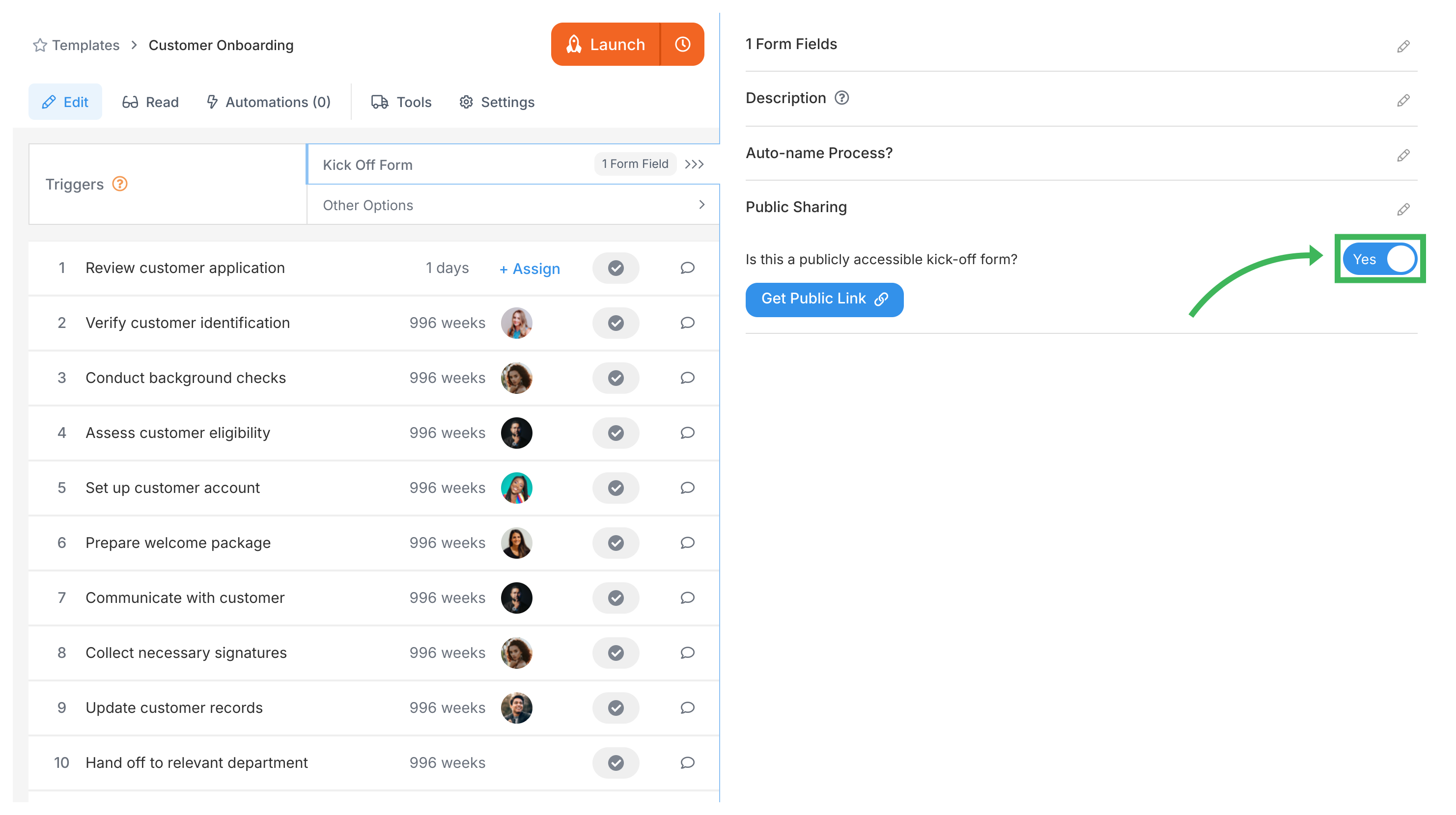
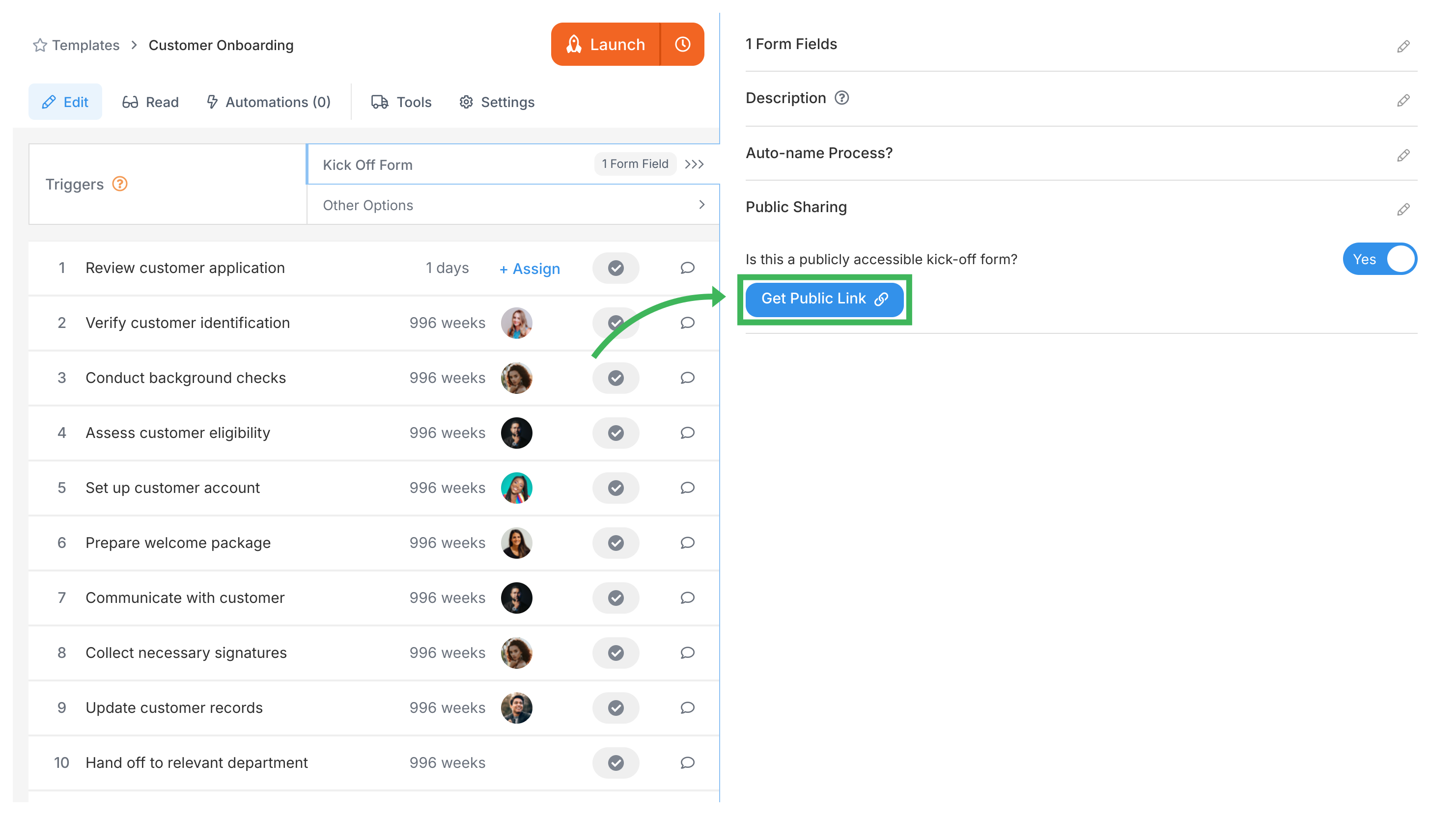
Go to Triggers > Kick-off Form.
In the panel on the right, find Public Sharing and switch it ON.
Click Get Public Link.
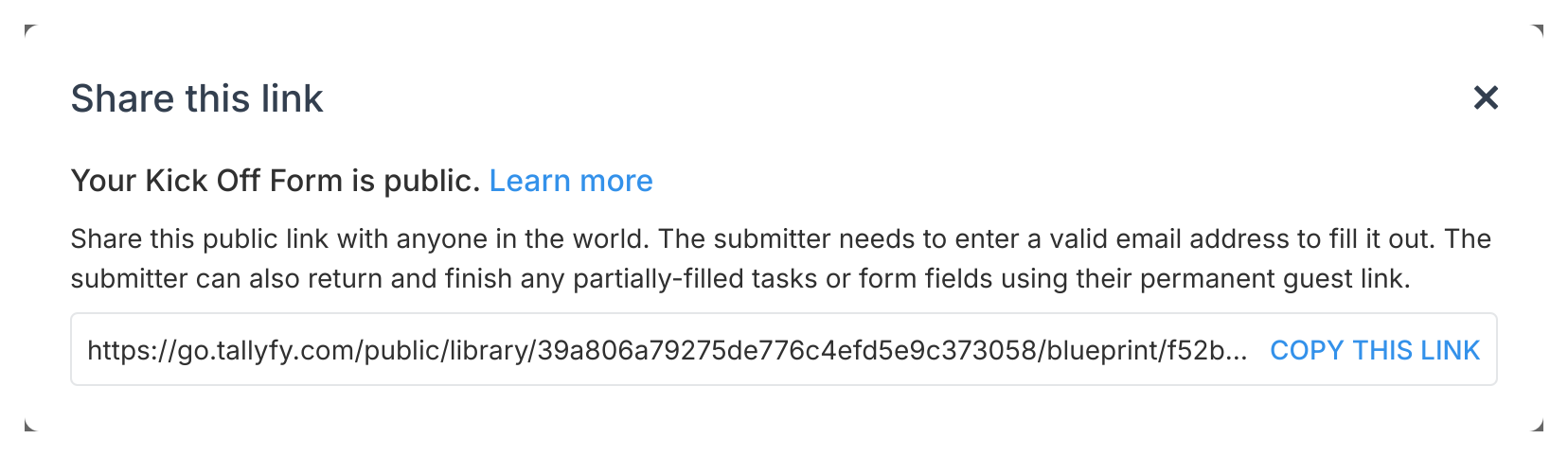
A box will appear with the shareable link. Copy this link.
Share this link with people outside your organization.
Public form submission process
When someone clicks the public link:
They are asked to enter their email address (for verification).
They receive an email with a private access link.
Clicking that link takes them to the form.
They fill out and submit the form.
The process launches in Tallyfy.
They can use their private access link later to check the process status.
This is great for forms that might take time to fill out.
Public forms vs. internal process steps
Public Kick-off Forms:
Who sees them: External users (customers, vendors, partners) without Tallyfy accounts
Purpose: Collect initial information to start a workflow
Access: Via public link shared through email, website, or other channels
User experience: Simple form interface with your company branding
What happens next: Form submission automatically creates a process inside Tallyfy
Internal Process Steps:
Who sees them: Your team members and assigned guests
Purpose: Execute the actual workflow tasks after the process starts
Access: Through Tallyfy dashboard with login credentials
User experience: Full task management interface with comments, attachments, and tracking
Visibility: External submitters can track overall progress but cannot see internal task details
Best practices for kick-off forms
Progressive Information Gathering
Kick-off forms should follow a “minimal upfront, progressive collection” approach:
Only include guaranteed available information: Ask only for data the person launching will have at the start
Avoid complex conditional questions: Save detailed branching questions for later workflow steps
Keep initial forms lightweight: Don’t overwhelm users with extensive forms
Plan for just-in-time data collection: Design subsequent workflow steps to gather additional information when it’s needed
Form Design
Use clear field names without technical jargon
Arrange fields logically
Mark fields as required sparingly: Only if the process cannot proceed without that information
Provide helpful guidance text for fields that need extra explanation
Test thoroughly before sharing widely
Advanced Progressive Collection Techniques
Conditional step revelation: Use automations to show additional data collection steps based on kickoff form responses
Role-based information requests: Collect different information based on who is launching the process (department, expertise level, etc.)
Just-in-time validation: Verify and expand initial information at appropriate workflow milestones rather than upfront
Exception path planning: Design clear procedures for handling unusual situations that don’t fit standard information collection patterns
Common Mistakes to Avoid
Front-loading complex questionnaires: Asking for detailed information that may not be available until later in the process
Branching in kickoff forms: Complex conditional logic belongs in workflow steps, not initial forms
Requiring uncertain information: Making fields mandatory when the person launching may not have that data readily available
One-size-fits-all approaches: Not considering that different types of users may have different information available at launch time
External web forms can automatically trigger Tallyfy processes by redirecting users to special launch URLs with form data appended as query parameters that match the internal field names in your Tallyfy kick-off form template.
Tallyfy’s integrated approach to form building connects form submissions directly to trackable workflows while offering features like email verification conditional branching field validation and document generation to create smooth end-to-end processes rather than isolated data collection.
Magic links are special URLs that enable logged-in Tallyfy users to automatically trigger actions like launching processes completing tasks adding comments or updating form fields when clicked from emails websites or other tools.
Tallyfy offers seven flexible process launch triggers including manual buttons API calls email triggers magic links scheduled automation task completion chains and kick-off forms to accommodate different organizational needs and technical capabilities while enabling automatic data pre-population for smooth workflow initiation.