Tallyfy lets you launch reusable templates into independent trackable processes — each with its own name and deadlines and assignments — through six different methods including manual clicks and API calls and email triggers and magic links while template edits only affect future launches and never alter already-running work.
Launch another process when a task is completed
You can configure any task in a Tallyfy template to automatically launch a new process from a different template when that task is completed. This is useful for multi-phase workflows, customer journeys, and team hand-offs.
- Multi-phase projects - finishing Phase 1 automatically starts Phase 2.
- Customer journeys - completing “Sales” launches “Onboarding”.
- Branching workflows - an “Initial Review” task launches either “Approved Project” or “Further Review”.
- Team hand-offs - a Sales task triggers a process for Operations.
- Open the template containing the trigger task and edit it.
- Click the specific trigger step.
- Go to the Advanced tab in the step settings panel.
- Switch ON Launch another process when this task is complete.
- A dropdown appears. Select the target template to launch.
- Save your changes.
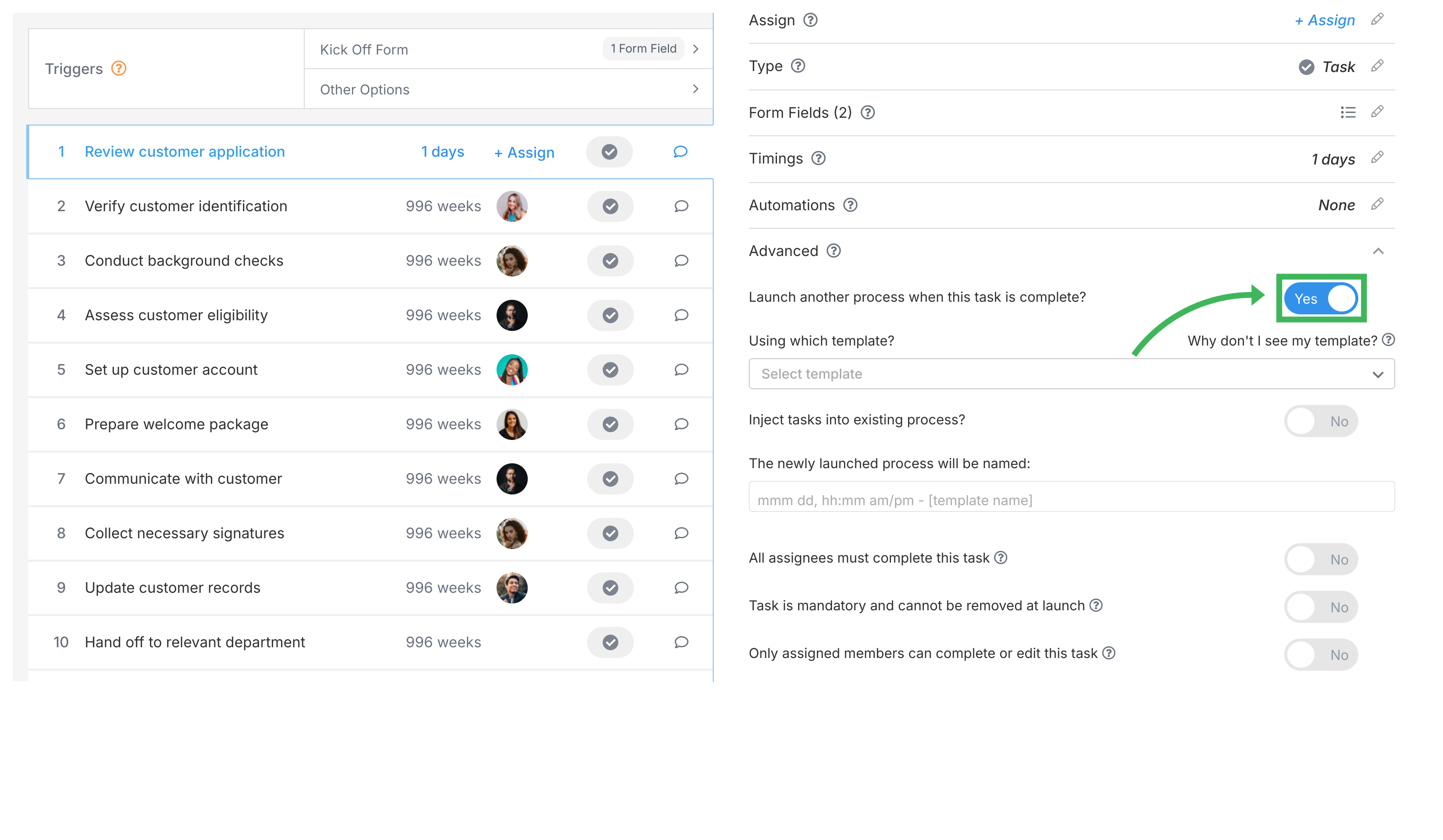
Instead of launching a separate process, you can inject the target template’s tasks directly into the current running process. All injected steps appear after the trigger task, keeping everything in one place.
- Follow steps 1-4 above.
- Switch ON Inject tasks into existing process? (appears after enabling the launch toggle).
- Select the target template.
- Save your changes.
The dropdown only shows templates that:
- Are active (not archived or deleted).
- Have no required kick-off form fields - since there’s no user present to fill them in during automatic launch.
- Are of type Procedure (with steps) or Form (with kick-off fields only) - not Document type.
Can’t find your template?
If a template isn’t listed, check that it’s active, has no required kick-off fields, and isn’t a Document-type template.
You can control the name of the automatically launched process:
- Default name - format is “Mon dd, h:mma - Template Name” (e.g. “Feb 26, 3:45pm - Client Onboarding”).
- Custom name - use text plus variables from the trigger process. Available variables include DATE, TEMPLATE_NAME, and text-type kick-off form fields.

- Naming variables - only DATE, TEMPLATE_NAME, and text-type kick-off form fields from the trigger process are available for custom naming.
- Passing data - there’s no built-in way to pass data from the trigger process to the launched process (other than via the name). For complex data transfer, use the Tallyfy API or webhooks with middleware.
- Referencing data - you can’t reference data between original and injected tasks when using injection.
- Duplicate prevention - if a process was already launched from a specific task, it won’t launch again. Tallyfy adds a comment explaining this.
Tallyfy automatically links trigger and launched processes:
- The trigger task and launched process are tracked in a relationship table - so you can trace which task launched which process.
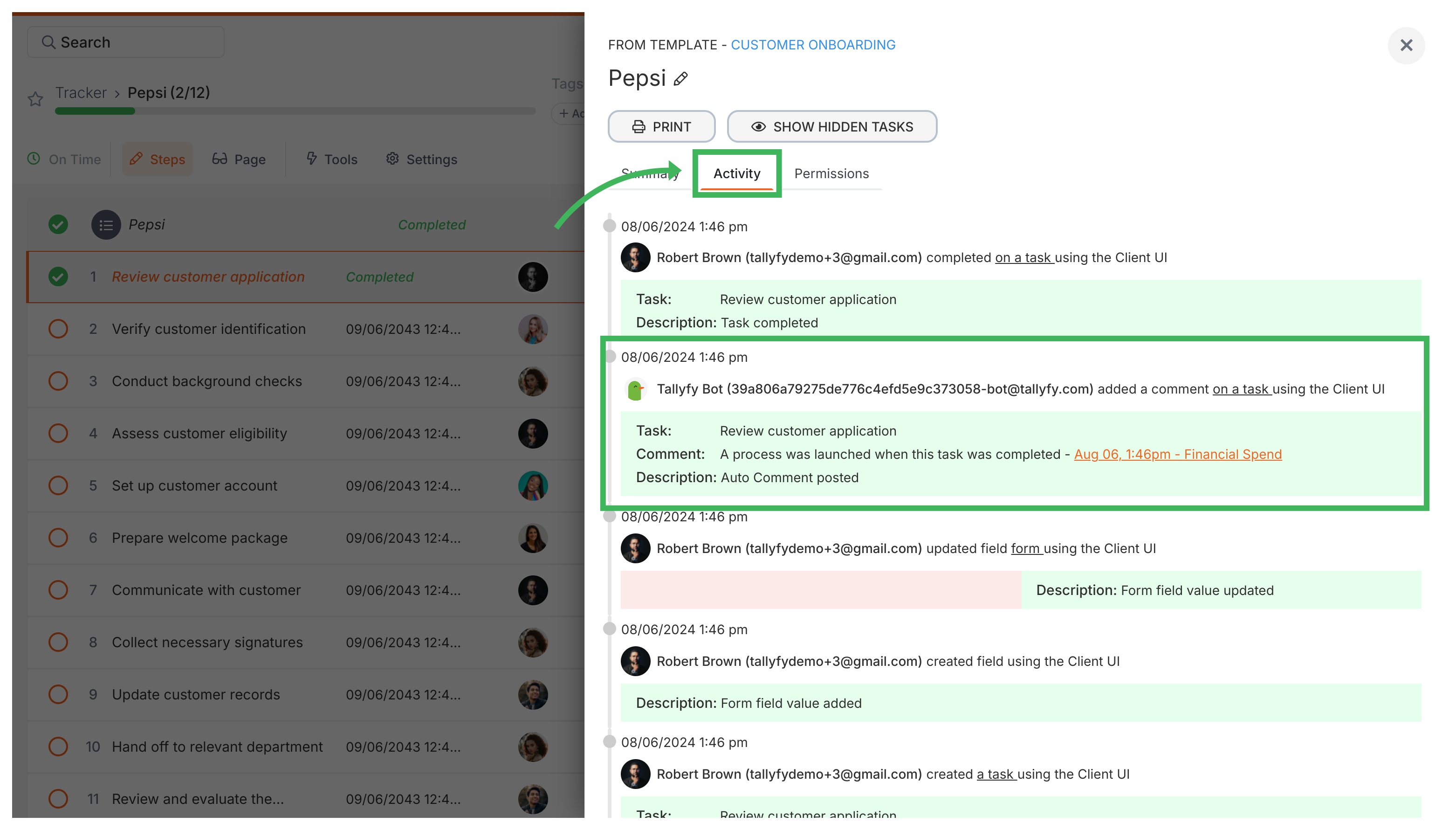
- The Tallyfy Bot adds a comment to the trigger task with a link to the newly launched process.
Launching a process in Tallyfy means turning a saved template into a live trackable instance by clicking Launch Process and naming it before optionally editing assignees and deadlines and then tracking progress automatically through the Tracker view.
Tracking And Tasks > An overview of processes
In Tallyfy a process is a live running instance of a template that you launch and track daily where each process captures a snapshot of its template at launch time and can be uniquely named or auto-named while allowing extra tasks to be added on the fly and then archived or restored after completion.
Tallyfy lets you manually launch a process by clicking Launch Process on any template card and naming the instance with specific details before it begins running and notifying assignees of their first tasks while also allowing you to modify deadlines and assignees or add extra ad-hoc tasks to any running process after launch.
Was this helpful?
About Tallyfy
- 2025 Tallyfy, Inc.
- Privacy Policy
- Terms of Use
- Report Issue
- Trademarks