Tallyfy’s REST API gives developers full programmatic access to the same platform features that power its web app — including process management and task operations and template control and data export — with three authentication methods and standard JSON responses and required headers for every request.
Sniff API calls using Chrome
Tallyfy uses an API-first architecture, which means every action in the web app makes API calls you can inspect. By watching these calls in Chrome DevTools, you can figure out exactly how to replicate them for your own integrations.
- Chrome browser (latest version recommended)
- A Tallyfy account with the right permissions
- Basic understanding of HTTP requests and JSON
When making direct API calls to Tallyfy, you must always include this header:
X-Tallyfy-Client: APIClient- Sign in to Tallyfy in Chrome.
- Right-click anywhere on the page and select Inspect to open DevTools.
- Click the Network tab.
- Make sure recording is active (the red record button should be filled in).
- Check Preserve log to keep requests between page navigations.
- Check Disable cache for fresh responses.
- Clear existing entries by clicking the clear button.
- Perform the Tallyfy action you want to analyze - load a template, launch a process, complete a task, etc.
- Click the Fetch/XHR filter at the top of the Network panel.
- Type
/api/in the filter box to show only Tallyfy API calls. - Click any request in the filtered list to open its details.
In the Headers tab, you’ll find:
-
General info: The full request URL, HTTP method (GET, POST, PUT, DELETE), and status code (200 for success, 400 for client errors, etc.)
-
Request headers: Look for
Authorization: Bearer <token>,X-Tallyfy-Client: APIClient, andContent-Type: application/json -
Response headers: Server metadata, rate limiting info, and caching directives
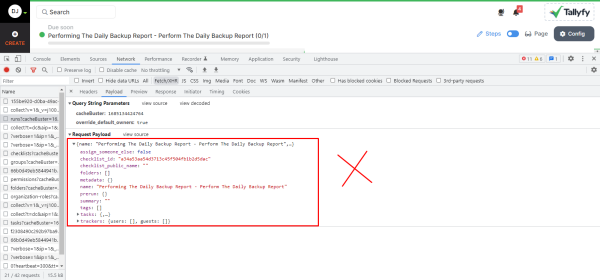
For POST, PUT, or PATCH requests, click the Payload tab to see what was sent:
- Form Data shows URL-encoded parameters
- Request Payload shows the JSON body
- View Source shows the raw data exactly as sent
To copy the payload:
- Click the view source subtab.
- Select all the text in the payload area.
- Copy it - you can use this exact format in your own API calls.
Check what came back from the server:
- The Response tab shows raw data
- The Preview tab shows formatted JSON
Look at data structure, success/error messages, pagination info, and timestamp formats.
| Header | Value | Purpose |
|---|---|---|
Authorization | Bearer YOUR_TOKEN | Authentication |
X-Tallyfy-Client | APIClient | Required identifier |
Content-Type | application/json | Request format |
Accept | application/json | Response format |
To verify you’ve correctly captured a Tallyfy API call:
- Copy the endpoint URL, headers, and payload from DevTools.
- Recreate the request using Postman, Insomnia, or cURL.
- Compare your response with what you saw in DevTools.
- Troubleshoot any differences.
Here’s what a typical Tallyfy API call looks like in cURL - this one launches a process from a template:
curl -X POST "https://go.tallyfy.com/api/organizations/{org_id}/runs" \ -H "Authorization: Bearer YOUR_TOKEN" \ -H "Content-Type: application/json" \ -H "X-Tallyfy-Client: APIClient" \ -H "Accept: application/json" \ -d '{ "checklist_id": "abc123", "name": "Test Process" }'- Right-click on any API request in the Network panel.
- Select Copy > Copy as cURL.
- Paste it into a terminal or text file - it’ll include all headers and auth tokens automatically.
You can simulate slow connections to test how your integration handles latency. Click the dropdown next to Online in the Network panel and pick a throttling preset.
- Make sure DevTools is open before you perform the action
- Enable Preserve log in the Network tab
- Disable cache and hard-refresh the page
- Check you’re looking at the correct browser tab
- Verify the filter text matches part of the API URL
- Try clicking Fetch/XHR instead of using the text filter
- Clear all filters to confirm requests exist at all
- Check that your Tallyfy session is still active
- Verify the Bearer token hasn’t expired
- Make sure all required headers are included
- Confirm your account has permission for the action
If you’re making cross-origin requests from your own app:
- Watch for
OPTIONSpreflight requests in DevTools - Check the response headers for allowed origins and methods
- Never share your auth tokens publicly or in screenshots
- Mask sensitive data before sharing request details
- All API actions are logged in Tallyfy’s audit trail
Open Api > API integration guide
Tallyfy’s REST API enables you to connect workflow features to external systems using OAuth 2.0 authentication with required Bearer tokens and X-Tallyfy-Client headers while mapping API terminology like Checklists and Runs to their UI equivalents of Templates and Processes and handling token refresh and multi-organization context for reliable integrations.
Api Clients > Getting started with Postman API testing
Postman serves as a code-free testing environment for Tallyfy’s REST API where you authenticate using the password grant type and then explore endpoints for templates (called checklists) and processes (called runs) and tasks across your organization.
Code Samples > Authentication methods
Tallyfy API authentication requires either a personal access token (from Settings lasting 6 months) or a client credentials OAuth flow (using client ID and secret for 7-day tokens) and every request must include Authorization Bearer token along with Accept and X-Tallyfy-Client headers to work properly.
Was this helpful?
About Tallyfy
- 2025 Tallyfy, Inc.
- Privacy Policy
- Terms of Use
- Report Issue
- Trademarks