The Zapier “Launch Process” action lets you automatically launch a Tallyfy process whenever a trigger fires - like a Google Forms submission, a CRM deal closing, or a support ticket arriving.
Example use cases
CRM onboarding - A new contact in Salesforce or HubSpot triggers a Tallyfy onboarding process with client data pre-filled.
Sales-to-delivery handoff - A deal marked “Closed Won” launches an implementation process, passing client details and timeline straight through.
Support escalation - A high-priority ticket spins up an incident response process with the right people assigned.
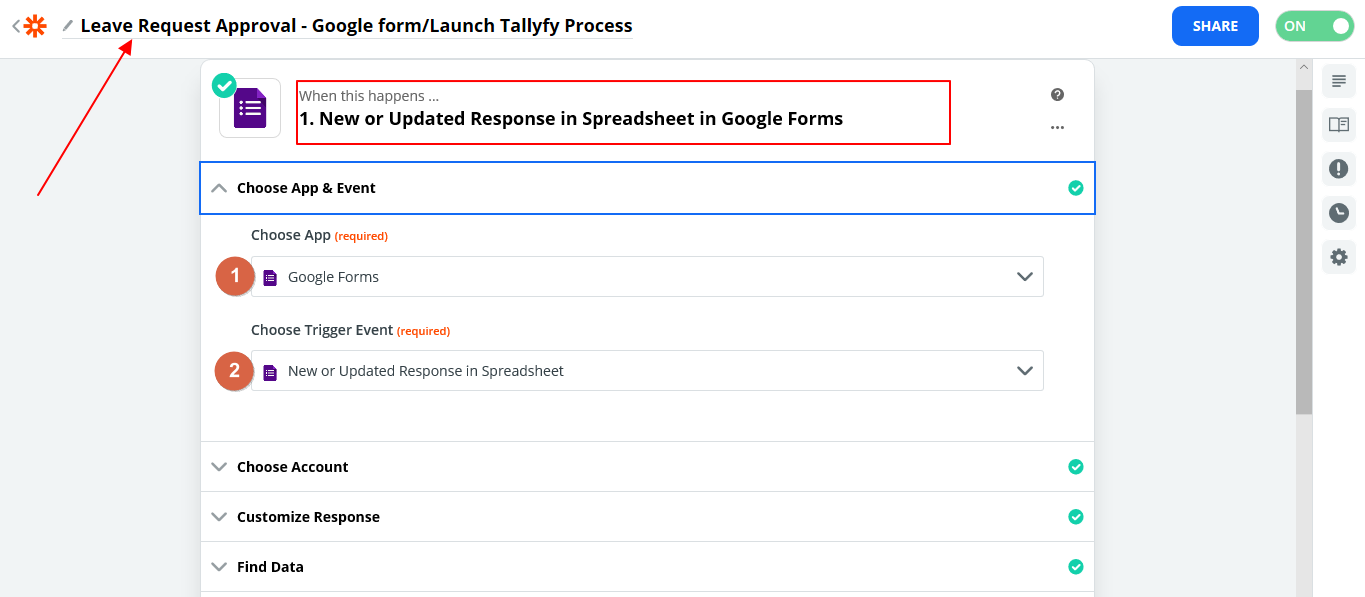
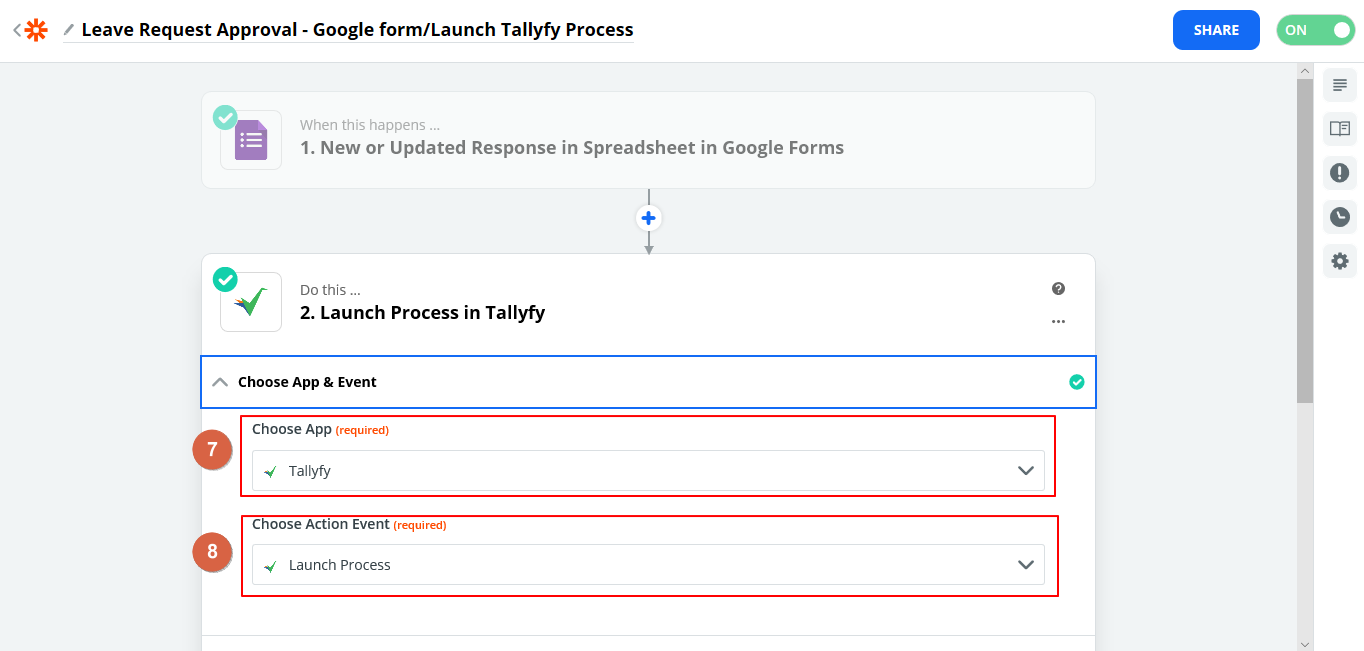
Create a new Zap and pick your trigger app (Google Forms in this example).
Choose ‘New or Updated Response in Spreadsheet’ as the trigger event.
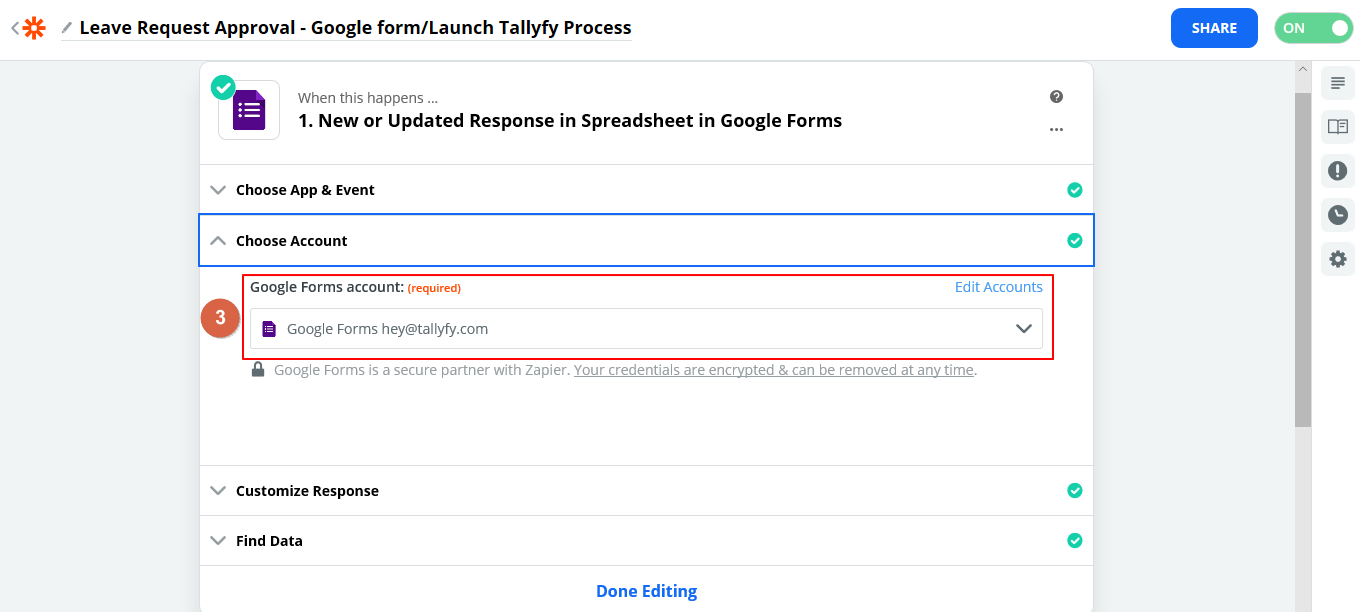
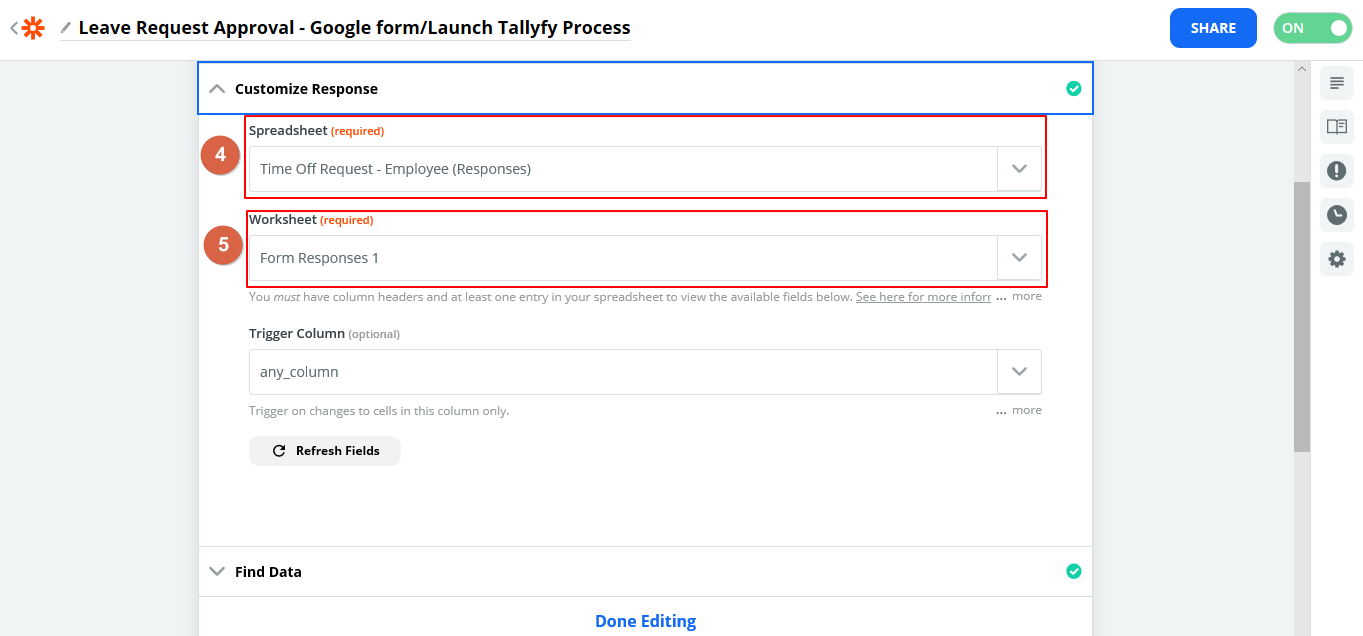
Connect your Google account and select the spreadsheet with your form data.
Pick the worksheet that holds the target data.
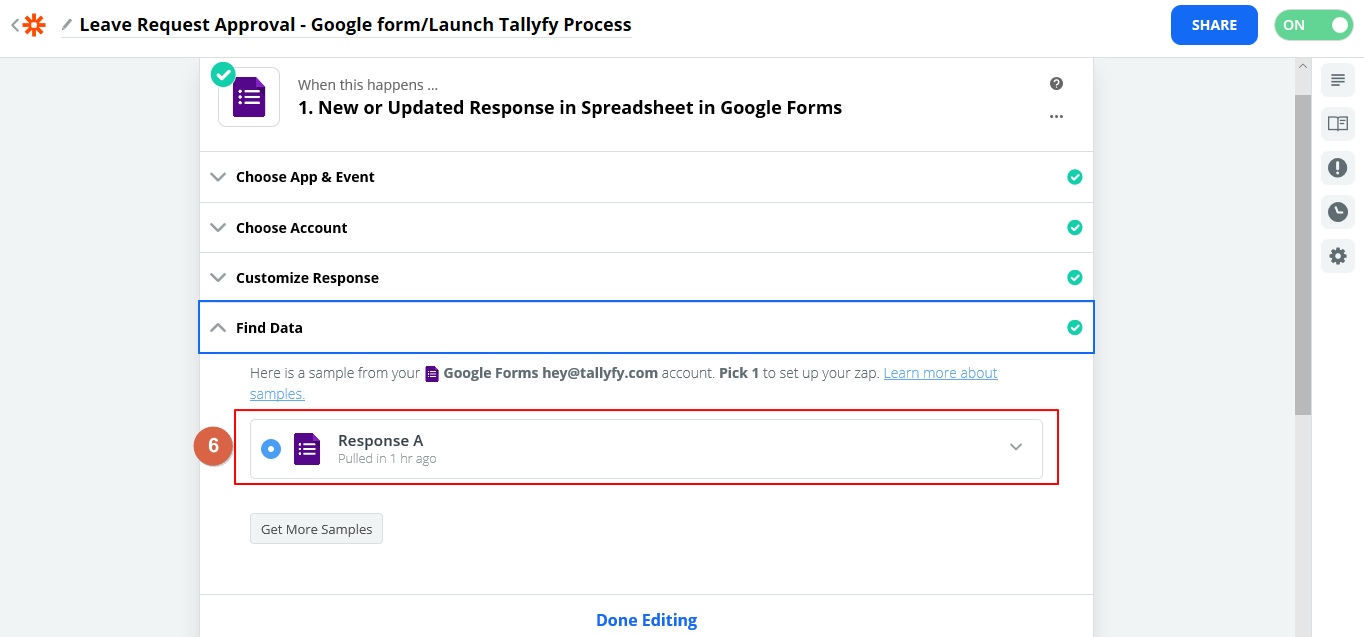
Select a sample response - Zapier uses this to auto-populate fields in later steps.
Add an action step and choose Tallyfy as the app.
Select Launch Process as the action event.
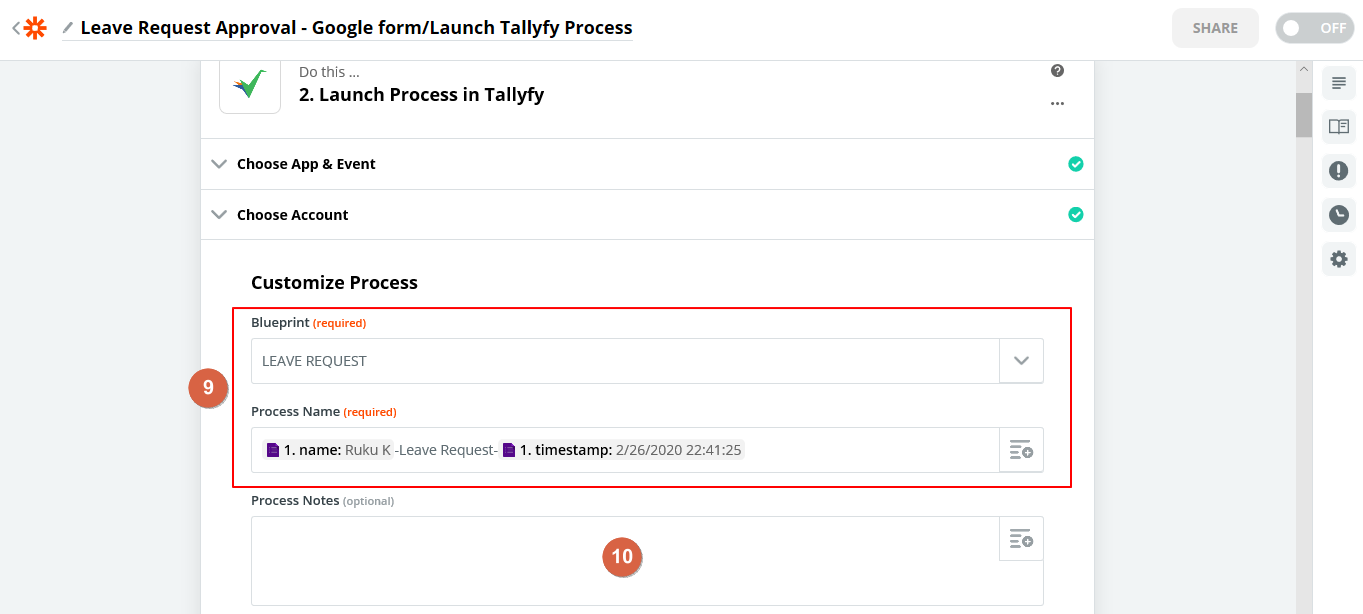
Pick your Tallyfy account and choose the template you want to launch. You can build a dynamic process name here - for example, combining the employee’s name and submission timestamp from the Google form.
Optionally add process notes.
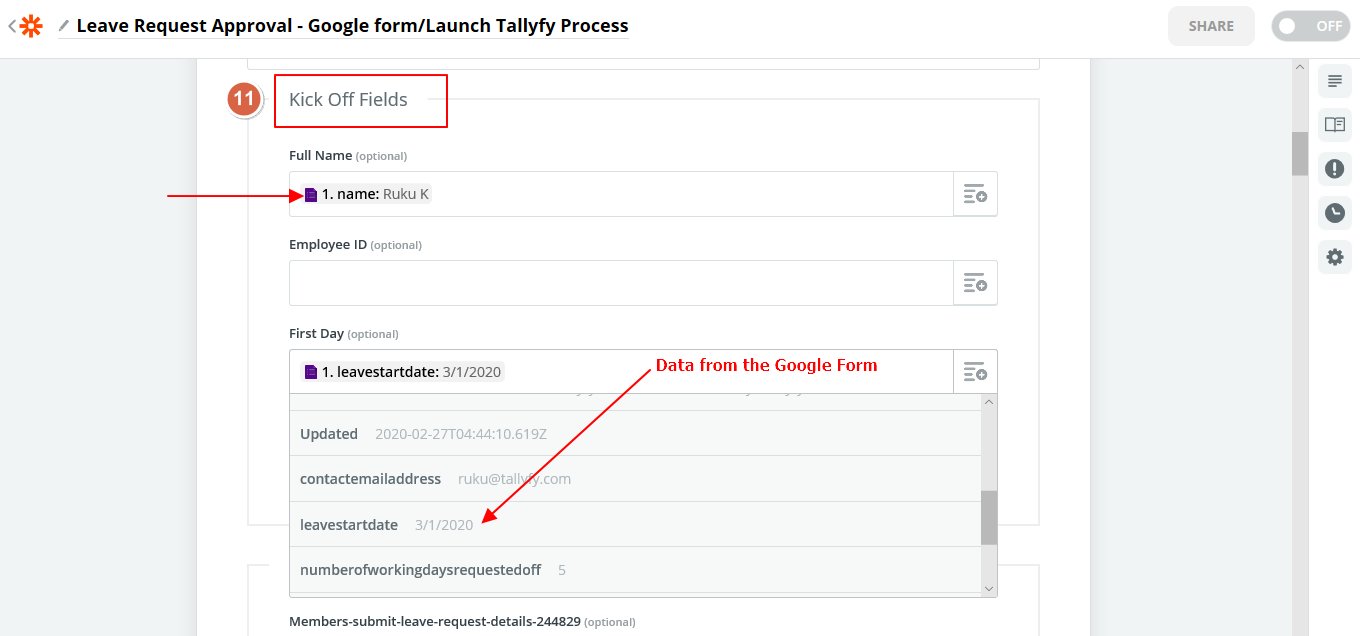
Map trigger data into the Tallyfy process kick-off form fields.
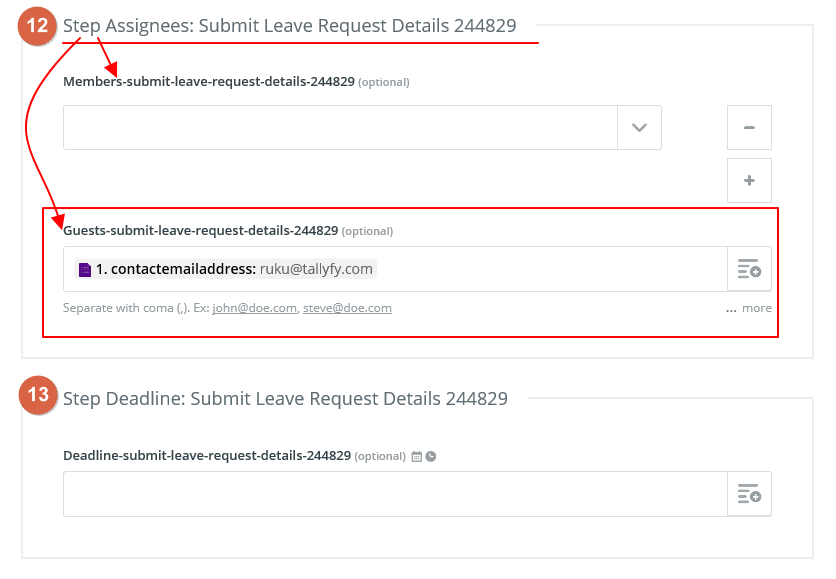
Set step assignees. These can be members of your org or guests (external email addresses). You can also search for and assign groups directly in Zapier.
Map any date fields from the trigger to set task deadlines.
How Zap values interact with template defaults
Any value you set in the Zap overrides the corresponding template setting - including assignees, deadlines, and form field values.
Middleware platforms like Zapier and Make.com let you automatically launch Tallyfy processes from events in other apps—such as form submissions or new CRM records—by watching for triggers and passing mapped data into Tallyfy kick-off forms without any custom coding.
Tallyfy integrates with Zapier’s schedule trigger to automatically launch recurring monthly processes like reports or reviews in about five minutes by selecting a date and time and linking it to a template.
Tallyfy paired with Zapier lets your team handle the human side of work like judgment and decisions while automating repetitive tasks across apps — from CRM-triggered onboarding and scheduled process launches to turning emails and form submissions into tracked workflows with clear ownership.
Tallyfy’s Zapier integration lets you automatically launch processes and complete tasks and sync form data across thousands of business apps without coding by creating trigger-action workflows called Zaps that connect Tallyfy to tools like CRMs and HR systems and helpdesks.