Tallyfy’s Zapier integration lets you automatically launch processes and complete tasks and sync form data across thousands of business apps without coding by creating trigger-action workflows called Zaps that connect Tallyfy to tools like CRMs and HR systems and helpdesks.
Automate tasks using Zapier
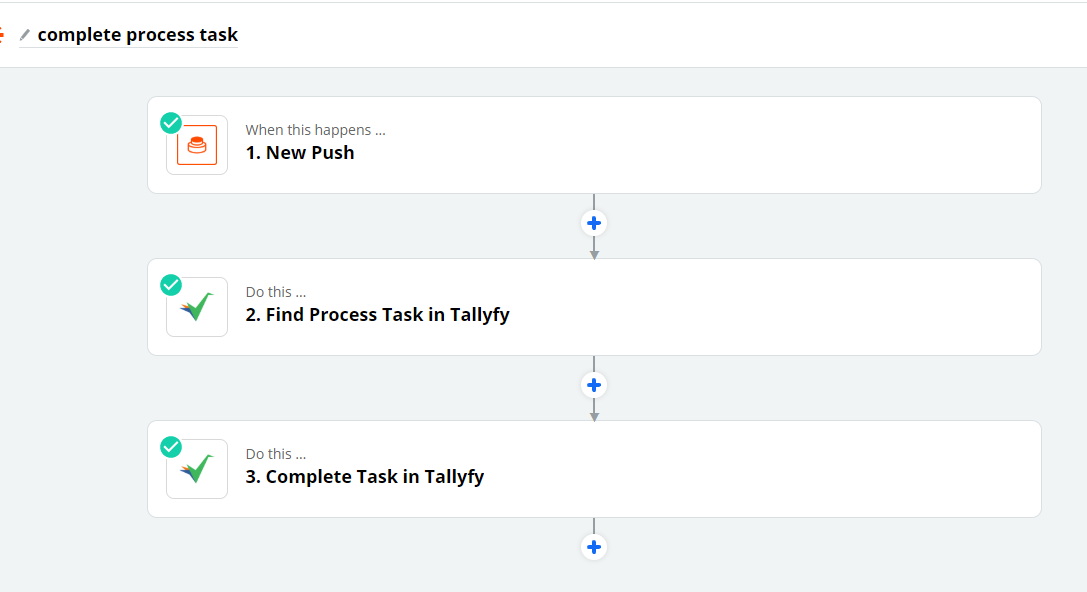
Zapier can automatically complete tasks in Tallyfy when something happens in another app. This same approach works with other middleware platforms like Power Automate.

Two things to note:
- If you don’t already have the task ID, you’ll need to find it first using a template ID plus either the process name or a kick-off field value
- Both paths end at the same “Complete Task” action that marks the task done through Tallyfy’s API
Start by picking a trigger that can send custom data like a process name. If you already have the task ID, skip ahead to completing the task. Otherwise, find it first:
-
Create an action step, choose Tallyfy, and select “Find Process Task.”
-
Pick the template you want to search within. Your trigger can also pass the Template ID dynamically.
-
In “Search By,” choose whether to search by process name or KO Field (kick-off field).
-
Enter the search value. For process name searches, this must be the exact, full process name. For kick-off field searches, use the “Filter Value” field instead and pick the specific KO field from “Selected KO Field.”
-
Choose which task to target in the “Selected step” field. This value is the task alias - your trigger can supply it dynamically.
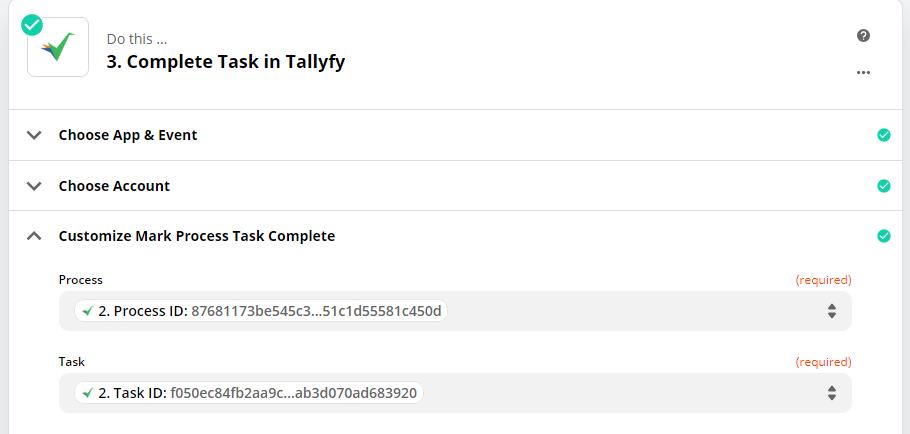
Once you’ve found the process, here’s how to complete the task:
- Add a new Tallyfy action step and select “Complete Task.”
- For both Process ID and Task ID, select “Use a Custom Value,” then pick the “Find Process Task” action and choose the matching ID field.
Here’s a video walkthrough showing the full setup:
Keep in mind - if you test a zap that completes a task, you’ll need to manually re-open that task in Tallyfy before you can test again.
Tallyfy paired with Zapier lets your team handle the human side of work like judgment and decisions while automating repetitive tasks across apps — from CRM-triggered onboarding and scheduled process launches to turning emails and form submissions into tracked workflows with clear ownership.
Workato > Complete Tallyfy tasks from Workato
Workato recipes can automatically complete Tallyfy tasks when external events occur by using HTTP POST requests to the completed-tasks API endpoint along with form field data saves and error handling for conditions like missing required fields or rate limits.
Zapier > Action to 'Launch Process'
Zapier’s “Launch Process” action automatically starts a Tallyfy process from any trigger event by mapping external data into kick-off form fields and assignees while any values set in the Zap override template defaults.
Was this helpful?
About Tallyfy
- 2025 Tallyfy, Inc.
- Privacy Policy
- Terms of Use
- Report Issue
- Trademarks